

The AI Assistant
The AI Assistant is the fastest way to work with NappAI. Instead of searching for components, dragging them onto the canvas, connecting them and filling in every field, you tell it what you want to achieve and it takes care of the rest: it designs the flow, builds it, tests it with sample data, fixes whatever fails and leaves it ready to use.
In this video we ask it for a flow in our own words and watch it work: the plan, the questions, the build, the choice of credential, the test, and the result on the canvas.
It is not a help chat that tells you where each button is: it actually works on your account. What it does shows up in your projects, on your canvas and in your runs, just as if you had done it yourself.
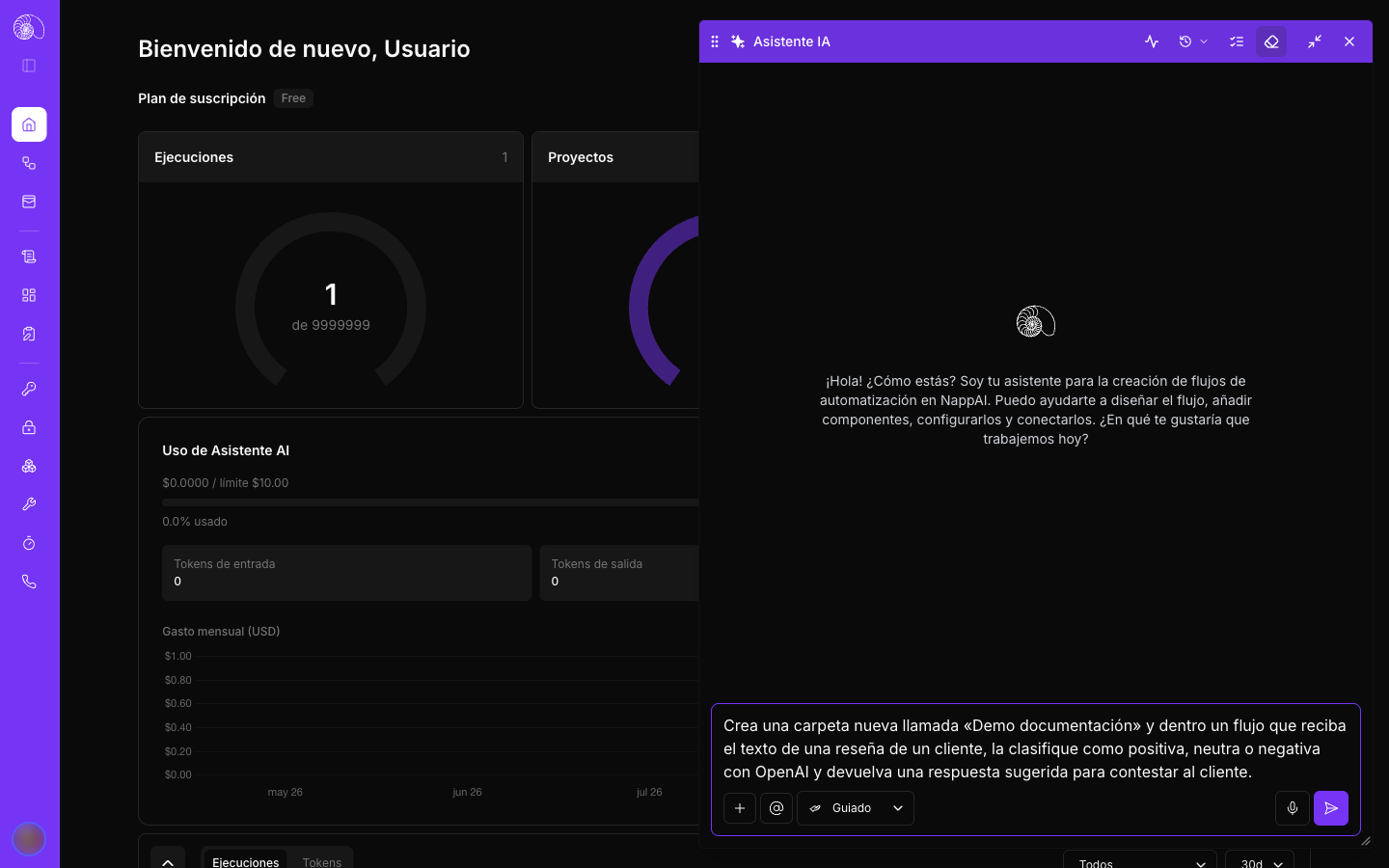
It does practically everything
The assistant operates NappAI for you from start to finish. In your own words, you can ask it to:
| You want to… | Ask it, for example… |
|---|---|
| Create a flow from scratch | ”Create a flow that reads emails with invoices and saves the amounts in my Google sheet” |
| Organize your projects | ”Create a Customer service folder and move the review flows there” |
| Change an existing flow | ”Switch the model to a cheaper one and keep the reply to three sentences at most” |
| Add and configure components | ”Add a step that translates the text into English before sending it” |
| Write code | ”In the Python Code component, remove duplicates by email and sort by date” |
| Write an agent’s instructions | ”Make the agent always reply formally, with a friendly tone” |
| Test it | ”Run it with a negative review and show me what it returns” |
| Fix what fails | ”This flow fails at the database step, what’s wrong with it?” |
| Save versions and publish | ”Save a version and publish it to production” |
| Schedule it | ”Run it every Monday at 9:00, Madrid time” |
| Manage environments | ”Create a testing environment with my API’s URL and assign it to this flow” |
| Create credentials | ”Create an OpenAI credential with this key” |
| Look things up in your account | ”Which flows do I have?” · “What environments do I have?” · “What do I have scheduled?” |
| Voice agents | ”Publish this voice agent for the phone” |
In practice, you don’t need to know every component or every screen of NappAI: you decide what you want and it works out how.
It works across your whole account, from any screen
The assistant is not tied to a flow. You open it from any screen of the dashboard with the Ask AI for Help button in the bottom right corner:
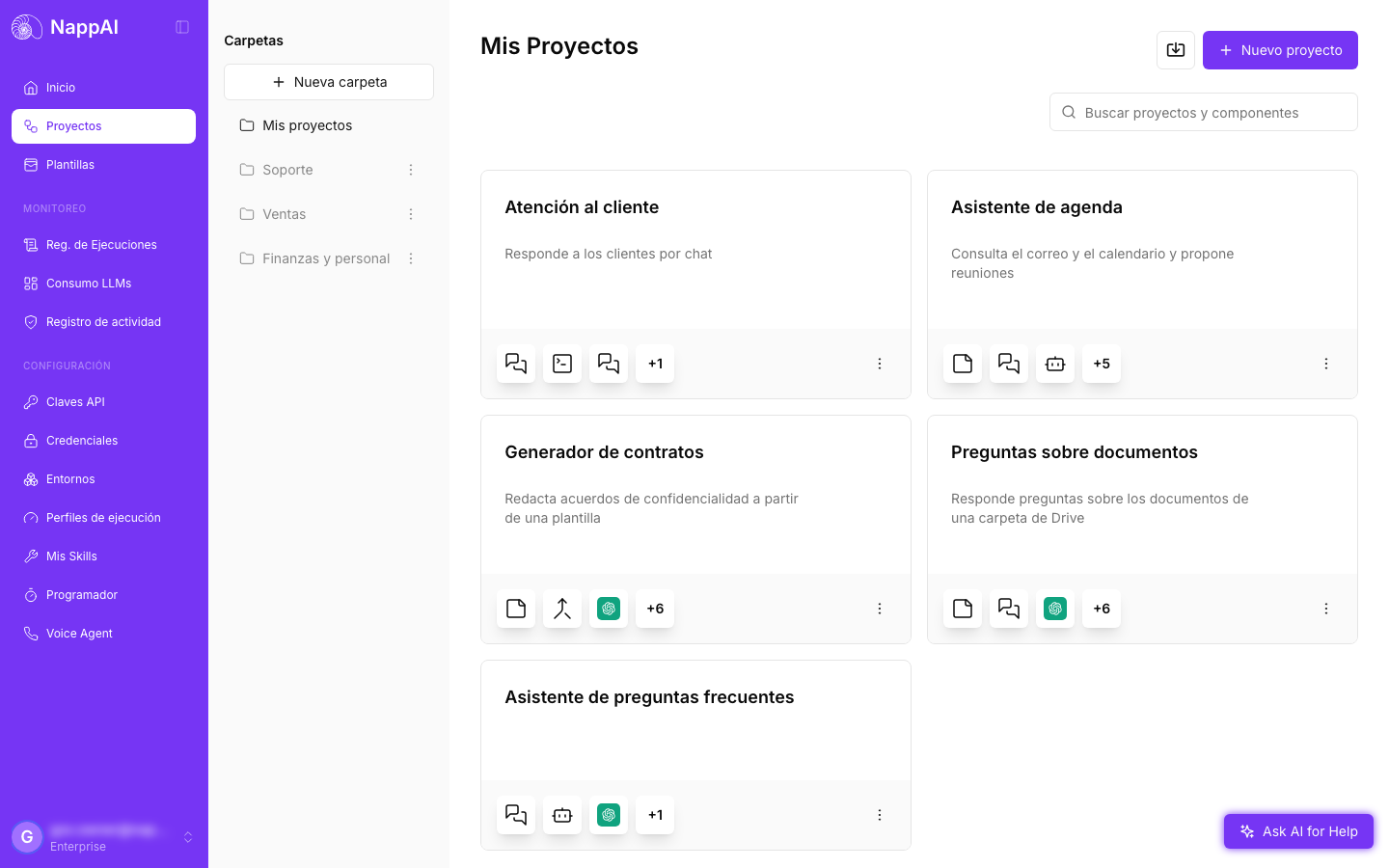
From there it sees and manages all your flows, folders, environments, credentials, schedules and versions. You don’t need to create or open a flow before asking it for something.
What does change is the context it receives:
| Where you are | What the assistant knows |
|---|---|
| Home, Projects, Environments, Scheduler… | Which screen you are on. If you ask it for a new flow, it asks which folder you want it in (or creates one). |
| Inside a flow | Which flow you have open and what is on the canvas. “This flow” or “here” refer to it, and the changes appear on the canvas while it works. |
| With a component selected | Which component it is and which field you are looking at. |
| Inside a component’s editor (code or instructions) | That you are writing in that field: whatever you ask for, it writes there. See From the component editor. |
Even when you are inside a flow, the assistant can still work with the rest of your account: you can ask it to create another flow, schedule one you already have or create an environment without leaving where you are.
Where to go next
| To… | Read |
|---|---|
| Get to know the panel: buttons, modes, attachments, conversations | The assistant panel |
| Understand how it works: plan, questions, permissions, credentials and tests | How it works |
| See it in action, step by step and with screenshots | Examples |
| Get the most out of it and clear up doubts | Tips and FAQ |