

Versions and publishing
While you work in the editor you change the flow’s draft. A version is a saved copy of the flow at a given moment, with a name and a description. For the flow to work in production, you deploy one of its versions: that is what publishing means.
This way you can keep changing and testing the flow without affecting whoever is already using it.
Draft and deployed version
| Who runs the flow | What runs |
|---|---|
| The editor’s playground | The draft |
| API Access in Test mode | The draft |
| API Access in Production mode | The deployed version |
| Webhooks and connected apps, such as WhatsApp or Telegram | The deployed version |
| Schedules in the Scheduler | The deployed version |
| Phone calls to a voice agent | The deployed version |
There can only be one deployed version at a time. If a flow has none, it can’t be called in production.
Version history
In the editor, click Version History in the right column.
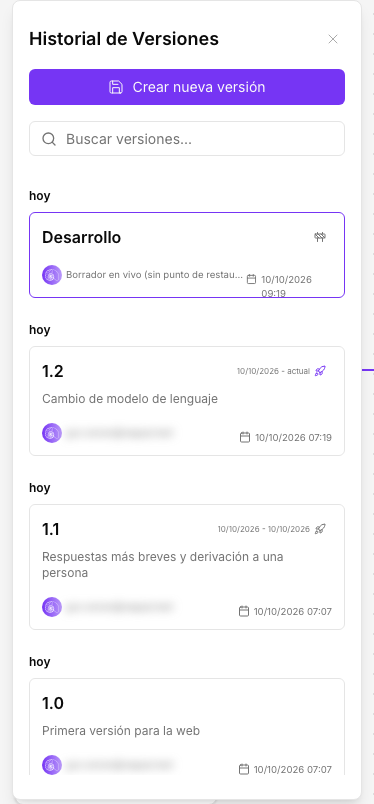
- Development is the draft, what you have on the canvas now.
- Below it come the saved versions, newest first, each with its name, its description, who created it and when.
- The rocket shows that a version has been deployed, with the date it was deployed and the date it stopped being deployed. On the version deployed now, the rocket is highlighted.
- Current marks the last version you created or restored.
- Search versions… filters by name and description.
Create a version
- In the history, click Create new version.
- In Environment, choose the environment this version will run with in production, or leave it on No environment. See Environments.
- Type the name in Version name, for example 1.3. It accepts up to 20 characters and can’t repeat the name of another version of the flow.
- If you like, explain what changes in Version description.
- Click Create Version.
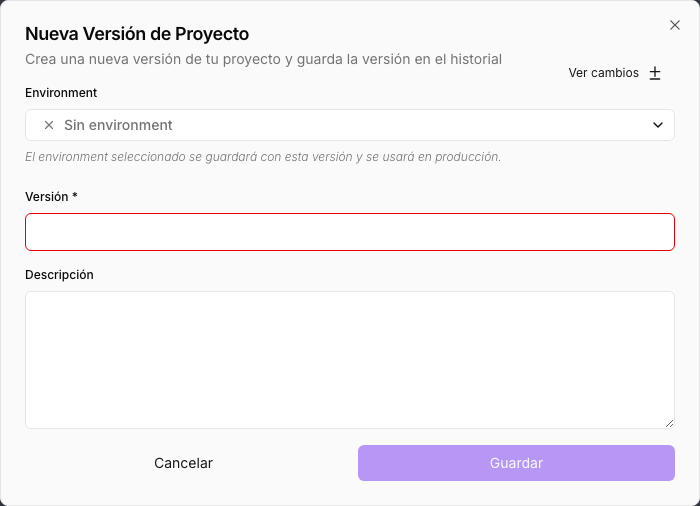
Show changes compares the canvas with the deployed version and marks what was added, removed and modified.
Creating a version doesn’t deploy it: what is in production stays the same until you deploy the new one.
Deploy a version
- In the editor, click Deploy in the right column.
- In Select version to deploy, choose the version.
- Check the environment it will be deployed with. It is the one saved with the version; to use another one, create a new version.
- Click Deploy.
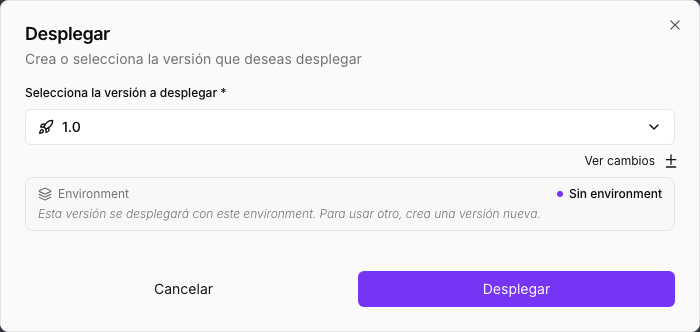
The version that was deployed stops being deployed at that moment, and every call goes to the new one.
Take the deployed version down
Open Deploy and choose the deployed version. The button changes to Disable version. When you click it, the flow is left with no deployed version and stops answering in production until you deploy another one.
View, restore or delete a version
Click a version in the history. It opens read-only, so you can see what the flow looked like in that version.
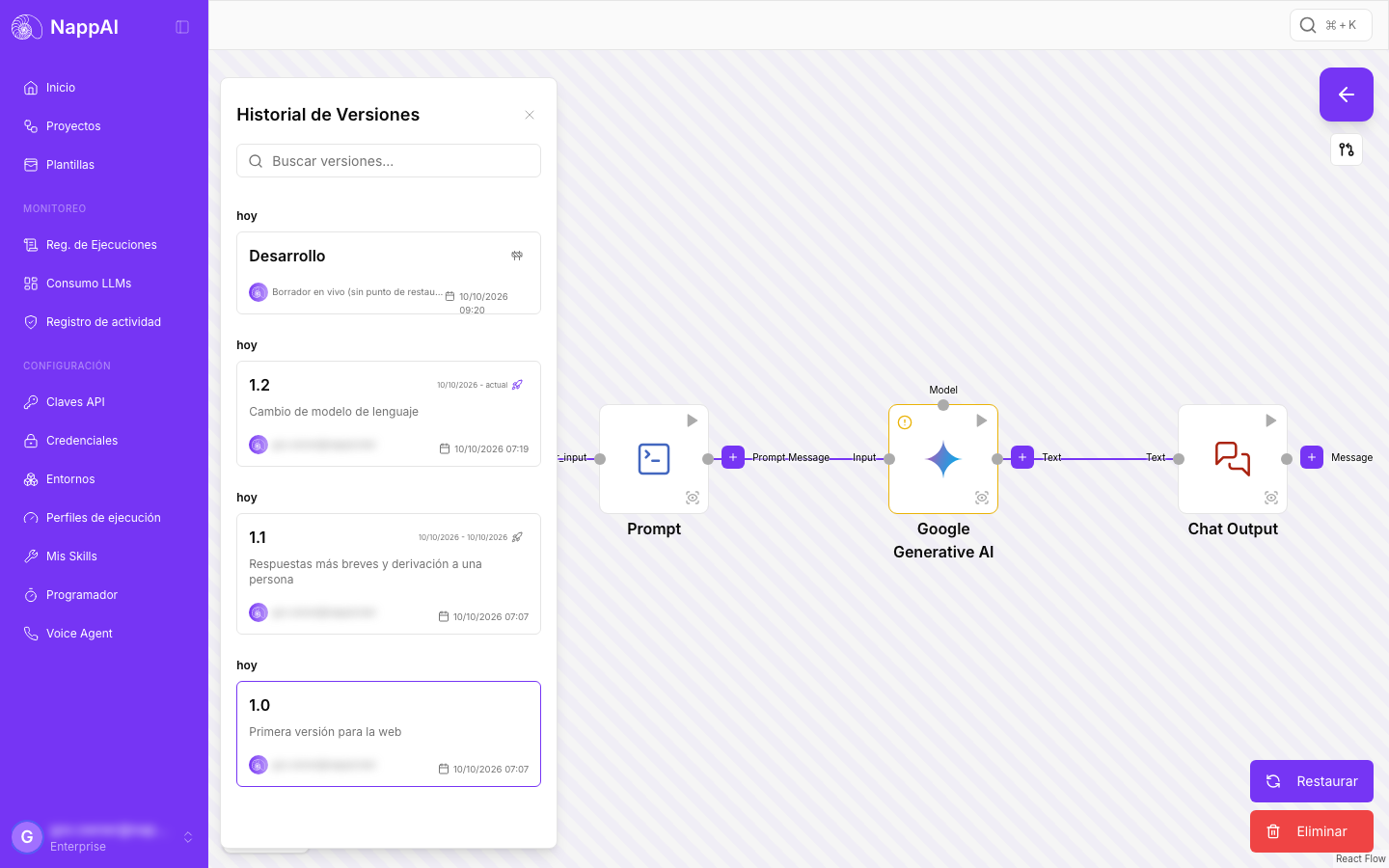
- Restore replaces the draft with this version. Whatever you had on the canvas that wasn’t saved in a version is lost. It doesn’t change the deployed version.
- Delete deletes the version. To confirm, you have to type DELETE. The deployed version can’t be deleted: deploy another one or take it down first.
The arrow at the top right takes you back to the editor.
Call the flow from another application
In the editor, click API Access in the right column. The window generates the code to call the flow.
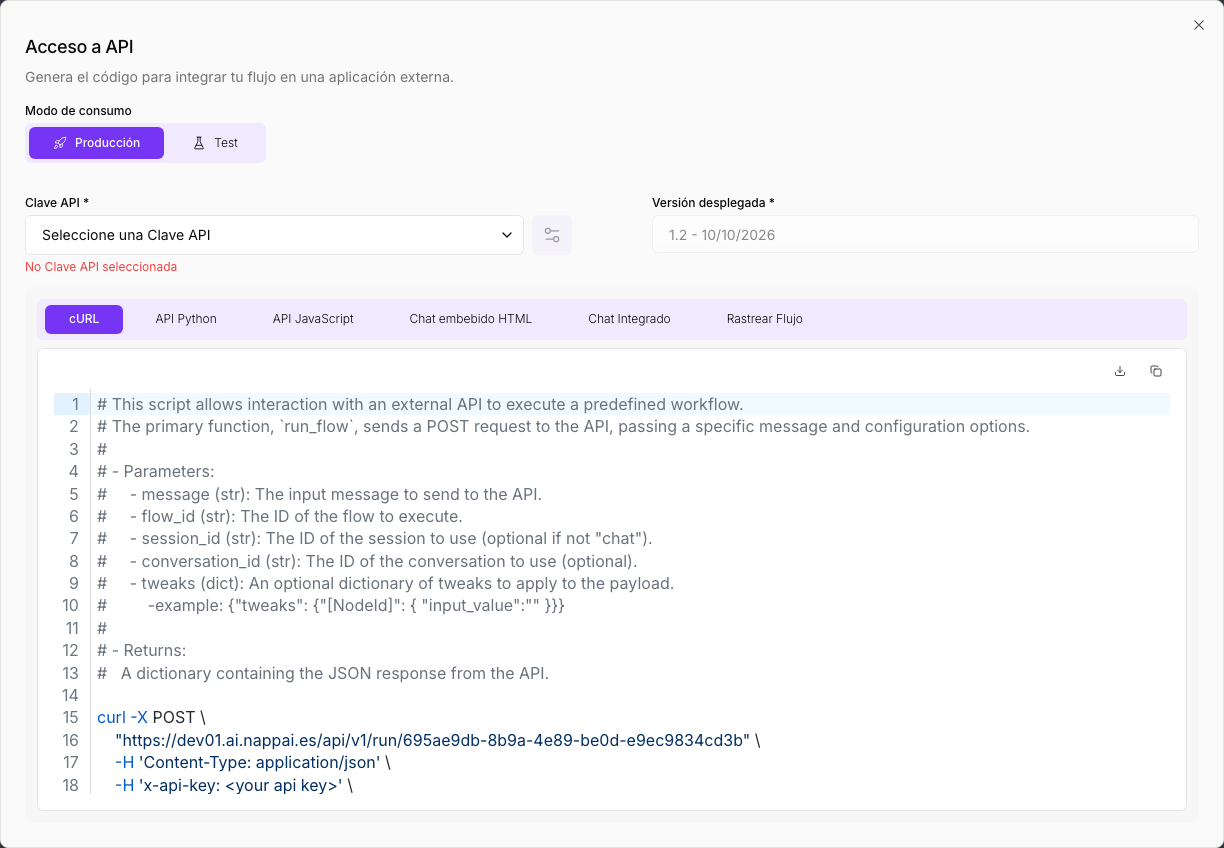
- In Consumption mode, choose Production to call the deployed version, or Test to call the draft.
- In API Key, choose the key the call will use. Its secret is written into the code. If you don’t have any, the window links to the page where you can create one. See API keys.
- Choose the cURL, Python API or JavaScript API tab and copy the code, or download it with the download button.
In Production mode, Deployed version shows which version will answer. If the flow has none, Deploy a version appears so you can do it from there.
The code already contains the flow’s address and the key you chose. You only need to replace the sample message with the one you want to send.
- If the flow has a Chat Input or a Chat Output, the call waits for the flow to finish and returns its answer.
- If not, the call answers straight away with an identifier for the run and an address to check the result when it finishes.
What each call returns, how to stream the answer, run statuses and errors are in Calling a flow through the API.
Test with the draft
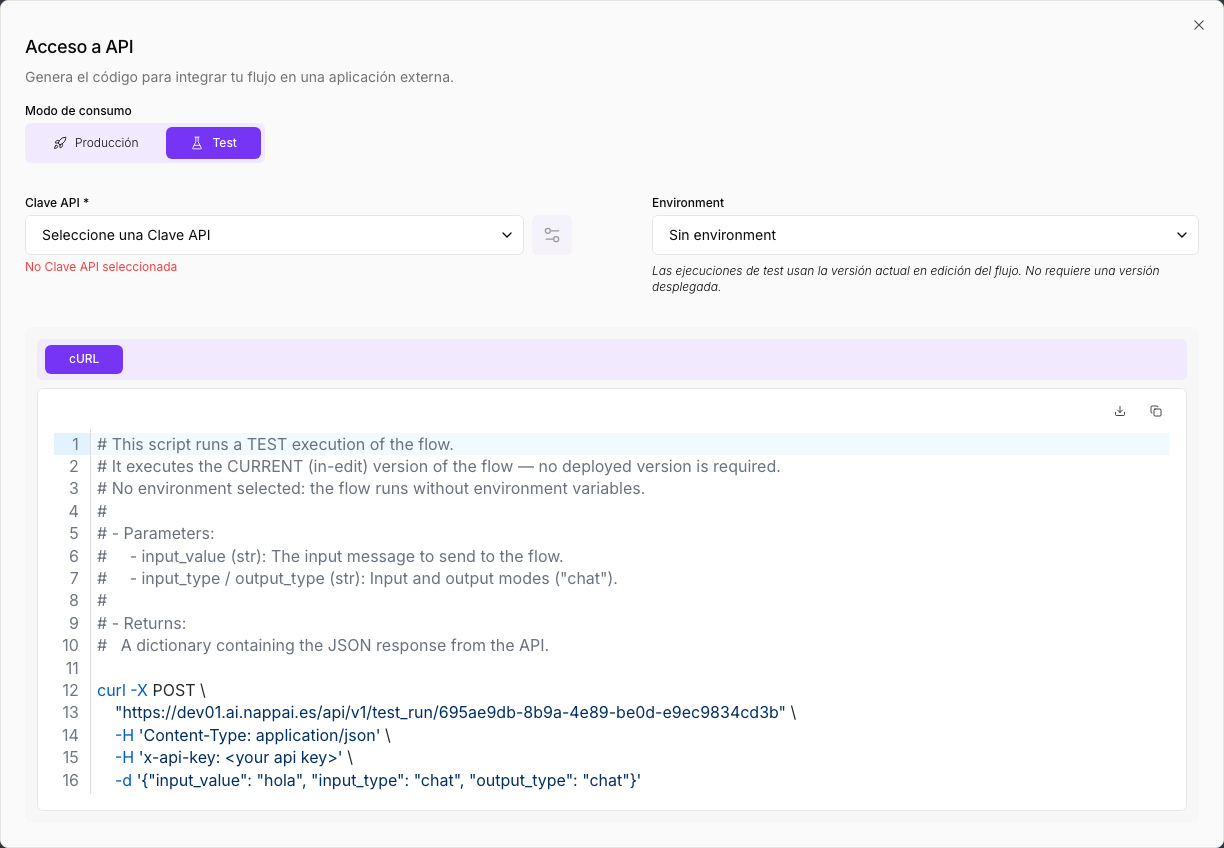
In Test mode the code calls the draft, without deploying anything. If you have environments, you choose which one it runs with in Environment. The call answers straight away with an identifier for the run and an address to check the result.
Other ways to integrate it
The window adds tabs depending on the flow’s components: the chat for your website if it has a Chat Output, the webhook address if it has a Webhook, the Gmail, Outlook, Teams or Shopify subscription if it has one of their webhooks, MCP Server, A2A Server, Telegram or WhatsApp. A flow with webhooks is always called through its webhook, so in that case cURL, Python API and JavaScript API do not appear.
Which tab appears with each component and how each one is published is in Publishing a flow.
Who can do what
Every role can see the history. Creating, deploying, restoring and deleting versions needs a role that can edit flows, and API Access needs permission to see API keys. See Roles and permissions and, for a shared flow, Access levels.