

Projects
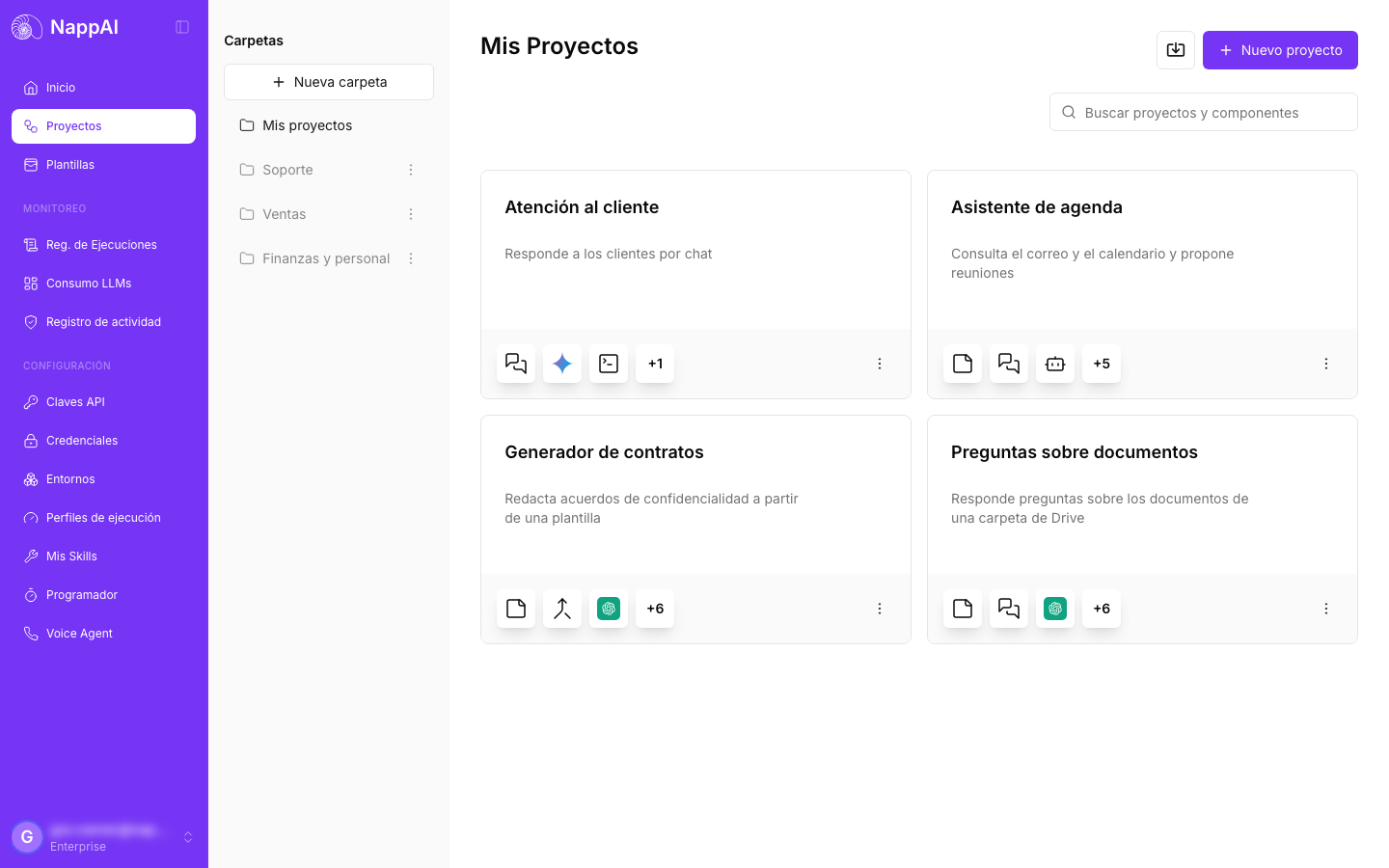
In NappAI every flow is a project. The Projects screen brings together all the projects in your account, organised in folders. From here you create them, import them, search for them and open them in the editor.
Open your projects
Click Projects in the side menu. The last folder you used opens or, the first time, My projects.
Each card shows:
- The project’s name and description.
- At the bottom, the icons of some of the components it uses and, in the +N box, how many more components it has.
- At the top right, if the project is shared, the people who have access. See Share a flow.
Click a card to open the project in the editor. See The flow editor.
Folders
The Folders column lists your folders. My projects is the main folder: it always exists and can’t be renamed or deleted.
Create a folder
- Click New folder.
- Type the Folder name and, if you like, a Description (optional).
- Click Save Folder.
NappAI opens the new folder when you save it.
Rename or delete a folder
Select the folder and open its ⋮ menu. Edit changes the name and the description. Delete deletes it.
Move a project to another folder
In the project’s ⋮ menu, choose Relocate project, select the folder under To and click Save. From the same drop-down you can create a new folder. If the target folder already has a project with the same name, NappAI doesn’t move it.
Create a project
Click New project. The Get Started window shows templates grouped by category, starting with Basic.
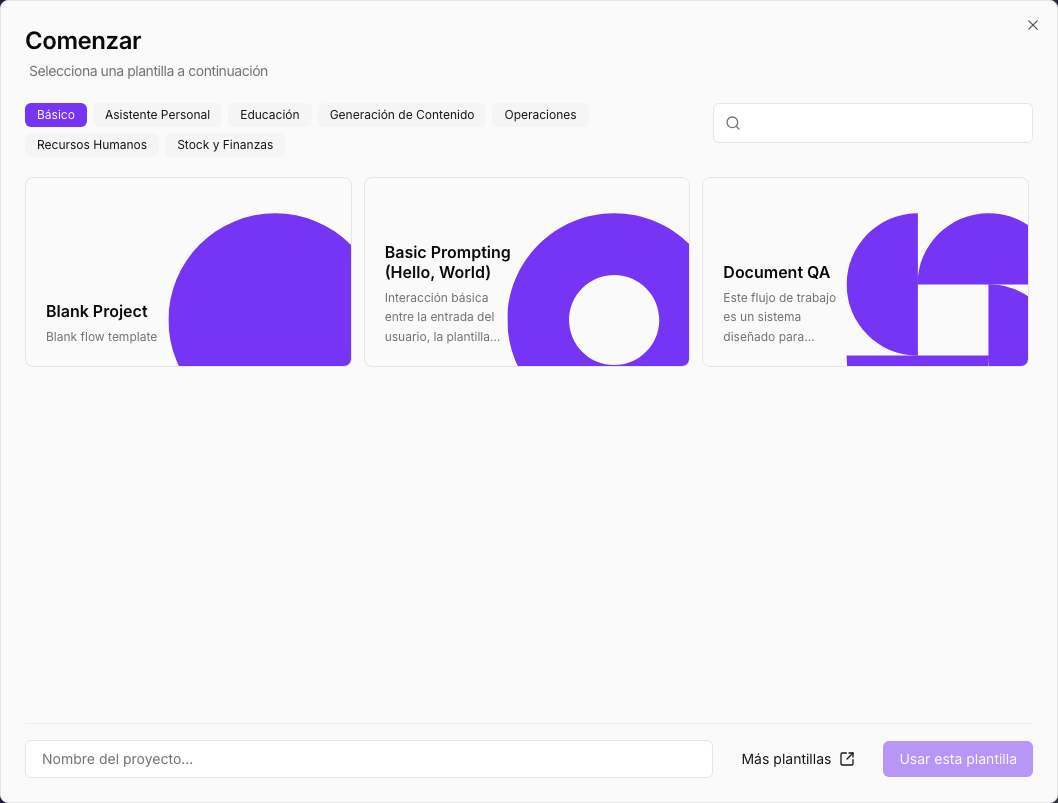
- To start from scratch, choose Blank Project, type the name in Project name… and click Use this template. The editor opens with an empty canvas.
- To start from a template, click it. Its preview opens, where you choose the name and the folder. See Templates.
- More templates opens the Templates screen with the full catalogue.
In an empty folder, the Start with a template and New project buttons appear in the middle of the screen.
The project is created in the folder you have open. If your plan already has the maximum number of projects, NappAI tells you and doesn’t let you create more.
Import a project
Click the import button, to the left of New project, and choose a .json file exported from NappAI. The project is created in the folder you have open. If there is already one with the same name, NappAI adds a number at the end, for example Atención al cliente (1).
If the file isn’t a NappAI project, the Error uploading file notice appears with the reason.
Search for a project
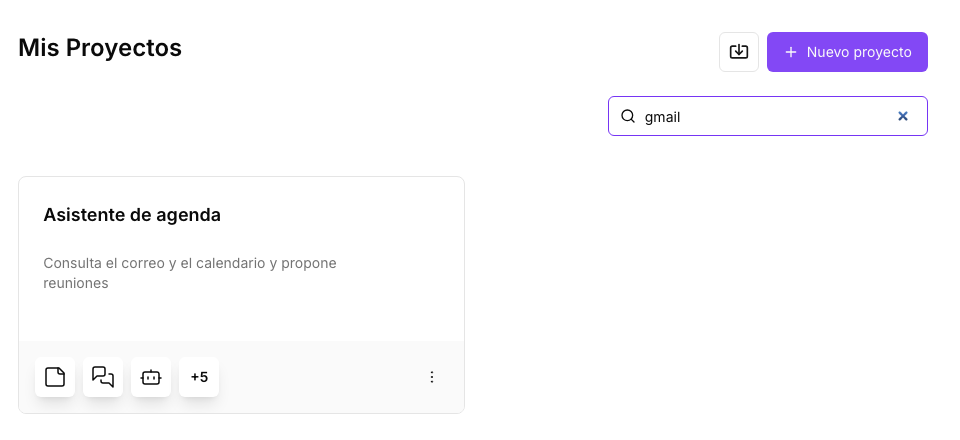
Type in Search projects and components. The search looks in the open folder and finds projects by their name, their description and the components they use. For example, gmail finds the projects that read or send email with Gmail even if their name doesn’t say so.
A project’s menu
Each card has a ⋮ menu at the bottom right.
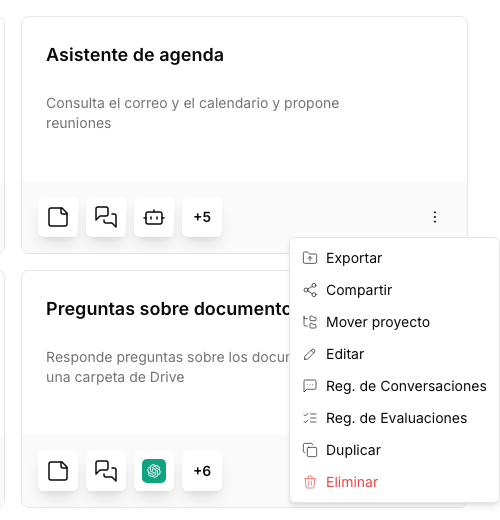
| Option | What it does |
|---|---|
| Export | Downloads the project as a .json file, to keep it or import it into another account. Keys and passwords typed into the components are not included. |
| Share | Gives another person access to this project. See Share a flow. |
| Relocate project | Moves it to another folder. |
| Edit | Changes the name and the description. |
| Conversation Reg. | Opens the conversations the project has had. See Conversations and evaluations. |
| Eval. Registry | Opens the results of the evaluations of those conversations. |
| Duplicate | Creates a copy in the same folder. You can change its name and description before creating it. |
| Remove | Deletes the project and the files it stored in storage. It can’t be undone. If it is shared, NappAI asks for a second confirmation, because it stops being available to everyone who has access. |
If your role doesn’t let you share or delete projects, Share and Remove appear disabled and, when you hover over them, NappAI tells you which permission you are missing. See Roles and permissions.
Shared with me
When someone shares a project with you, the Shared with me folder appears at the end of the folder list. It holds every project others have shared with you. What you can do with each one depends on the level it was shared with. See Access levels.
In this folder a project’s ⋮ menu has two options:
- Export, to download a copy.
- Unlink, to stop having access. The project still exists in its owner’s account.