

Chapter 3: The agent and its tools
Now you’ll build the agent: it receives the message and the user’s data, decides what to do in the Products table and replies on Telegram.
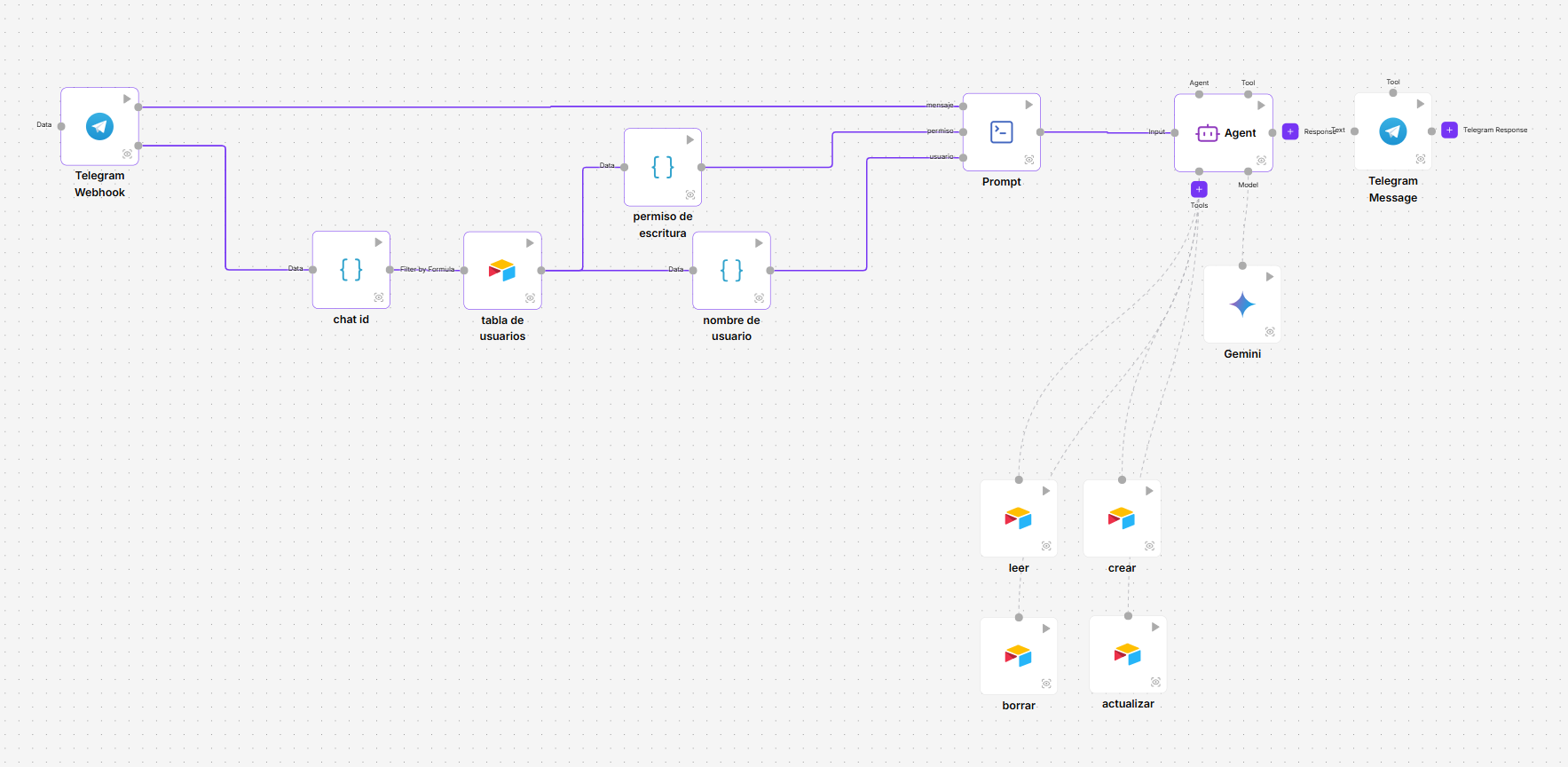
1. Gather the data in a Prompt
Add a Prompt. In Template, write:
Write permission: {permission}Username: {user}Message: {message}Each word in braces creates an input on the component. Connect them:
| From | Output | To | Input |
|---|---|---|---|
| write permission | Text | Prompt | permission |
| username | Text | Prompt | user |
| Telegram Webhook | Message | Prompt | message |
2. The agent
Add an Agent and a Gemini.
| From | Output | To | Input |
|---|---|---|---|
| Prompt | Prompt Message | Agent | Input |
| Gemini | Model | Agent | Model |
In Gemini, choose your credential and a model. In the agent’s System Prompt, write:
You are an assistant that manages a products table in Airtable from natural language messages.
Each message tells you the user's name and whether they have write permission.- If write permission is true, you can read, create, update and delete products.- If it is false, you can only read products. If they ask for anything else, explain that they don't have permission.
Address the user by name and always confirm what you have done.
3. The Airtable tools
Add four Airtable components, one per operation, and rename them so you can recognise them: read, create, update and delete.
In all four:
- Credential: your Airtable credential.
- Base Name: your base.
- Table Name: Products.
- Connect their Tool output to the agent’s Tools input.
And in each one:
| Component | Operation | What to leave to the agent (Defined by AI) |
|---|---|---|
| read | Read | With Mode set to Advanced, the Filter by Formula field, so it looks up the products the user asks for. |
| create | Create | The table’s fields that appear in the component, such as the product name and the stock. |
| update | Update | Record ID and the fields it has to change. |
| delete | Delete | Record ID. |
To leave a field to the agent, click the sparkles button on its right.
4. The reply on Telegram
Add a Telegram Message:
- Connect the agent’s Response output to its Text input.
- Credential: your bot credential.
- Action: Send Text.
- Mode: Basic. It replies in the same chat the message came from.
5. Publish it and connect the bot
Telegram messages reach the published version of the flow, so to test the bot you have to publish it:
- Create a version and deploy it. See Publish and follow a flow.
- Open API Access and follow the instructions in the Telegram tab to connect the bot.
- Write to the bot from a Telegram account registered in the Users table, for example How much stock of T-shirts is left?
Check in Executions Logs what data the agent received and which tool it used for each message. See Executions log.