

Chapter 3: Start from a template
A template is a ready-made flow for a common case. When you use it, NappAI creates a copy in your projects. The copy is yours: you can change it without the template changing.
What you’ll learn
- How to find a template and see what it does before using it.
- How to create a project from it.
- What you have to complete for it to work.
Find a template
- In the side menu, click Templates.
- Choose a category on the left, such as Basic, Operations or Human Resources, or click All.
- If you’re looking for something specific, type in Search template. The search looks at names and descriptions across the whole catalogue.
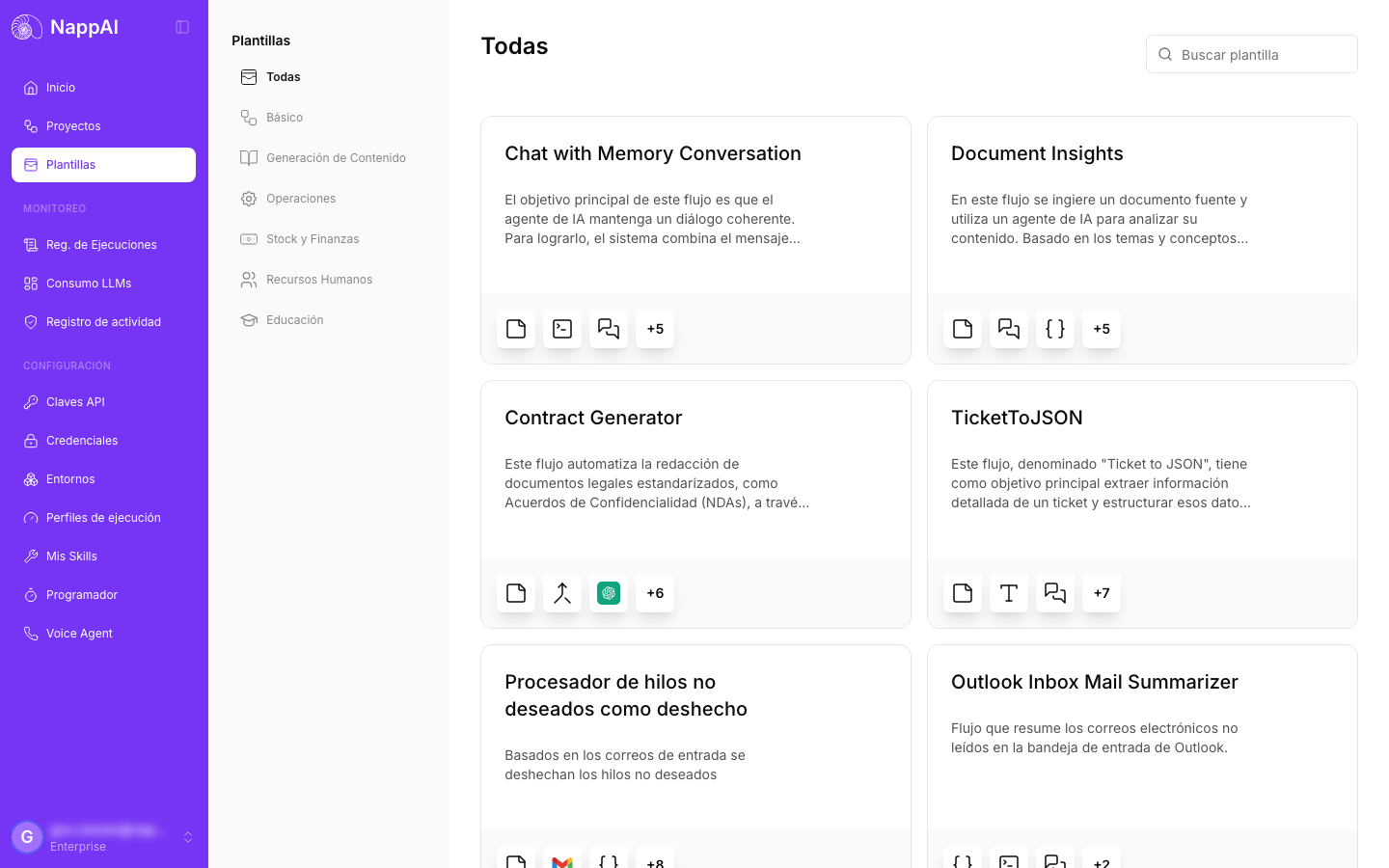
Check what it does
Click a card to open its preview.
- On the left you see a diagram of the flow’s components and how they connect.
- On the right, the template’s explanation.
- The ? icon next to the name opens its documentation.
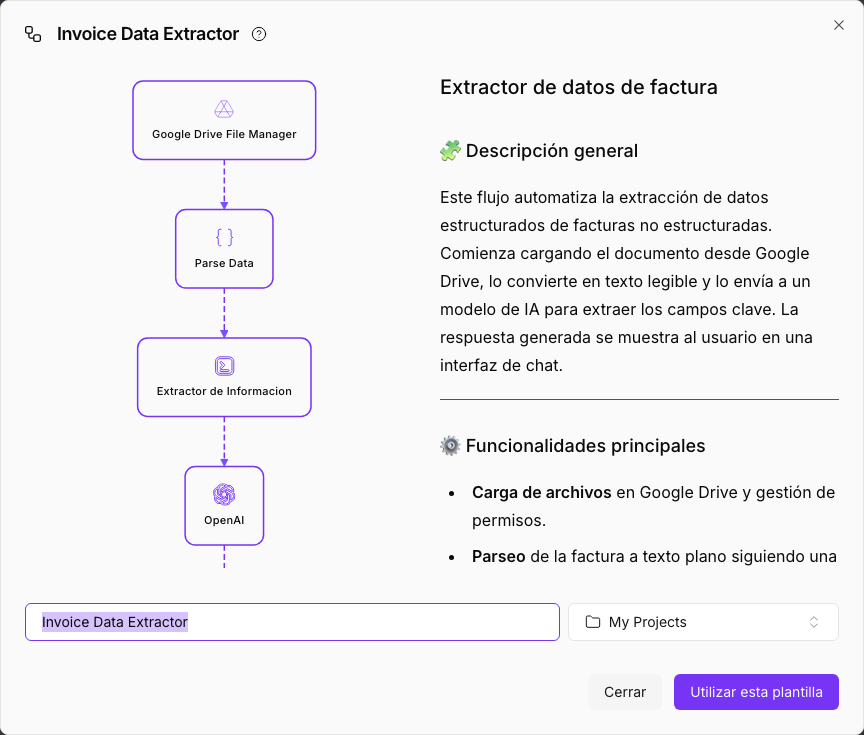
Look at the services it uses, for example Gmail or an AI provider: you’ll need a credential for each one.
Create your project
- In the preview, change the project name if you like.
- Choose the folder where it will be saved.
- Click Use this template.
NappAI creates the project and opens it in the editor.
You can also start from a template with New project, on the Projects screen.
Complete it
A template usually needs your credentials. The components that ask for them show a yellow border.
- Open each component with a yellow border.
- In the Credential field, choose your credential or click Add new credential to add one without leaving the editor. See Credentials.
- Check the other fields marked as required.
- Test the flow in Playground.
Summary
- A template is a copy: you can change it as you like.
- Before using it, check in the preview which services it needs.
- Then complete the credentials of the components with a yellow border and test it.
For more detail, see Templates. In the next chapter you’ll learn to import and export projects.