

Alerts
Alerts warns you when something in your account needs your attention, without you having to go and check:
- Runs of your flows fail.
- Estimated spend, tokens or the number of runs pass a threshold.
- You get close to your plan’s limits.
- The spending of a credential, or of the whole account, gets close to its spending limit.
The alert arrives where you choose: in the platform itself, by email or in another application through a webhook.
To open it, in the sidebar, under Activity, click Alerts. It sits right below Usage. The page has two tabs:
- Rules: what to watch, when to warn and where.
- Channels: where spending limit alerts also go.
In this video you see a failed executions rule and an execution volume rule at work: the failures reach the bell in a single digest, together with the volume alert; then the other rule types, Send test and the Channels tab.
Rules
A rule is a named watch. There are five types:
| Type | What it watches | When it warns |
|---|---|---|
| Failed executions | The runs that end with an error. | In a digest, every so many minutes as you choose. |
| Estimated spend | Roughly what your flows’ usage costs in the day or the month. | At 80 % and 100 % of the threshold. |
| Token usage | The tokens your flows use in the day or the month. | At 80 % and 100 % of the threshold. |
| Execution volume | How many runs are started in the day or the month. | At 80 % and 100 % of the threshold. |
| Plan limits | The runs, flows or storage your plan allows. | At the percentage you choose and at 100 %. |
The Rules table shows each rule’s Name, its Type, the Project it watches, the Condition (for example ≥ €50 per month or Digest every 5 min), the Channels it warns through, whether it is Enabled and when its Last alert was.
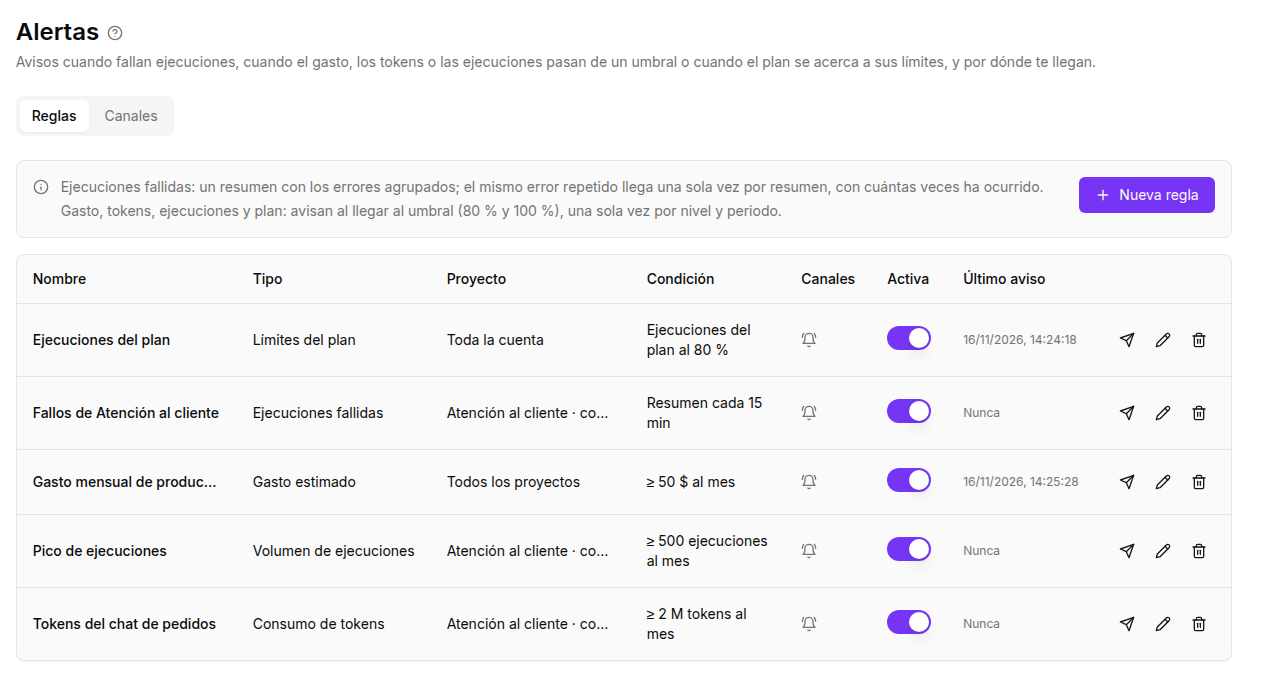
Except for Plan limits rules, each rule watches All projects in the account or a single project. It also counts what your team members run. You can have several rules of the same type, for example one for the whole account and another for a particular flow.
Rules are checked every 5 minutes.
To turn a rule off without deleting it, switch off its Enabled toggle. To change it, click Edit. To remove it, click Delete and confirm; alerts already sent are kept.
Create a rule
- In the Rules tab, click New rule.
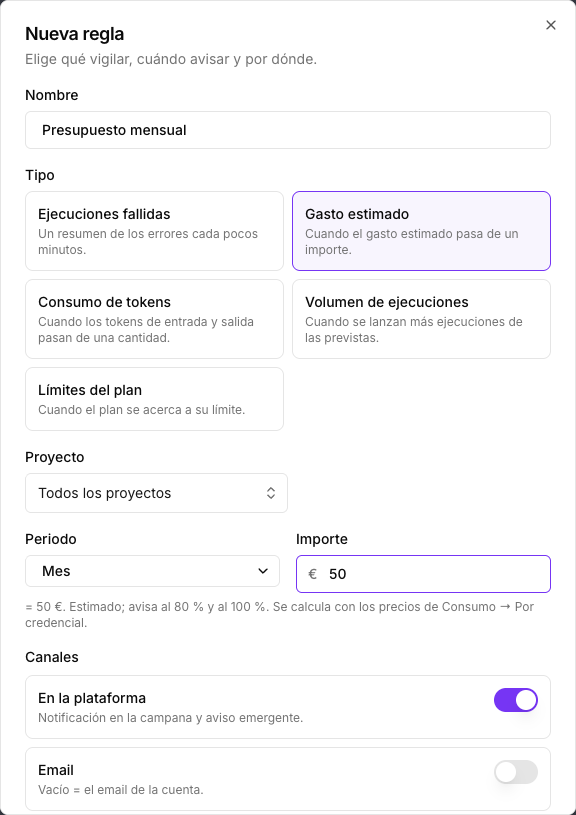
- Choose the type of rule. Each type explains in one line what it watches.
- Fill in that type’s fields, explained below.
- Choose the channels. They are the same for every type.
- Click Create.
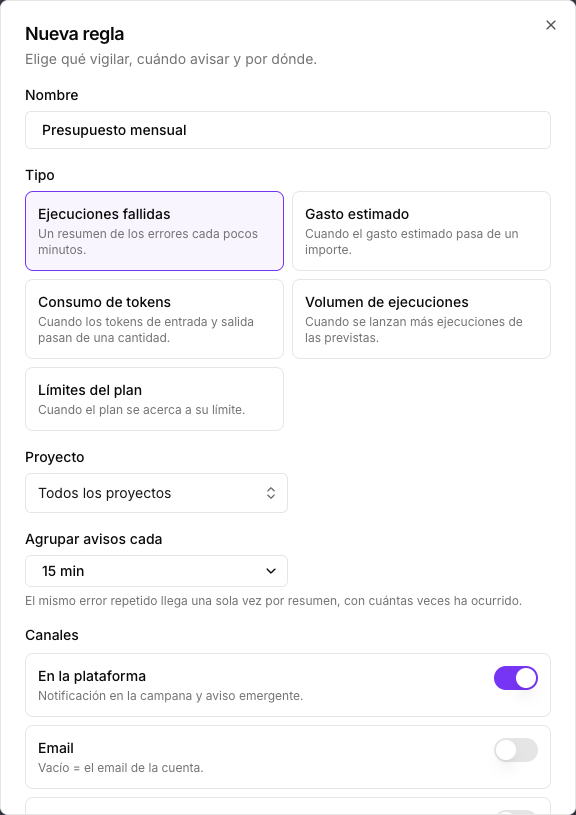
Create a failed executions rule
- In the Rules tab, click New rule and choose Failed executions.
- Type a Name that says what it is for, for example Orders flow failures.
- In Project, leave All projects or choose one.
- In Group alerts every, choose 5, 15, 30, 60 or 240 minutes.
- Choose the channels.
- Click Create.
How failures are grouped
The rule reports every failure, but it doesn’t send you one message per failure. It gathers them into a digest:
- Never more than one digest arrives every so many minutes as you chose in Group alerts every.
- In the digest, the same error repeated in the same project takes a single line, with how many times it happened.
- Failures that come in while you wait for the next digest aren’t lost: they go into that digest.
- If there are no new failures, nothing arrives.
An example. A flow starts failing every 5 seconds with the same error and keeps doing so for 10 minutes. That’s 120 failures. With Group alerts every set to 15 minutes, you don’t get 120 messages: you get a single digest with a line like this one:
Orders flow: Could not connect to the database ×120
That way your inbox doesn’t fill up even if a flow keeps failing. The digest shows at most 10 different lines.
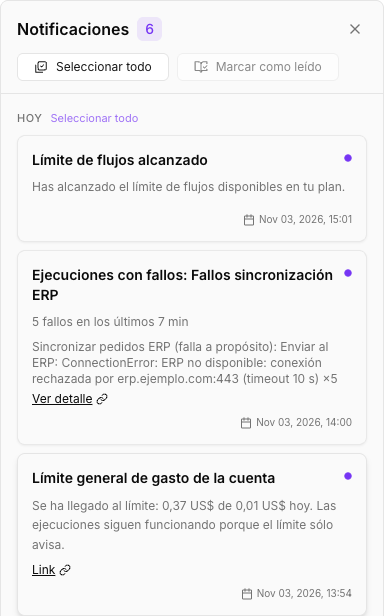
To see the details of each failure, open it in the Executions log.
Threshold rules
Estimated spend, Token usage and Execution volume rules work the same way. They have these fields:
- Project: All projects or one.
- Period: Day or Month.
- The threshold: an amount, a number of tokens or a number of runs, depending on the type.
This is how they warn:
- A first alert arrives on reaching 80 % of the threshold and another on reaching 100 %.
- Each alert arrives only once per period. If you stay above it, it isn’t repeated.
- If both are passed in the same check, only the 100 % alert arrives, and the 80 % one no longer arrives in that period.
- When a new day or month starts, the count goes back to zero and the rule can warn again.
- If you change a rule’s threshold, period or project, it can warn again in the current period.
Days and months are counted in UTC, as calendar days and calendar months.
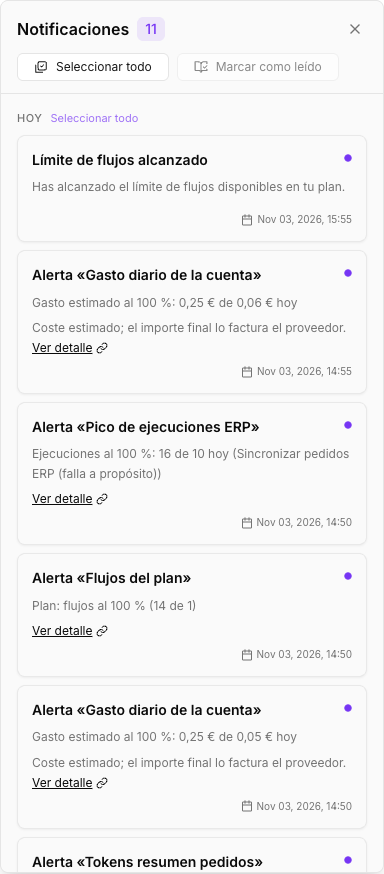
Estimated spend
Watches roughly what your flows’ usage costs. Type the threshold as an amount in the account currency, for example €50 per month.
- It is an estimate made with the prices set in Usage, By credential view. The provider always bills the final amount.
- Only usage that has a price counts. If there is usage without a price, the alert says how many usage records weren’t counted. To make them count, give them a price in By credential.
For example, with a threshold of €50 per month you get one alert when the month’s estimated spend reaches €40 and another when it reaches €50.
Token usage
Watches the tokens your flows’ models use: it adds up input and output tokens. Type the threshold as a number of tokens, for example 2,000,000 per day.
Execution volume
Watches how many runs are started, whether they end well or not. Type the threshold as a number of runs, for example 500 per month. Use it to spot a flow being started far more often than expected.
Plan limits
Watches how much you have left of what your subscription allows. It always looks at the whole account, not a project. It has these fields:
- Resource: Period executions, Flows or Storage.
- Warn at: a percentage between 1 and 99. 80 by default.
It warns once on reaching that percentage and once more on reaching 100 %:
- With Period executions, each level warns once in each period of your plan.
- With Flows and Storage, each level warns at most once a month.
If your plan has no limit for that resource, the rule doesn’t warn.
Spend rules and spending limits
In Usage, By credential view, you can also set a Spending limit. It isn’t the same as an Estimated spend rule:
| Estimated spend rule | Spending limit | |
|---|---|---|
| Where it is set | Alerts → Rules | Usage → By credential, or the menu of the flow’s card |
| What it watches | The whole account or a project | A credential, the whole account or a flow (only its production runs) |
| When it warns | At 80 % and 100 % | At 50 %, 80 % and 100 % |
| What it does when reached | Only warns | Warns and, if you choose, stops the runs that use the credential |
| How many | Several per account and per project | One per credential, one general and one per flow |
Use a limit when spending must not go beyond a figure. Use a rule when you only want to know, for example to watch a particular project or get the alert in another channel.
A rule’s channels
Each rule warns through one or more channels. It needs at least one turned on.
| Channel | What you get |
|---|---|
| In the platform | A notification in the bell and a pop-up if you have NappAI open. It is on by default. |
| An email with the alert or the failures digest. If you don’t type an address, it goes to the account email. | |
| Webhook | A call to another application’s address, with the alert’s data. See The webhook. |
The email is sent in the account’s language. Spend alerts remind you that the amount is estimated.
Send a test
Click Send test to check that the channels work. NappAI sends a sample alert through every channel turned on, marked as a test: the email has [TEST] in its subject and the webhook has "test": true in data.
Save the rule before sending a test.
Spending limit alerts
In Usage, in the By credential view, you can set a Spending limit on each credential or on the whole account, see each flow’s budget and adjust the prices the estimated cost is worked out with. Limits and prices are set there, not in Alerts.
When spending reaches 50 %, 80 % and 100 % of a limit or a budget, NappAI warns the account owner and the admins in the platform. In the Channels tab of Alerts you can have those alerts arrive as well by email, at a webhook or both:
- Open the Channels tab.
- Turn on Email and, if you like, type another address. Left empty, the account email is used.
- Turn on Webhook, type the URL and, if you like, a Secret to sign the deliveries.
- Click Save.
- Click Send test to check that they arrive.
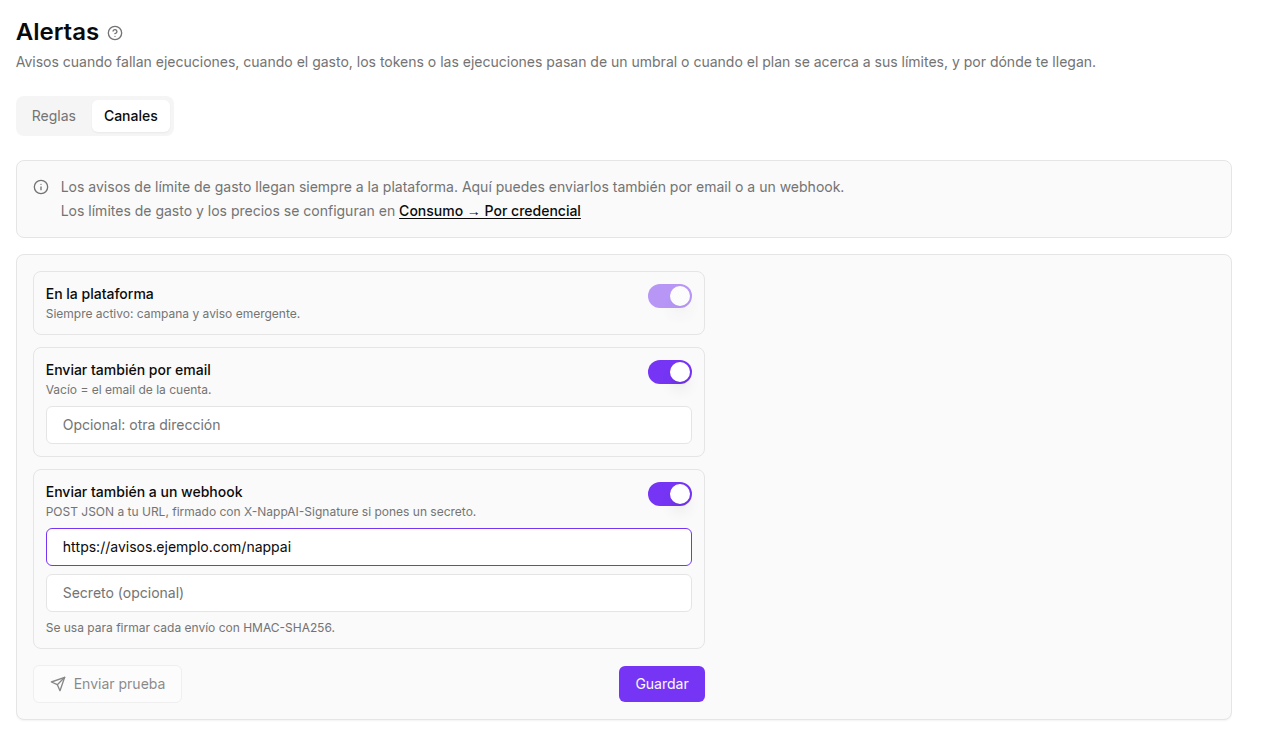
These channels apply to every spending limit in the account, general or per credential.
The webhook
With the Webhook channel, NappAI sends each alert to the URL you type, as a POST request with a JSON body. Use it to take the alerts to another tool: a chat channel, an incident system or your own application.
- The URL must start with
http://orhttps://and be a public internet address. - If the call fails or takes longer than 10 seconds, NappAI tries once more.
What is sent
Every alert has the same shape: the type, when it was sent and the alert’s data in data.
A failures digest has the type flow_failures_digest:
{ "type": "flow_failures_digest", "ruleId": "8a0e4d21-6c3b-4f7a-b2d9-5e1f0a3c7b44", "ruleName": "Orders flow failures", "sentAt": "2026-11-03T10:15:00.000Z", "data": { "ruleId": "8a0e4d21-6c3b-4f7a-b2d9-5e1f0a3c7b44", "ruleName": "Orders flow failures", "total": 120, "windowMinutes": 15, "groups": [ { "flowId": "c2b7e9a0-1d4f-4a8e-9c35-7f6b2d0e8a19", "flowName": "Orders flow", "error": "Could not connect to the database", "count": 120, "first": "2026-11-03T10:00:03Z", "last": "2026-11-03T10:09:58Z" } ] }}data field | What it is |
|---|---|
ruleId, ruleName | The rule sending the digest. |
total | How many failures the digest holds. |
windowMinutes | The minutes in Group alerts every. |
groups | One entry for each different error in each project, at most 10. |
groups[].flowId, groups[].flowName | The project that failed. |
groups[].error | The error message. |
groups[].count | How many times that error was repeated. |
groups[].first, groups[].last | When it happened the first and the last time. |
An alert from a threshold rule (estimated spend, tokens, runs or plan limits) has the type usage_alert_threshold:
{ "type": "usage_alert_threshold", "ruleId": "3f1c2a7e-5b8d-4e2f-9a61-0c4d7b2e9f10", "ruleName": "Production monthly spend", "sentAt": "2026-11-03T10:05:00.000Z", "data": { "ruleId": "3f1c2a7e-5b8d-4e2f-9a61-0c4d7b2e9f10", "ruleName": "Production monthly spend", "kind": "cost", "level": 80, "value": 40.12, "threshold": 50, "limit": 50, "period": "month", "periodKey": "2026-11", "flowId": null, "flowName": null, "currency": "EUR", "unpriced": 3, "estimated": true }}data field | What it is |
|---|---|
ruleId, ruleName | The rule that warns. |
kind | The rule type: cost, tokens, executions or plan. |
level | The percentage reached: 80 or 100, or the Warn at one in a plan rule. |
value | What was used in the period: amount, tokens, runs or, for the plan, how much of the resource is used. |
threshold | The rule’s threshold. In a plan rule, the Warn at percentage. |
limit | The figure the percentage refers to: the threshold or, for the plan, the plan’s maximum. |
period, periodKey | day or month, and the day or month of the alert (for example 2026-11-03 or 2026-11). |
flowId, flowName | The project the rule watches, or null if it watches all of them. |
currency | The account currency. Estimated spend only. |
unpriced | How many usage records without a price weren’t counted. Estimated spend only. |
estimated | true: the spend is an estimate. Estimated spend only. |
resource | executions, flows or storage. Plan limits only. |
Fields that don’t apply to a type may be missing.
A spending limit alert has the type credential_limit:
{ "type": "credential_limit", "sentAt": "2026-11-03T10:05:00.000Z", "data": { "credentialId": "5d9a1f3e-2b7c-4e8a-a6f0-3c1e9b7d2a55", "credentialName": "Production AI provider", "general": false, "threshold": 80, "pct": 82, "limit": 200, "spent": 164.3, "period": "month", "action": "notify" }}data field | What it is |
|---|---|
credentialId, credentialName | The credential the limit belongs to. |
general | true if it is the account-wide general limit. |
threshold | The alert level: 50, 80 or 100. |
pct | The percentage of the limit spent. |
limit, spent | The limit and what was spent in the period, in the limit’s unit. |
period | day or month. |
action | What the limit does at 100 %: notify (only warn) or stop (stop the runs that use the credential). |
In a test alert, data also has "test": true.
Check the signature
If you type a Secret, every delivery carries the X-NappAI-Signature header:
X-NappAI-Signature: sha256=<signature>The signature is an HMAC-SHA256 of the request body, exactly as it arrives, with your secret as the key, written in hexadecimal. Your application can work it out again and compare. If it matches, the alert comes from NappAI and nobody changed it on the way.
Work out the signature on the raw body, before parsing it as JSON: if you parse it and write it out again, the signature no longer matches.
In Python:
import hashlibimport hmac
def signature_is_valid(body: bytes, header: str, secret: str) -> bool:    expected = "sha256=" + hmac.new(secret.encode(), body, hashlib.sha256).hexdigest()    return hmac.compare_digest(expected, header or "")
In Node.js:
const crypto = require("crypto");
function signatureIsValid(body, header, secret) {  const expected =    "sha256=" + crypto.createHmac("sha256", secret).update(body).digest("hex");  const a = Buffer.from(expected);  const b = Buffer.from(header || "");  return a.length === b.length && crypto.timingSafeEqual(a, b);}
In both, body is the request body as it arrives (bytes or a Buffer) and header is the value of X-NappAI-Signature.
When you edit, the saved secret isn’t shown. Leave the field empty to keep it or type a new one to change it.
Who can use alerts
- See alerts: the account owner and the Admin and Builder roles. It is the same permission Usage needs.
- Create, change and delete rules of any type and change the channels: only the owner and the Admin role.
Frequently asked questions
How often are rules checked?
Every 5 minutes. A threshold alert can arrive up to about 5 minutes after passing 80 % or 100 %. A failure rule sends its digest at the first check after the minutes in Group alerts every have passed.
Will I get an alert every time a flow fails?
Not one by one. Every failure is reported, but grouped into a digest every so many minutes as you choose. The same error repeated shows only once, with the number of times.
What’s the difference between a spend rule and a spending limit?
A rule only warns; a limit can also stop runs. See Spend rules and spending limits.
Where do I set a spending limit or a price?
In Usage, By credential view. See Spending limits. In Alerts you create rules that warn and choose where the limits’ alerts also go.
It already warned me at 100 %. Will it warn me again?
Not in the same day or month. Each level warns only once per period. In the next period, the rule starts again.
Why doesn’t the estimated spending match my invoice?
Because it’s an estimate made with the configured prices and the usage NappAI records. Your invoice can differ because of discounts, taxes, rate changes or charges that don’t depend on usage. The provider always bills the final amount.