

Web widget and browser calls
An agent published with the Web (WebRTC) channel can be called from any browser, with no phone. There are two ways to do it:
- The widget: a ready-to-use page that you embed in your website or share as a link. No programming needed.
- Your own application: your development team requests a call from NappAI and builds it into your own interface.
Both call the agent’s published version, never the draft.
Requirements
- The agent published with Web (WebRTC) ticked in Configure consumption. See Publish an agent.
- A NappAI API key. Create it in Configuration → API Keys. Create one for each website where you put the widget: if you ever have to revoke it, the others are not affected. See API keys.
The widget
1. Generate the link
Click Widget on the agent’s row, or scroll down to Widget for your site in Configure consumption.
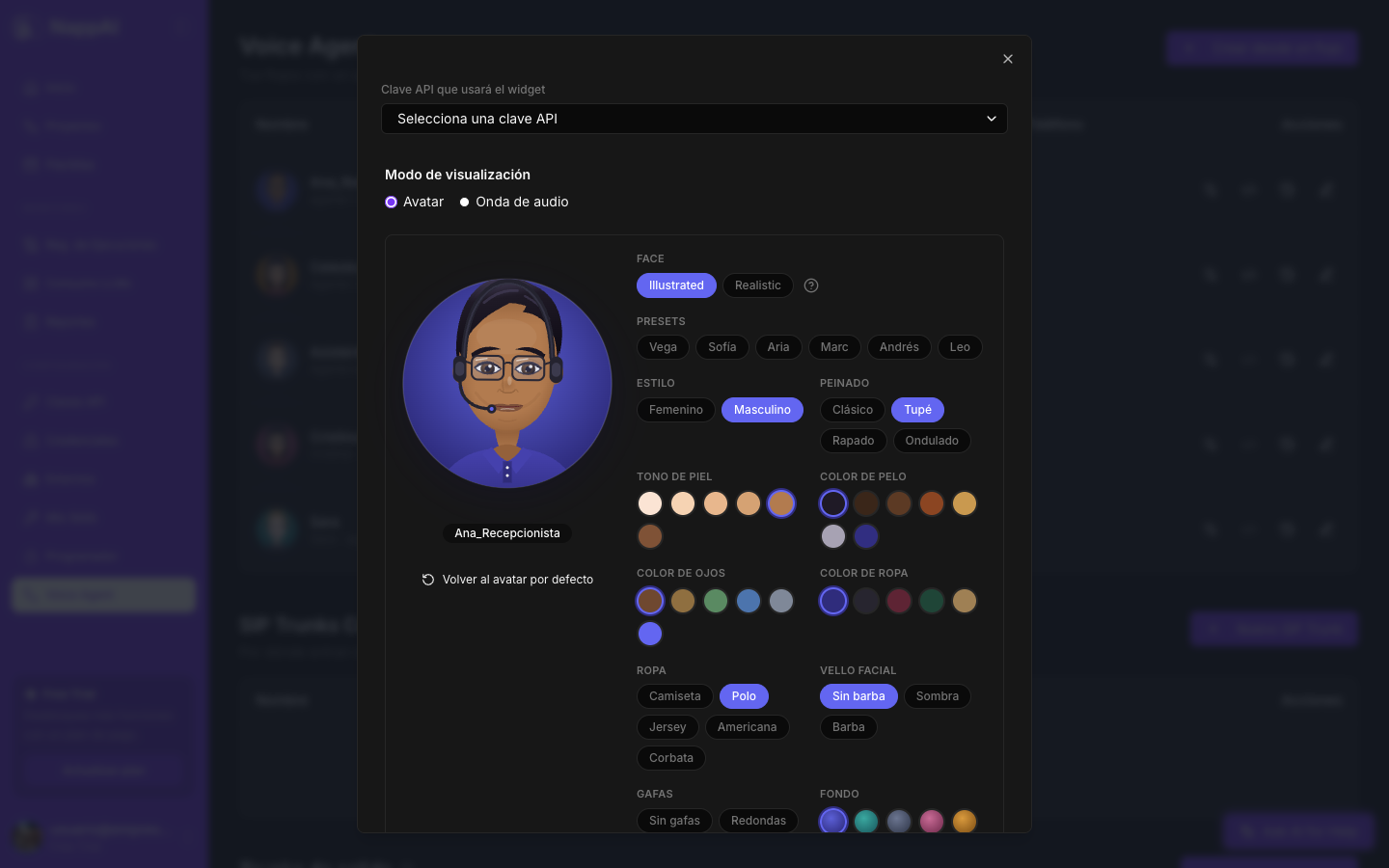
- In API key the widget will use, choose the key.
- In Visualization mode, choose Avatar or Audio wave.
- If you want, customize the avatar.
Once the key is chosen, the Widget URL, the Open preview button and the Iframe embed code appear.
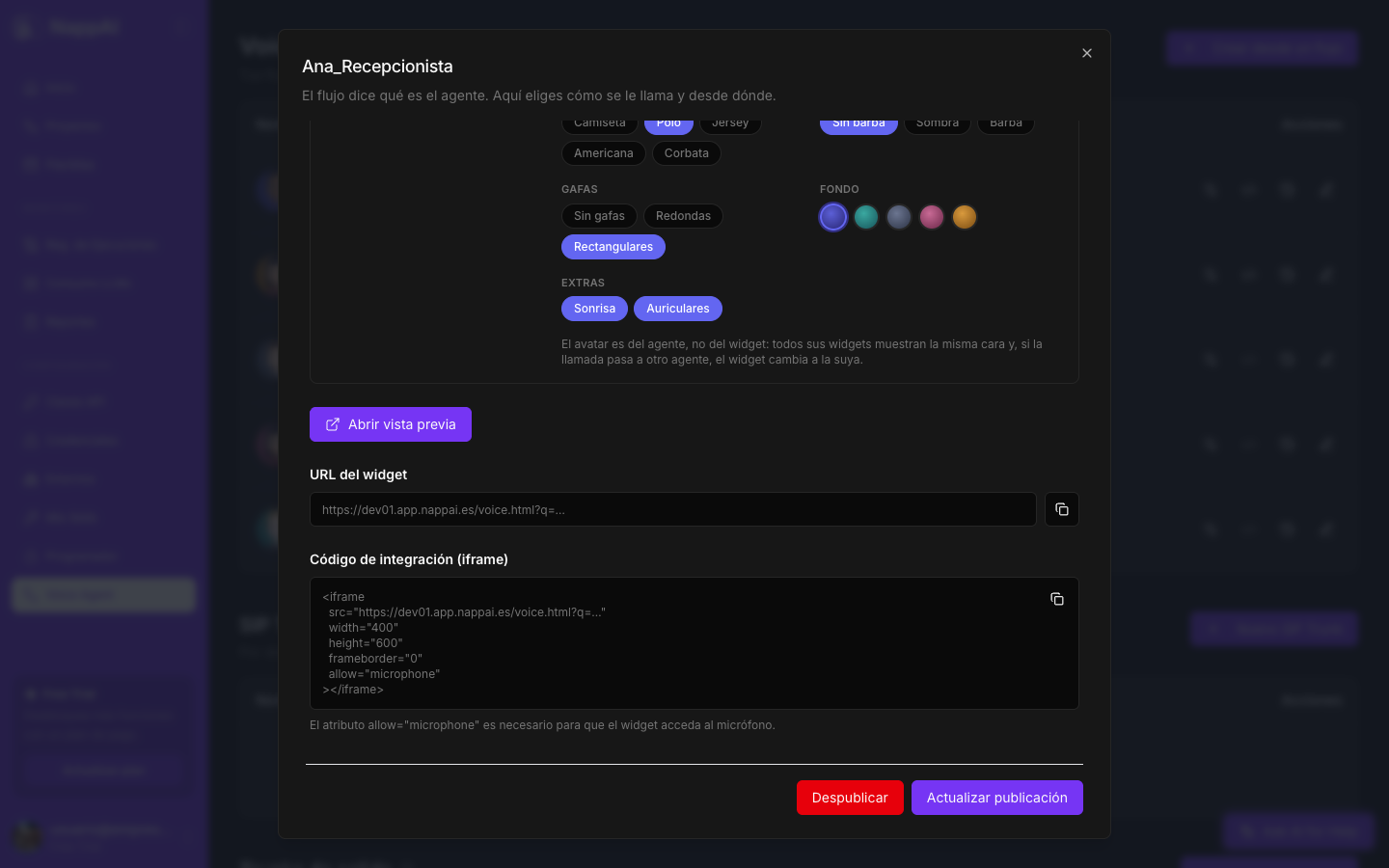
2. Try it
Click Open preview. The widget opens in another tab, just as your visitors will see it:
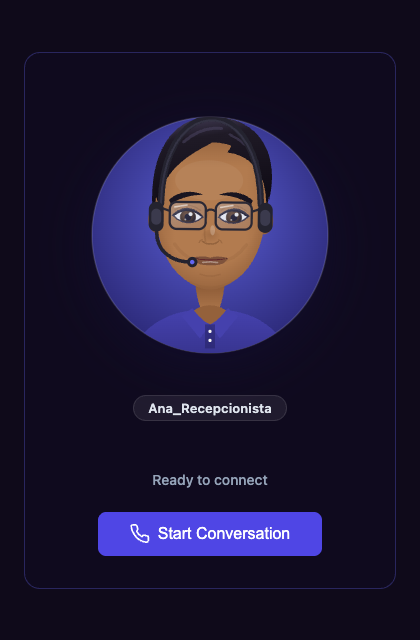
Click Start Conversation, accept the microphone permission and talk.
3. Put it on your site
Copy the Iframe embed code and paste it into your page, or hand it to whoever maintains your website. It looks like this:
<iframe src="https://<your-instance>/voice.html?q=..." width="400" height="600" frameborder="0" allow="microphone"></iframe>- Leave
allow="microphone"as it is. Without it, the browser does not let the widget use the microphone. - The page where you put it must open with https://. Browsers do not give the microphone to pages without a secure connection.
- Adjust
widthandheightto your design. The widget adapts to the size.
A link to share
The Widget URL also works on its own: it opens the call in a full page. Use it to send by email or chat, or behind a “Call us” button or a QR code.
Who is calling
On the phone, the agent knows which number is calling. In the widget you can tell it who the visitor is: a phone number, an email or a customer number, whatever your site knows about them.
- To try it, type the value in Caller (optional), in the same widget window. It is added to the URL and to the embed code.
- For each visitor to arrive with their own, your site adds
&caller=to the iframe’ssrc, with the value in base64:
const caller = btoa(String.fromCharCode(...new TextEncoder().encode("+34600111222")));iframe.src += "&caller=" + encodeURIComponent(caller);The agent receives it before the visitor speaks, if Tell The Model About The Call is on in the Voice Agent, and it is shown as the caller in the call history. It is presented to the agent as what the website says, not as a checked fact: anyone who edits the URL can change it, so do not use it to give access to private data.
From your own application
If you prefer your own interface, your development team has everything it needs in Configure consumption → Production URLs:
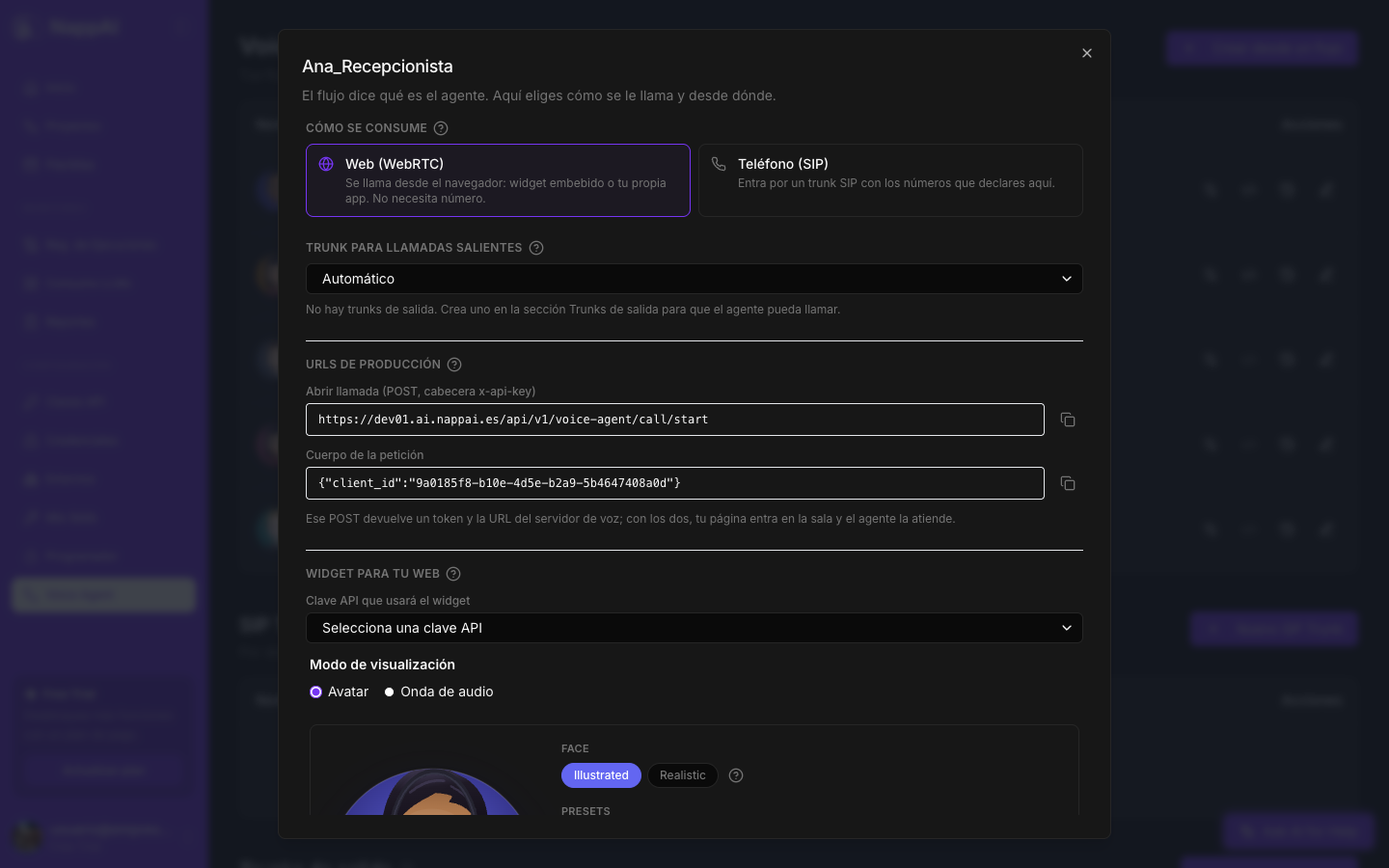
- Your application sends a
POSTrequest to the Open a call address, with the API key in thex-api-keyheader and the Request body shown in the window. - NappAI answers with the voice server’s address (
url) and an access permission for that call (token). - With those two values, the application joins the call, sends the user’s microphone and plays the agent’s voice. The agent says its greeting as soon as the person connects.
| Body field | Required | What it is |
|---|---|---|
client_id | Yes | The agent’s identifier: the same one shown in Request body. |
user_name | No | The name the person appears with in the call. |
caller | No | Who is calling, if your application knows: a phone number, an email or a customer number. The agent sees it as the caller. phone_number still works for the same. |
Each request opens a new call, and its access permission is only valid for that call. If the agent is not published or has Enabled turned off, no call is opened.
Common problems
| Symptom | Likely cause |
|---|---|
| The widget stays connecting | The agent is not published with Web (WebRTC), or has Enabled turned off. |
| The browser does not ask for the microphone | allow="microphone" is missing from the embedded code, or the page does not open with https://. |
| It connects but the agent does not speak | Check the history: a Failed call shows the reason, for example a credential with no balance. |
| The agent hears itself | The visitor is using speakers. Turn on Echo Cancellation on the Voice Agent component or recommend headphones. |