

The home screen
Home is the screen you see when you sign in to NappAI. It sums up your plan usage and your flows’ activity over the last days, and gives you tutorials and frequently asked questions. The side menu takes you to every other screen.
The side menu
The side menu sits on the left of every screen except the flow editor, which uses the whole window. The button next to the logo collapses it and opens it again.
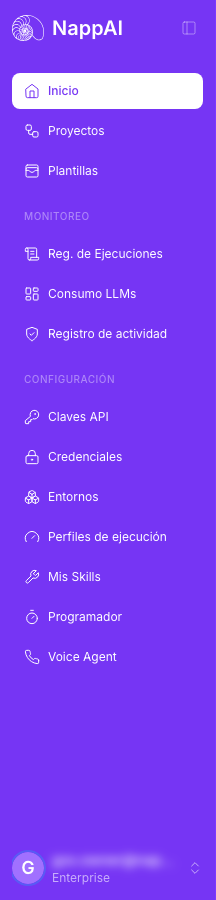
| Option | What it is for |
|---|---|
| Home | This screen. |
| Projects | Your flows, organised in folders. See Projects. |
| Templates | Ready-made flows to start from. See Templates. |
| Monitoring | |
| Executions Logs | Every run of your flows, step by step. See Executions log. |
| LLMs Uptake | How much your language models are used. See LLMs Uptake. |
| Activity log | Who did what in the account. See Activity log. |
| Configuration | |
| API Keys | The keys other applications use to call your flows. See API keys. |
| Credentials | The keys and logins of the services your flows use. See Credentials. |
| Environments | Sets of variables you can link to a flow. See Environments. |
| Execution profiles | Limits that apply to a flow’s runs. See Execution profiles. |
| My Skills | The skills you create for your agents. See My Skills. |
| Scheduler | Scheduled runs of your flows. See Scheduler. |
| Voice Agent | Your voice agents’ calls. See Voice agents. |
Activity log and Execution profiles only appear if your role lets you see them. The other options always appear; if your role doesn’t let you open one of them, the page tells you so. See Roles and permissions.
Your plan summary
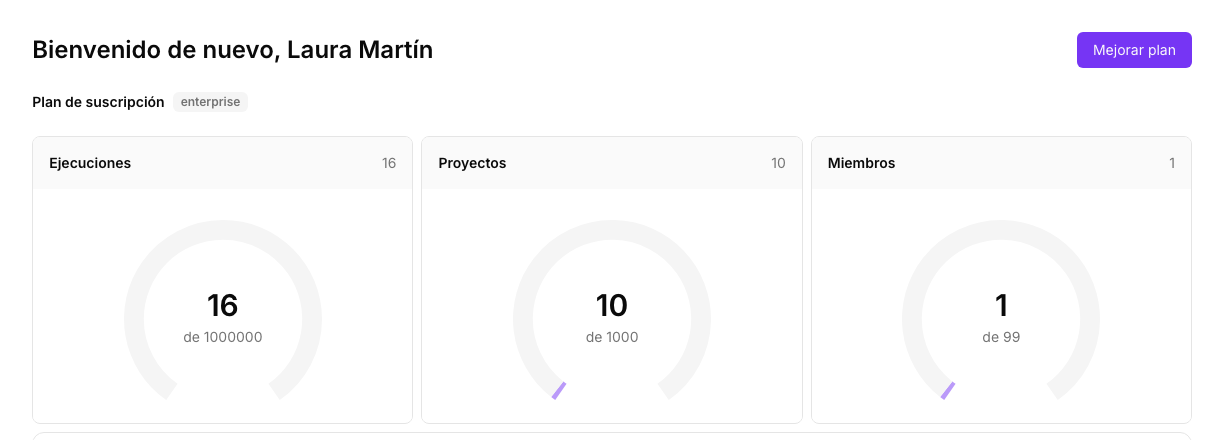
At the top you see the greeting and, below it, Subscription Tier with the name of your plan. Upgrade plan opens the subscription page, where you can change plan. See Your subscription.
The three cards show how much you have used of what your plan includes:
| Card | What it shows |
|---|---|
| Runs | Runs used against the plan total. |
| Projects | The projects you have against the plan maximum. |
| Members | Members against the plan maximum. |
Each card’s gauge turns red when you reach the limit.
AI Assistant usage
The AI Assistant Usage card shows how much of the AI Assistant limit you have used this month: the percentage used, how many days are left until it resets and the reset date. The bar turns amber when you get close to the limit and red when you go over it.
Below it you see the month’s Input tokens, Output tokens and Reasoning tokens, and a chart with the usage of the last six months.
The executions and tokens charts
The charts panel sums up your flows’ activity. It opens by itself when there is data; otherwise, open it with the arrow on the left.
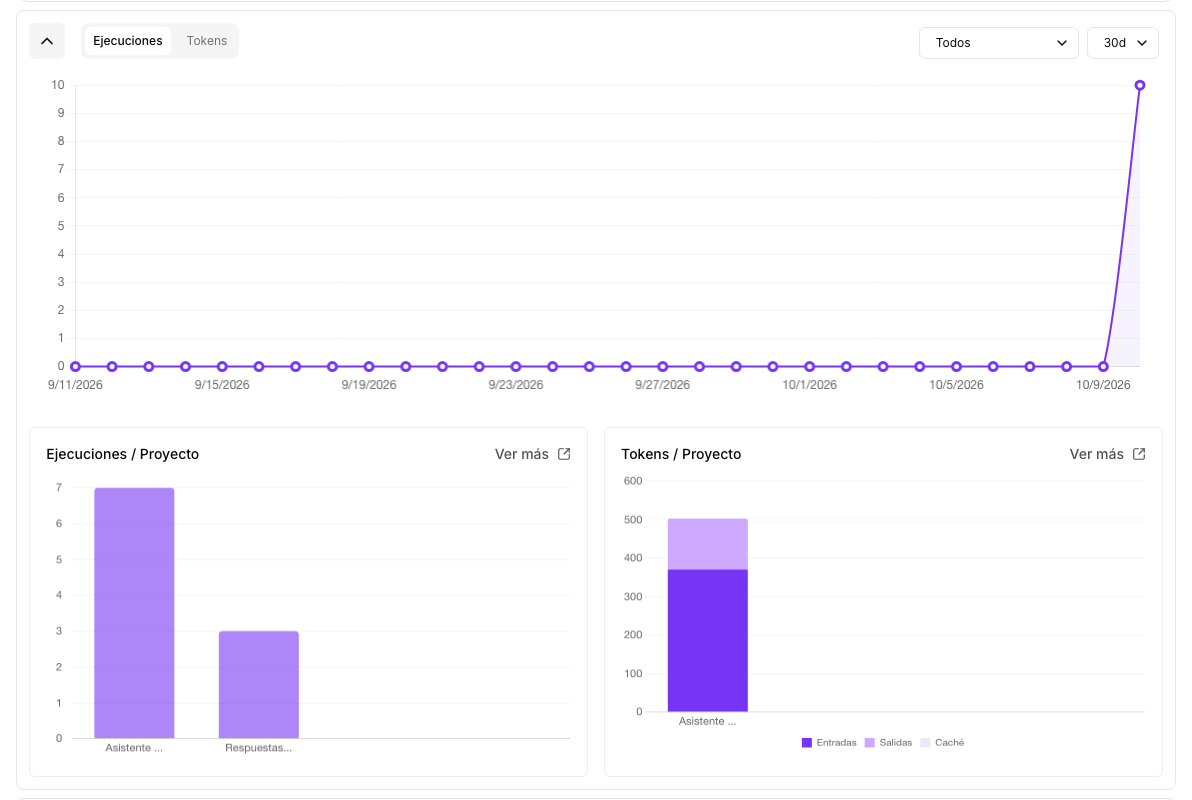
- Executions shows how many runs there were each day. Tokens shows the tokens used each day, split into Inputs, Outputs and Cache.
- The first drop-down chooses which runs count: Production, the ones that reach the published version; Playground, the ones from the playground; or All.
- The second drop-down chooses the period: 1d, 7d or 30d.
- Executions / Project and Tokens / Project show the four flows with the most runs and the most tokens. More opens LLMs Uptake.
The charts refresh by themselves every minute.
Tutorials and FAQs
The last panel has two tabs:
- Tutorials: videos grouped by topic, with a search box. Each video opens in a new tab.
- FAQs: short answers to the most common questions about NappAI.
Your user menu
At the bottom of the side menu you see your user and the name of your plan. Clicking it opens a menu with:
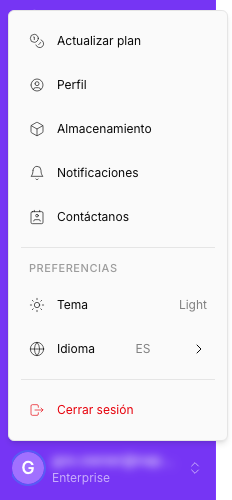
- Upgrade Plan: the subscription page.
- Profile: your details and preferences. See Your profile.
- Storage: the files and resources your flows keep. See Your storage.
- Notifications: invitations and platform notices. A dot means you have unread notices.
- Contact us: a form to write to the NappAI team.
- Theme: switches between the light and the dark theme.
- Language: switches the app between English and Spanish.
- Logout.
If you belong to another account’s team, the menu starts with Teams: choose the account you want to work in and NappAI takes you to its projects. See Share your account.