

Call desk
Some calls need a person. With the Call desk, your voice agent hands the call to someone on your team, who takes it right in the NappAI dashboard. That person sees who is calling, the reason and a summary of the conversation, talks to the caller and, if they want, gives the call back to the agent with a note on what they did. The agent carries on knowing what happened.
In the video: inviting a call agent, creating a group, setting up Transfer Call, entering the desk with an extension and taking two real calls, one for anyone available and one for a specific extension.
You’ll find it in the menu, under Voice, as Call desk.
1. Invite whoever will take the calls
Anyone on your team can take calls, whatever their role. If someone will only take calls, invite them as a call agent:
- In the Call desk, open the Agents tab.
- Click Invite, type their email and click Send invitation.
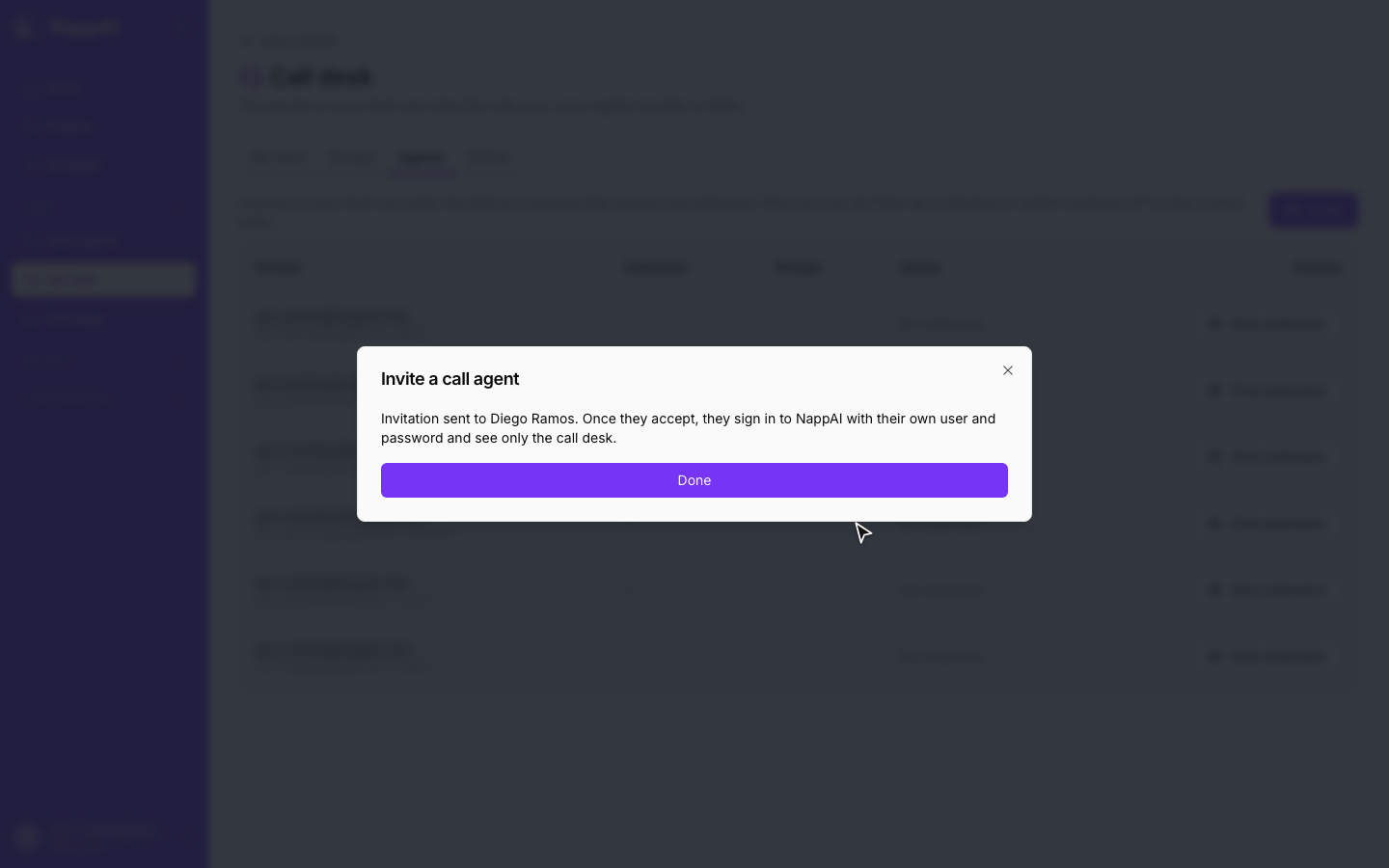
They get an email to join your team. They sign in to NappAI with their own username and password and only see the Call desk: no access to flows, credentials or runs.
Anyone who can edit flows in the account can invite: the owner, Admins and Builders. The Call agent role also shows up when you change someone’s role from your profile. See team roles.
2. Create the groups
In the Groups tab, type a name (for example Support or Sales) and click Create. Each group is a team that takes calls.
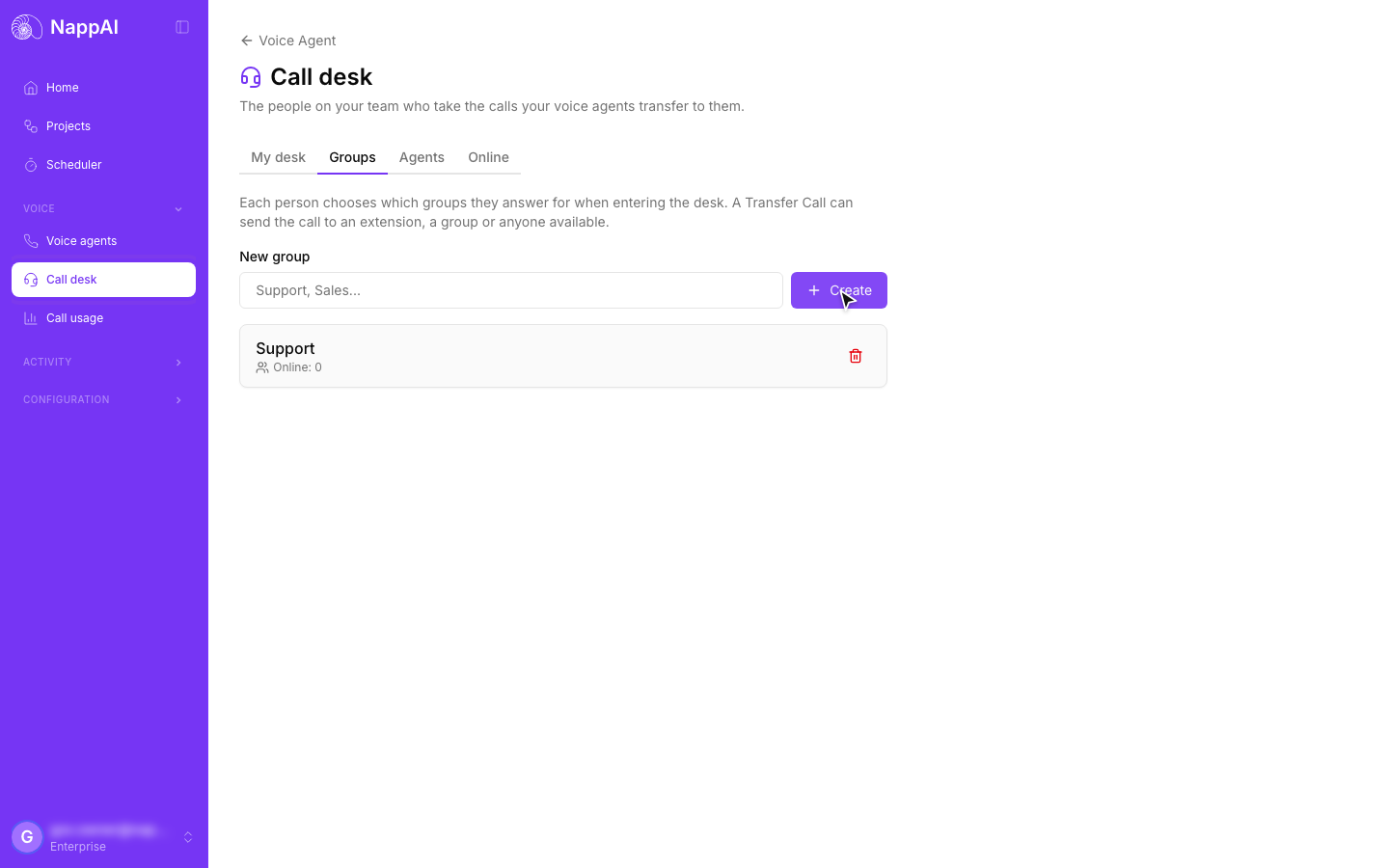
Groups are optional: with no group, a person still gets calls to their extension and anyone available calls.
3. Set up Transfer Call
In the voice agent’s flow, the Transfer Call component hands the call over. For the desk:
- Destination Type:
human_desk. - Human Agent: who it rings.
any(default): anyone connected and available.group: everyone connected in the group you pick in Group.extension: the person at one extension.
- Extension: optional, with any Human Agent value. If you type it, only that person is rung. If you let the agent fill it in (the sparkles button, Defined by AI), it only does so when the caller asks for someone in particular; with Can be left empty on, when it isn’t needed it stays empty and the group, or anyone available, is rung.
- Type:
coldhands the call over straight away.warmhas the agent brief the person by voice, in private, before connecting them to the caller. - Ring Timeout (Seconds): how long it rings before giving up (45 by default).
- Hold Limit (Seconds): the longest the caller waits in total (180 by default).
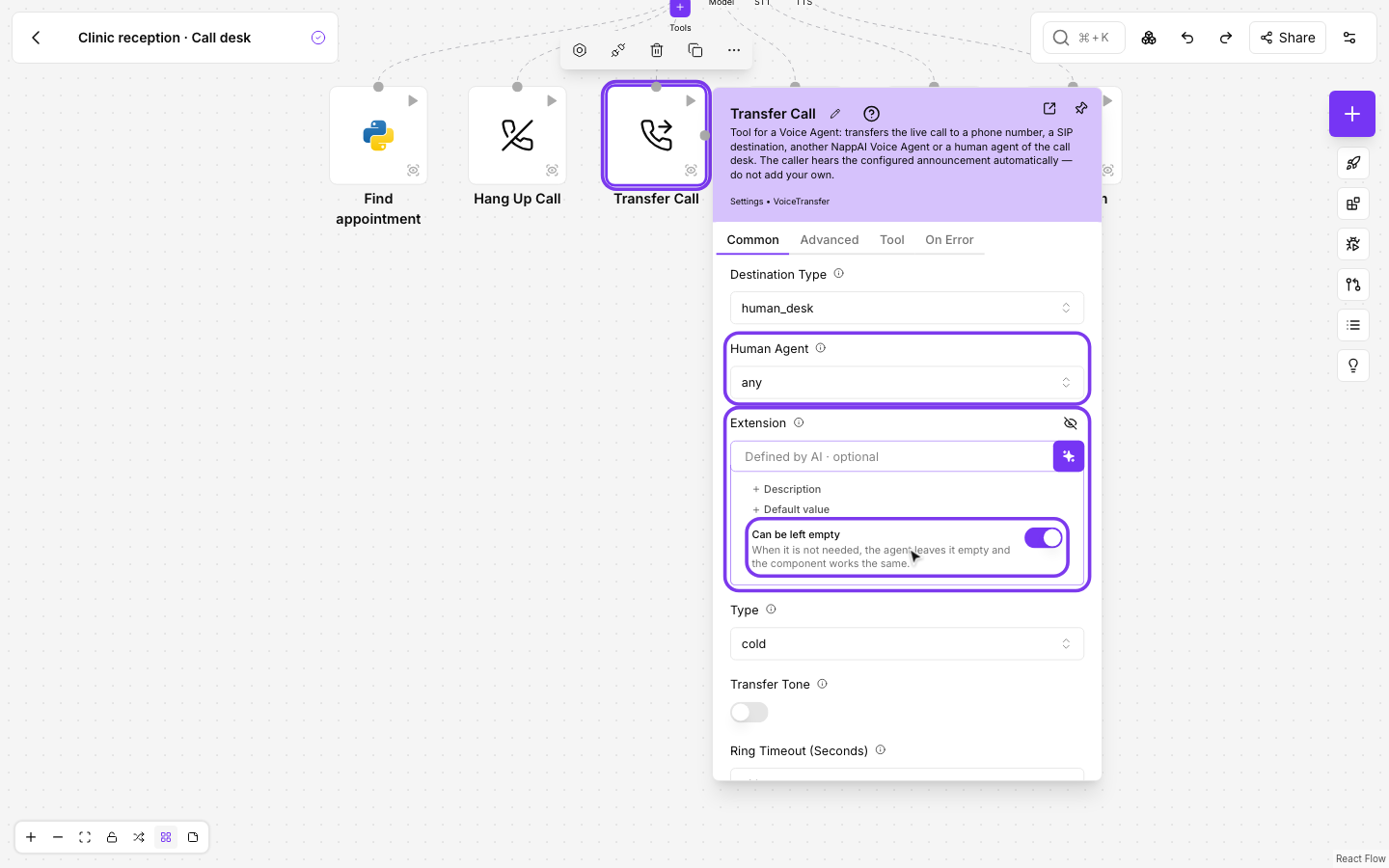
The first person to answer takes the call. If nobody is connected, or nobody answers in time, the agent tells the caller and keeps helping them itself.
4. Enter the desk
In the My desk tab, turn on Connect to the call desk. Pick your groups, your Extension and, if you like, your Display name, and click Enter.
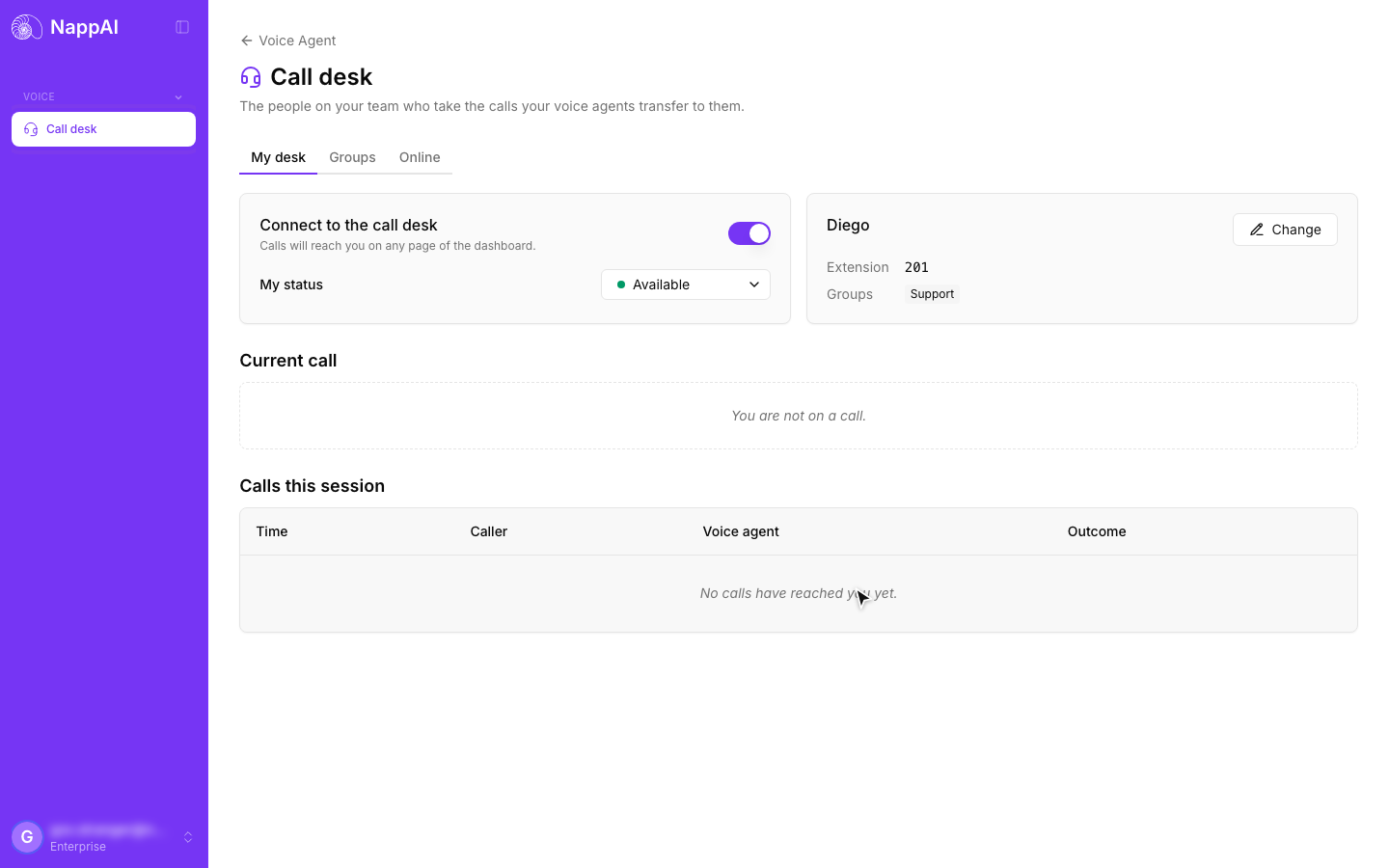
- Nobody else on the team can have the same extension.
- From then on, calls reach you on any page of the dashboard.
- In My status you can switch to Busy or Away so no calls reach you without disconnecting.
5. Take the call
When a call is handed to you, a card shows who is calling, from which agent, who it was for (Anyone available, a group or an extension), the reason and a summary of the conversation. The caller waits with music.
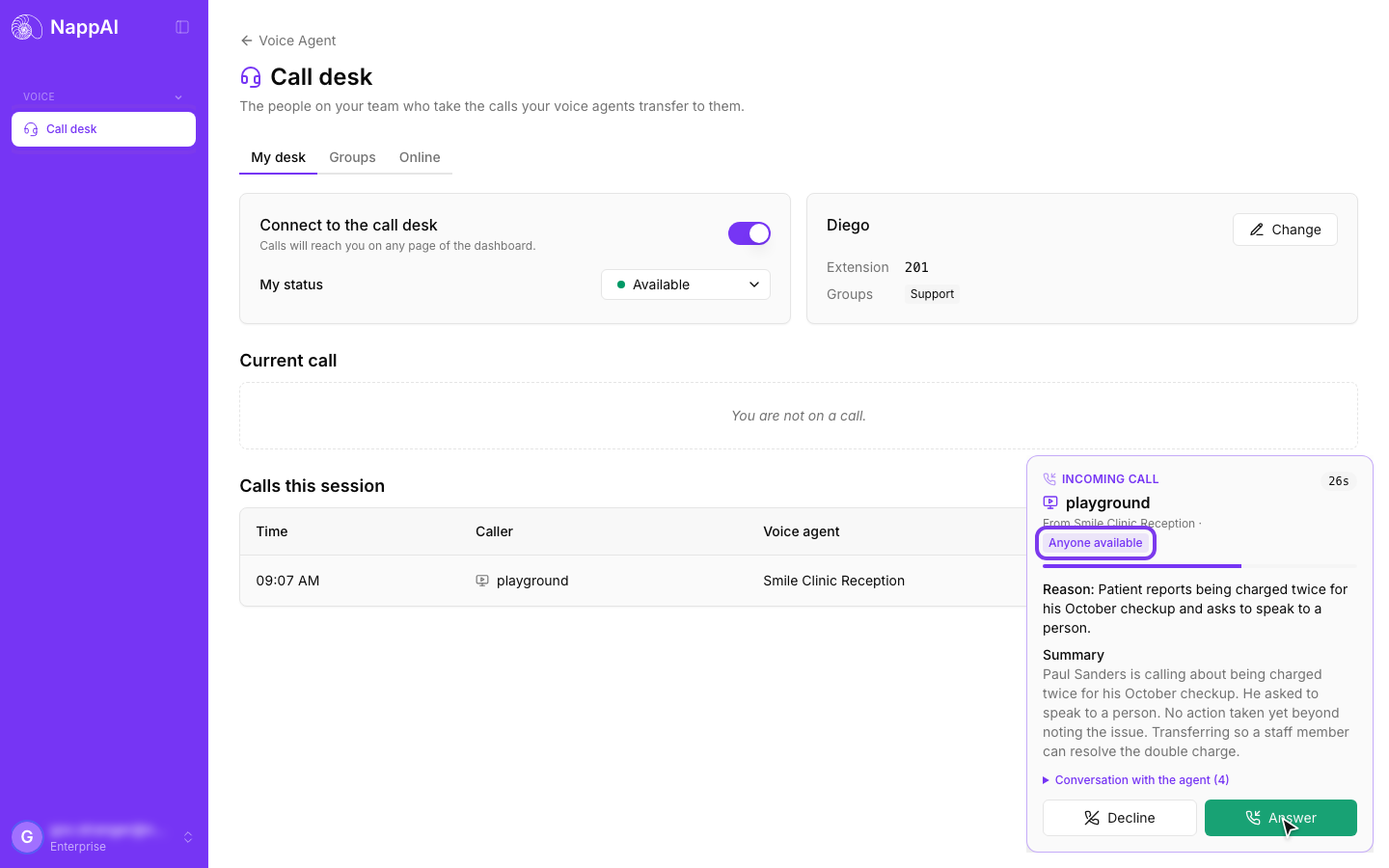
Click Answer to talk to the caller, or Decline if you can’t take it: if nobody else answers, the agent carries on with the caller. With the warm type, you first listen to the agent briefing you; when you’re ready, click Connect to the caller.
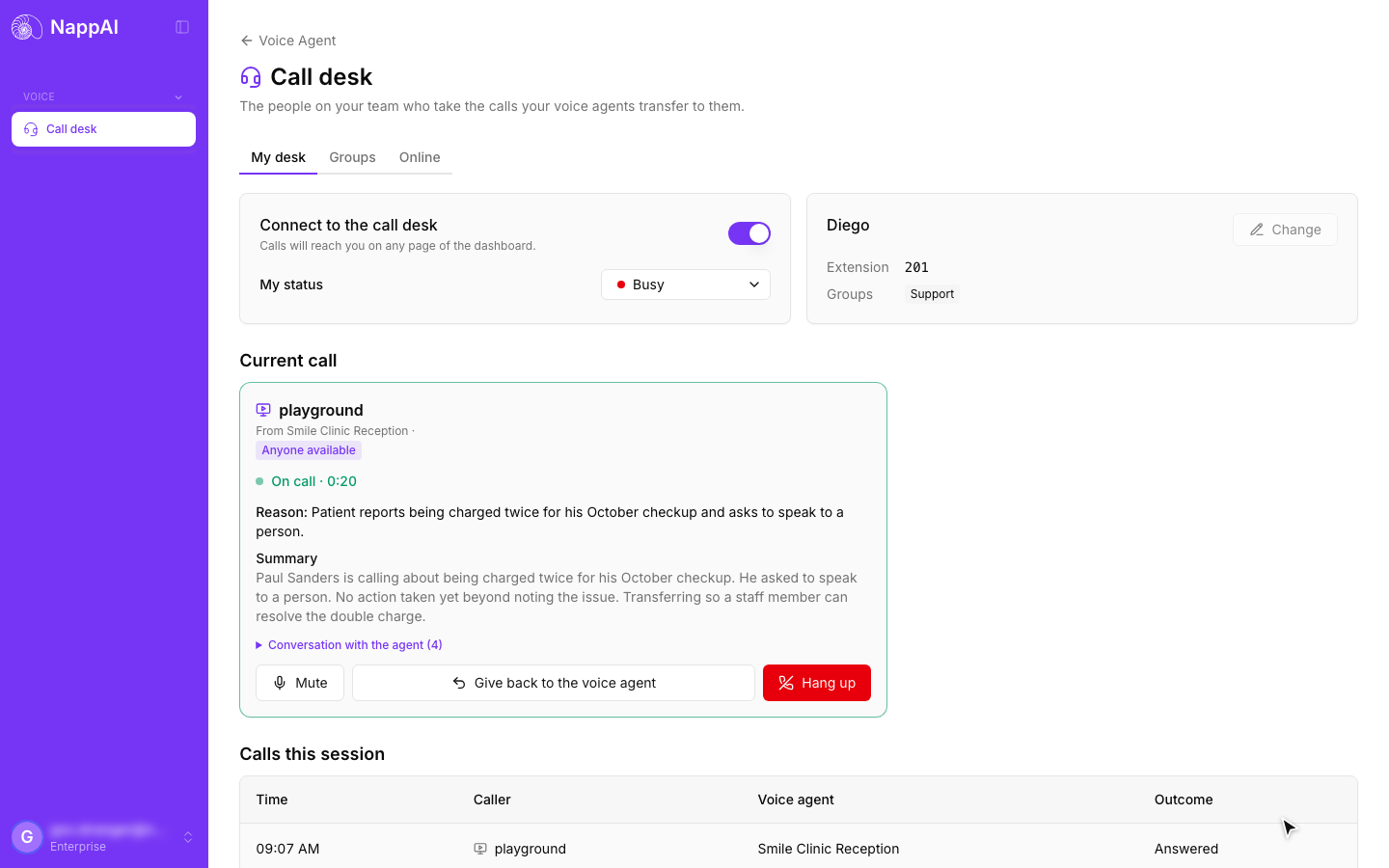
6. Give the call back to the agent, or hang up
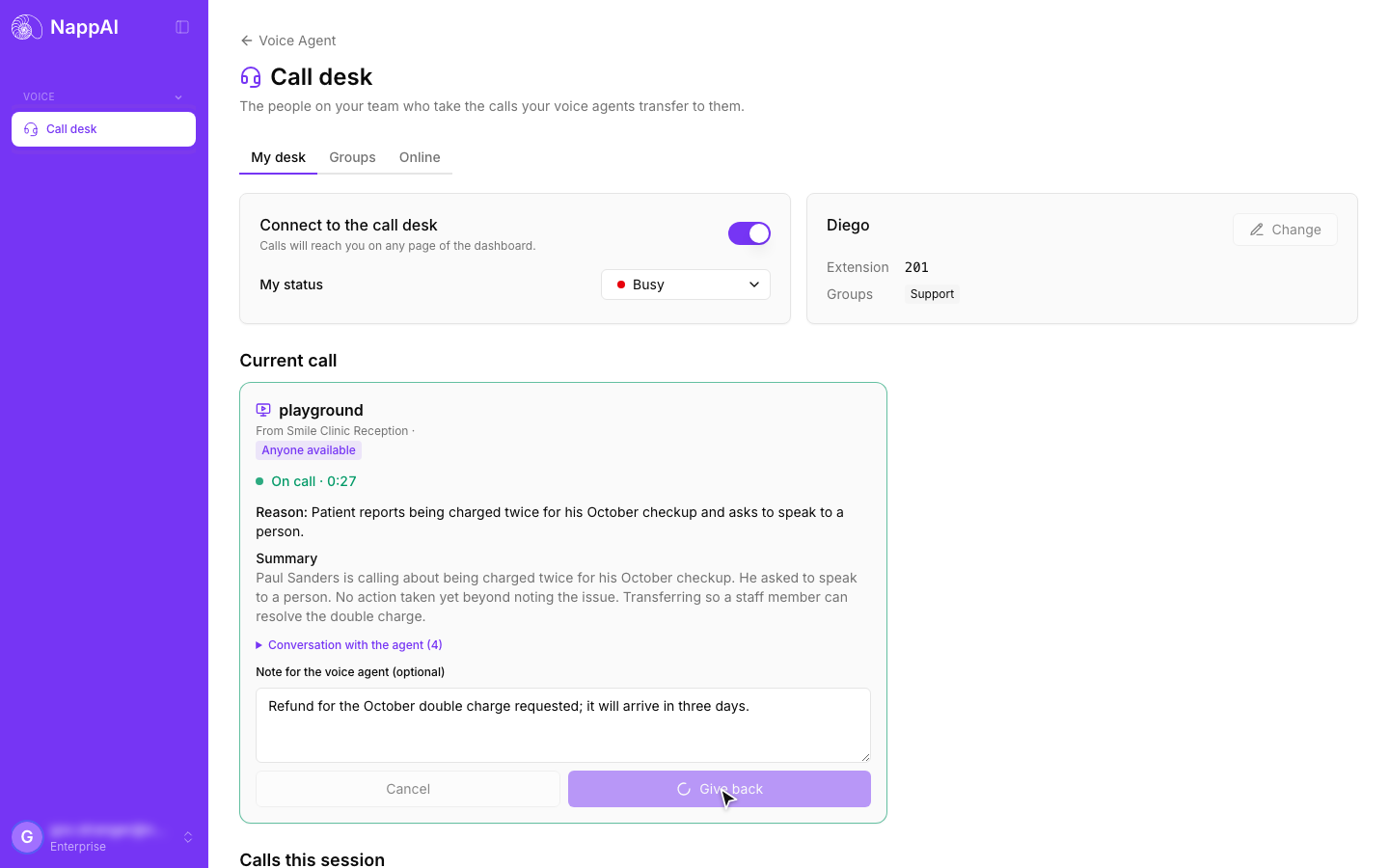
- Give back to the voice agent: optionally write a Note for the voice agent with what you did and click Give back. The agent picks the conversation up again knowing it.
- Hang up: ends the call.
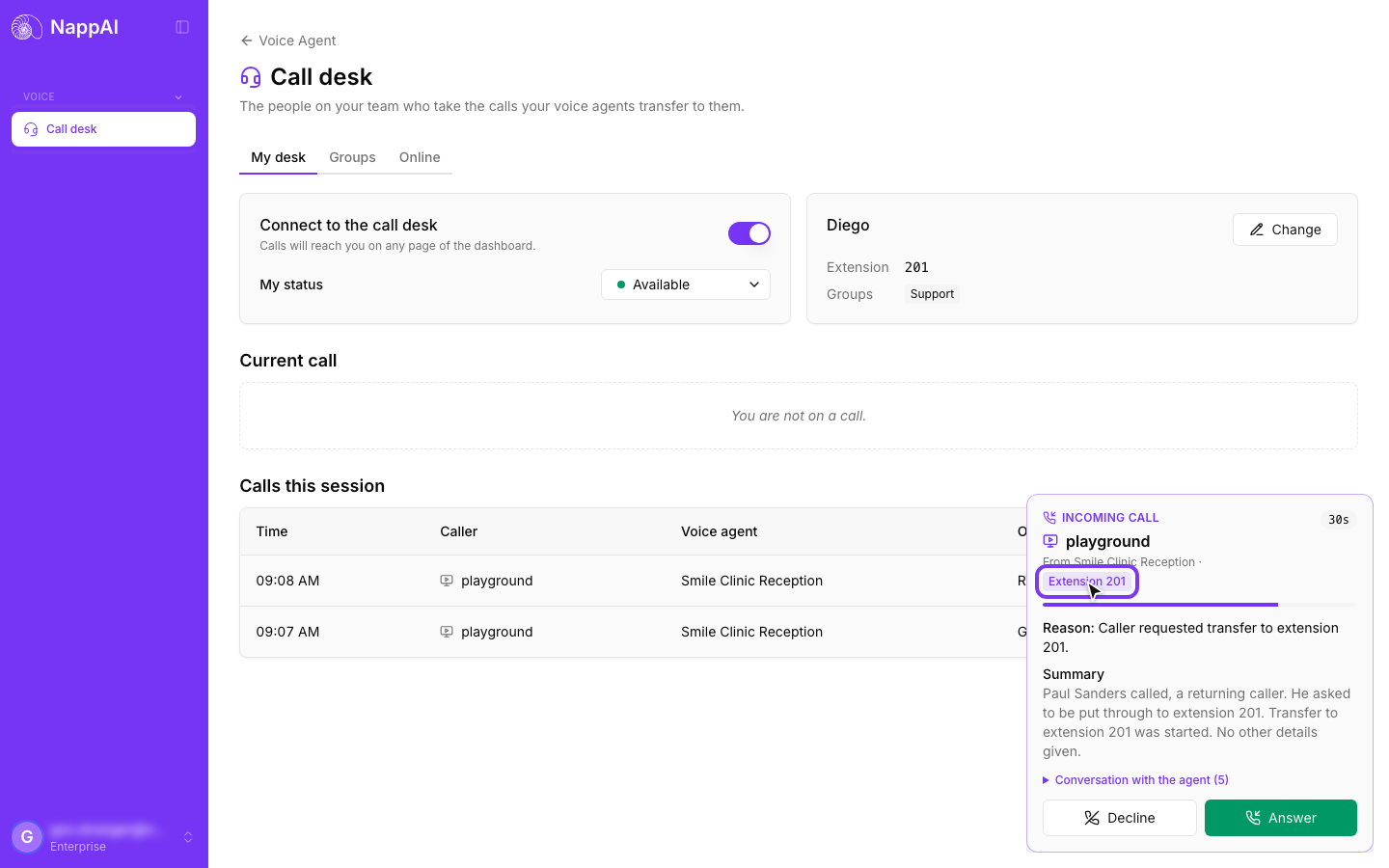
Asking for a specific extension
If the caller asks for an extension (“could you put me through to two oh one?”) and the agent fills in the Transfer Call’s Extension, the call rings only that person. The card says so.
Who is online
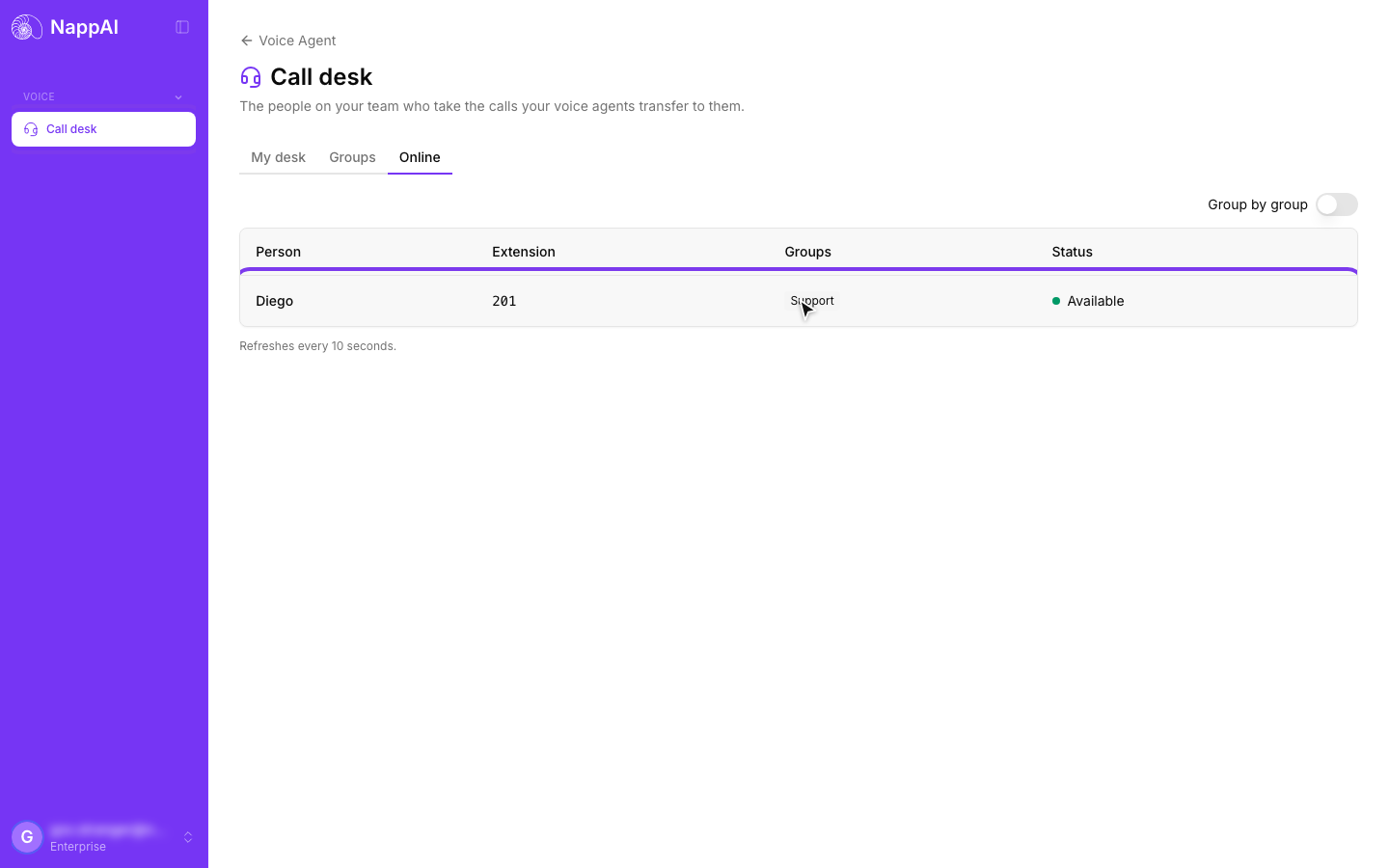
The Online tab shows who is on the desk, with their extension, groups and status. It refreshes every 10 seconds, and Group by group shows it by team.
Anyone who can edit flows also sees the Agents tab: everyone on the team, with their extension and groups. From there they can set someone’s extension in advance or switch them off so they can’t enter the desk.