

The Voice Agent menu and publishing
In the side menu, under Configuration, the Voice Agent screen brings together everything that decides how people reach your agents. The flow says what the agent is; this screen decides how it is called.
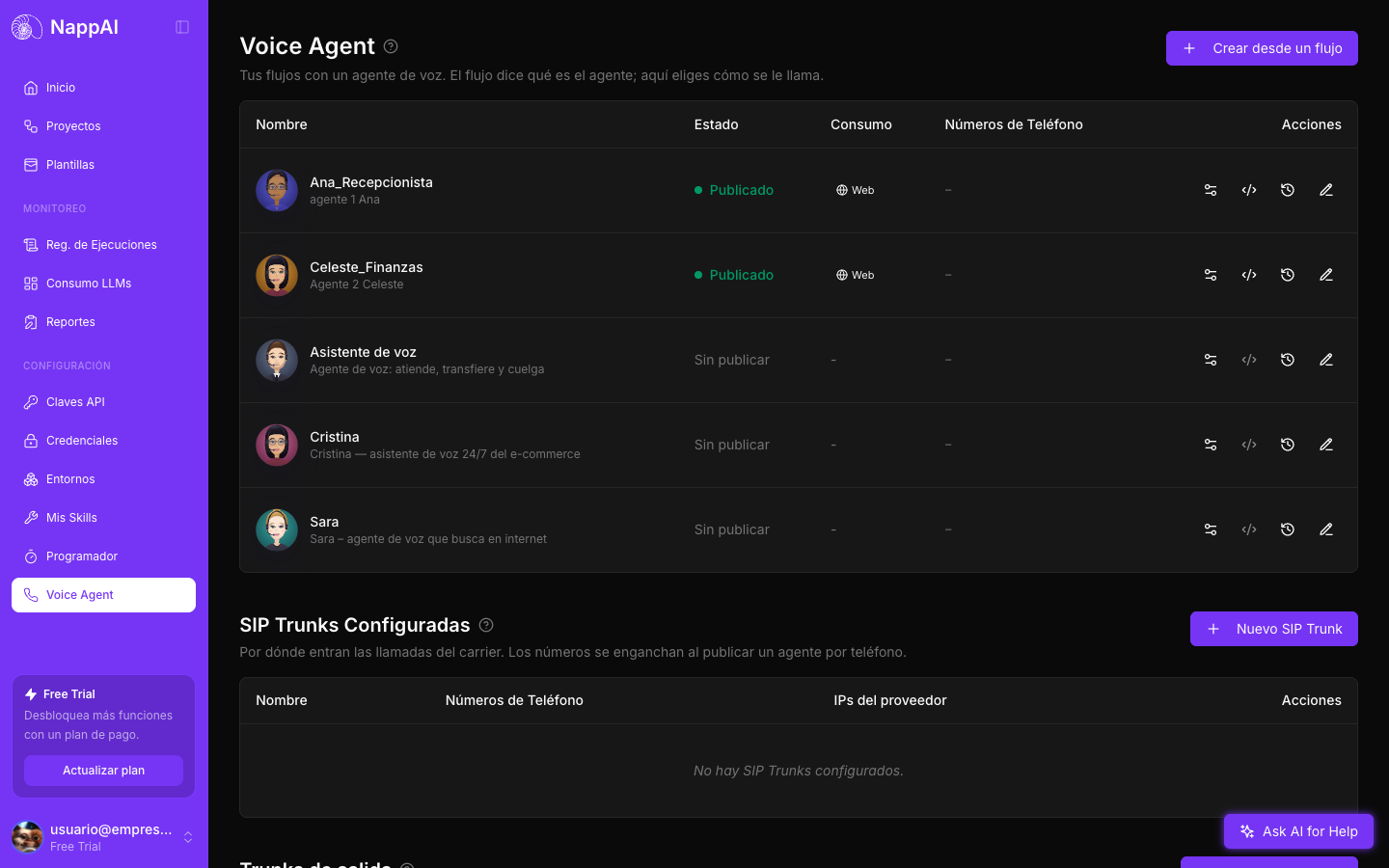
The screen has three sections:
- The list of agents: your flows with a Voice Agent component.
- Configured Trunks: the connections your phone carrier’s calls come in through. See Phone: inbound calls.
- Outbound trunks: the connections calls and transfers to a phone go out through. See Outbound calls.
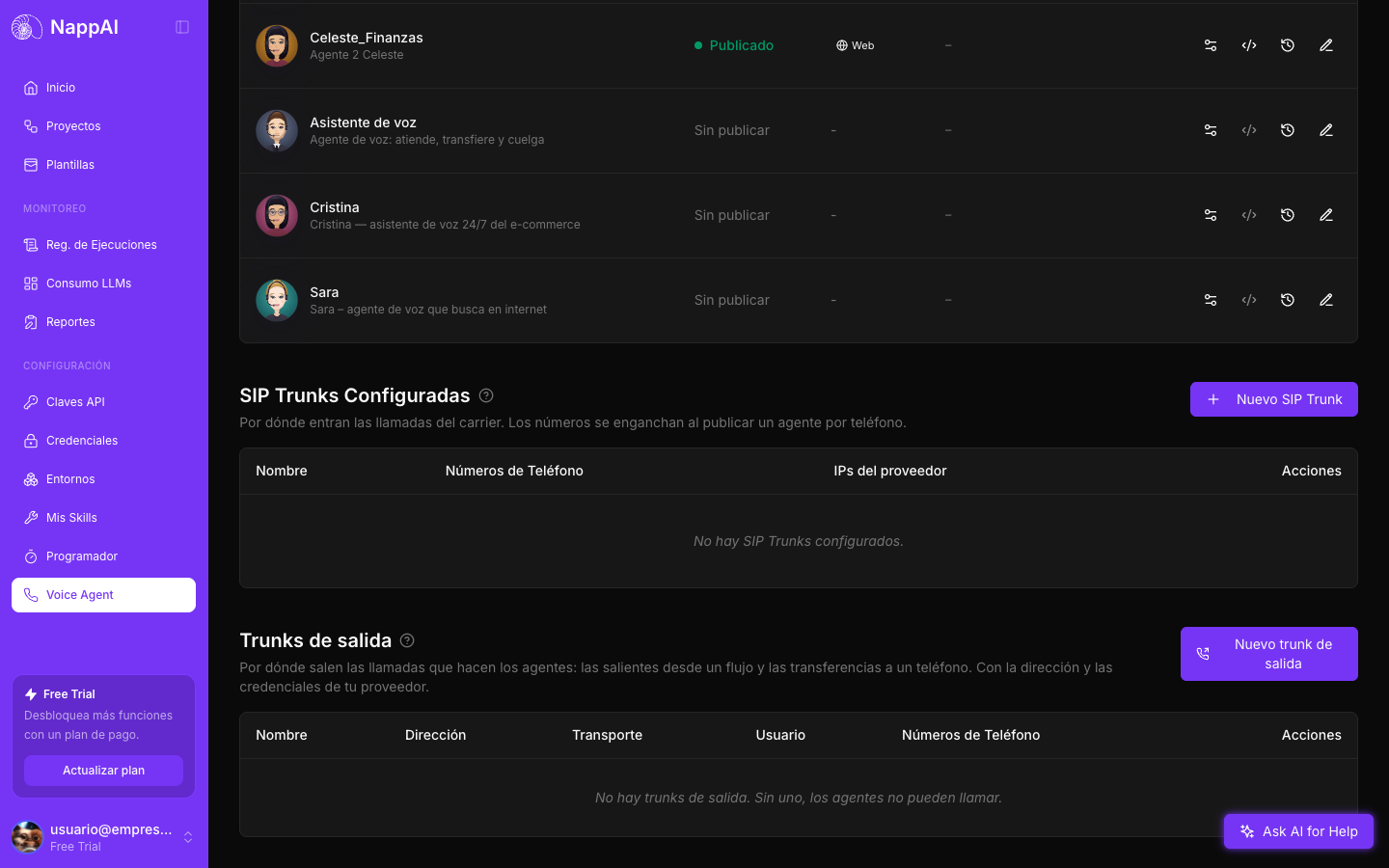
The list of agents
| Column | What it shows |
|---|---|
| Name | The agent’s avatar, its Agent Name and the flow’s name. Click the avatar to change it. |
| Status | Published, Not published or Not configured. Not configured means the flow is missing something it needs to be published, for example the agent’s name. |
| Consumption | The channels it is published on: Web, phone or both. |
| Phone Numbers | The numbers it answers. |
| Actions | The four buttons below. |
The Actions buttons, from left to right:
- Configure consumption: publishes the agent and chooses its channels. Explained on this page.
- Widget: the web widget and the avatar. Only available when the agent is published. See Web widget and browser calls.
- View Call History. See History.
- Edit the flow: opens the flow on the canvas.
Publish an agent
Before publishing, deploy a version of the flow from the editor. Publishing always uses the deployed version. See Versions and publishing.
Click Configure consumption on the agent’s row.
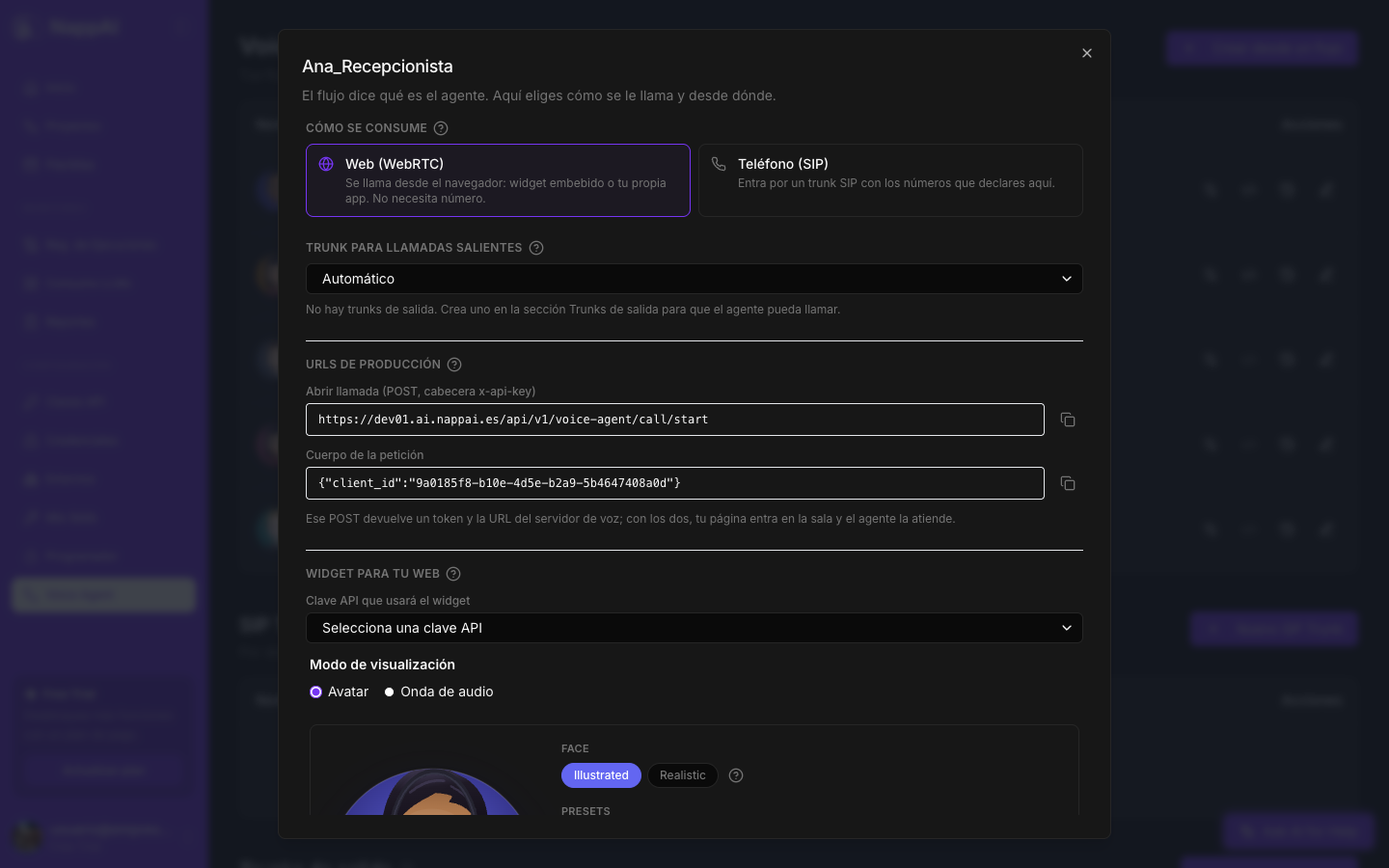
How it is consumed
Tick at least one channel:
- Web (WebRTC): people call from the browser, with the widget on your website or from your own application. No phone number needed.
- Phone (SIP): the agent answers the phone numbers you enter in the same window, connected through your carrier. Ticking it shows the phone fields, explained in Phone: inbound calls.
You can tick both: the same agent answers the web and the phone.
Trunk for outbound calls
The connection with your carrier that the calls this agent places from a flow with the Outbound Call component go out through. Automatic uses your only outbound trunk. If you have not created any, the window tells you. See Outbound calls.
Production URLs
What your development team needs to open a call from your own application: the Open a call address and the Request body with the agent’s identifier. Each has its own copy button. See Web widget and browser calls.
Widget for your site
The widget’s API key, the visualization mode, the avatar and the code to paste into your website. See The avatar and Web widget and browser calls.
Publish, update and unpublish
At the bottom of the window:
- Publish puts the agent to work on the chosen channels. If it was already published, the button is called Update publication.
- Unpublish removes it from every channel. You can publish it again whenever you want.
Update publication does two things: it picks up the flow’s latest deployed version and applies the changes to channels, numbers and trunks. If you change the prompt, a tool or the voice, deploy a new version and click Update publication so real calls use it.
To pause an agent without losing its configuration, turn off Enabled on the Voice Agent component, deploy a new version and update the publication. The agent does not answer calls until you turn it back on.