

Chapter 5: Publish and follow a flow
While you work in the editor you change the flow’s draft. For other applications, schedules or phone calls to use it, you have to publish it: save a version and deploy it. That way you can keep improving the draft without affecting whoever already uses it.
What you’ll learn
- The difference between the draft and the deployed version.
- How to create and deploy a version.
- How to call the flow from another application or schedule it.
- Where to check that it ran correctly.
Draft and deployed version
| Who runs the flow | What it runs |
|---|---|
| The editor’s Playground | The draft |
| API Access in Test mode | The draft |
| API Access in Production mode, webhooks and connected apps | The deployed version |
| The Scheduler | The deployed version |
| Phone calls to a voice agent | The deployed version |
There is only one deployed version at a time.
Create a version
- In the editor, click Version History in the right column.
- Click Create new version.
- In Environment, choose the environment it will run with in production, or leave it on No environment.
- Type the name in Version name, for example 1.0, and explain what changes in Version description.
- Click Create Version.
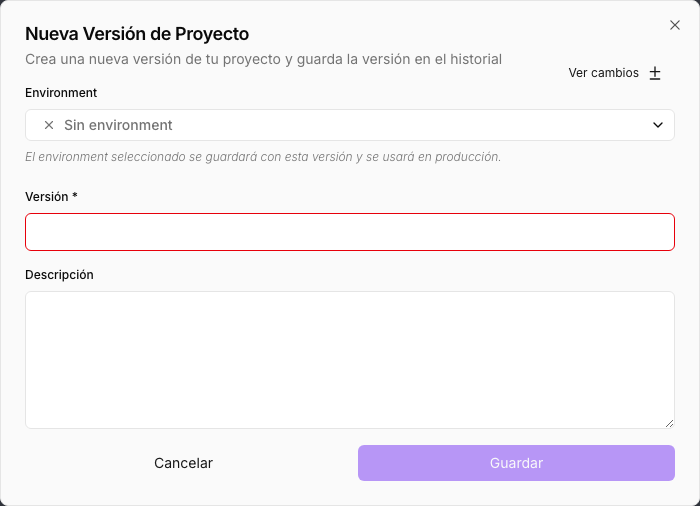
Creating a version doesn’t deploy it: what is in production stays the same.
Deploy it
- Click Deploy in the right column.
- In Select version to deploy, choose the version.
- Click Deploy.
From then on, every production call uses that version.
If something goes wrong, open Version History, choose an earlier version and deploy it again. See Versions and publishing.
Call it from another application
- If you don’t have an API key yet, create one in API Keys. See API keys.
- In the editor, click API Access.
- In Consumption mode, choose Production.
- In API Key, choose your key.
- Choose a language tab, such as cURL, and copy the code. It already contains the flow’s address and the key.
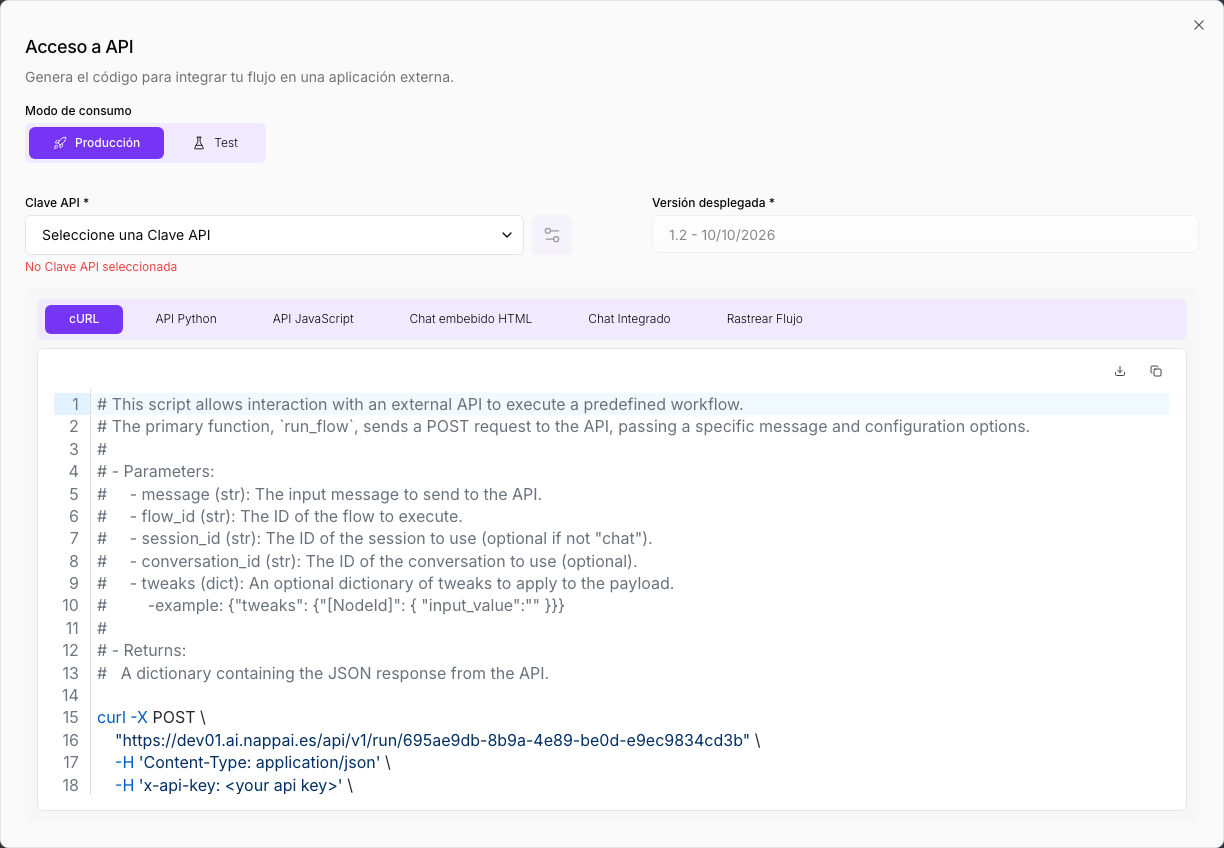
If the flow starts with an application’s component, such as Telegram Webhook or WhatsApp, the window shows a tab with the details to connect it.
Or schedule it
To make the flow run on its own, for example every Monday at 8:00:
- In the side menu, click Scheduler and then Create scheduler.
- Type the Name, choose the key in Select API key and choose when in Execution time.
- Under Project, choose the flow and, if it has inputs, type their values.
- Click Save scheduler.
See Scheduler.
Check that it works
- In the side menu, click Executions Logs.
- In All projects, choose your flow.
- A green tick means the run went well; a red triangle, that it failed.
- Click View to check step by step what each component received and returned. If it failed, the step of the component that gave the error shows the reason in Output.
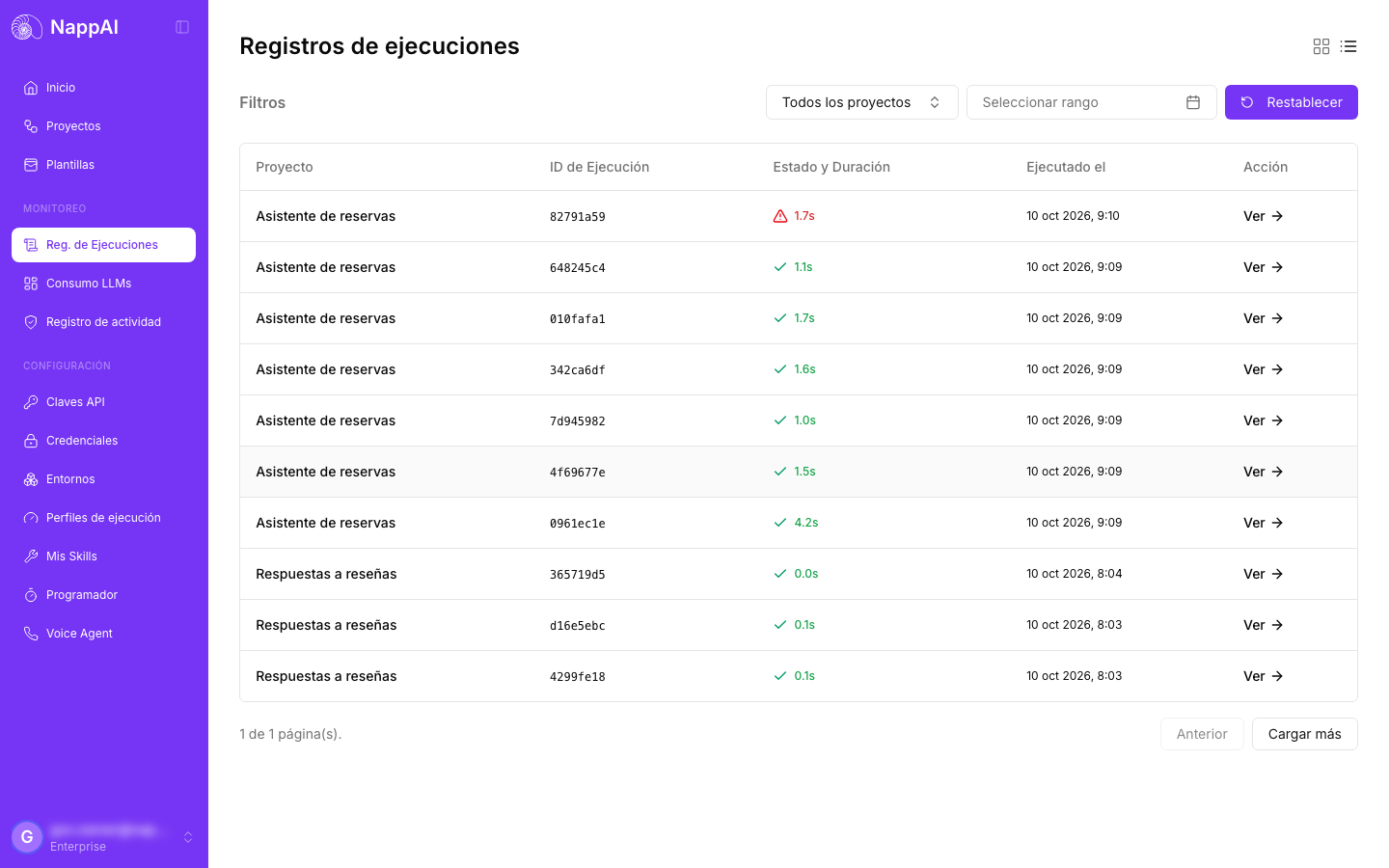
See Executions log and, if something fails, Troubleshooting.
Summary
- The playground tests the draft; production uses the deployed version.
- To publish: Version History > Create new version, then Deploy > Deploy.
- API Access gives you the code to call the flow; the Scheduler runs it on its own.
- Executions Logs tells you whether each run went well and why it failed.
You’ve completed the course. To practise with a real case, follow the email and calendar assistant use case.