

Templates
A template is a ready-made flow for a common case: summarising email, extracting data from invoices, answering questions about documents… When you use one, NappAI creates a copy in your projects. The copy is yours: you can change it as you like without changing the template.
Browse the templates
Click Templates in the side menu.
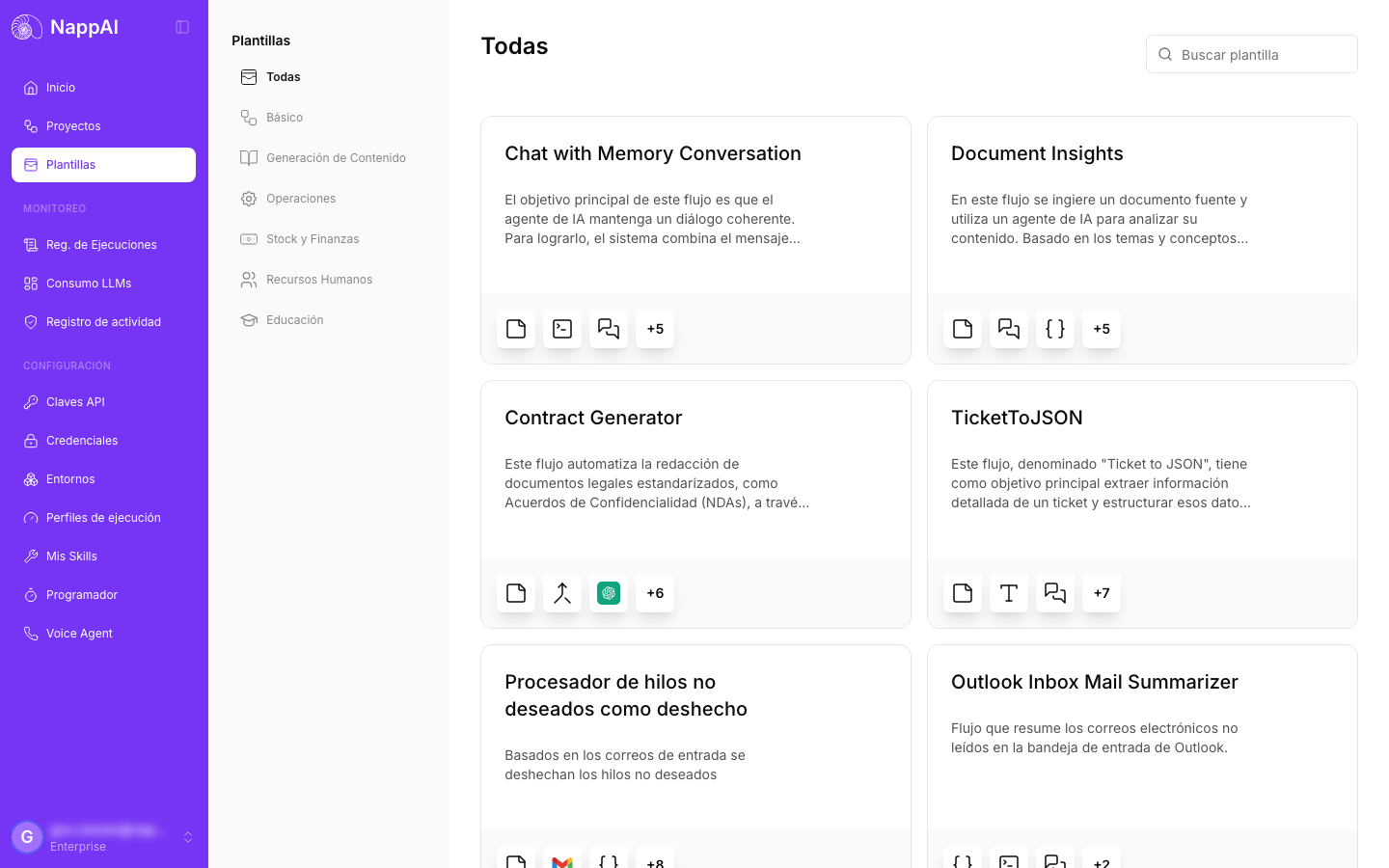
- The categories are on the left, such as Basic, Operations or Human Resources. All shows the full catalogue. MCP Integrations and Agent to Agent (A2A) gather templates ready to try those two standards: see MCP and A2A.
- Each card shows the name, a short description and the icons of the components it uses.
- Search template searches names and descriptions across the whole catalogue, whatever category is selected. Changing category clears the search.
Preview a template before using it
Click a card to open its preview.
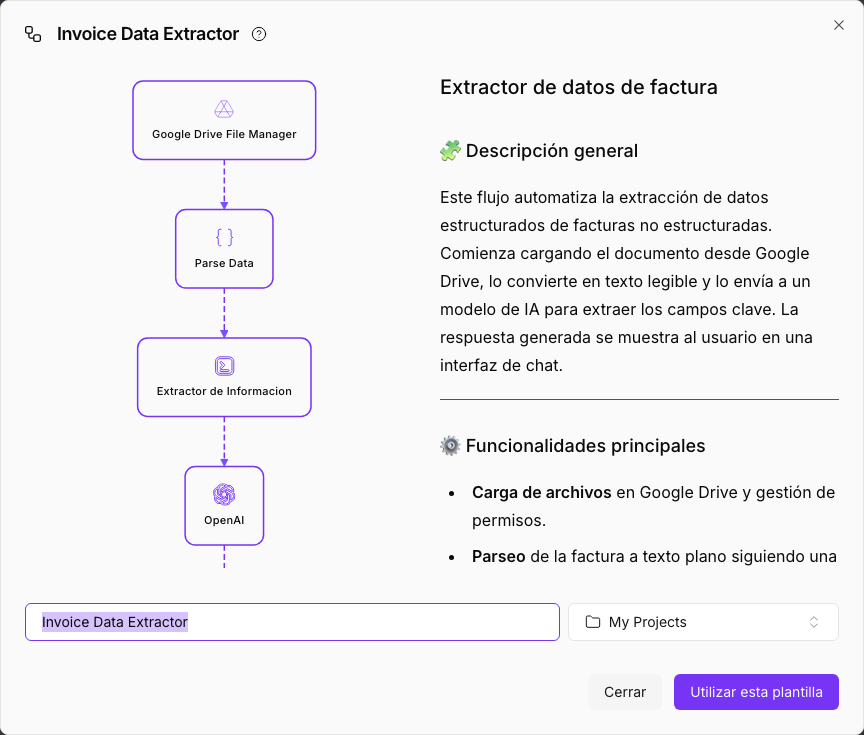
- On the left, a diagram with the flow’s components and the order in which they connect.
- On the right, the template’s explanation: what it does and how it works.
- The ? icon next to the name opens its documentation in a new tab.
Create a project from a template
- In the preview, type the name your project will have. It is filled in with the template’s name.
- Choose the folder where it will be saved. The folder you had open in Projects, or the last one you used, is preselected.
- Click Use this template.
NappAI creates the project and opens it in the editor. If that folder already has a project with the same name, it adds a number at the end.
A template usually needs your credentials to work, for example your Google account’s or the language model’s. The components that ask for them show a yellow warning in the editor until you choose them. See Credentials.
If your plan already has the maximum number of projects, the preview says so instead of showing the Use this template button.