

History, transcripts and recordings
Every call is recorded, whether it comes from the playground, the web, the phone or is outbound. In the Voice Agent menu, click View Call History on the agent’s row.
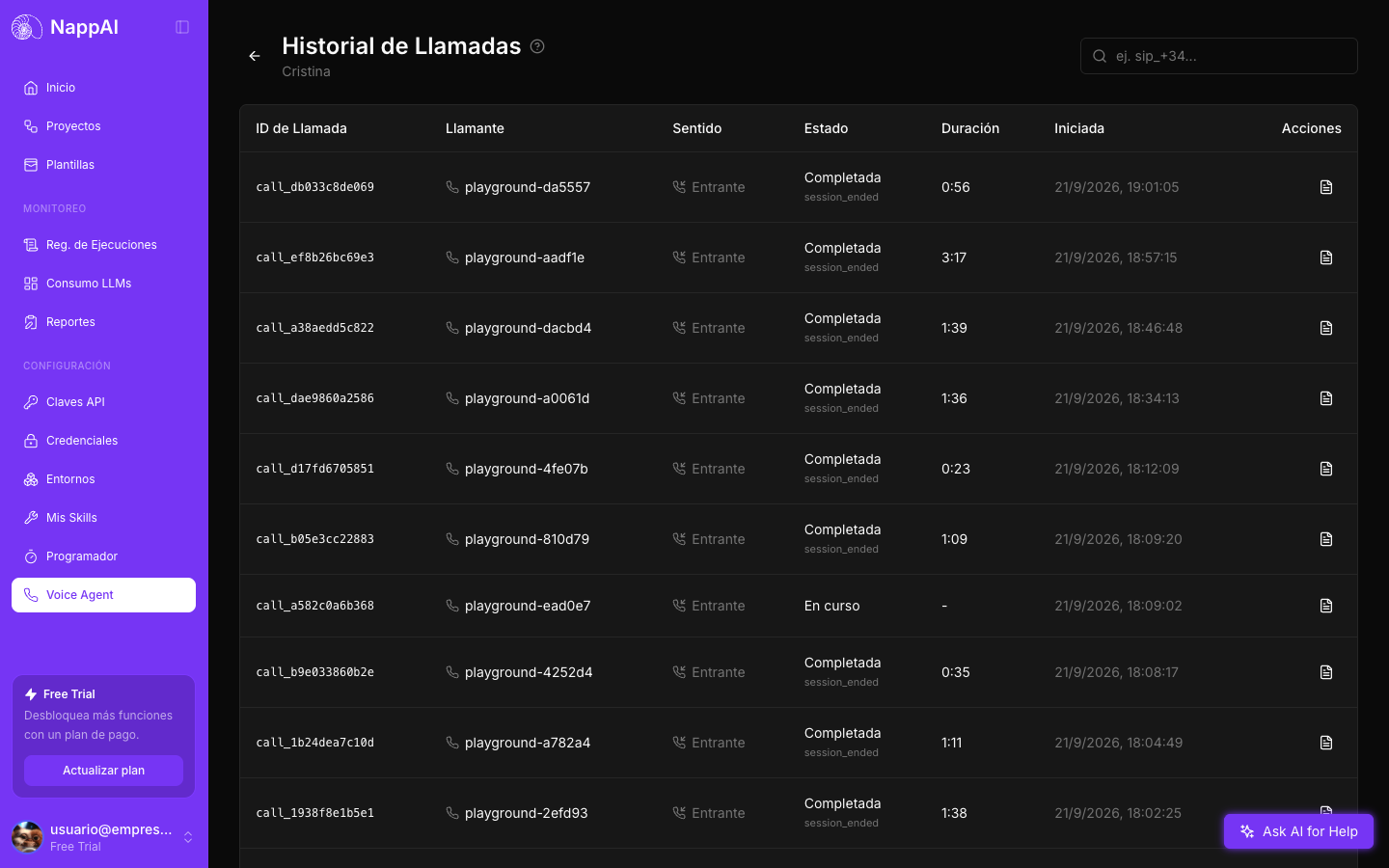
| Column | What it shows |
|---|---|
| Call ID | The call’s identifier. |
| Caller | The calling number, or playground-… for tests from the editor. |
| Direction | Inbound or Outbound. |
| Status | Completed, Live, Started, Failed, Transferred or Abandoned. Below it, the reason the call ended: for example, the reason the agent gave when hanging up, or the error if the call failed. |
| Duration and Started At | How long it lasted and when it started. |
The search box at the top filters by calling number.
Call details
Click the Actions icon of a call to open its details.
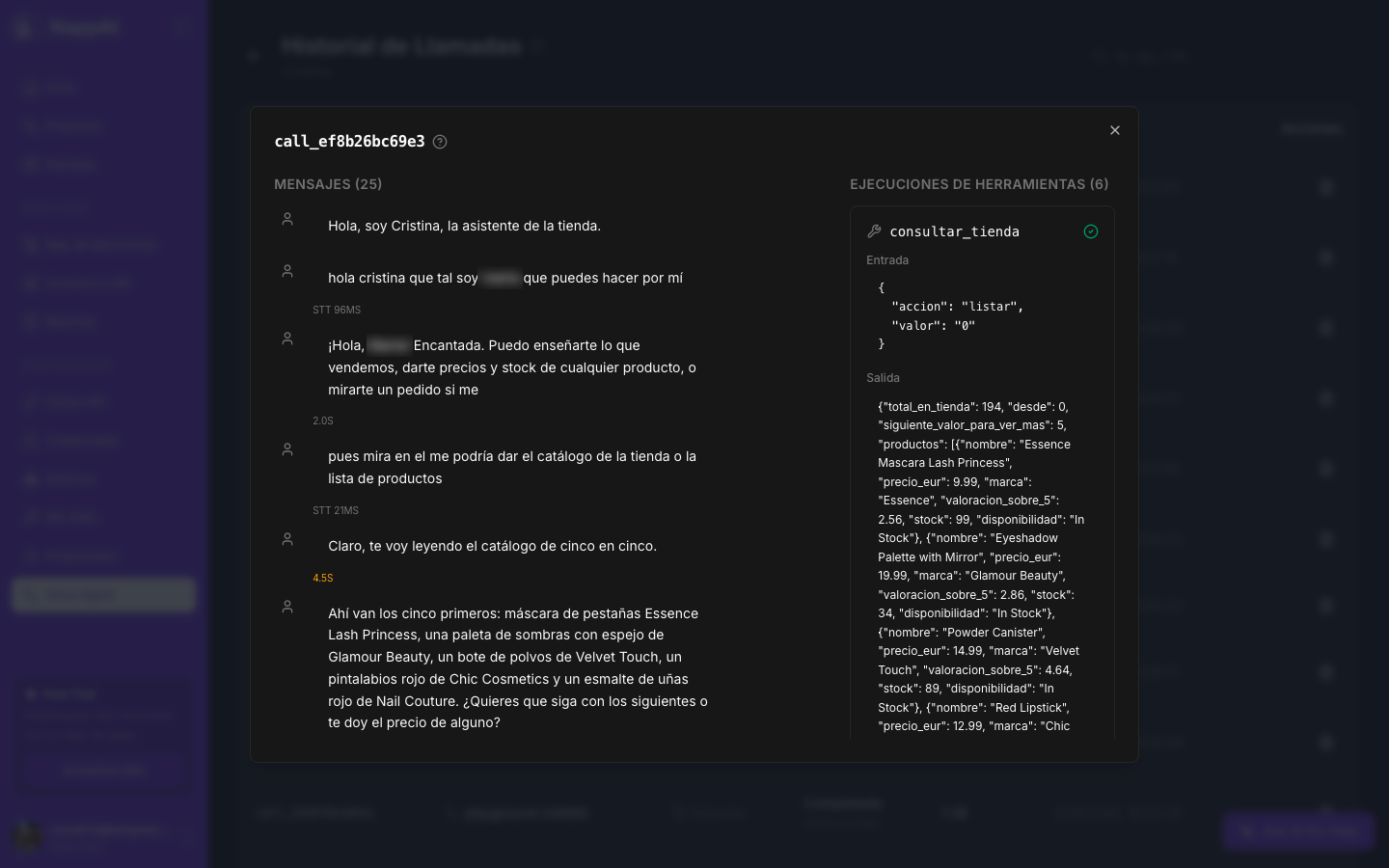
- Messages: the full transcript, turn by turn.
- Under each caller sentence, STT: how long it took to transcribe after they stopped speaking.
- Under each agent answer, the time until its voice started playing. It is the wait the caller notices.
- Sentences the caller interrupted are marked.
- Tool Executions: every tool the agent used, with its Input (what it asked for) and its Output (what it got back). It includes the call tools, such as Hang Up Call with its reason.
- Recording: if the agent has Record Calls on, a player with the call’s audio.
The details are your first tool to improve an agent:
- A bad answer with a good tool output is fixed in the prompt.
- A bad tool output is fixed in the tool or in its description.
- Long waits before each answer usually come from the model. See Quality, noise and latency.
Recordings
To record, turn on Record Calls in the Call Recording group of the Voice Agent component, deploy a new version and update the publication.
- The whole call is recorded, caller and agent, and you can listen to it from the details.
- Recordings are kept for a fixed period, like the rest of the history, and are then deleted automatically.
- Telling callers about the recording is your responsibility. Do it in the Greeting or with a Say to Caller at the start. For example: “This call may be recorded to improve our service”.
Failed calls
If a component fails in the middle of a call, for example a retired model or a provider with no balance, the call is cut off and appears as Failed. Below the status you see the reason the provider gave, for example that there are no credits left or that the model is no longer available.
The same call appears in Executions Logs with the failed component in red. Fix the component and test again in the playground.