

Request Approval
Request Approval is a tool for your agents. When the agent is about to do something important, such as sending a quote, committing money or writing to a customer, it asks for permission before acting. It also lets the agent wait for something to happen outside, such as a customer signing a contract. The agent notifies whoever must answer, stops, and nothing runs and nothing is consumed while it waits, even if the answer takes minutes or days. When the answer arrives, the agent carries on exactly where it stopped.
Connect it to the Tools input of an Agent, a Simple Agent or a Deep Agent. In the palette it is in the Human in the Loop group, under agents.
See it in action
This narrated video walks through it from start to finish: how the flow is set up, what the agent does when it asks for approval, and the two ways to answer, from the Approvals menu of the app or by calling the webhook from another system.
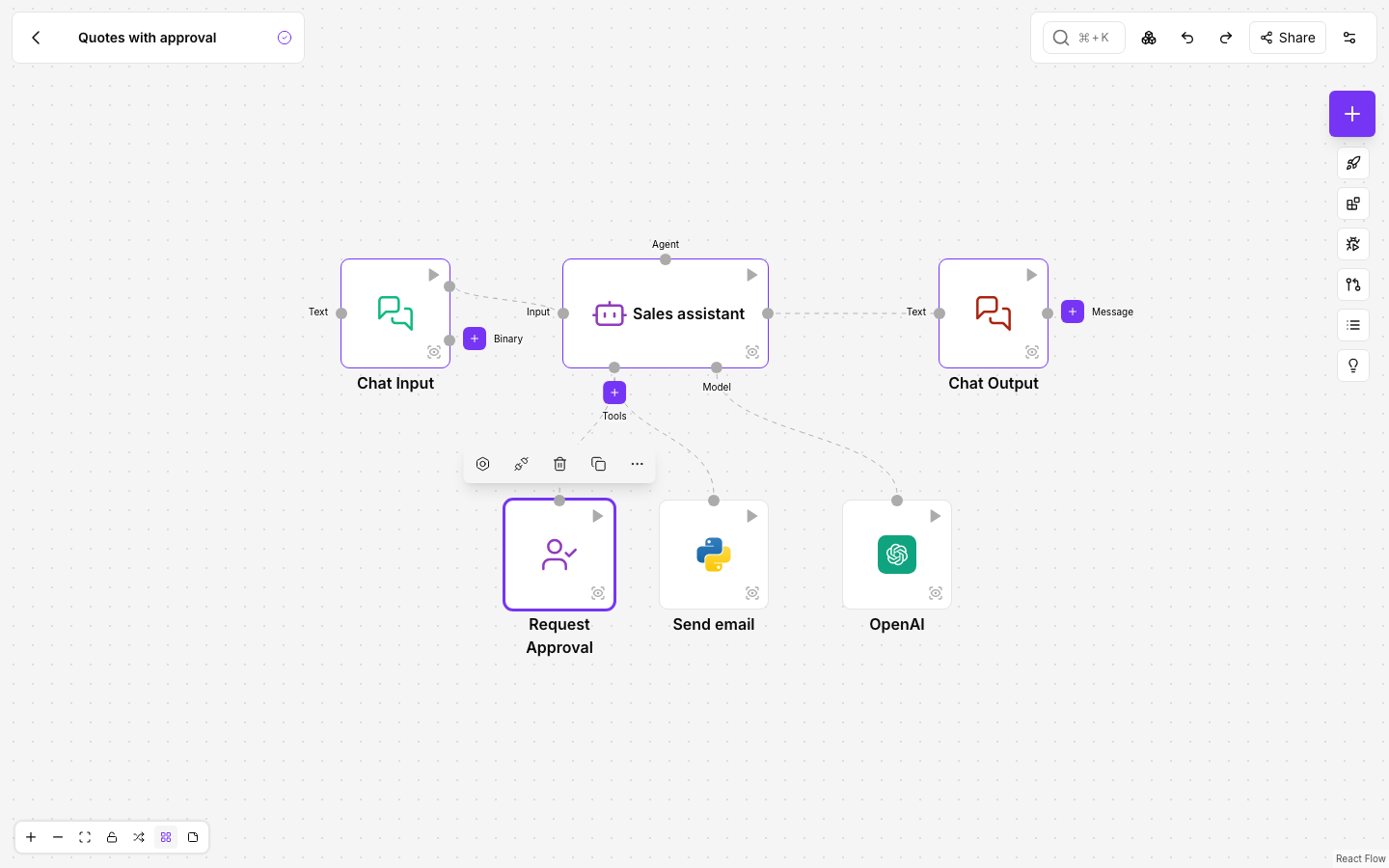
Step by step: Central Hardware has an agent that prepares quotes. Before sending one, it asks for approval and emails the sales manager both links.
-
The flow: the Sales assistant agent has Request Approval and Send email connected as tools.
-
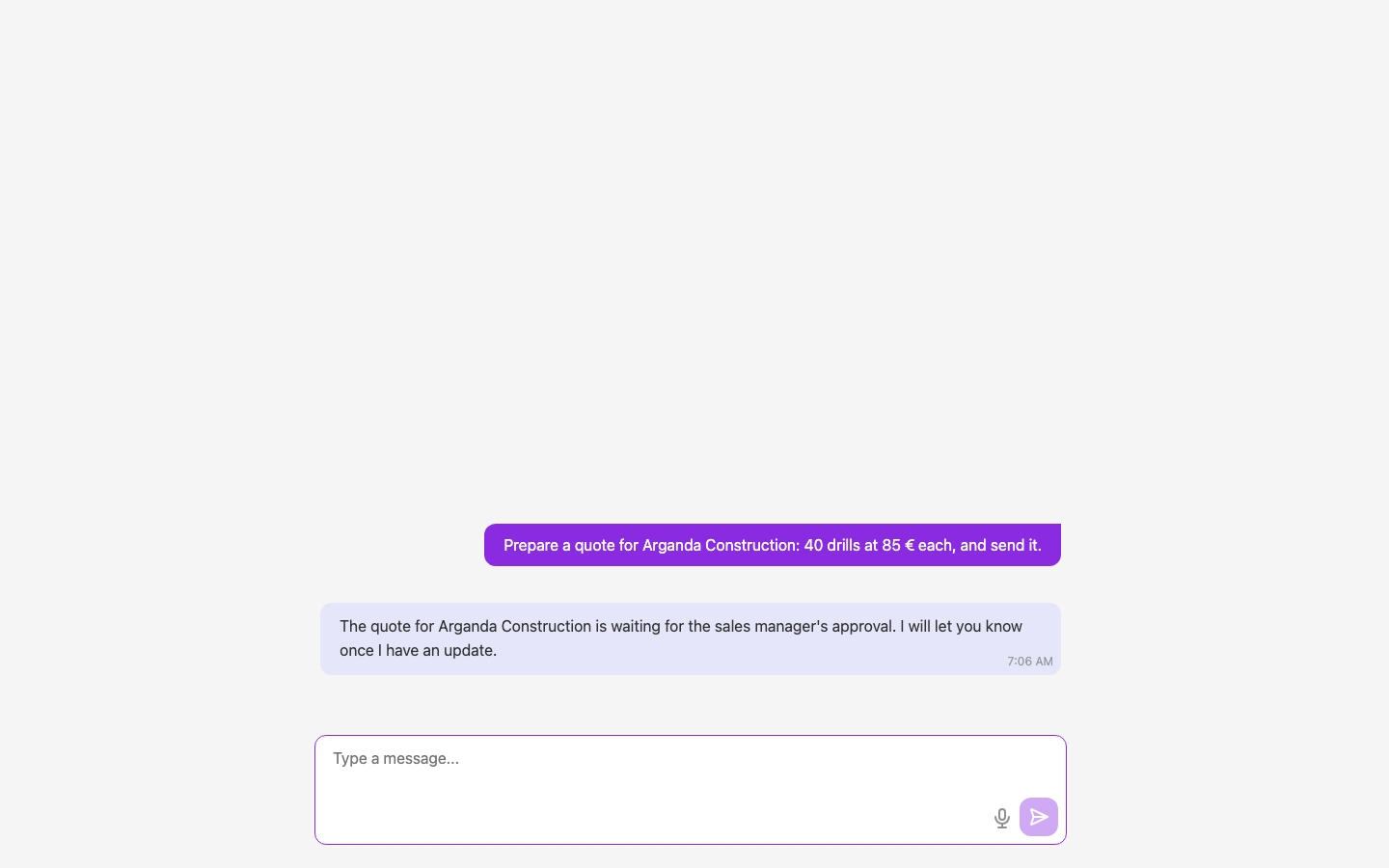
A customer asks for a quote in the published flow’s chat, and the agent answers that it is waiting for approval.
-
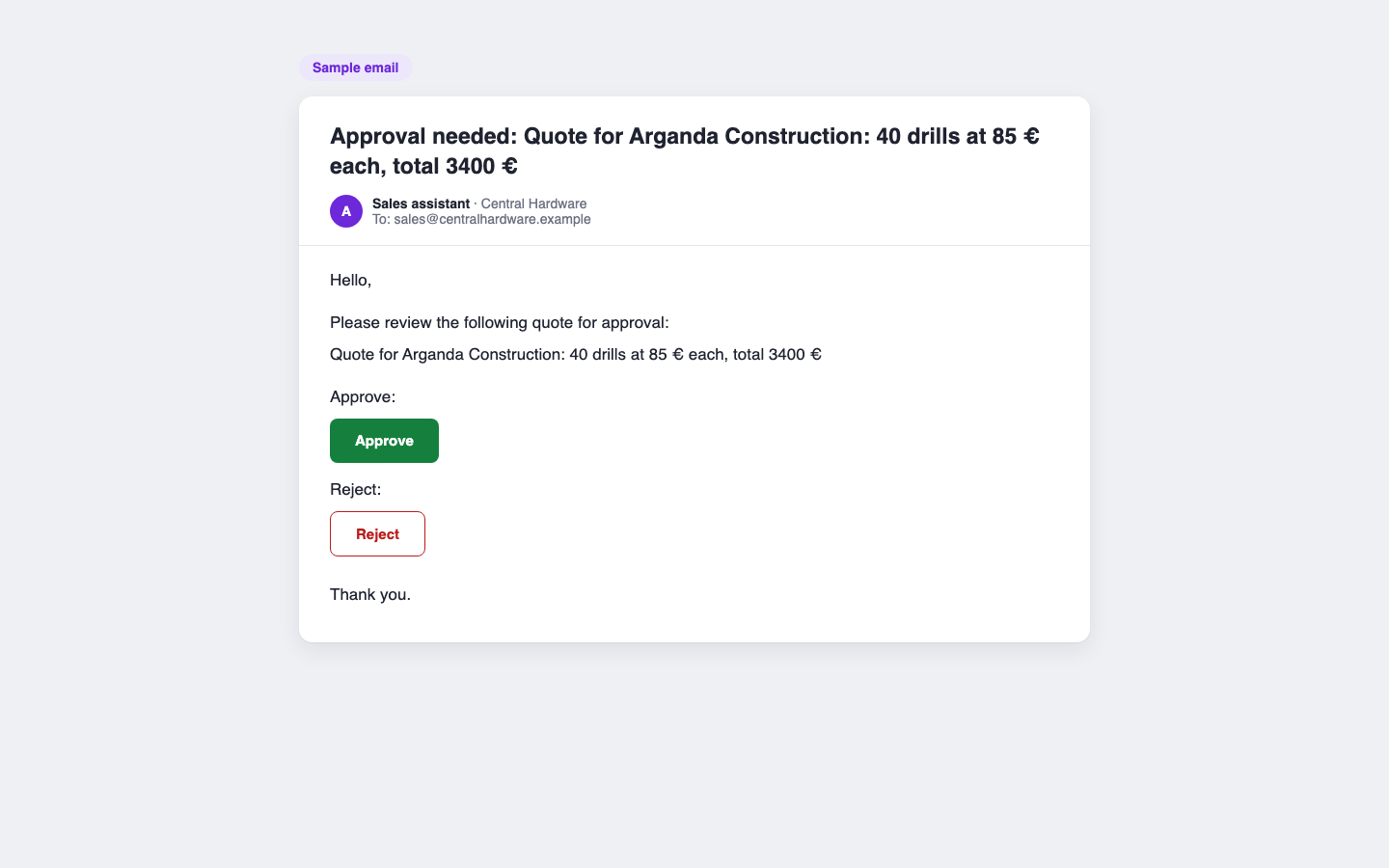
The email the agent writes to the sales manager, with one button to approve and one to reject.
-
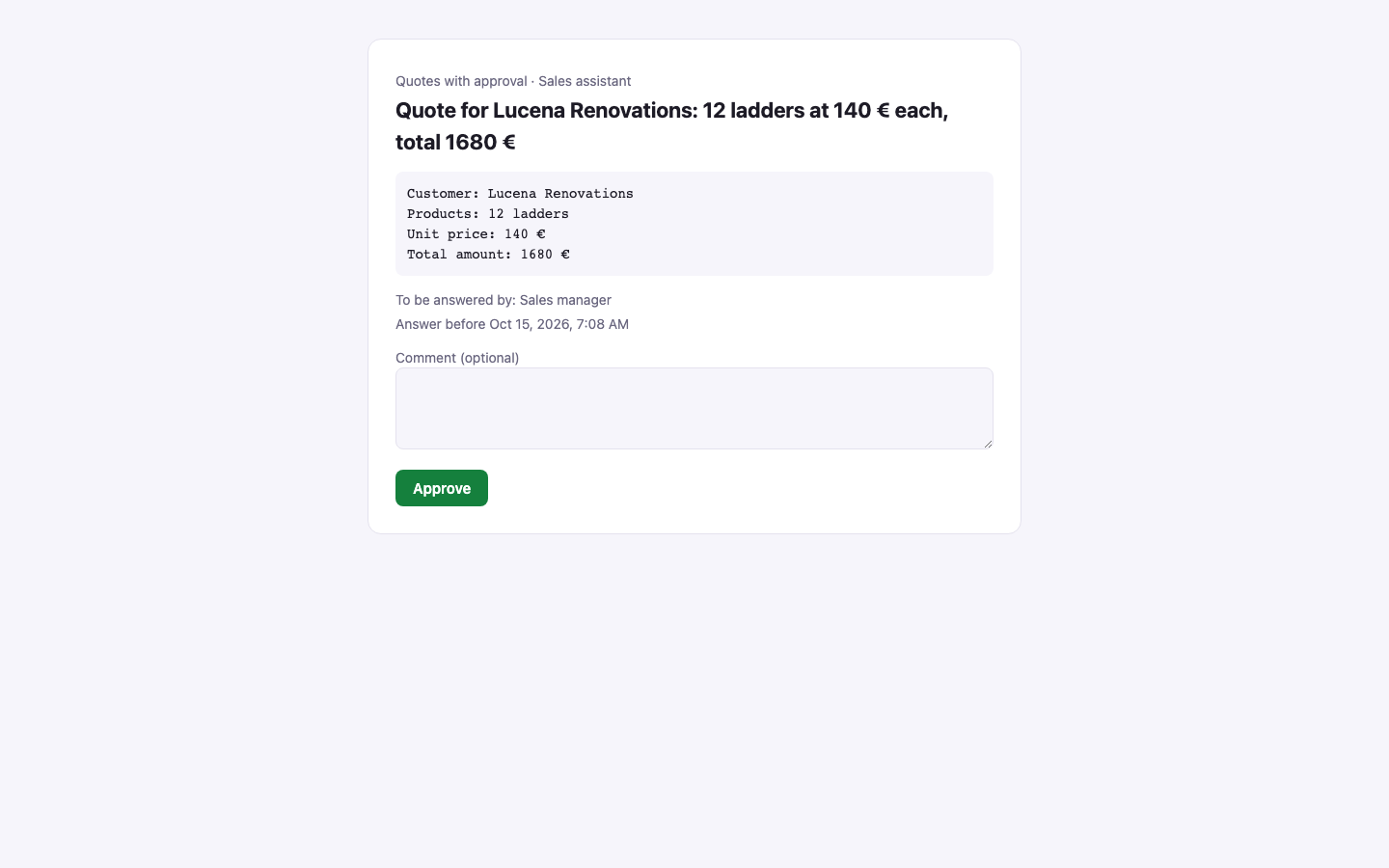
Opening the approve link shows a page to confirm with one click, with an optional comment for the agent. Another system skips the page: it just sends a POST to the same address.
-
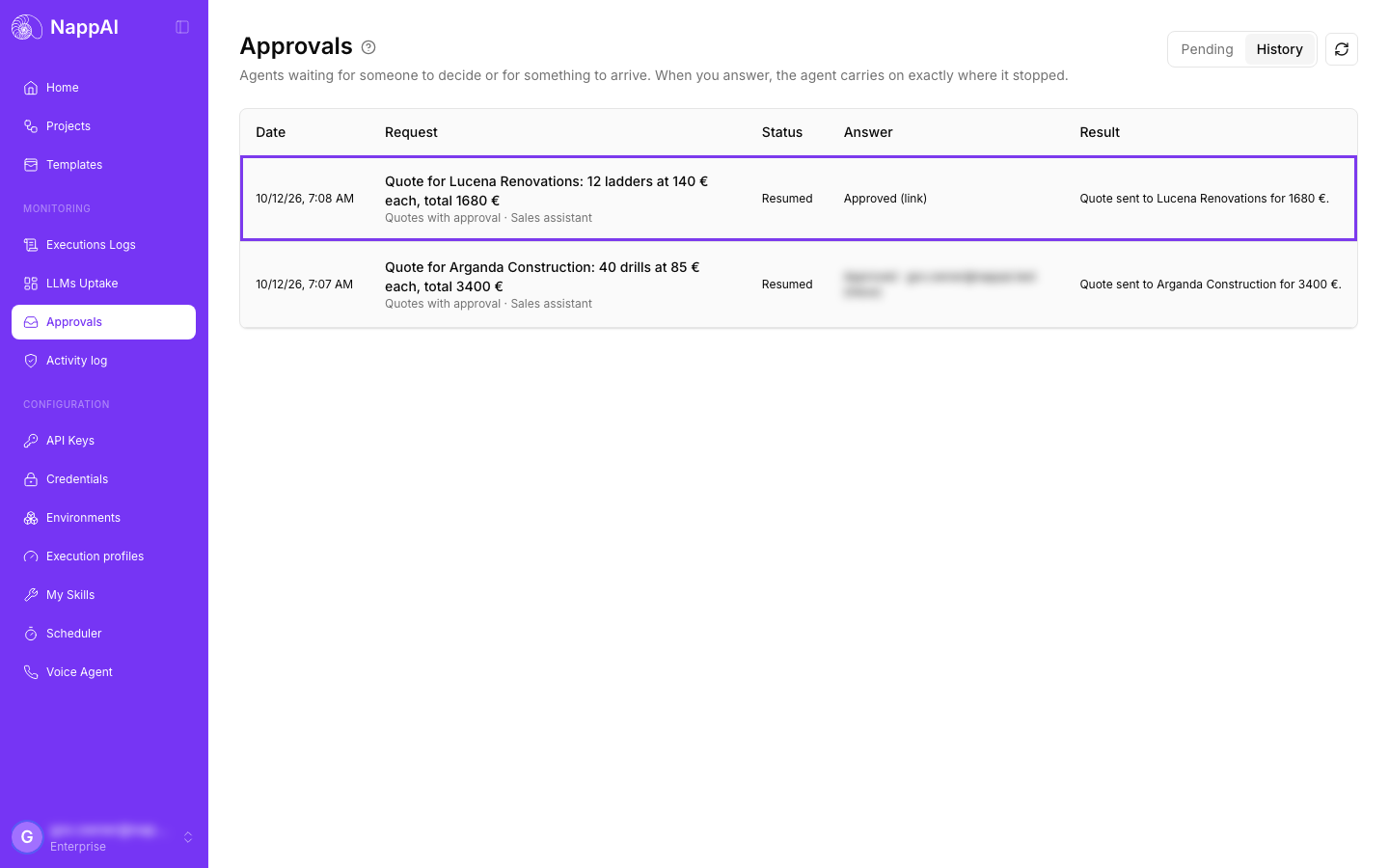
The agent carries on where it stopped. In Approvals, History tab, each request shows how it was answered and the agent’s final reply.
When to use it
- A sales agent prepares quotes and a manager must sign off the ones above a certain amount.
- A purchasing agent proposes orders to suppliers and finance approves them before they are sent.
- An agent prepares a contract and must wait for the customer to sign it with an e-signature service before activating the service.
- An agent that deletes or changes data in your systems asks for permission before any action that cannot be undone.
- Another system in your company, or another flow, must give the go-ahead before the agent continues.
Configuration
| Field | What it does |
|---|---|
| When to Ask | Tells the agent when it must ask for approval, for example “Before sending any quote over 1,000 EUR”, or what it must wait for, for example “Until the customer signs the contract”. Default: Before any action that commits money, sends something to a customer or cannot be undone. |
| Who Approves | Optional. Who or what answers, for example “Sales manager” or “E-signature service”. It is shown with the request. |
Advanced
| Field | What it does |
|---|---|
| Deadline (hours) | How long the request can wait for an answer. Default: 72. With 0 it never expires. |
| If Nobody Answers | What happens when the deadline passes without an answer. Reject (default): the agent takes it as a rejection and carries on. Approve: it takes it as approved and carries on. Leave it expired: the request is closed as expired and the agent stays stopped. |
What the agent receives when it asks
When the moment described in When to Ask comes, the agent writes a summary of what it wants to do with the key facts and, if needed, the details: the draft, the figures or its reasons. In return, it receives the details of its request:
{ "status": "pending_approval", "pause_id": "…", "title": "Quote for ACME: 3 licences, 12,000 EUR", "summary": "…", "details": "…", "approver": "Sales manager", "approve_url": "https://<your NappAI address>/api/v1/pause_resume/<code>?decision=approve", "reject_url": "https://<your NappAI address>/api/v1/pause_resume/<code>?decision=reject", "how_to_answer": "Both URLs are webhooks: a POST to approve_url or reject_url answers (optional JSON body: {\"message\": \"comment\", \"data\": {...}}). Opened in a browser, they show a page with that button to confirm.", "expires_at": "…", "next_step": "…"}- approve_url and reject_url: one link to approve and another to reject. Both are also webhooks: any system answers by sending a POST request to one of them. Opened in a browser, they show a page to confirm.
- how_to_answer: how to answer, explained for the agent.
- expires_at: when the deadline ends.
- next_step: what the agent must do now: notify whoever answers and wait.
With these details, the agent notifies whoever must answer using its other tools. For example:
- It emails the two links to the manager with Gmail Message, Outlook or another email tool.
- It sends them by Slack or Teams.
- It gives approve_url and reject_url to an external service, such as an e-signature or payment service, as callback addresses: approve_url for when everything goes well and reject_url for when it does not.
- It passes the details to a Python Code tool to do whatever you need with them.
Then the agent ends its turn and stays stopped, with nothing running, until someone answers.
The response of the API call that ran the flow also includes a pause section with the request’s identifier, its title, the address to answer it and when it expires.
How to answer
A request can be answered in four ways:
- As a webhook. Any system or flow can send a POST request to approve_url to approve or to reject_url to reject. Nothing else is needed. Optionally, the body can carry a comment in
messageand, indata, anything that comes with the answer, for example who signed and when:{"message": "Signed", "data": {"signer": "Laura Gomez"}}. The agent receives that data. - By opening approve_url or reject_url in a browser. A page shows the request, a box to leave a comment and a single button to confirm that decision. No NappAI sign-in is needed. Opening the link does not answer by itself, because some email programs open links automatically.
- In the Approvals inbox of the dashboard, under Monitoring. See Approvals.
- In the conversation. If the user is still talking to the agent, they can answer in the chat.
When the answer arrives, the agent carries on exactly where it stopped. If it is approved, it receives who approved, the comment and any data that came with the answer, and finishes its work. If it is rejected, it receives the reason, does not carry out that action and tells the user.
Only the first answer counts. If someone tries to answer again, they are told it has already been answered. If nobody answers before the deadline, what is set in If Nobody Answers applies.
Output
- Tool: the tool, to connect to an agent’s Tools input.
Examples
Approval by email
The renovation company Obras Ribera has an agent that prepares quotes from the requests on its website. It connects Request Approval and Gmail Message as tools, with When to Ask “Before sending any quote over 5,000 EUR” and Who Approves “Site manager”. In the agent’s instructions it writes: “Before sending a quote, ask for approval and email the two links to the site manager”.
When a customer asks for an 8,200 EUR kitchen renovation, the agent asks for approval, sends the email with the links and stops. The site manager opens the approve link the next day, writes the comment “Add a 5% discount for early payment” and confirms. The agent carries on and sends the quote with the discount.
Waiting for an e-signature
An onboarding agent prepares a new customer’s contract. It has Request Approval with When to Ask “Until the customer signs the contract” and Who Approves “E-signature service”. The agent asks for approval and sends the contract to the signature service with two callback addresses: approve_url for when the customer signs and reject_url for when they decline. When the customer signs, the service calls approve_url with who signed and when in data. The agent carries on with that data and activates the customer. If the customer declines the contract, the service calls reject_url and the agent does not activate them.
Another system answers
A credit control flow reviews every large order. When the order agent asks for approval, it sends approve_url and reject_url to that flow. The flow checks the customer’s credit and, depending on the result, sends a POST request to one of the two links. The order agent continues as soon as the answer arrives.
Good practices
- Write specific situations in When to Ask, with amounts or types of action. The clearer it is, the better the agent knows when to ask.
- Tell the agent in its instructions who to send the links to and how, and connect the tool to do it.
- Also tell it what to do if a request is rejected, for example to let the customer know someone will call them.
- The agent needs memory to be able to stop: when you connect Request Approval, Use memory turns on by itself.