

Your first flow
In this tutorial you build an assistant that answers questions from the customers of a furniture shop. By the end you will know how to create a project, add and connect components, set up a credential, test the flow and publish it.
If you’d rather watch it first, this video takes the same route with an assistant for a hair salon: blank project, components, connections, instructions, a test and a deployed version.
The flow has four components:
| Component | What it does in this flow |
|---|---|
| Chat Input | Receives the question the user types. |
| Agent | Reads the question, follows your instructions and writes the answer. |
| OpenAI | The AI model the agent uses to think and write. |
| Chat Output | Shows the answer in the chat. |
Before you start
You need:
- A NappAI account with permission to create and run flows. If you work in someone else’s account, your role must allow it. See Roles and permissions.
- An OpenAI API key. If you use another model provider, such as Gemini or Anthropic, follow the same steps with its component: it connects to the agent in the same way.
The screenshots show the dashboard in Spanish; the steps name the labels you see in English.
Step 1: create the project
- In the side menu, click Projects.
- Click New project. The Get Started window opens.
- Choose Blank Project, type the name in Project name…, for example FAQ assistant, and click Use this template.
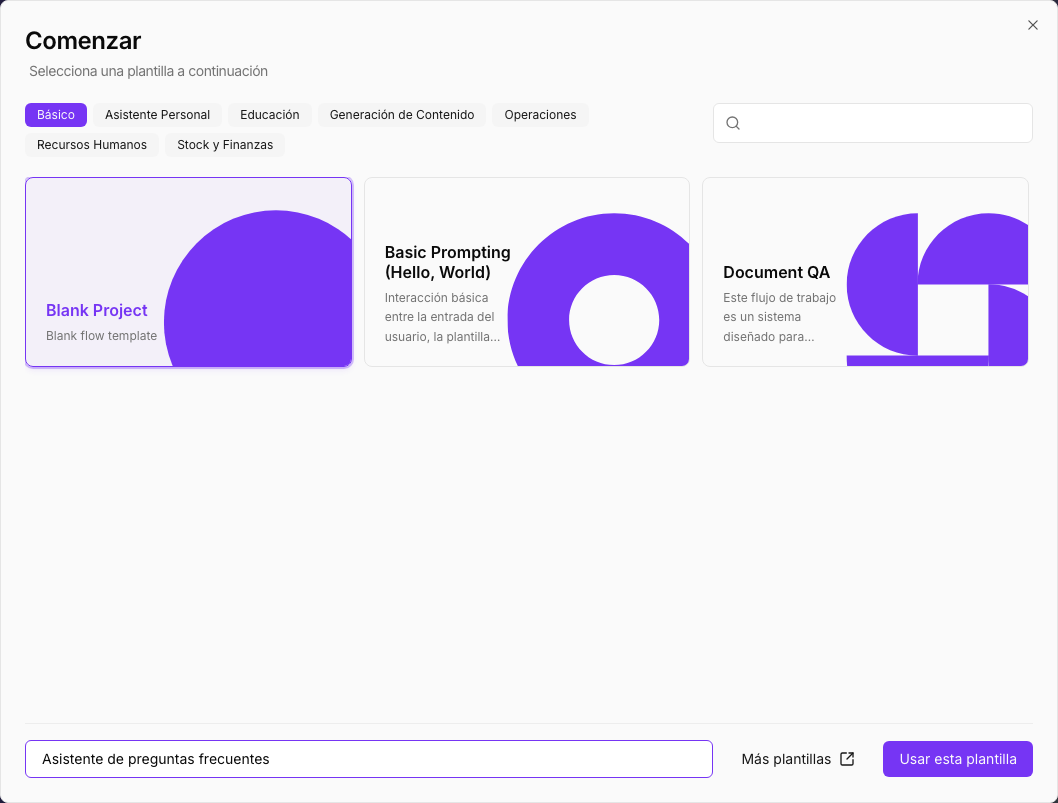
The editor opens with an empty canvas. If the welcome tour appears, you can follow it or close it.
Step 2: add the components
- Click Add your first component, in the middle of the canvas. The What start this workflow? panel opens.
- Choose Chat Input. The component appears on the canvas.
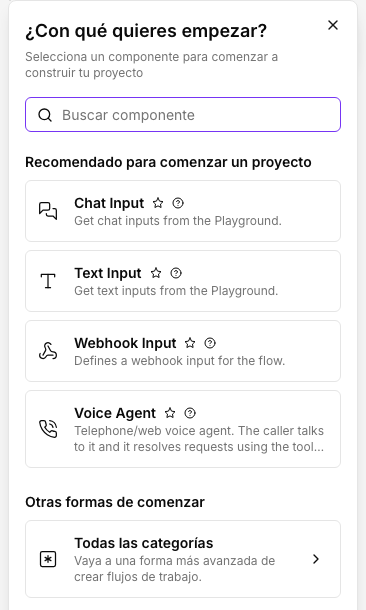
- Click the + button in the right column to open the panel again. In Search component, type Agent and choose Agent.
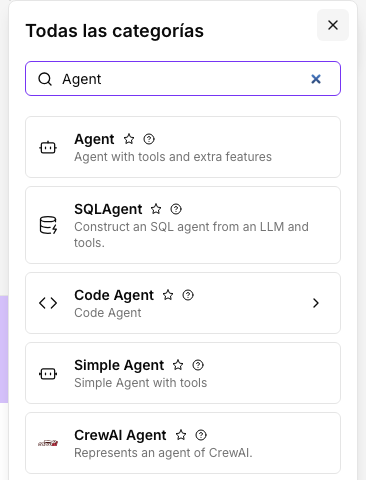
- Do the same with OpenAI and with Chat Output.
New components appear in the middle of the canvas, on top of each other. Drag them into place: Chat Input on the left, Agent in the middle, Chat Output on the right and OpenAI below Agent. You can also drag each component straight from the panel to the spot where you want it.
Step 3: get the agent ready to receive the message
A newly added Agent component has Batch Mode turned on, which is for processing lists of data item by item. In a chat each question arrives one at a time, so turn it off:
- Click Agent and, in the bar that appears above it, click Settings. Its settings panel opens.
- On the Common tab, turn off Batch Mode.
The Input connection point appears on the left edge of the agent. That is where the question will arrive.
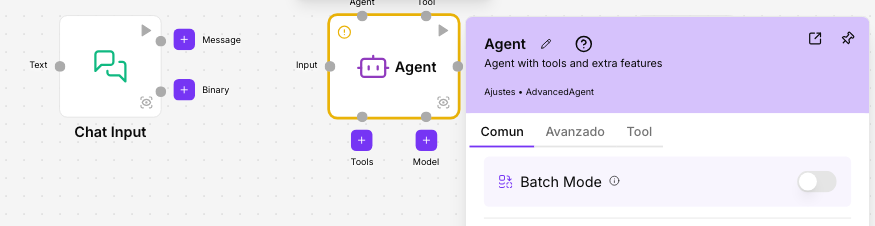
To learn more about this mode, see Process lists.
Step 4: connect the components
To create a connection, drag from a component’s output point to the other component’s input point. Make these three:
| From | To |
|---|---|
| Chat Input, output Message | Agent, input Input |
| OpenAI, Model point (top) | Agent, Model point (bottom) |
| Agent, output Response | Chat Output, input Text |
While you drag, the points that are not compatible are dimmed. The flow looks like this:
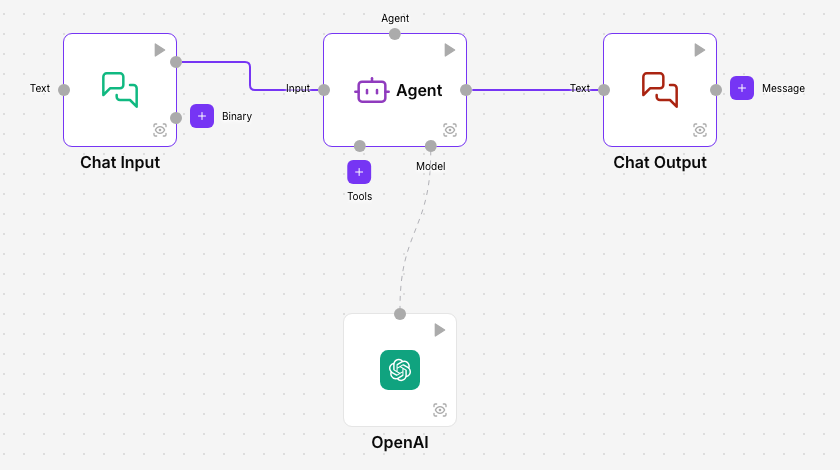
If a connection is not created, check that you start from an output point and end on an input point. To delete a connection, hover over it and click the red X.
Step 5: set up the model and its credential
- Open the Settings of OpenAI.
- In Credential, choose your OpenAI credential. If you don’t have one yet, choose Add new credential and add your OpenAI API key without leaving the editor. The credential is saved in your account and you can reuse it in other flows. See Credentials.
- In Model Name, choose the model. The list loads once there is a valid credential.
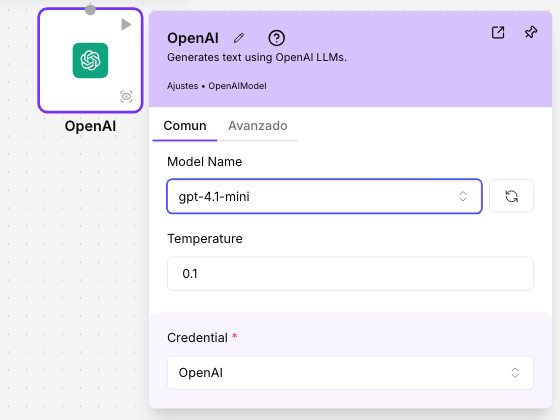
While a required field is missing, the component shows a yellow border and a warning. They go away once everything is filled in.
Step 6: give the agent its instructions
Open the Settings of Agent and write in System Prompt what the agent must do and the information it needs. For example:
You are the customer service assistant of Ribera Furniture, a furniture shop.Answer briefly and kindly, in the customer's language.
Shop information:- Mainland deliveries: 3 to 5 working days, free over €300.- Deliveries to the Balearic and Canary Islands: 7 to 10 working days.- Returns: 30 days from delivery.
If the question is not covered by this information, say so and offer to have someone from the team contact them.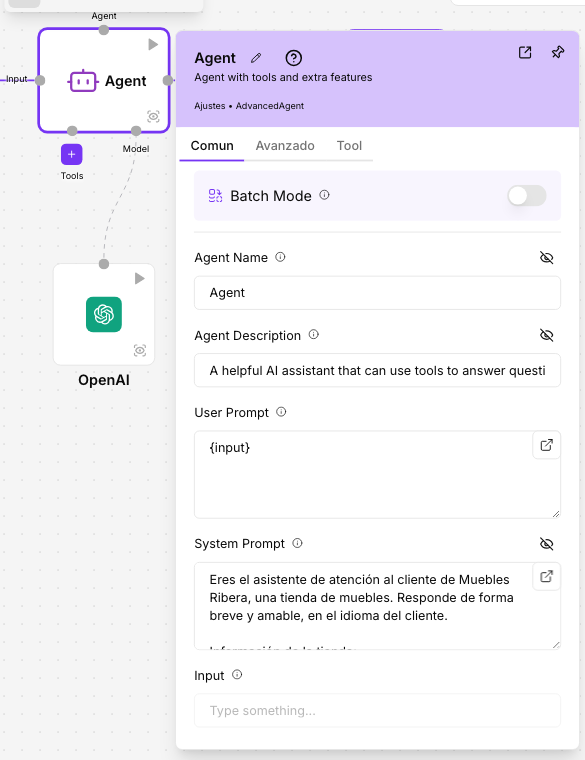
Leave User Prompt as it is, with {input}: it is the slot where the agent receives what arrives through Input, in this case the user’s question.
Step 7: test the flow
- Click Playground in the right column.
- Type a question in Send a message…, for example Hi, how long does a sofa take to arrive in Valencia?, and press Enter.
The answer appears as in a chat. On the left, Executions lists the steps of the run: select one to see what it received and what it returned.
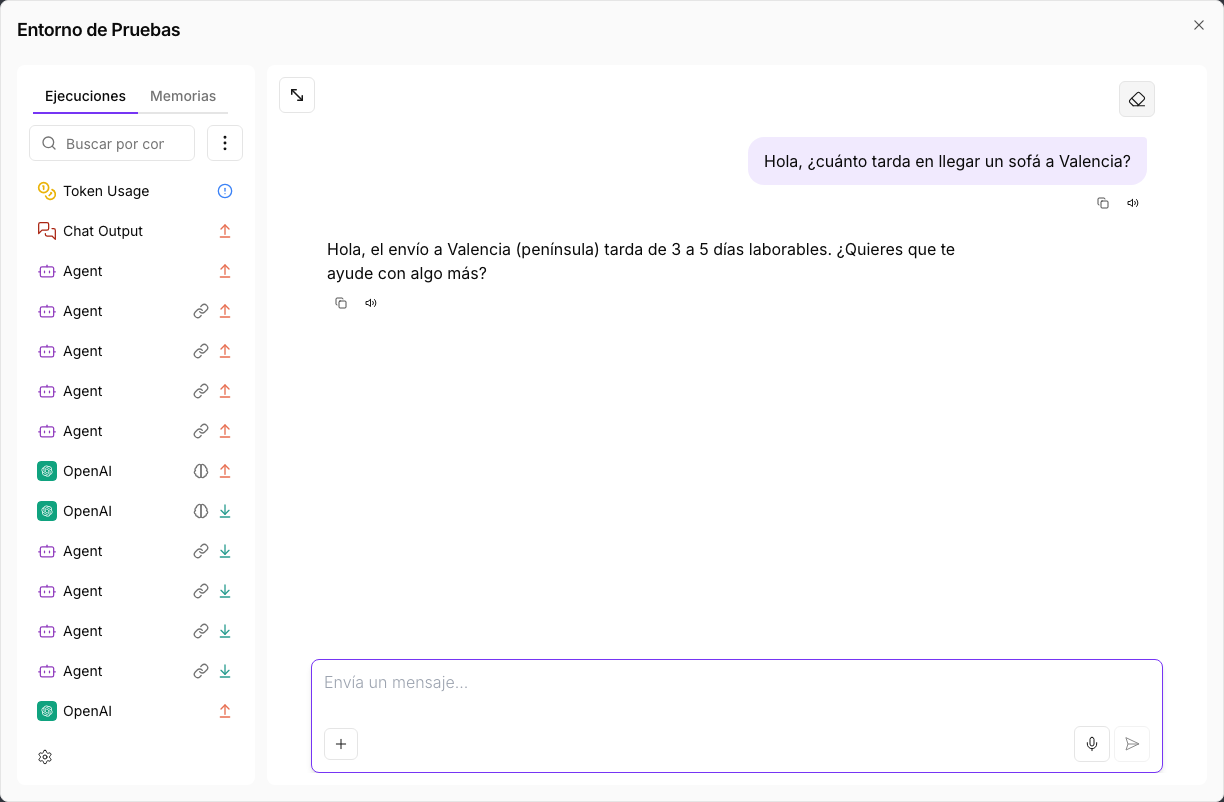
Try several questions, including one that is not in the instructions, and adjust the System Prompt until the answers are the ones you want. The playground always runs what is on the canvas.
If something fails, the component that failed is marked with a red triangle. See What each component shows.
Step 8: publish the flow
What you have built is the flow’s draft. For other applications, scheduled runs or connected channels to use it, deploy a version:
- Click Deploy in the right column. The Deploy window opens.
- In Select version to deploy, leave Development: it is what you have on the canvas right now.
- Type a name in Version name, for example 1.0, and a Version description if you like.
- Click Deploy.
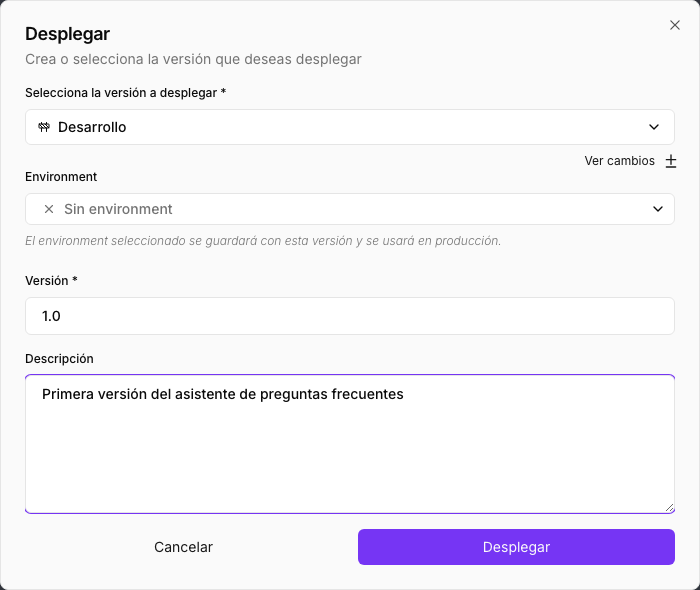
NappAI saves the version and deploys it, and shows the messages Version created successfully and Version deployed successfully.
From now on you can keep changing the flow: your changes do not affect the deployed version until you deploy another one. See Versions and publishing.
Next steps
- Call your flow from another application: API keys and Versions and publishing.
- Make it run on its own on the dates you choose: Scheduler.
- Give the agent tools so it can act, for example look up a spreadsheet or send an email: Tools.
- Review what each run did: Execution logs.
- Ask the AI Assistant to build or change the flow for you.
- See all the agent’s settings in Agent.