

Assistant conversations
Each conversation with the assistant has its own name, its own flow and its own memory. The assistant remembers everything that has happened within a conversation, but a new conversation starts with no memory of the previous ones. That’s why it pays to keep one conversation per topic and come back to it when you carry on with that piece of work.
Start a new conversation
Click New conversation in the panel’s purple bar. The previous conversation isn’t deleted: it stays in the history. When the panel is narrow, the button shows only its pencil icon.
The conversation’s name
Below AI Assistant, in the panel’s bar, you see the name of the open conversation. If it’s long it is cut off with ”…”; hover over it to read it in full.
When it starts, the conversation is called New conversation. After your first message, the assistant gives it a title in the platform’s language, and it shows up on its own, without reloading.
To change it, click the name (you’ll see a pencil when you hover over it) and type the new one:
- Enter or clicking outside saves it.
- Esc cancels it.
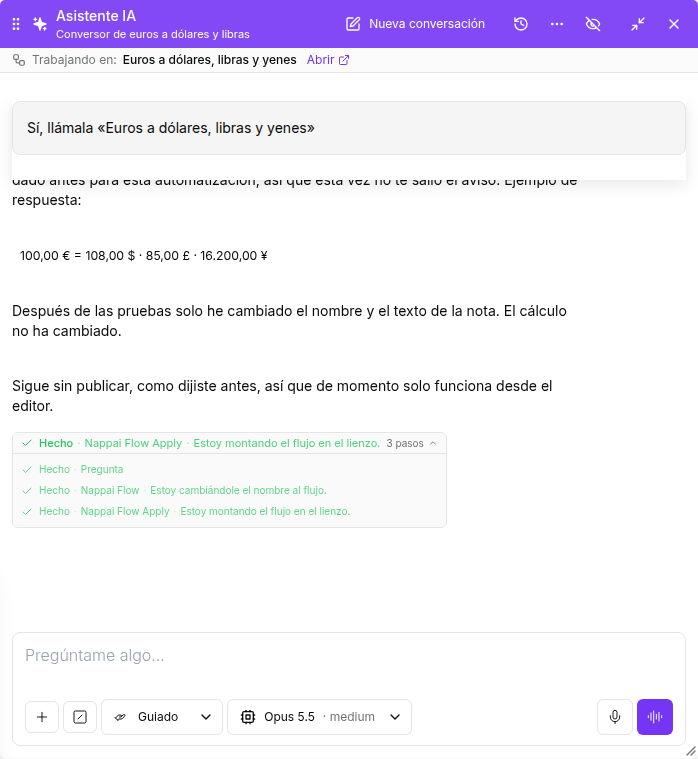
You can also rename it from the history, with ⋯ → Rename. A name you set yourself is never replaced by the automatic title, even if you typed it while the assistant was still naming the conversation.
Which flow the conversation works on
Right below the purple bar, a line tells you which flow the assistant will work on with your next message: Working on: and the flow’s name, with Open to go to it if it isn’t on screen. If the conversation isn’t working on any flow, the line doesn’t appear. If the flow has been deleted, it says so (“a deleted flow”) and doesn’t offer to open it.
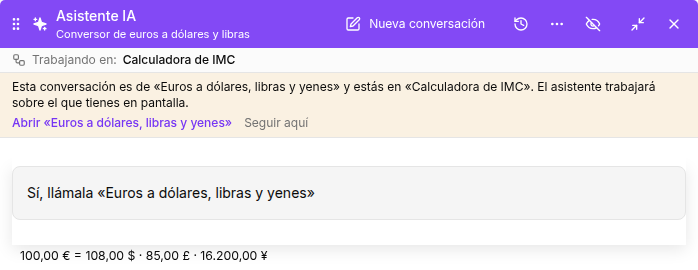
A conversation’s flow never changes without telling you. If the conversation belongs to one flow and you are on another, a notice appears:
This conversation belongs to “Euros to dollars, pounds and yen” and you are on “BMI calculator”. The assistant will work on the one on screen.
With three ways out:
| Button | What it does |
|---|---|
| Open ”…” | Takes you to the conversation’s flow. |
| Stay here | You stay on the flow on screen and the assistant works on it. The notice comes back if you open another flow. |
| Go to the conversation of ”…” | If you already have a conversation for the flow on screen, it opens it. |
If you open the empty panel on a flow that already has a conversation, the panel picks it up and says so for a few seconds: “Conversation of ”…"".
The history
Click the clock button (Conversation history) in the panel’s bar. The history takes over the whole panel; to go back, click Back to the conversation or the X.
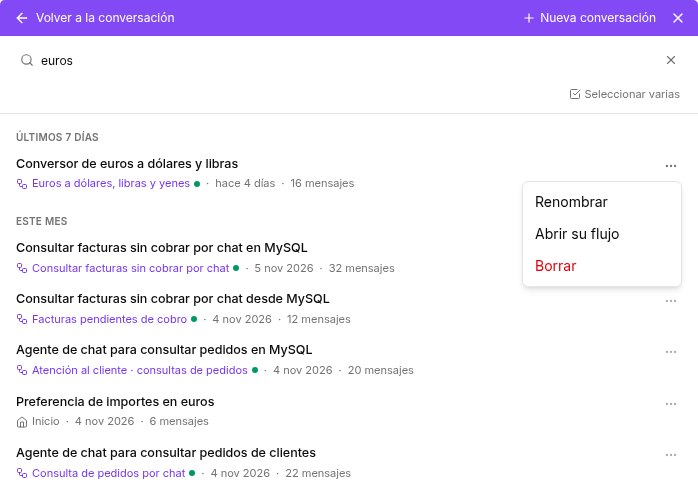
Conversations are grouped into Today, Yesterday, Last 7 days, This month and Older. At the end, Show older loads more. Each row shows:
- The conversation’s name. Open marks the one you have in the panel and Running, the one with a reply under way.
- Which flow it works on, in purple, or Home if you started it outside a flow and it didn’t create one. If the flow no longer exists, it says Deleted flow.
- A green or red dot next to the flow, depending on how the last run made by that conversation ended.
- When it was and how many messages it has.
Open a conversation or its flow
- Click the name to pick up the conversation in the panel. The assistant remembers everything you discussed in it.
- Click the flow to open it with that conversation’s last run: the executions panel opens with that run selected and its Execution Log, and each component on the canvas shows how it went (the one that failed, in red). If the conversation never ran the flow, it just opens it.
If Follow the assistant is on, opening a conversation from another flow also takes you to that flow.
Search
Type in Search by name or by what was said…: it finds conversations by their name and by the text of their messages. With a flow open, the This flow / All filter shows only that flow’s conversations.
Rename and delete
Each row’s ⋯ menu has:
- Rename: changes the name in place, just like in the panel’s bar.
- Open its flow: opens the conversation’s flow.
- Delete: deletes the conversation with all its messages.
To delete several at once, click Select several, tick the ones you want and click Delete (the button says how many). For a few seconds you’ll see Conversation deleted (or how many) with an Undo button: until that notice disappears or you leave the history, you can get them back. After that, you can’t.
What it looks like
In this video we open the assistant’s conversation history with a flow open, search for a conversation, see which flow it belongs to, rename it, pick it up again and start a new one.