

Scheduler
The Scheduler runs your flows on their own, without anyone having to launch them: every Monday at 8:00, every weekday, or just once on a specific date. It’s the way to get a weekly report, a daily review or a one-off send.
Schedules are managed in Scheduler, under Configuration in the sidebar.
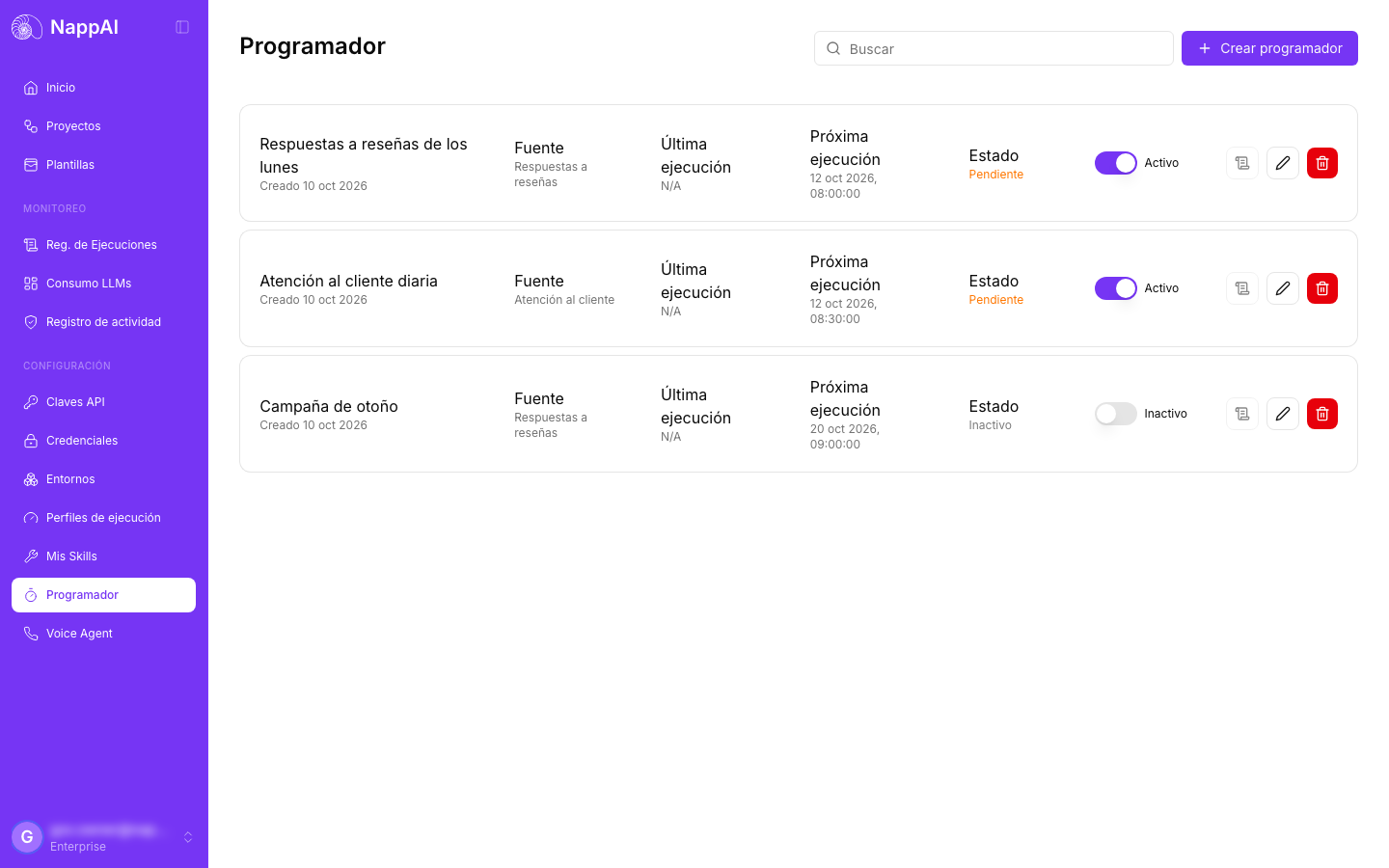
Each schedule shows:
- Source: the flow it runs.
- Last Execution and Next Execution: date and time. N/A means it hasn’t run yet or has no run pending.
- Status: Idle while it waits for its next run, Running, Success or Failed depending on how the last one ended, and Inactive if it is turned off.
- The Active / Inactive switch and the buttons to see its logs, edit it and delete it.
Filter and search
By default the page shows only the Recurring schedules, the ones that repeat. Above the list you have the filters:
- Recurring / One-time / All: choose which kind of schedules to see. The ones that run just once are under One-time.
- Date range: for one-time schedules it filters by the day they run or will run; for recurring ones, by the day of their last run.
- Status: Success, Failed, Running or Idle.
- Origin: the ones you created by hand or the ones a flow created.
- The search box at the top searches by name.
The list is shown in pages. At the bottom you choose how many rows to see per page (25, 50 or 100) and move from one page to another.
One-time schedules
Schedules that run just once carry a One-time badge next to their name. Once they run, they keep their result (Success or Failed) and no longer have the Active / Inactive switch, because they won’t run again. If you edit one and change the date, it is scheduled again for that date.
A schedule can be created by a flow, not only by you. In that case you’ll see Created by and the name of the flow under its name.
If a recurring schedule is due while the previous run is still going, that run is skipped and you’ll see Skipped at and the date under the status. The run that was in progress isn’t interrupted.
Before you schedule a flow
- The flow needs a deployed version. The Scheduler always runs the deployed version, with the environment that was saved when it was deployed. If you choose a flow without a deployed version, you’ll see a warning and won’t be able to save. See The environment in production.
- You need an API key. Every schedule runs with a key from your account. You can create one just for this, for example
informes-programados. See API keys.
Schedule a flow
- Click Create scheduler.
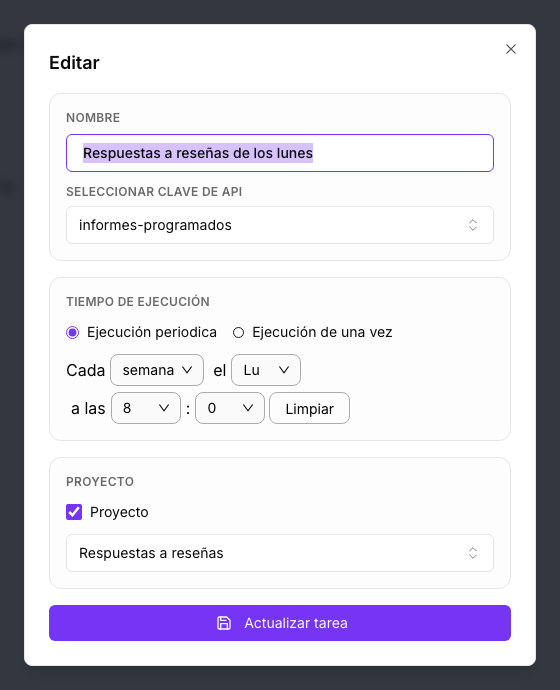
- Type the schedule’s Name.
- In Select API key, choose the key it will run with.
- In Execution time, choose when:
- Repeated execution: it repeats. Choose how often (minute, hour, day, week, month or year) and set the day and time, for example every week on Monday at 8:00.
- One time execution: it runs only once, on the date and time you choose.
- Under Project, tick Project and choose the flow.
- If the flow has text inputs, they appear under Inputs. Type the value it should receive on every run.
- Click Save scheduler.
Times are in your local time.
Turn a schedule on and off
Use the schedule’s switch. When it’s off, it doesn’t run and its status becomes Inactive, but it keeps its whole configuration. Turn it back on whenever you want.
Edit a schedule
Click the pencil. You can change the name, the key, when it runs, the flow and its inputs. If an input already had a value, you’ll see it above as Previous value. Click Update scheduler.
See the run history
Click the schedule’s logs button. The flow’s Logs open, with two tabs:
- Executions: every run of the flow, with its result. Click one to see its details.
- Messages: the messages sent during those runs.
The button stays disabled until the schedule runs for the first time. You can also see every run of your flows in Executions Logs.
If a run fails, the status becomes Failed. Open its logs to see which component failed.
Delete a schedule
Click the bin and confirm with Delete. This can’t be undone. The flow and the API key are not deleted.
While a schedule uses an API key, that key can’t be deleted.
Limits that apply
Scheduler runs count as runs made with an API key: they are subject to the max run time and runs per minute of the flow’s execution profile, and they count towards your plan.
Who can manage schedules
| Owner | Admin | Builder | Operator | Viewer | |
|---|---|---|---|---|---|
| See schedules | Yes | Yes | Yes | Yes | Yes |
| Create, edit, turn on and off and delete schedules | Yes | Yes | Yes | No | No |