

Activity log
The Activity log keeps what happens in your account: who created, changed, published, shared or deleted each thing, who ran a flow and who tried something their role doesn’t allow. Use it to review changes, to answer an audit and to understand what happened when something doesn’t work as you expected.
Who can see it
Only the account owner and members with the Admin role. For everyone else the entry doesn’t appear in the sidebar and, if they open the page, NappAI tells them their role doesn’t allow it. See Roles and permissions.
The log belongs to the account: it records what the owner does and what the members of their team do in it.
Open the log
In the sidebar, under Monitoring, click Activity log. The activity appears newest first.
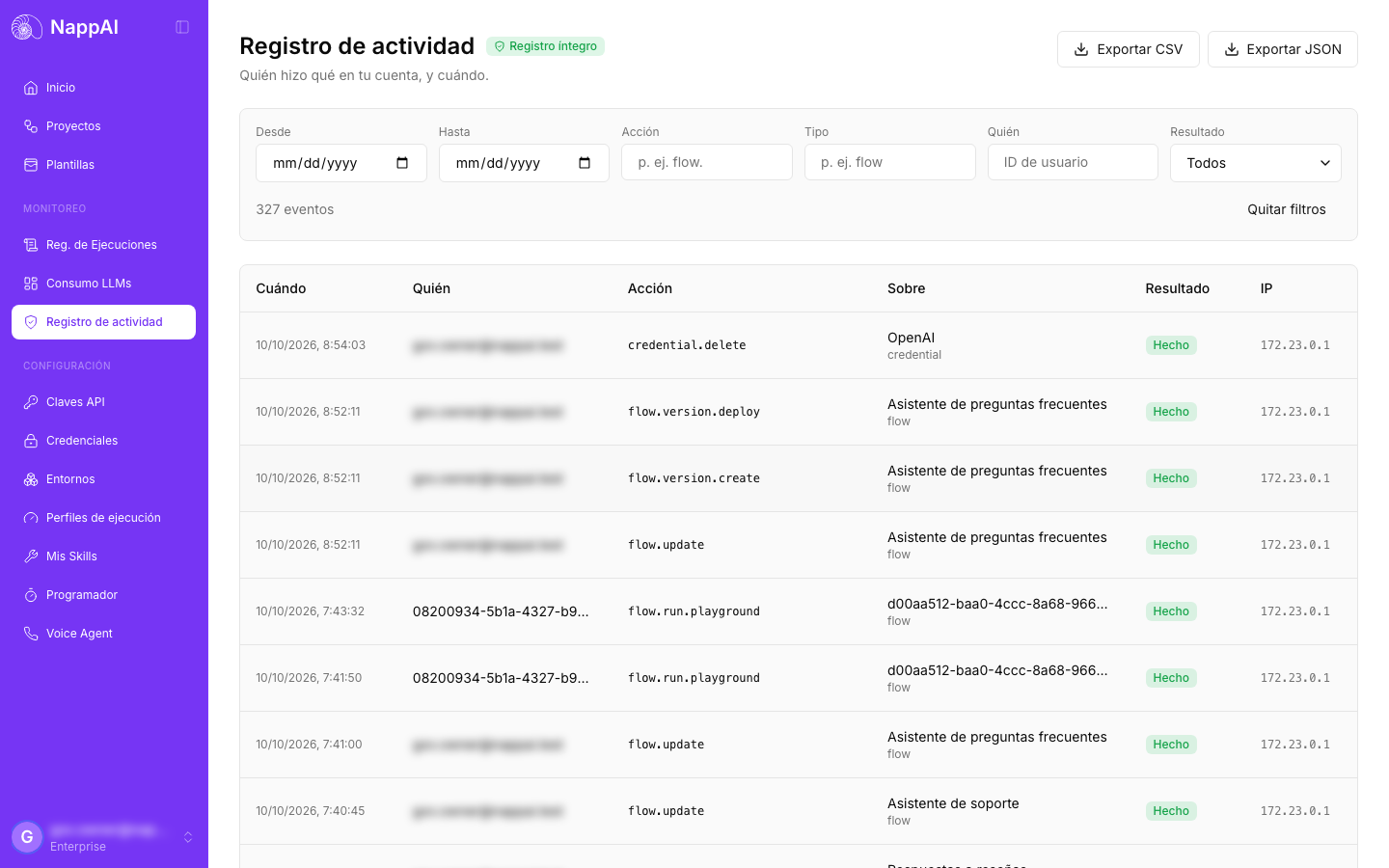
Each row is one event:
| Column | What it shows |
|---|---|
| When | The date and time of the event. |
| Who | The person who did it. |
| Action | What they did, for example flow.update (changing a flow) or apikey.reveal (showing an API key’s secret). |
| On | The name of what was changed and, below it, its type: flow, credential, apikey, member… |
| Result | Done if it was carried out or Denied if it was attempted without permission. |
Choose how many rows to see with Rows per page (25, 50 or 100) and move with the arrows at the bottom.
What gets recorded
| Area | Example actions |
|---|---|
| Flows | Create, change, move, delete, share and unshare; assign an execution profile |
| Versions | Create, restore, publish and delete a version |
| Runs | Run a flow in the playground or in production |
| Credentials and environments | Create, change and delete credentials, environments and a credential’s values per environment |
| API keys | Create, change, delete and renew a key, and show its secret |
| Schedules and folders | Create, change and delete |
| Execution profiles | Create, change and delete |
| Team | Invite someone, join a team, change a role, switch teams |
| Account | Delete the account and export this log |
While you edit a flow, NappAI saves your changes every few seconds. So that those edits don’t flood the log, at most one edit per person and flow is recorded every 10 minutes. A rename is always recorded.
Secret values never enter the log. For a credential or a secret variable, only the fact that it changed is recorded, never its value.
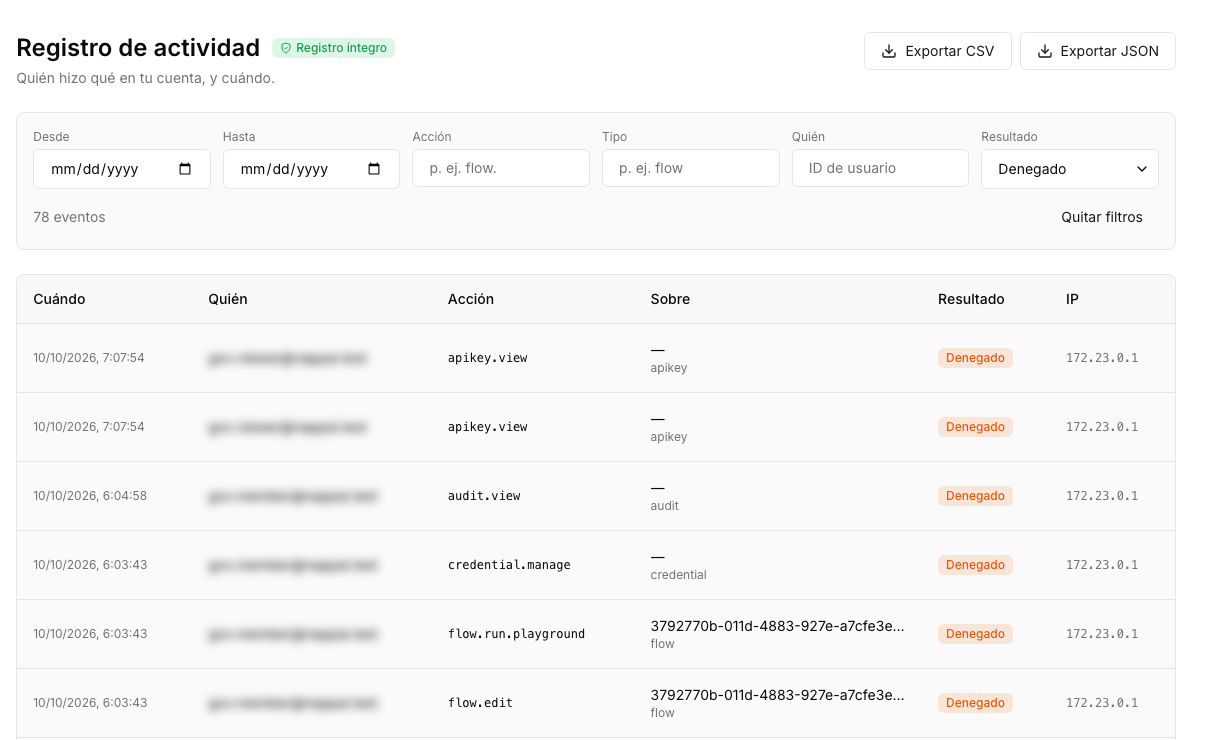
Denied attempts
When a team member, or someone you share a flow with, tries something their role or access level doesn’t allow, the attempt is recorded with the result Denied. In that case the Action column shows the permission they were missing, for example credential.manage or flow.run.playground.
Filter the activity
The filters are above the table and can be combined:
| Filter | How it works |
|---|---|
| From and To | Limit the events to those days, both included. |
| Action | Shows the actions that start with what you type. With flow. you see everything that affects flows; with apikey.reveal, only who showed a key’s secret. |
| Type | The exact type of what was affected, for example flow or credential. |
| Who | A person’s user identifier, as it appears in the actorId column of the exported file. |
| Result | Done or Denied. All removes this filter. |
Below the filters you see how many events match. Clear filters shows all the activity again.
See the details of an event
Click a row to open Activity details in a side panel.
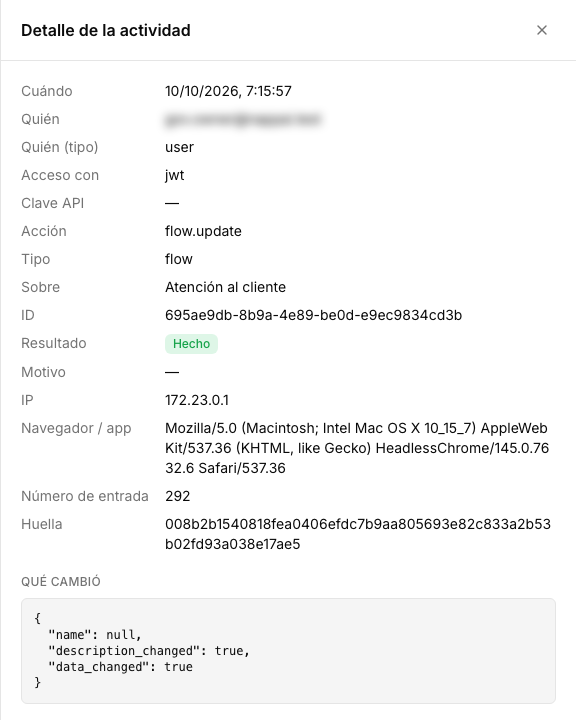
Besides the table columns, the details show:
- Who (type) and Signed in with: whether a person acted from the app or a program with an API key. In that case, API key tells you which key was used.
- ID: the identifier of what was affected.
- Reason: for a denied event, why it was denied.
- Browser / app: the browser or program it was done from.
- Entry number and Fingerprint: the event’s position in the log and its integrity mark. See Check that the log is intact.
- What changed: the data of the change, for example the old and the new name, or which parts of a flow were modified. If there is none, you see No changes recorded.
Export the activity
Export CSV downloads the activity as a file you can open in a spreadsheet. Export JSON downloads it in JSON format, meant for other programs.
The export follows the filters you have applied and includes up to 50,000 events. Every export is itself recorded in the log.
Check that the log is intact
Each event is linked to the previous one in your account through its Fingerprint, a mark calculated from its content and from the previous event’s fingerprint. If someone changed or deleted an event after it was saved, even directly in the database, the next event would no longer match it and the check would detect it.
When you open the page, NappAI recalculates the whole chain and shows the result next to the title:
| Badge | What it means |
|---|---|
| Checking log… | The check is in progress. |
| Log intact | No entry has been changed or removed. |
| Log altered at entry N | That entry was changed or removed after being saved. The earlier ones are intact. |
| Not checked | The check couldn’t be done at that moment. Open the page again later. |
Events join the chain about a minute after they happen. Until then, their Entry number and Fingerprint are empty.
How long it is kept
Events are kept for 365 days. Every day the ones older than that are removed. That removal doesn’t affect the check: the log still shows as intact.
If you need to keep the activity for longer, export it regularly.