

Your profile
Your profile brings together your personal details, your subscription and your preferences. You can also delete your account from it.
Open your profile
Click your name at the very bottom of the sidebar and choose Profile.
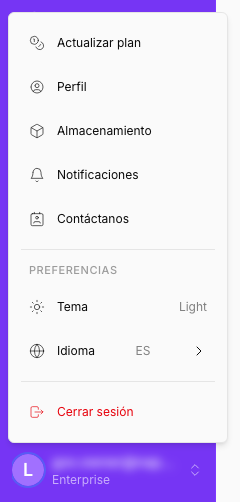
The User profile page has a menu on the left with five sections:
| Section | What it holds |
|---|---|
| Profile | Your personal details and the option to delete your profile. |
| Subscription | Your plan, its usage and your team. See Your subscription. |
| Transactions | Your payments and their invoices. See Transactions. |
| Preferences | Theme, language and interface helpers. |
| Payment methods | The card you pay with. See Payment methods. |
Your personal details
The Profile section shows your details. Your photo is at the top; if you don’t have one, the first letter of your username is shown instead.
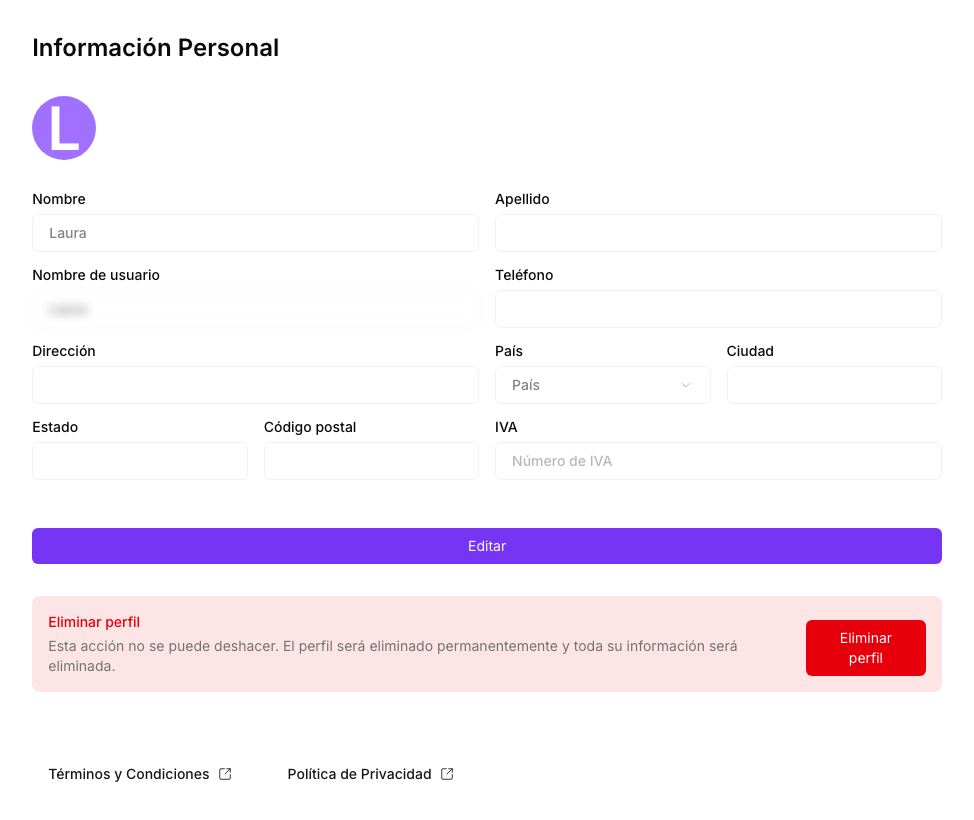
The fields are First name, Last name, Username, Phone, Address, Country, City, State, Zip and VAT.
To change them:
- Click Edit. The fields unlock.
- Change what you need.
- Click Save. The button only becomes active once you have changed something.
- Confirm in the Save profile window with Save.
The Username must be at least 4 characters long.
If you change the Country or the VAT field, NappAI checks the VAT number, because it is used for your billing. If it is not valid, you will see VAT number validation failed: check the number and save again.
At the bottom of the page you will find the links to the Terms and Conditions and the Privacy Policy.
Change your password
You don’t change your password from the profile, but from the sign-in page:
- Sign out. See Sign out.
- On the sign-in page, click Forgot your password?.
- Type the email you use to sign in to NappAI and click Submit.
- Open the email you receive and follow the link to choose a new password.
If the email doesn’t arrive, check your spam folder and make sure you typed the same email you signed up with.
Preferences
In Preferences you adjust how NappAI looks and behaves for you. Changes are saved straight away, on your user: they stay the same when you sign in from another browser.
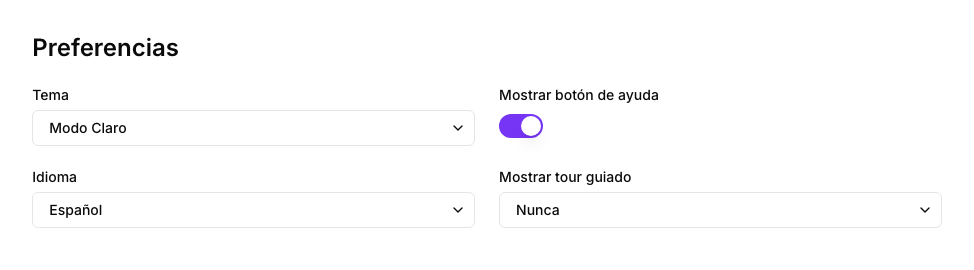
| Preference | Options | What it does |
|---|---|---|
| Theme | Light Mode, Dark Mode | Changes the colours of the whole application. |
| Language | English, Spanish | Changes the interface language. |
| Show help button | On or off | Shows or hides the Help button in the flow editor toolbar. |
| Show guided tour | Always, Never | Decides whether the flow editor walks you through the guided tour. If you click Don’t show again during the tour, this option switches to Never. |
Sign out
Click your name in the sidebar and choose Logout. You return to the sign-in page.
Delete your profile
Deleting your profile removes your NappAI account and all its data. It cannot be undone.
- In Profile, click Delete Account.
- In the confirmation window, type
delete profile. - Click Delete.
If you have a paid subscription, it is cancelled before the account is deleted. You are then signed out.