

Chapter 3: Build and test the flow
With the credentials ready, it’s time to put the assistant together.
1. Create the project
- In Projects, click New project.
- Choose Blank Project, call it Email and calendar assistant and click Use this template.
2. Add the components
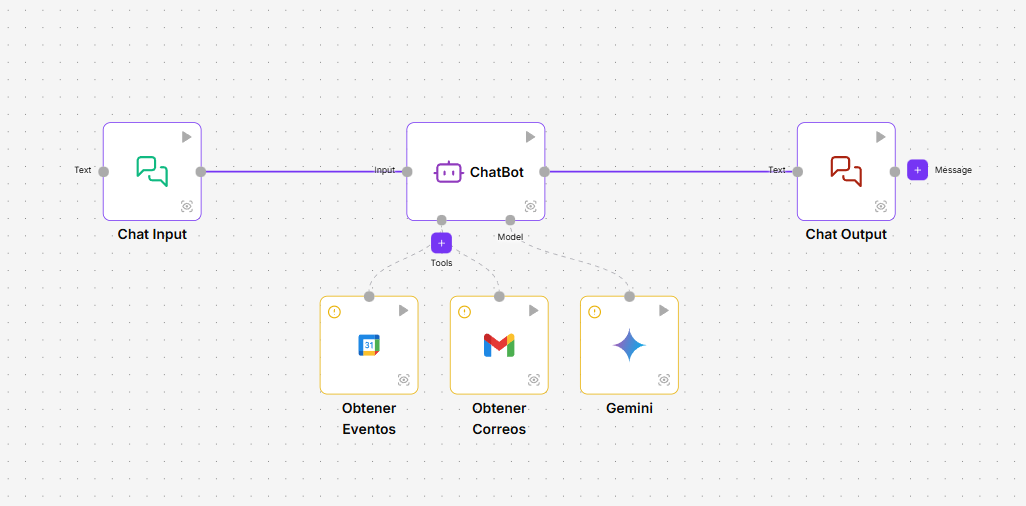
Click + in the right column and add, searching for them by name: Chat Input, Agent, Gemini, Gmail Message, Calendar Event and Chat Output.
3. Connect them
Drag from each output to the input shown:
| From | Output | To | Input |
|---|---|---|---|
| Chat Input | Message | Agent | Input |
| Gemini | Model | Agent | Model |
| Gmail Message | Tool | Agent | Tools |
| Calendar Event | Tool | Agent | Tools |
| Agent | Response | Chat Output | Text |
When you connect a component’s Tool output to Tools, that component stops running on its own and becomes one of the agent’s tools: the agent decides when to use it.
4. Configure each component
Open each component by double-clicking it.
Gemini
- Credential: choose the Gemini credential you created.
- Model: choose a model from the list.
Gmail Message
- Change the name with the pencil icon, for example to Read emails. That way you’ll recognise it in the runs.
- Credential: choose your Gmail credential.
- Operation: choose Get Message.
- Number of Emails to read sets the maximum number of emails it reads. Leave it at 10 or change it.
Calendar Event
- Change the name, for example to Check calendar.
- Credential: choose your Google Calendar credential.
- Operation: choose Get.
- Calendar Selection: choose the calendar you want to check.
- Start and End: click the sparkles button to the right of each field. The field then shows Defined by AI: the agent will decide the dates based on what you ask.
In each tool’s Advanced tab, Tool Description tells the agent what it is for. Write a clear sentence, for example Reads the latest emails in the inbox or Checks the calendar’s events between two dates. The agent chooses the tool based on that description.
Agent
In System Prompt, replace the text with these instructions:
You are an assistant that helps check email and calendar.Use the email tool to read messages and the calendar tool to check events.Answer briefly and clearly, in the user's language.If the user doesn't give a specific date, ask which one they want to check.Don't make up information: if a tool returns no data, say so.5. Test the assistant
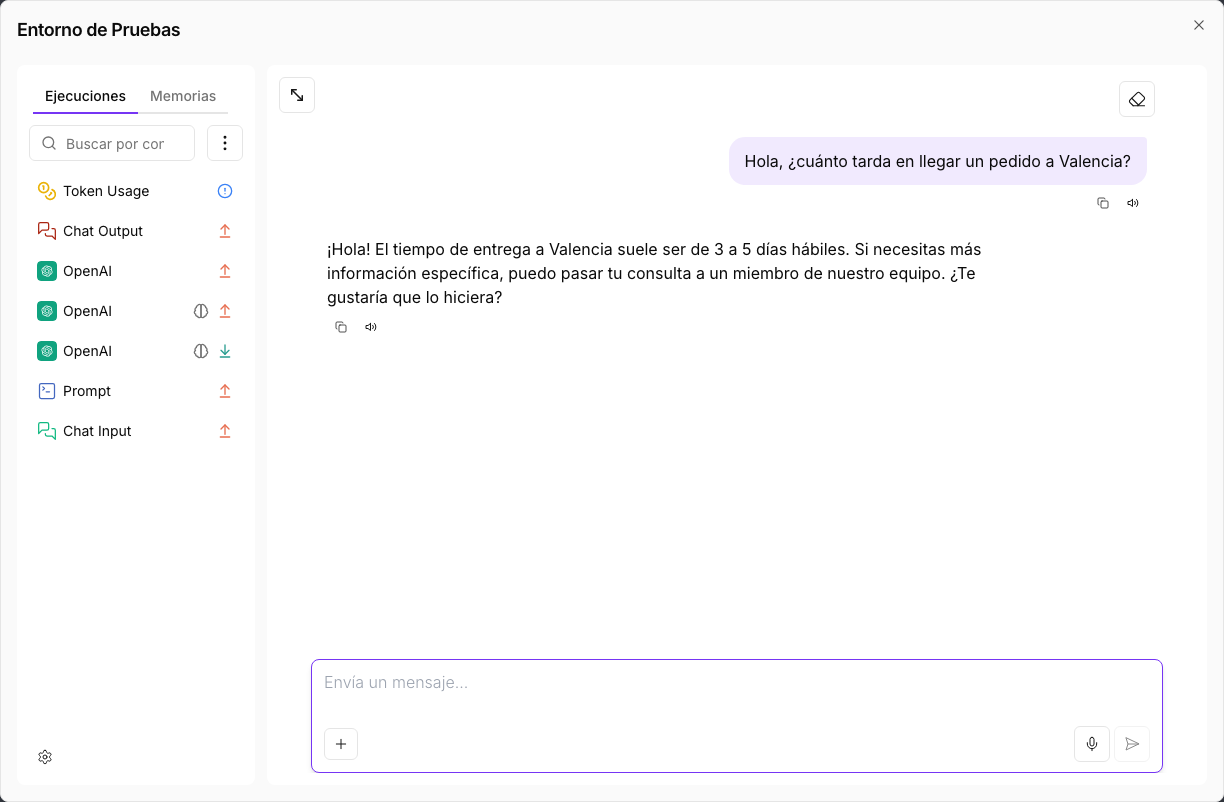
- Click Playground.
- Type, for example, What meetings do I have on Monday 12 October? and press Enter.
- Also try Summarise the last three emails I’ve received.
In Executions, on the left, you’ll see which tool the agent used in each answer and what data it returned.
If something fails, see Troubleshooting.