

Chapter 1: The app at a glance
In this chapter you’ll get to know the NappAI screens and where everything is. You don’t need to configure anything yet: the goal is to know where to go at each moment.
What you’ll learn
- What is in the side menu and what each screen is for.
- The difference between a credential and an API key.
- Where to check what your flows have done.
The home screen
When you sign in to NappAI you see Home. It summarises your plan usage (runs, projects and members), the recent activity of your flows, and a Tutorials and FAQs section.
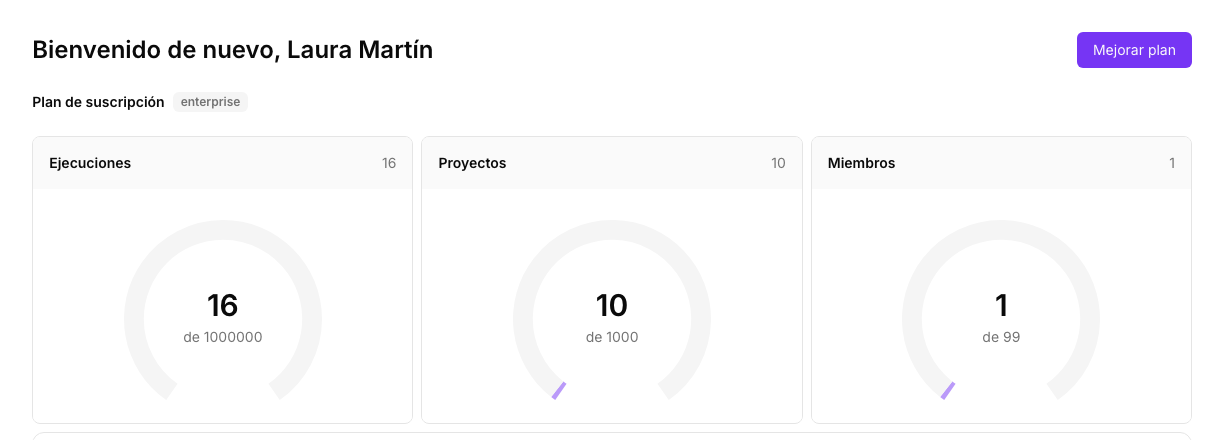
More detail in The home screen.
The side menu
The side menu sits on the left of every screen except the flow editor. It is organised in three groups.
Working with flows
| Option | What you’ll use it for |
|---|---|
| Projects | Create, open and organise your flows in folders. In NappAI every flow is a project. See Projects. |
| Templates | Start from a ready-made flow for a common case. You’ll see it in chapter 3. |
Monitoring
| Option | What you’ll use it for |
|---|---|
| Executions Logs | See every run of your flows, step by step, and find out why one failed. See Executions log. |
| LLMs Uptake | See how much your flows use language models. See LLMs Uptake. |
| Activity log | See who did what in the account. It only appears if your role allows it. See Activity log. |
Configuration
| Option | What you’ll use it for |
|---|---|
| API Keys | Let another application run your published flows. See API keys. |
| Credentials | Store access to the services your flows use: your Google account, an AI provider’s key, a bot token… See Credentials. |
| Environments | Store sets of variables, for example some values for testing and others for production. See Environments. |
| Execution profiles | Set limits on runs: maximum time, runs per minute, allowed components and models. It only appears if your role allows it. See Execution profiles. |
| My Skills | Create reusable instructions and knowledge for your agents. See My Skills. |
| Scheduler | Run a flow automatically on a date or at regular intervals. See Scheduler. |
| Voice Agent | Review your voice agents’ calls. See Voice agents. |
Your user menu
Your user sits at the bottom of the side menu. From there you reach your Profile, the Storage for your files, Notifications, the Theme and Language switches and Logout. If you belong to another account’s team, this is where you choose which account to work in.
What you can do depends on your role
If you work in someone else’s team, your role decides what you can do: build flows, only run them or only view them. When a button appears disabled, hover over it: NappAI tells you which permission you’re missing. See Roles and permissions.
Summary
- Projects and Templates are the starting point for building.
- Credentials connects NappAI to your services; API Keys lets other applications use your flows.
- Executions Logs is where you check what happened in each run.
In the next chapter you’ll open the editor and build your first flow.