

Phone: inbound calls
For an agent to answer a phone number you need three things:
- The line: a number from a phone carrier that offers SIP trunking. A SIP trunk is the internet connection between your carrier and NappAI: calls to your numbers reach NappAI through it, with no switchboard or physical phone.
- The inbound trunk in NappAI: it tells NappAI to accept the calls that come from your carrier.
- The number attached to the agent: when you publish it with the Phone (SIP) channel.
Caller ──► Your carrier ──► NappAI (inbound trunk) ──► Published voice agent (your number) (the one that answers that number)Which trunk you need for what
There are two kinds of trunk and they are not interchangeable: the inbound one receives your carrier’s calls; the outbound one places calls through your carrier.
| To… | Trunk | Where you create it (Voice Agent menu) | Where you choose it (the agent’s Configure consumption) |
|---|---|---|---|
| Receive calls on a number | Inbound | Configured Trunks › New SIP Trunk (step 2) | SIP Trunk and Numbers it answers, with Phone (SIP) ticked |
| Have the agent place calls (Outbound calls) | Outbound | Outbound trunks › New outbound trunk (how) | Trunk for outbound calls |
| Hand the call to a phone (Transfers) | Outbound | The same one as above | Outbound trunk for transfers |
The same outbound trunk works for calling and for transferring. With Automatic in those two fields, the agent’s outbound-calls trunk is used or, if you only have one, that one.
Trunks belong to the account that creates them: only its agents see and use them. Another account does not see them, cannot choose them when publishing, and cannot call or transfer through them.
1. Set up the line with your carrier
Get one or more numbers from a carrier that offers SIP trunking, such as Twilio, Telnyx, Vonage or a national carrier. In its panel:
-
Set the calls to your numbers to be sent over SIP to NappAI. This environment’s SIP address is:
sip-voiceagent.nappai.techYou also see it in the dashboard, with a copy button, in Voice Agent › Configured Trunks and in the New SIP Trunk window, together with the connection details carriers usually ask for. Most carriers take it as a SIP URI with the number in front, for example
+34910000000@sip-voiceagent.nappai.tech. -
Write down the IP addresses the carrier sends calls from. They are usually in its documentation.
-
If the carrier asks for it, use the full number in international format as the call destination, for example
+34910000000.
2. Create the inbound trunk
In the Voice Agent menu, Configured Trunks section, click New SIP Trunk.
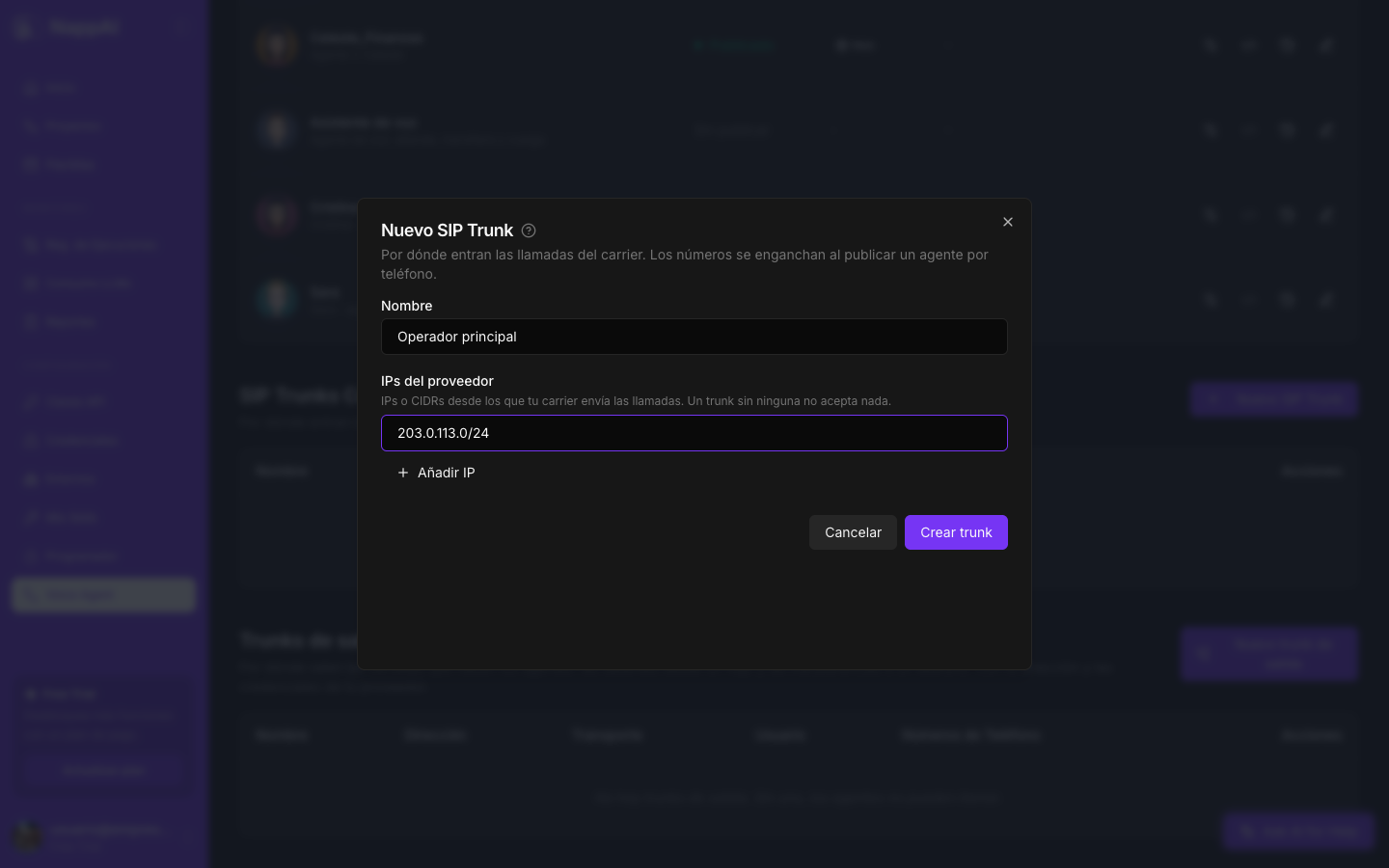
- Name: to recognize it, for example the carrier’s name.
- Provider IPs: the IP addresses (or address ranges) the carrier sends calls from. Use Add IP for each one. Only calls coming from these addresses are accepted: that way nobody else can use your numbers.
Click Create trunk. Numbers do not go here: they are attached to the trunk when you publish the agent.
Create the trunk before publishing for the phone, so publishing can attach your numbers to it.
3. Attach the number to the agent
On the agent’s row, click Configure consumption and tick Phone (SIP).
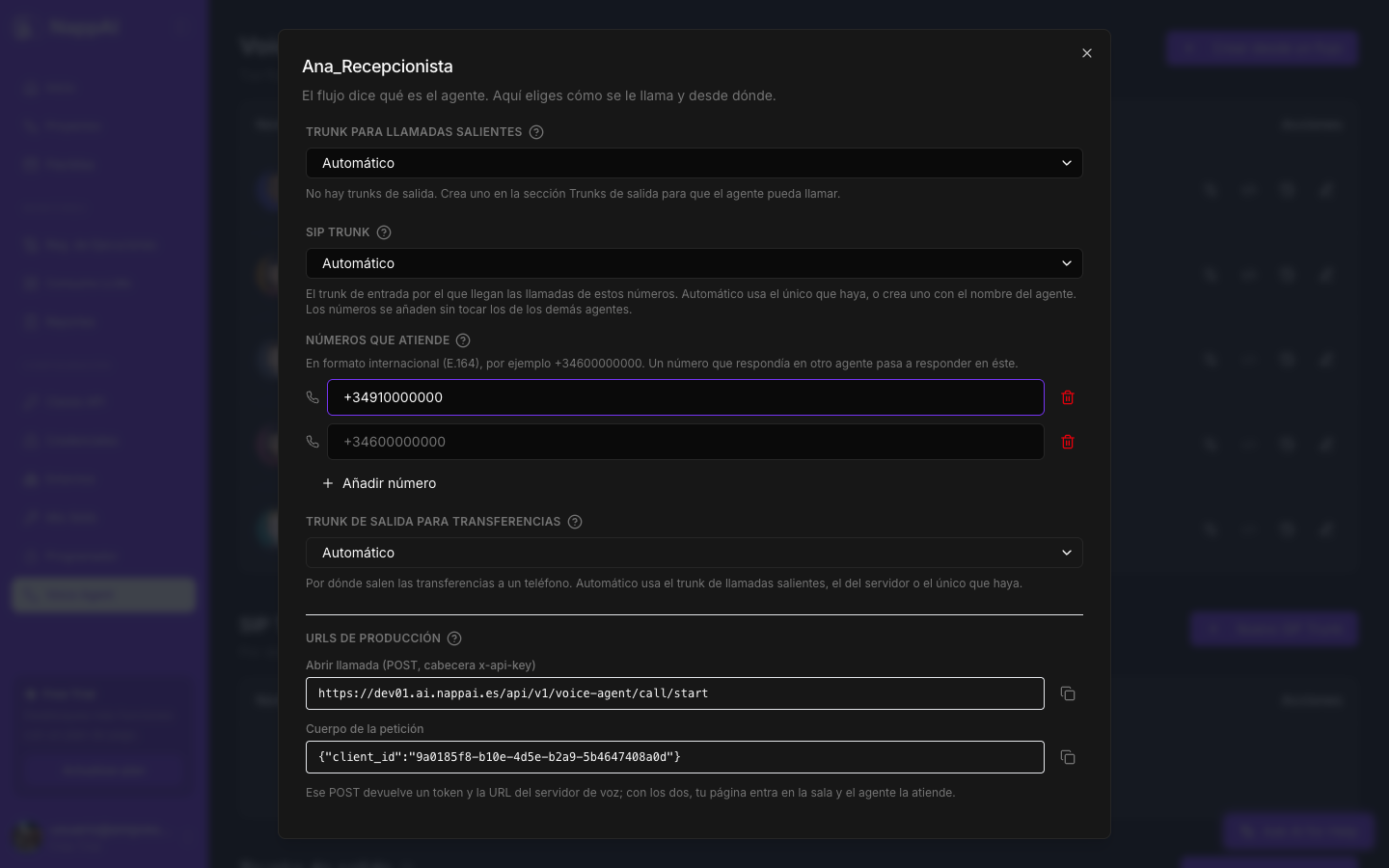
- SIP Trunk: the trunk these numbers’ calls arrive through. Automatic uses your only one. If you have several, pick one.
- Numbers it answers: click Add number for each one, in international format:
+, country code and number, without spaces. For example+34910000000. - Outbound trunk for transfers: where transfers to a phone go out through. See Transfers.
Click Publish or Update publication. From then on, a call to that number is answered by the agent’s published version.
Number rules:
- A number answers on a single agent. If you add a number that another of your agents answered, it moves to this one and the window warns you. The other agent’s remaining numbers do not change.
- You cannot add a number already used by another account.
- Numbers are not part of the flow. They do not appear when you export or share the flow: you decide them when publishing.
4. Call and check
- Call the number from a mobile phone.
- The agent answers with its Greeting.
- Review the call in the history. The Caller is your number and the Direction, Inbound.
With Tell The Model About The Call on (it is by default), the agent knows from the start which number is calling and which number was dialed. Use it in the prompt, for example to look up the customer by their phone.
If it does not answer
| Symptom | What to check |
|---|---|
| The call does not arrive or gives a busy tone | That the carrier sends calls to sip-voiceagent.nappai.tech and that its IP addresses are in the trunk’s Provider IPs. If everything is right and still no call arrives, contact NappAI support. |
| It rings but nobody answers | That the number is in Numbers it answers in international format, and that the agent is Published with Enabled on. |
| Another agent answers | The number moved to another agent when that one was published. Check the Phone Numbers column of the list. |
| It answers and cuts off | Check the history: a Failed call shows which component failed, for example a credential with no balance. |