

Chapter 2: The flow editor
The editor is where a flow is built. Each piece of the flow is a component: it receives data, does something with it and passes the result on to the next one. In this chapter you’ll tour the editor and put together a very simple flow to practise.
What you’ll learn
- The parts of the editor and what each button is for.
- How to add, connect and configure components.
- How to tell whether a component is configured correctly and whether its last run went well.
- How to test a flow in the playground.
Create a blank project
- In the side menu, click Projects.
- Click New project.
- Choose Blank Project, type a name in Project name…, for example My first flow, and click Use this template.
The editor opens with an empty canvas. The first time, a welcome tour points out the main buttons.
The parts of the editor
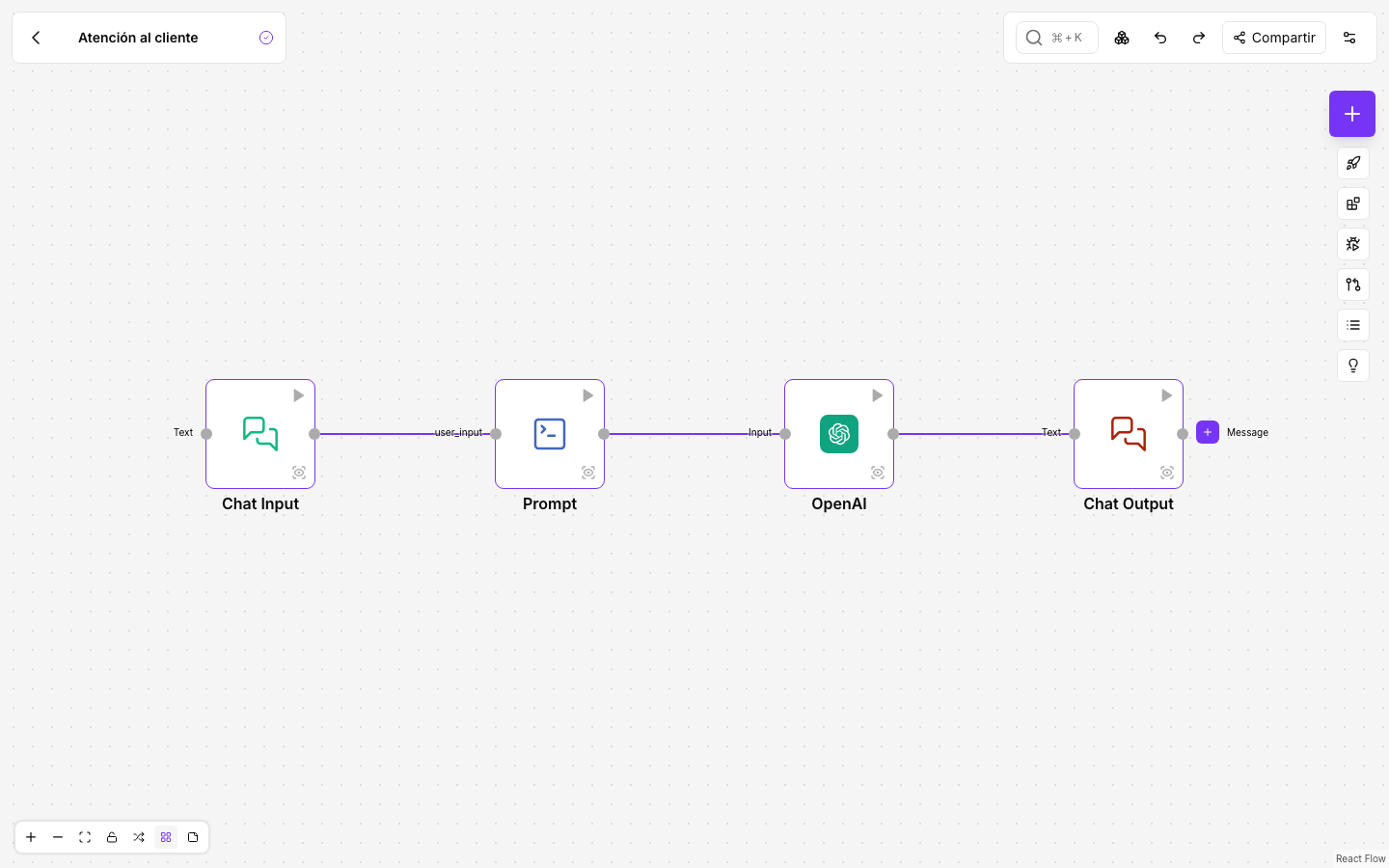
| Area | What you’ll find |
|---|---|
| Top left | The arrow back to Projects, the flow name and its status: Saving… while a change is saved and Building… while it runs. |
| Top right | The search for components on the canvas, the bound environment, Undo, Redo, Share and Settings. |
| Right column | + to add components and, below it, Deploy, API Access, Playground, Version History, Execution Logs and Help. |
| Bottom left | Zoom, Fit view, the canvas lock, Auto layout, grid snapping and Add a note. |
The buttons in the right column show their name when you hover over them. Help opens step-by-step guides with animations.
Add two components
You’ll build a flow that returns what you type. It’s a way to practise without needing any credential.
- Click + in the right column. The components panel opens.
- In Search component, type Chat Input and click the component to add it to the canvas.
- Do the same with Chat Output.
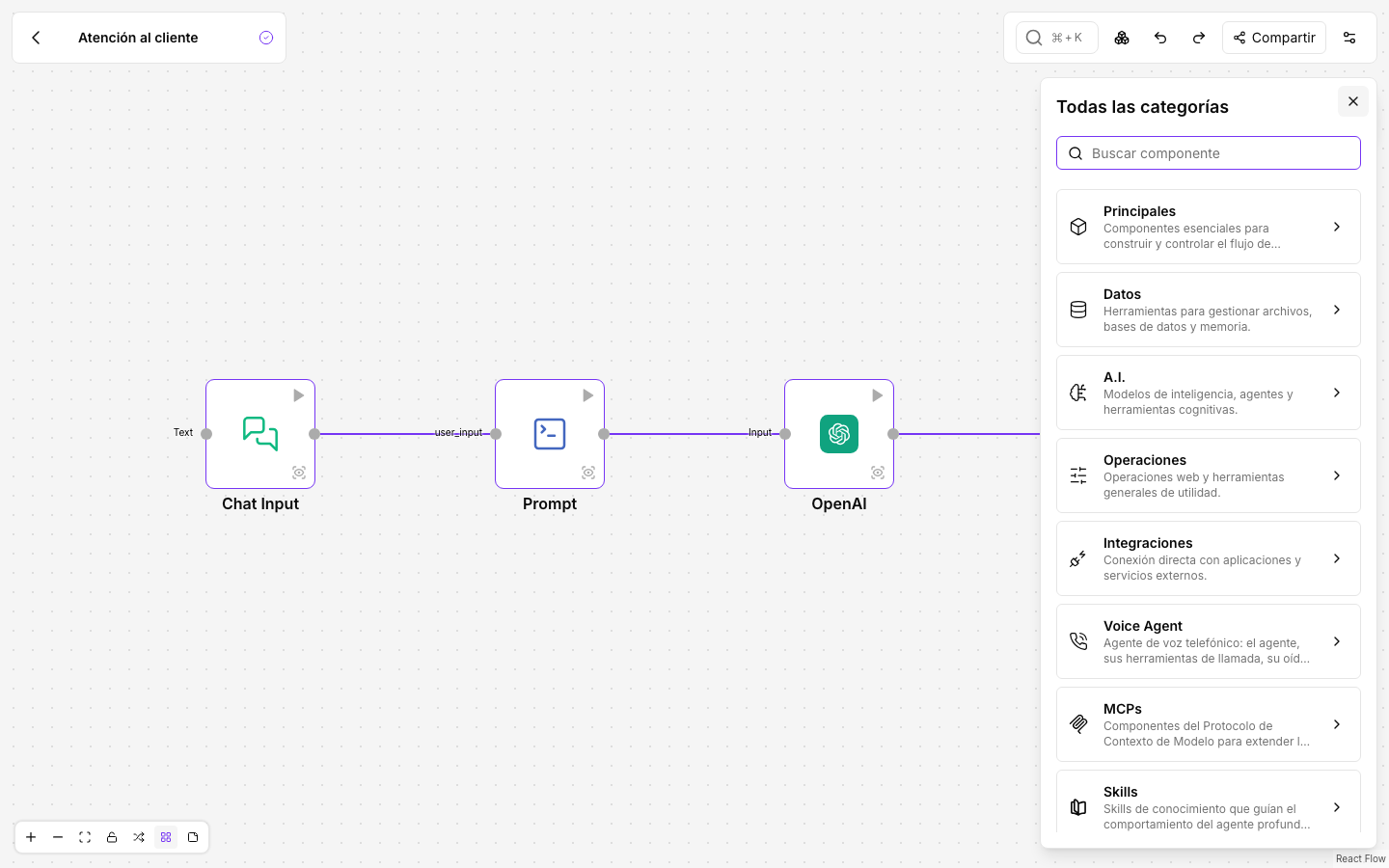
Components are grouped in categories such as Core, Data, A.I., Operations and Integrations. Each one’s ? icon opens its documentation.
Connect them
Each component has connection points on its edges: its inputs on one side and its outputs on the other.
- Drag from the Message output of Chat Input to the Text input of Chat Output.
- Let go. A line appears between the two.
While you drag, the points that aren’t compatible fade out. To delete a connection, hover over it and click the red X.
Configure a component
Click a component to select it. Its toolbar appears above it, with Settings, Unplug, Delete, duplicate and more options under ⋯.
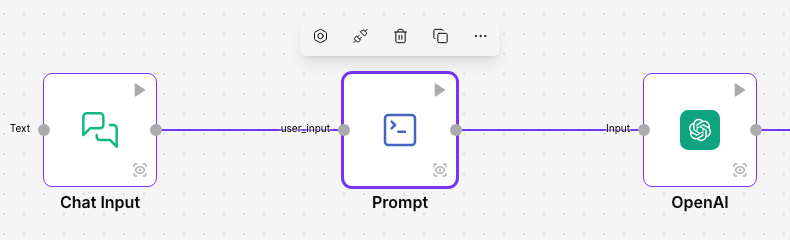
Settings, or double-clicking the component, opens its settings panel. Common holds the main fields and Advanced the rest. To change the name shown on the canvas, use the pencil icon.
You don’t need to change anything in this example. In real flows, this is where you choose the service credential, the AI model or the operation the component should perform.
Read each component’s status
| Look | Meaning |
|---|---|
| Yellow border and warning | A required field is missing, for example the credential. |
| Green tick and time | The last run went well, in that time. |
| Red triangle | The last run failed in this component. Hover over it to see why. |
| Blue border | The component has been unplugged with Unplug: it reuses its last result and isn’t run again. |
Test the flow in the playground
- Click Playground in the right column.
- Type a message in Send a message… and press Enter.
- The answer appears as in a chat. In this flow it’s the same text you typed.
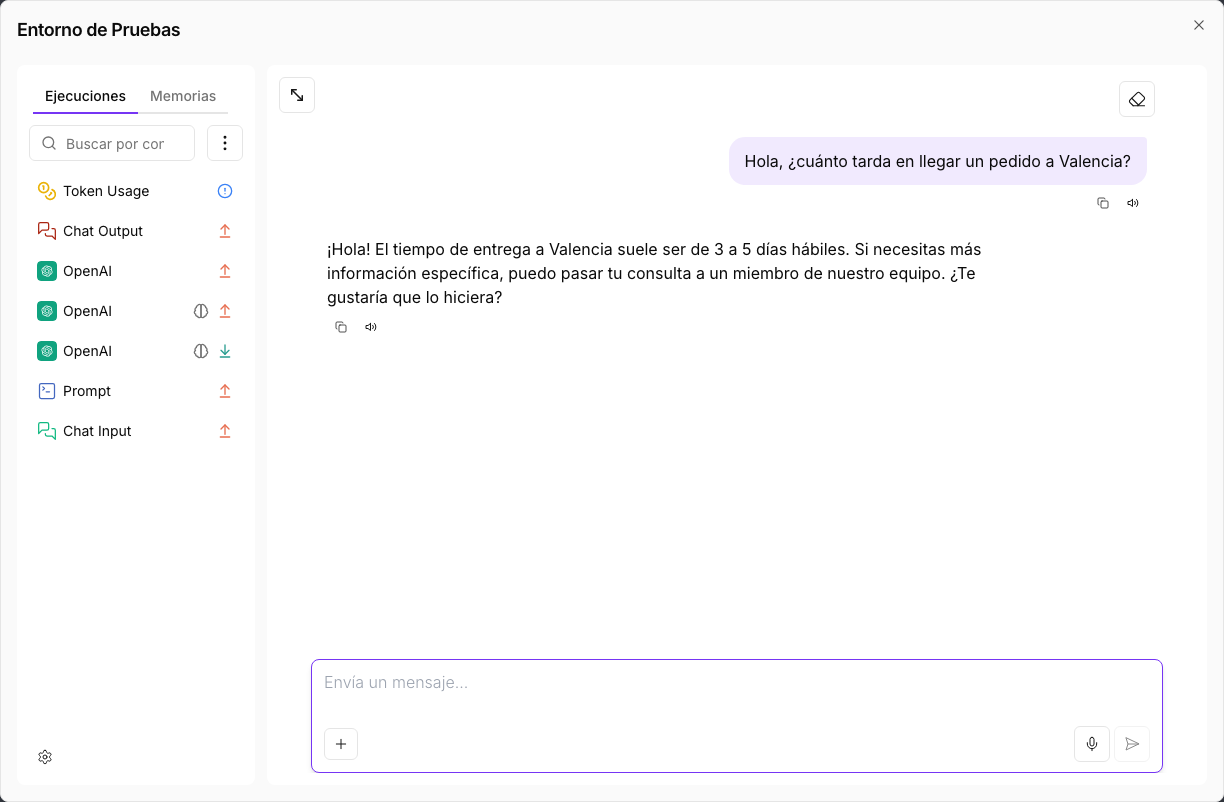
On the left, Executions lists the steps of each run. Select one to see what each component received and returned. It’s the quickest way to understand what happened when something doesn’t turn out as you expected.
The playground always runs the draft, that is, what you see on the canvas.
Changes save themselves
There is no save button: every change is saved straight away. What you save is the flow’s draft. Calls from other applications, schedules and phone calls use the published version, so your changes don’t affect them until you publish. You’ll see this in chapter 5.
If someone else has the same flow open, you’ll see their pointer on the canvas and their changes on your screen.
The flow menu
Settings, at the top right, opens the Options menu with actions on the whole flow: Import and Export, Edit the name and description, Conversation Reg. and Eval. Registry, Bind Environment, Flow graph and Logs. If your role allows it, also Execution profile.
For the full editor reference, with every keyboard shortcut, see The flow editor.
Summary
- Components are added with + and connected by dragging from an output to an input.
- A component’s border and corner tell you whether something is missing or whether it failed.
- Playground runs the draft and shows the result of every step.
In the next chapter you’ll create a flow from a template.