

Environments
An environment is a set of named variables with values that your flows can read: the address of an API, the ID of a spreadsheet, the language for replies or a token. Instead of typing those values inside each component, you keep them in the environment and the flow reads them when it runs.
The usual setup is one environment per stage, for example Desarrollo (development) and Producción (production), with the same variables and different values. That way you test a flow with test data and publish it with the real data without touching its components.
Environments are managed in Environments, under Configuration in the sidebar.
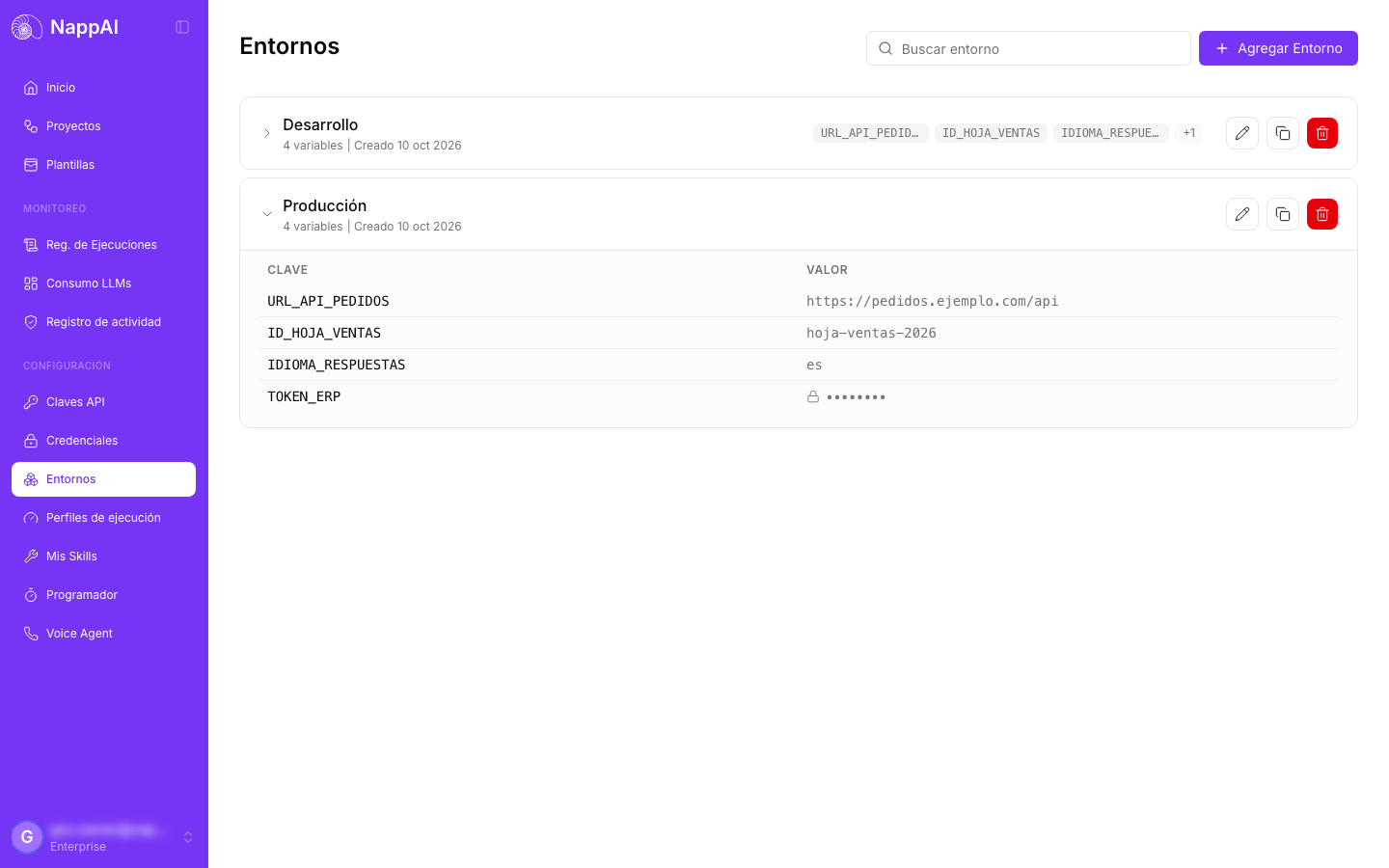
Each row shows the name, how many variables it has and the names of the first ones. Click the row to see every variable with its value. If a credential has its own values for that environment, it appears there too.
Create an environment
- Click Add Environment. If you don’t have any yet, the button is called Create Environment.
- Type the Environment Name, up to 50 characters. It can’t be repeated.
- Under Variables, type the Key and the Value of each variable. The + button adds another row and the bin removes one.
- Click Add.
Keys can’t be empty or repeated within the same environment. Always write them the same way in all your environments, for example URL_API_PEDIDOS, so a flow works with any of them.
Paste or import variables
- Paste: if you paste text like
KEY=valueinto a key, both the key and the value are filled in. If you paste several lines like that, all of them are added. Lines starting with#are ignored. - Import variables: copies the variables from another of your environments. If one already exists with a different value, you choose which one to keep in each case, with Keep current or Use incoming, or for all of them at once.
Secret variables
Mark as secret any variable that must not be seen, such as a token or a password. Click the padlock on its row, in the Secret column, before saving.
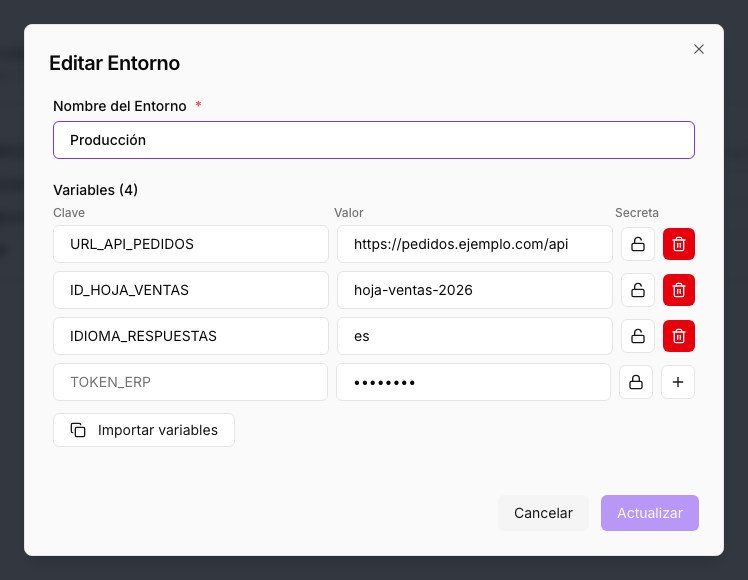
Once saved, a secret variable works like this:
- Its value is never shown again in the dashboard. In the list it appears as dots with a padlock.
- Your flows receive its real value when they run.
- To change the value, type a new one over it. If you type nothing, the current value is kept.
- You can’t remove the secret mark or rename the key. If you need a different one, create a new variable.
- When you duplicate the environment, secret variables are copied without their value and you have to type it again.
Edit, duplicate and delete an environment
Each environment has three buttons:
- Pencil: change the name and the variables, then click Update.
- Copy: creates a new environment with the same variables, named after the original followed by (copy). It’s the quick way to create Producción from Desarrollo.
- Bin: deletes the environment after you confirm. This can’t be undone. Before deleting it, check which flows use it.
Bind an environment to a flow
A flow uses the environment bound to it while you edit and test it.
- Open the flow.
- In the top bar, click the environments icon. It is also in the Options menu, as Bind Environment.
- Choose the environment and click Save.
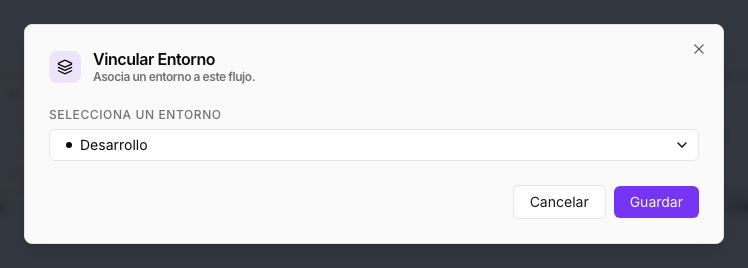
The environment’s name stays visible in the flow’s top bar. To remove it, choose None. From the same dropdown you can create a new environment with New environment.
The environment in production
When you deploy a version of the flow, you choose the environment it will run with in production. The environment is saved with that version: calls made with an API key and schedules will use that environment.
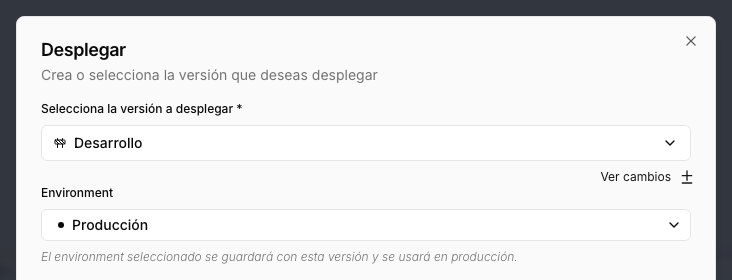
To use a different environment in production, create and deploy a new version with that environment.
A typical split looks like this:
| Development | Production | |
|---|---|---|
| When it’s used | While you edit and test the flow | Runs of the deployed version |
| Where you choose it | Bind Environment, in the flow | When you deploy the version |
| Values | Test values | The real ones |
Use variables in a flow
- Environment Variable component: choose the variable in its Variable Key field and connect its output wherever you need the value. The dropdown lists the variables of the environment bound to the flow. See Environment Variable.
- Python Code: variables are in
env, for exampleenv['URL_API_PEDIDOS']orenv.get('IDIOMA_RESPUESTAS', 'es'). See Python Code. - JS Code: variables are in
$env, for example$env.URL_API_PEDIDOS. See JS Code.
If the flow has no environment, env and $env are empty and Environment Variable returns empty text.
Different credentials in each environment
Besides variables, an environment can have its own values for a credential: for example, a service’s test account in Desarrollo and the real one in Producción. You set them up from the credential. See Different values in each environment.
Who can manage environments
| Owner | Admin | Builder | Operator | Viewer | |
|---|---|---|---|---|---|
| See environments and their variables | Yes | Yes | Yes | Yes | Yes |
| Create, edit, duplicate and delete environments | Yes | Yes | Yes | No | No |
Nobody sees the value of a secret variable, not even the owner. See Roles and permissions.