

How the assistant works
When you give it a task, the assistant always follows the same path: understand, plan, build, test and fix. It considers a flow finished once it has run it successfully.
For simple questions (“what does this flow do?”, “what environments do I have?”, “what operations does the Gmail component have?”) it skips all of that and answers you directly, without a plan.
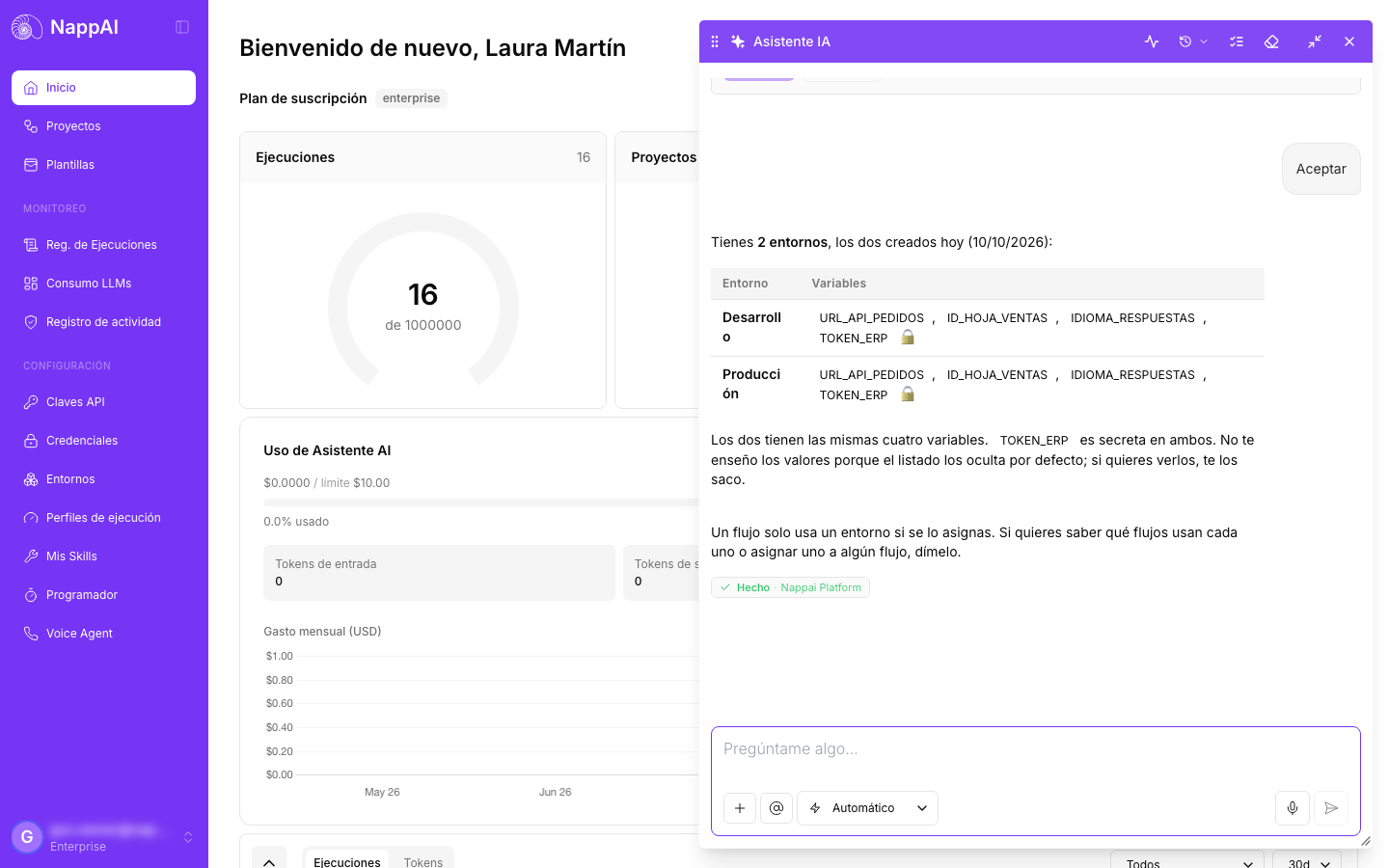
1. It understands what you want
First it checks what it needs: which components exist for what you are asking, which credentials you have, and which flows and folders are in your account. If what you are asking for is several flows working together (for example, one that collects orders and another that sends a summary every Friday), it treats it as a small project and builds them one after the other.
2. It proposes a plan
Before touching anything, it tells you what the flow will look like: what starts it, what steps it has, which services it uses and which folder it will go in. And it asks whether to build it that way.
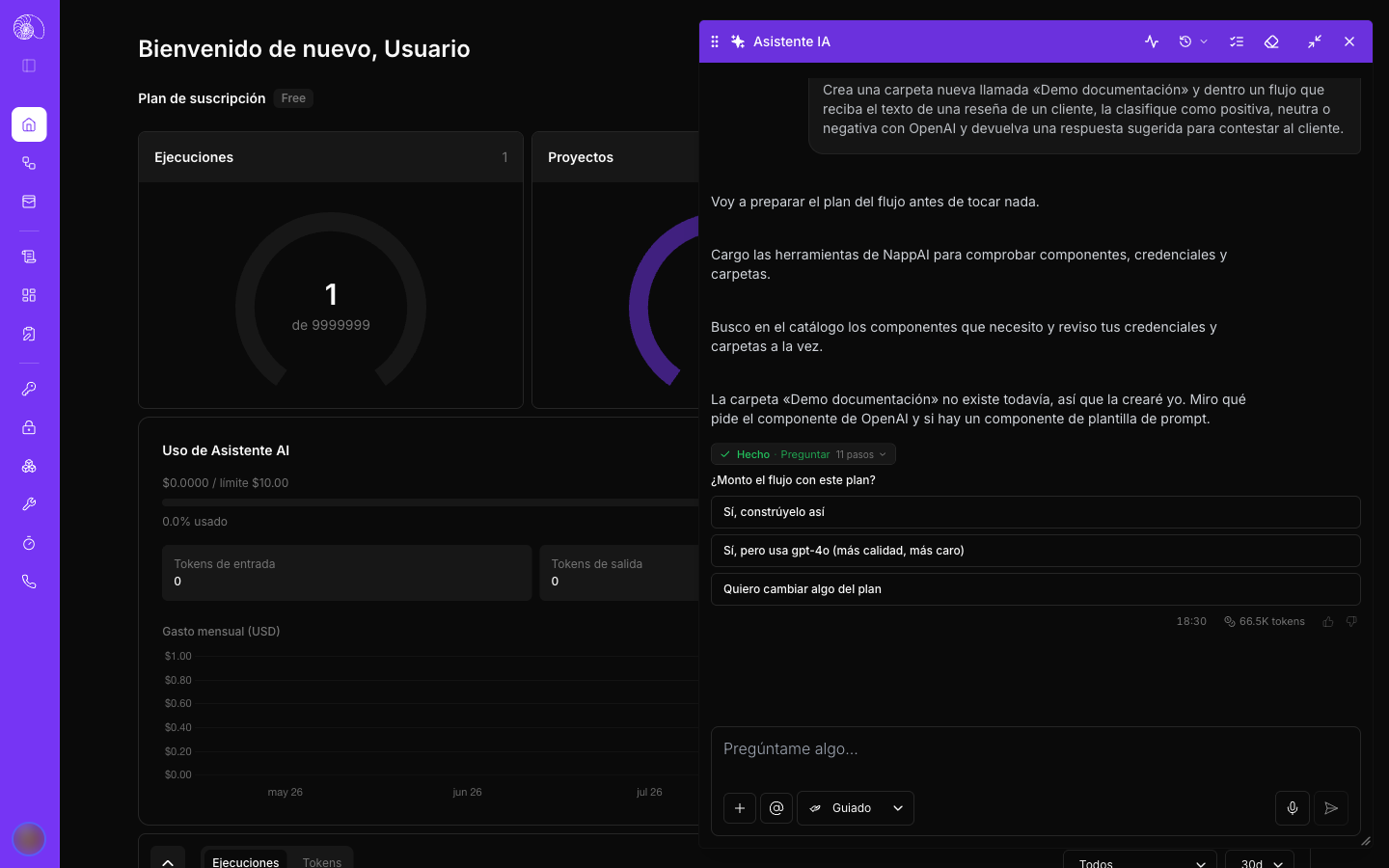
You can accept it, choose a variant or ask for changes. If you change something, it reworks the plan and shows it to you again. It doesn’t build anything without your approval (in Guided mode).
What it will ask you
The assistant never makes up information only you know. It will ask you, one thing at a time and with options to choose from, for example:
- The ID or name of a spreadsheet, a table, a channel or a label.
- Who to send an email or a message to.
- Which account or which credential to use.
- What time and how often, if something has to run on its own. It asks for your time zone, shows you the time in your zone and in universal time, and warns you about daylight saving time changes.
- Which folder to save a new flow in, or whether to create a new one.
What it does decide on its own are the technical details: which component to use, how to connect them and how to configure each field.
3. It builds
With the plan approved, it creates the flow (with a name that describes what it does, in the chosen folder) and sets up all the components, their connections and their configuration in one go: the fields, the code of Python Code and JS Code components and the agents’ instructions.
If you have the flow open, you will see it appear on the canvas. Everything is saved automatically.
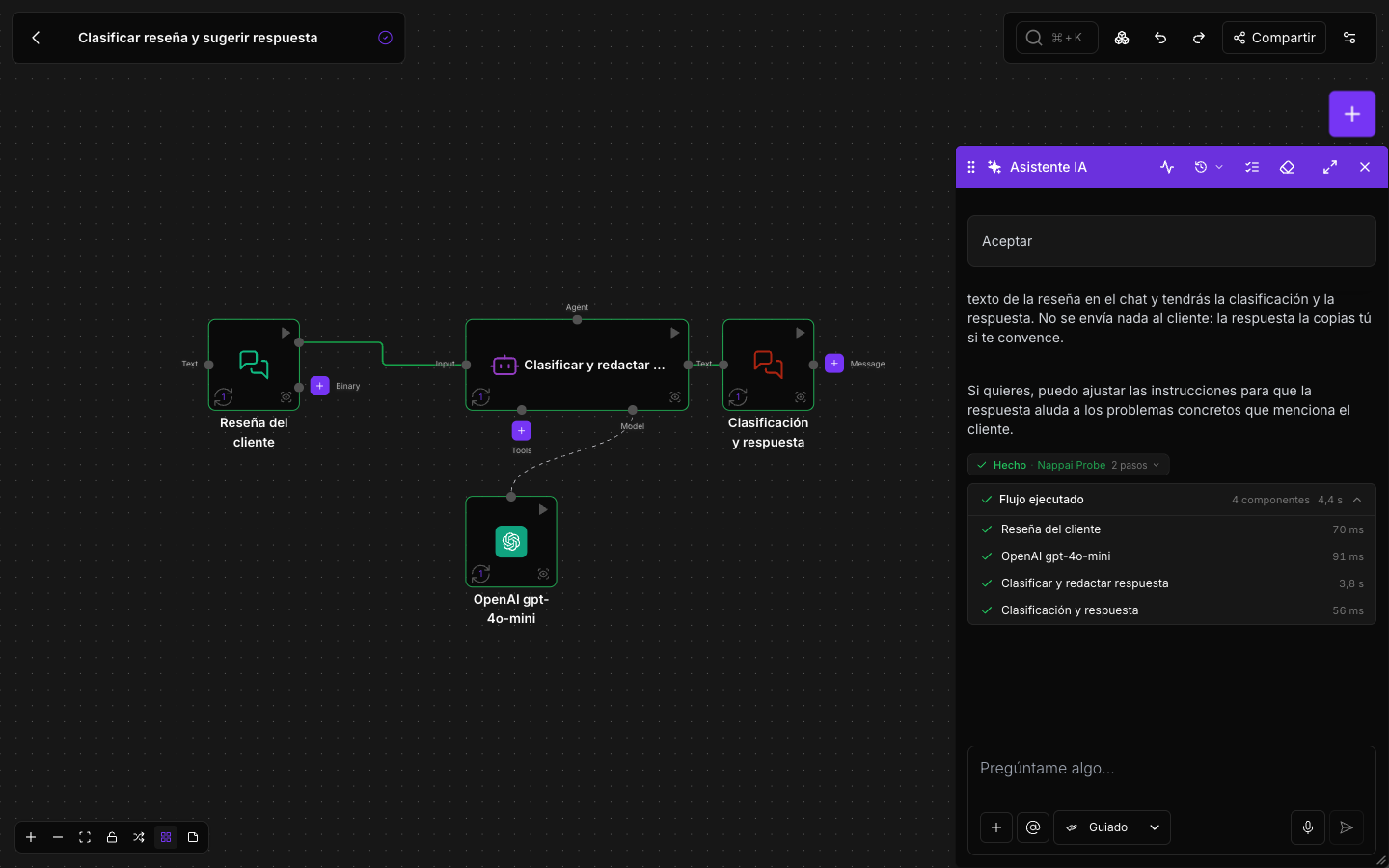
4. It tests
A flow isn’t finished until it works, so the assistant runs it with sample data and checks the result of each component. Before the first run it asks for your permission, because running can have costs or effects:
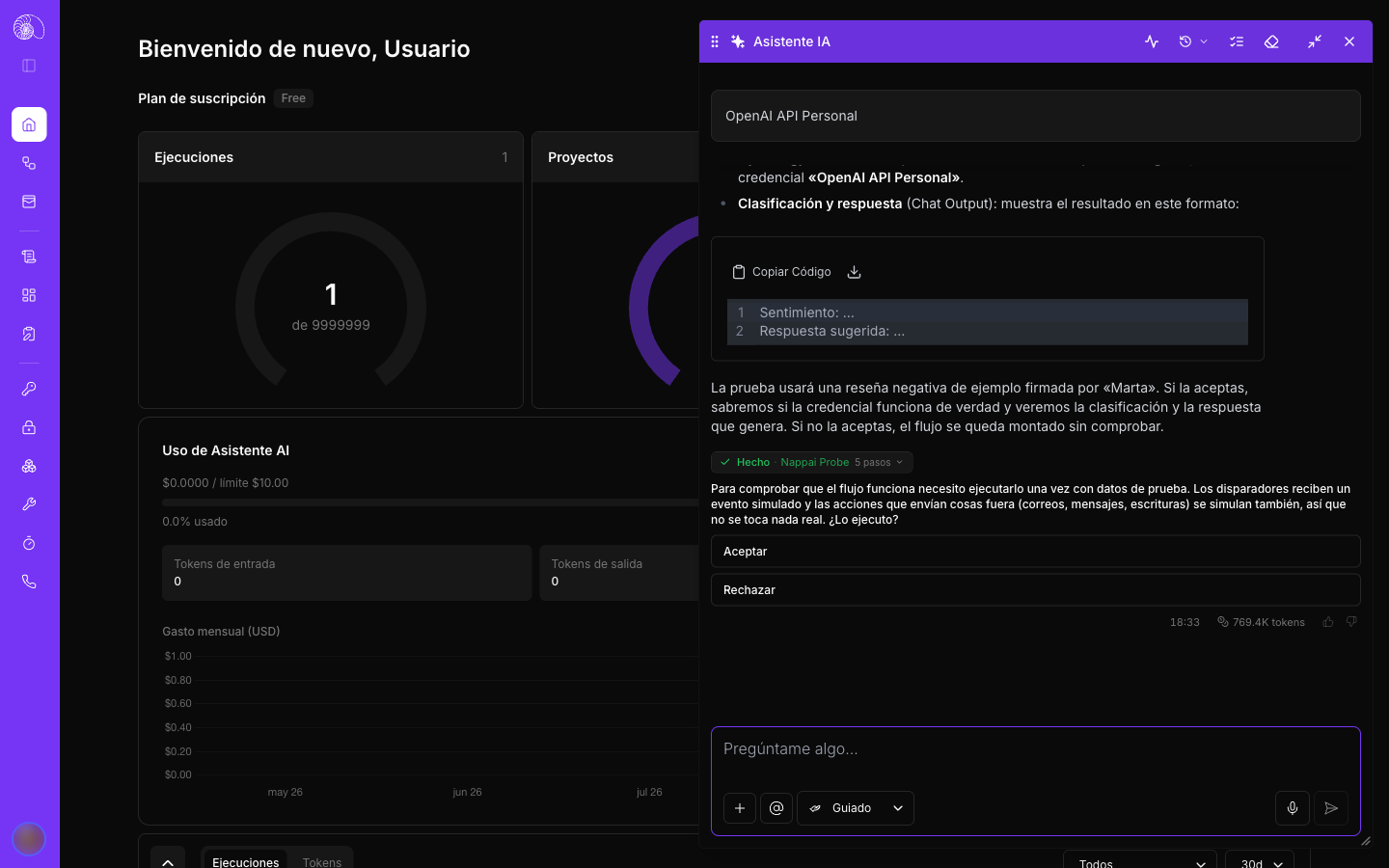
To keep the test safe:
- If the flow starts with an external event (a new email, a form received…), it simulates that event.
- Actions that send something outside (emails, messages, writes) are simulated until they are ready to be used for real.
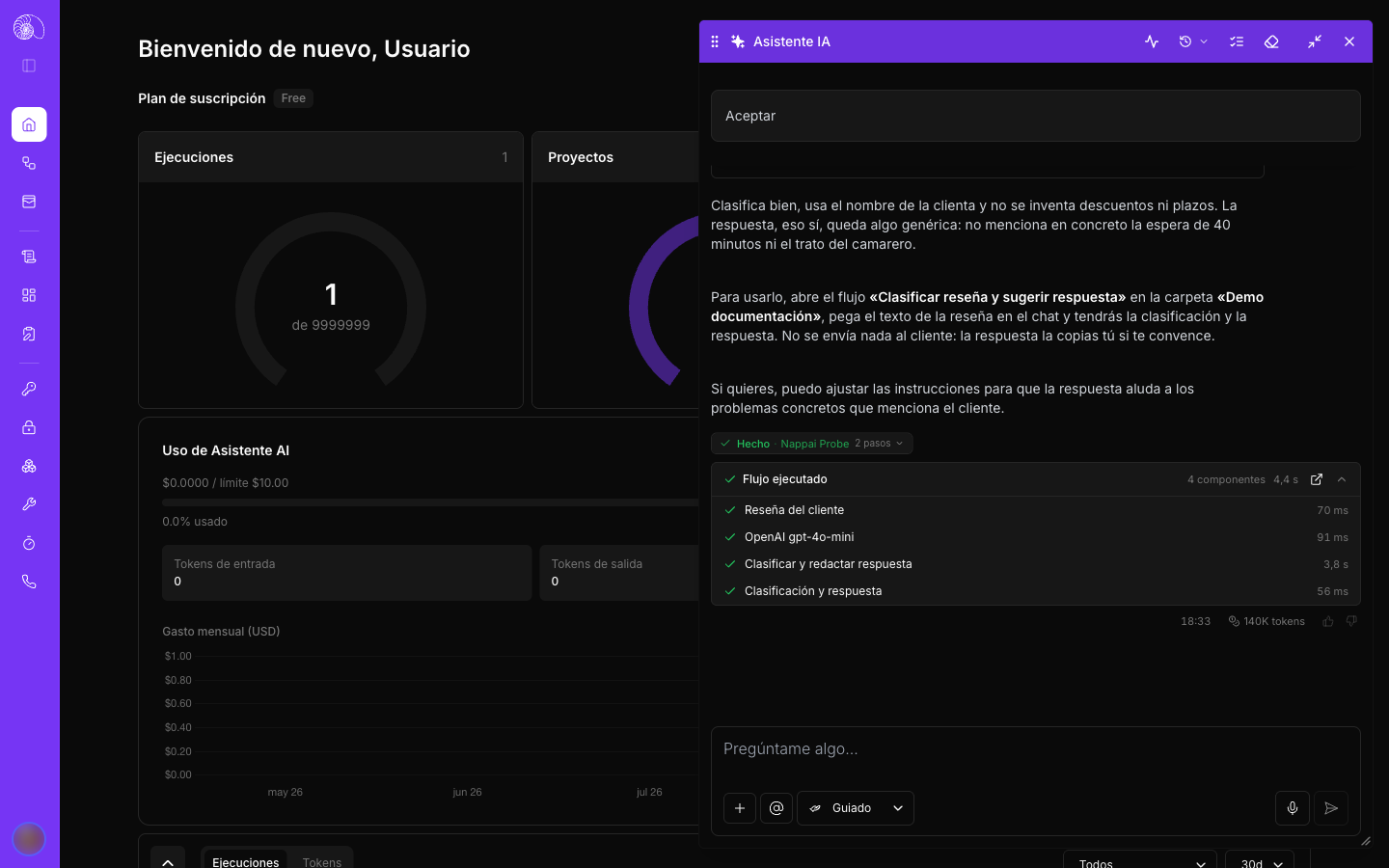
When it finishes, it shows you what the flow returned and the run card with each component, its status and how long it took:
5. It fixes
If something fails, the assistant reads what happened in each component, looks for the cause (a mistyped value, a field in the wrong format, a credential without permission, an unassigned environment…), fixes only what fails and tests again. At the end it explains what was wrong and what it changed.
If a flow you were already using starts failing, open it and ask the assistant to check it: it runs the flow, finds the component that fails and fixes it.
Permissions
In Guided mode, the assistant asks you for an explicit yes before acting on your account, and always before anything with real effects:
| Action | Examples |
|---|---|
| Run a flow | Test it all the way through or up to a component |
| Publish | Publish a version to production, unpublish it, publish a voice agent |
| Versions | Save a version, restore a previous one |
| Schedules | Create, change, pause or delete a recurring run |
| Environments | Create, change or delete an environment, assign it to a flow |
| Credentials | Create a new credential or check that it works |
| Your skills | Create, change or delete your reusable instructions |
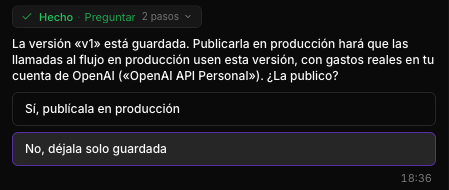
If you say no, it doesn’t insist: it suggests another way forward.
In Automatic mode permissions are granted automatically, so the assistant works without interruptions. Use it when you trust what you have asked for.
Credentials
Choosing a credential
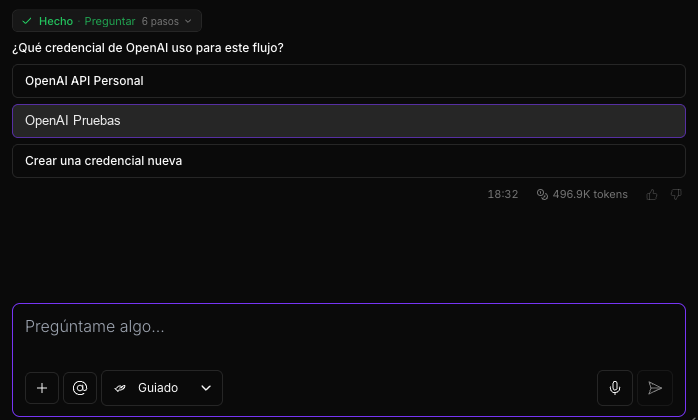
When a component needs a credential, the assistant shows you all the ones you have for that service and you choose. It does this even when you only have one, because only you know whether “MySQL” and “MySQL 2” are the testing one and the production one.
Creating a credential
If you don’t have one, or you choose Create a new credential:
- Credentials with a key, token or username and password (OpenAI, a database, an API…): the assistant can create them for you. You can paste the key into the chat or, if you prefer, fill it in yourself in the credentials window it opens for you. When it’s done, it assigns it to the component and checks that it works.
- Credentials that connect by signing in to another account (Google, Microsoft and similar services): these need you to sign in yourself. The assistant opens the window to create it; you complete the sign-in and, when you come back, the assistant picks up where it left off.
Undo
What the assistant changes in your flows can be undone: ask it to “undo the last change” or “go back to how it was before adding the translator”. Anything that has already had an effect outside NappAI (an email sent, a schedule that has already run) can’t be undone.
Pace and timing
- One request at a time per conversation. If you write to it while it’s working, it will ask you to wait until it finishes. You can open another conversation to work on something else at the same time.
- Stop: click Stop generating whenever you want. Whatever it has already built stays on the canvas.
- Bigger requests: while the assistant builds and tests a complete flow, you can keep using the dashboard.