

API keys
An API key lets an application outside NappAI run your published flows: your website, your CRM, your own integration or the Scheduler. Every call carries the key, so NappAI knows which account it comes from and that it may run that flow.
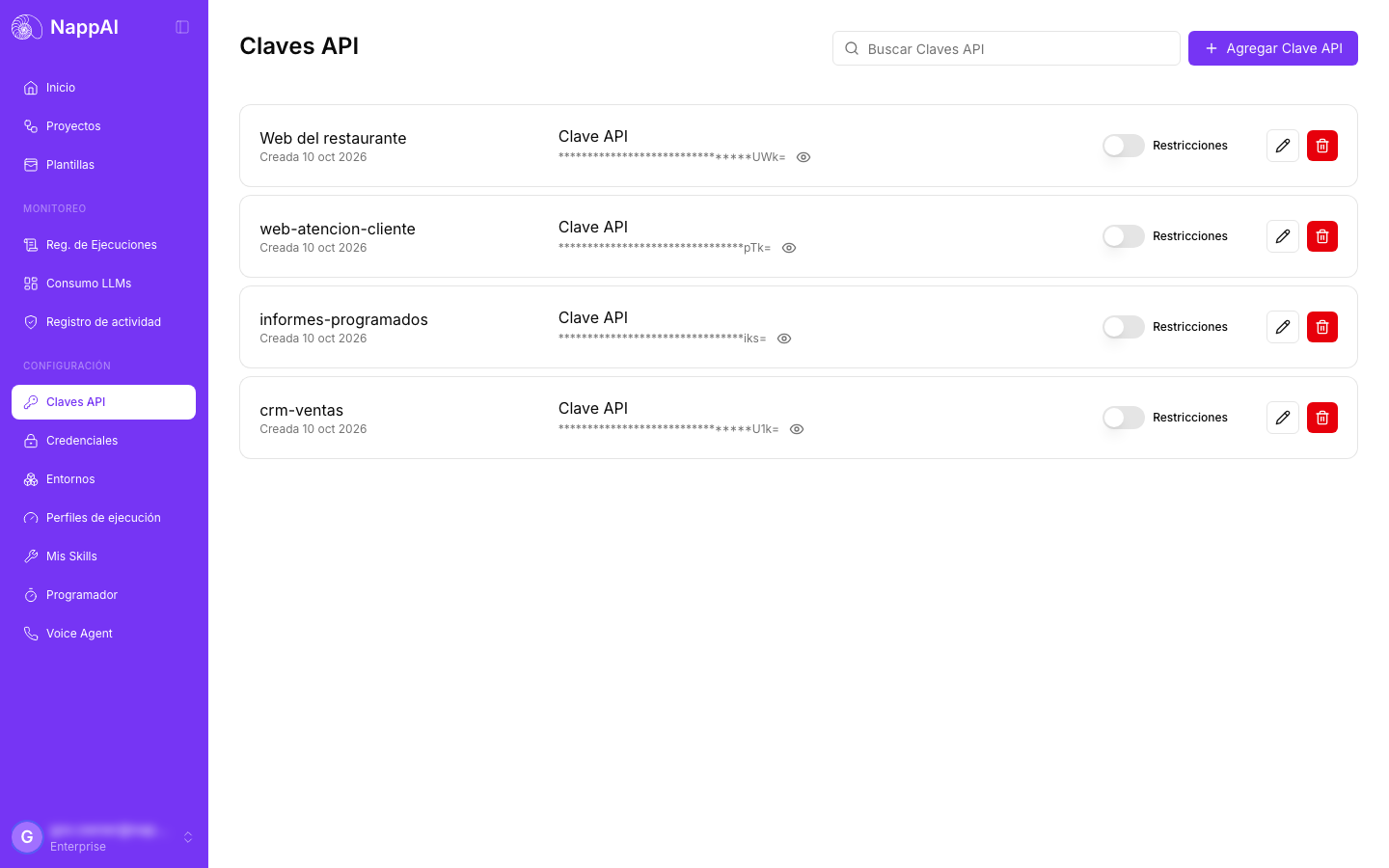
Keys are managed in API Keys, under Configuration in the sidebar.
What an API key is for
- Calling a published flow from another application. In the flow, API Access generates the code to integrate it and lets you choose the key it will use. In the Production consumption mode it runs the deployed version of the flow; in Test mode, the version you are editing.
- Scheduling a flow. Every schedule in the Scheduler runs with the key you choose when you create it.
- Embedded chats. A NappAI chat embedded in a website also works with a key.
Every key has two parts: the name, which you choose so you can recognise it, and the secret, which NappAI generates and which the application sends with every call. Anyone who has the secret can run the flows in your account, so treat it like a password.
Create an API key
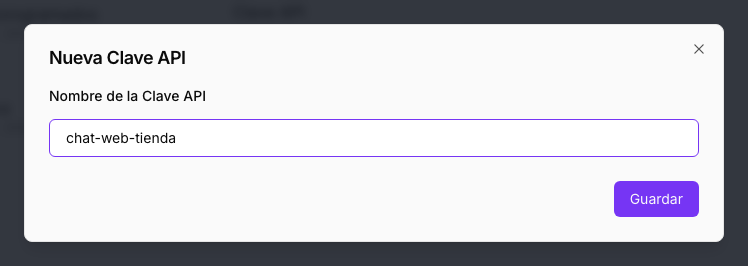
- Click Add API Key. If you don’t have any yet, the button is called Create API Key.
- Type the Api key Name. It only accepts letters, numbers, hyphens and underscores, without spaces, up to 50 characters. Use a name that says where it will be used, for example
chat-web-tienda. - Click Save.
The key appears in the list with its secret hidden. Only the last few characters are shown, so you can tell keys apart.
Reveal and copy the secret
Click the eye icon next to the secret. It is shown in full for a few seconds, with a button to copy it. Then it is hidden again.
Only the account owner and members with the Admin role can reveal the secret. For everyone else, the eye is disabled. Every time someone reveals it, it is recorded in the account’s activity log.
Rename a key or regenerate its secret
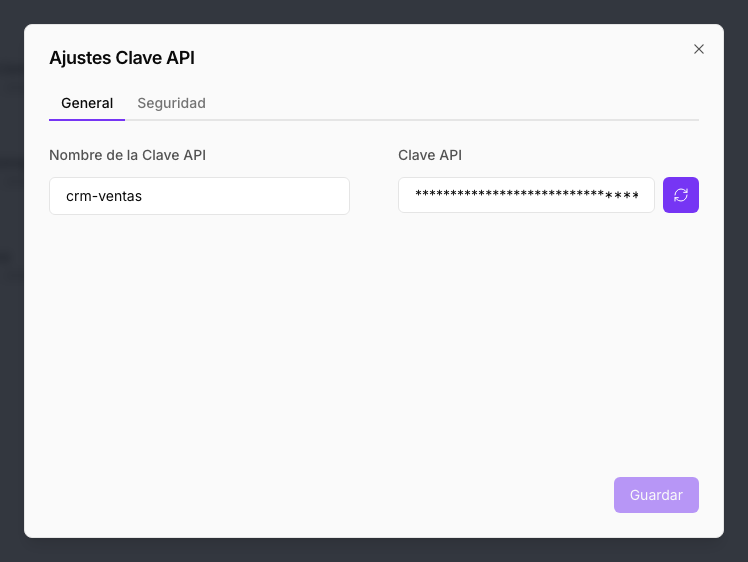
Click the key’s pencil to open API Key Settings. In the General tab:
- API Key Name: change the name and click Save. Two keys can’t have the same name.
- API Key: the button with the two arrows, next to the secret, generates a new secret. Use it if you think someone has seen the secret or you want to renew it.
Delete an API key
Click the key’s bin and confirm with Delete. This can’t be undone: applications that used the key can no longer run your flows.
NappAI won’t let you delete a key that is still in use:
| Message | What to do |
|---|---|
| Cannot delete an API key associated with a scheduler. | A schedule uses that key. Change its key in the Scheduler or delete the schedule. |
| Cannot delete an API key associated with an integrated chat. | An embedded chat uses that key. Change it in that chat before deleting the key. |
Who can manage keys
| Owner | Admin | Builder | Operator | Viewer | |
|---|---|---|---|---|---|
| See the list of keys | Yes | Yes | Yes | Yes | No |
| Create, rename and delete keys | Yes | Yes | Yes | No | No |
| Reveal, copy and regenerate the secret | Yes | Yes | No | No | No |
Keys belong to the account: every team member works with the same ones. See Roles and permissions.
Good practices
- One key per application. If one leaks, you regenerate or delete it without affecting the others.
- Names that say where it is used.
crm-ventasorinformes-programadosare easier to recognise thankey1. - Don’t put the secret in code anyone can see, such as a public web page or a shared repository.
- Regenerate the secret when someone who knew it stops working with you.
- Delete keys you no longer use.