

Execution profiles
An execution profile is a set of limits that applies when your flows run. It keeps a flow from running endlessly, from being launched more often than planned, or from using components and models your company doesn’t want to allow.
Profiles are managed in Execution profiles, under Configuration in the sidebar.
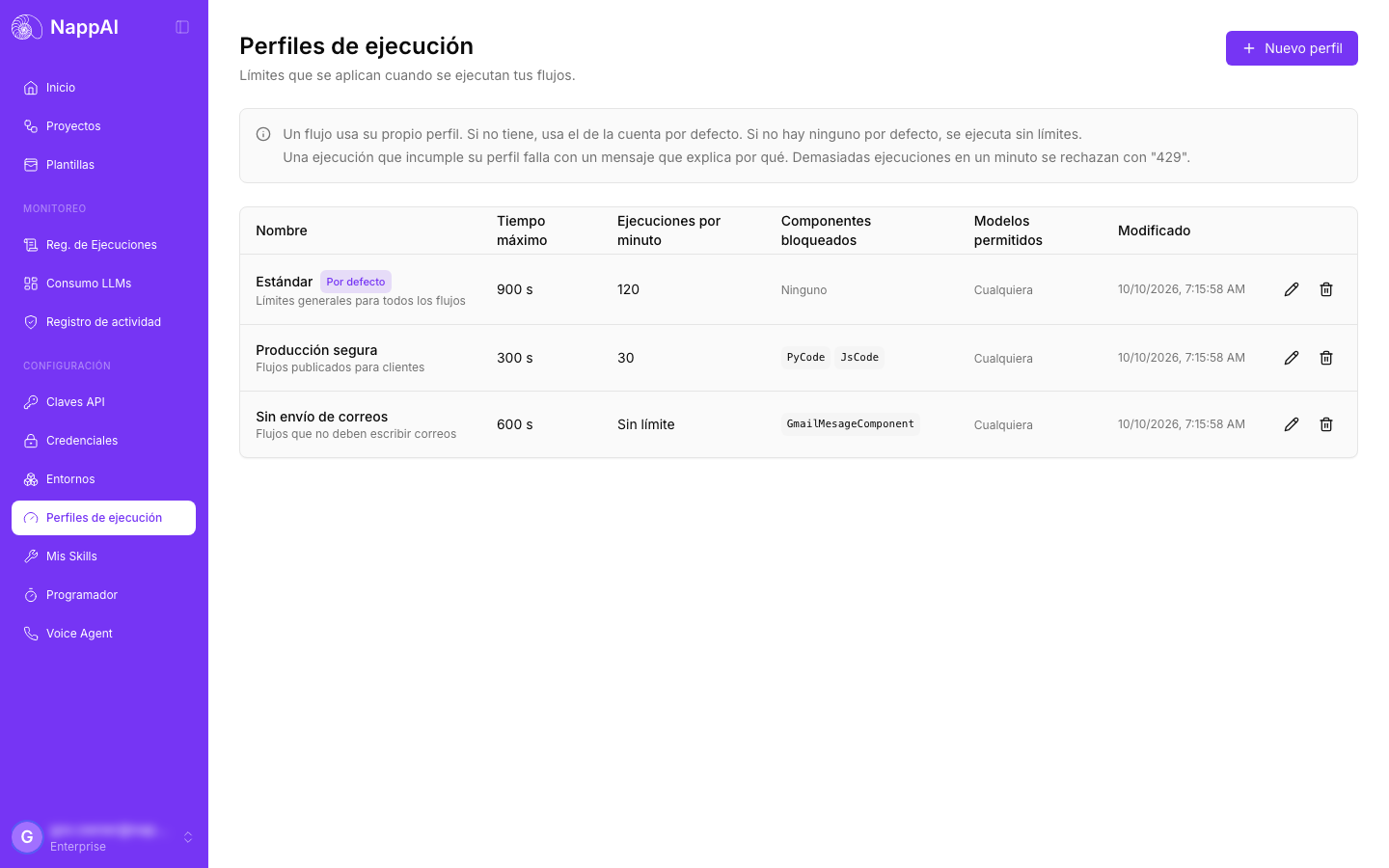
The table summarises each profile: its Max run time, its Runs per minute, its Blocked components and its Allowed models. No limit, None and Any mean that limit doesn’t apply.
What a profile limits
| Limit | What it does | When it applies |
|---|---|---|
| Max run time (seconds) | Stops the run if it takes longer than that many seconds. Between 1 and 86,400. | In runs made with an API key: from other applications and from the Scheduler. |
| Runs per minute | Counted per flow. When a flow reaches the maximum within a minute, further runs are refused until that minute has passed. Between 1 and 10,000. | In runs of the deployed version made with an API key, including the Scheduler’s. |
| Blocked components | A flow that contains any of these components doesn’t run. Components inside a group count too. | Always, including when you test the flow on the canvas or in the playground. |
| Allowed models | Only these AI models can be used. If a component has a different one selected, the flow doesn’t run. | Always, including when you test the flow. |
An empty field means that limit doesn’t apply.
Create a profile
- Click New profile.
- Type the Name and, if you like, a Description saying what it is for. The name can’t be repeated.
- Fill in the limits you want to apply and leave the rest empty.
- In Blocked components and Allowed models, type each value and press Enter to add it. As you type, NappAI suggests component names. To remove one, click its x.
- Click Create.
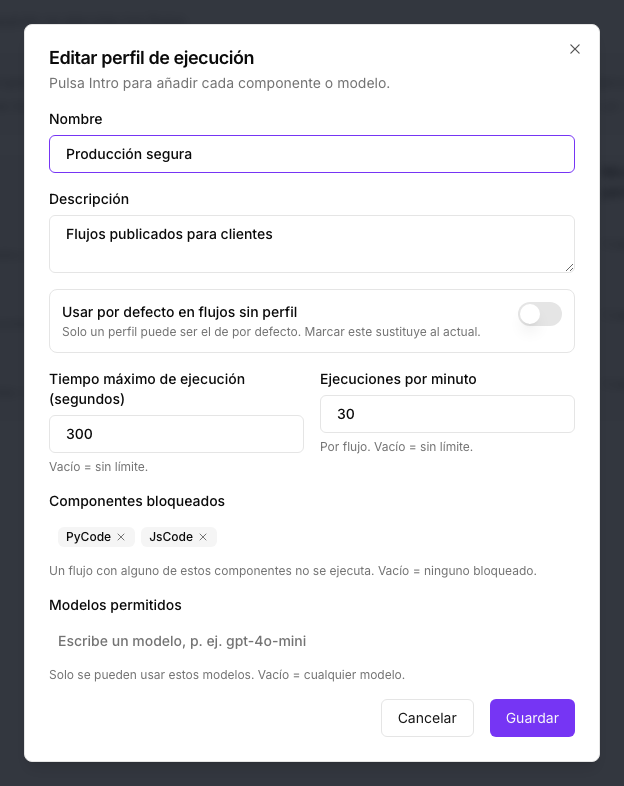
Blocked components takes the component’s internal name, the one the box suggests, for example PyCode for Python Code or JsCode for JS Code. Allowed models takes the exact model name, as it appears in the model field of the components.
To change a profile, click its pencil, make the changes and click Save. Changes can take up to half a minute to apply to runs.
The account’s default profile
Tick Use as default for flows without a profile on a profile to apply it to every flow that doesn’t have its own. In the table it shows the Default label.
There can only be one default profile. If you tick another one, it replaces the previous one.
This is how each flow’s profile is decided:
- If the flow has a profile assigned, it uses that one.
- If not, it uses the account’s default profile.
- If there is no default profile, the flow runs without limits.
Assign a profile to a flow
- Open the flow.
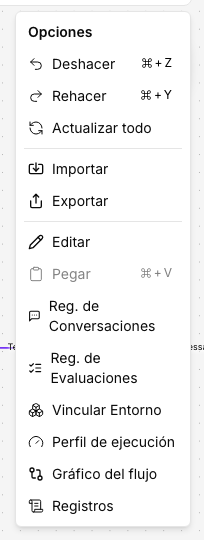
- In the Options menu, at the top right, choose Execution profile.
- Under Profile, choose one of your profiles, or the account default so the flow follows whichever profile is marked as default at any time.
- Click Save.
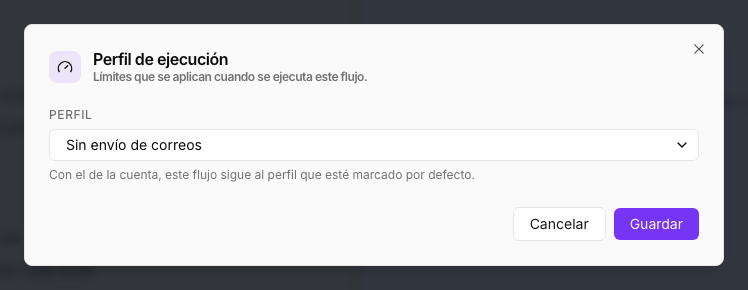
If you don’t have any profiles yet, the window shows the Create execution profiles link.
When a run breaks its profile
- Blocked component or model not allowed: the flow doesn’t run at all. On the canvas you’ll see the Run blocked by the execution profile notice, with the profile name and which component or model isn’t allowed. A call made with an API key fails with the same reason.
- Too many runs in a minute: the call is refused with code 429. Wait a moment and try again, or raise the profile’s limit.
- Max run time exceeded: the run is stopped and ends with an error.
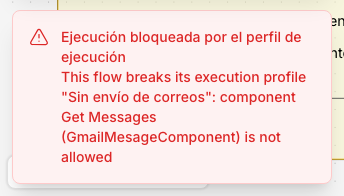
To get the flow running again, remove the component or model that isn’t allowed, change the profile or assign a different one.
Delete a profile
Click the profile’s bin and confirm. Flows that used it switch to the account’s default profile or, if there is none, run without limits.
Who can manage profiles
| Owner | Admin | Builder | Operator | Viewer | |
|---|---|---|---|---|---|
| See execution profiles | Yes | Yes | Yes | Yes | Yes |
| Create, change and delete profiles | Yes | Yes | No | No | No |
| Assign a profile to a flow | Yes | Yes | No | No | No |
That way, the people who build flows can’t get around the limits set by whoever runs the account. See Roles and permissions.