

Conversations and evaluations
When a flow holds conversations, for example a chat assistant published on your website or called through the API, each conversation is kept with all its messages. The Conversation Registry lets you read them, and evaluations review each conversation automatically against criteria you define, such as whether the answers were polite or whether all the necessary details were asked for.
Evaluations also review the calls of voice agents, both the ones they answer and the ones they place.
Open the conversation registry
The registry belongs to each flow. You can open it in two ways:
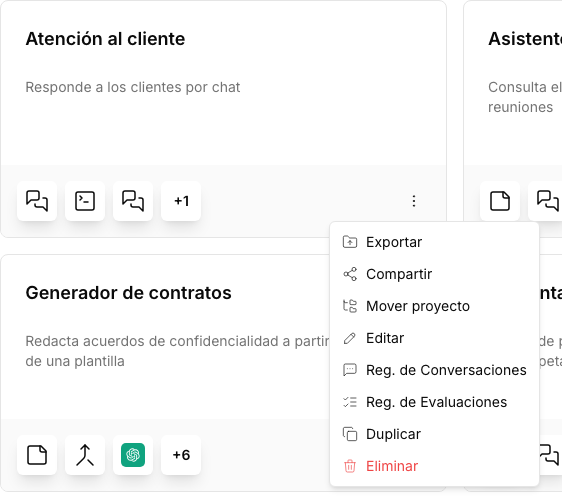
- In Projects, open the ⋮ menu on the flow’s card and choose Conversation Reg.
- With the flow open on the canvas, in the flow menu, choose Conversation Reg.
In both menus, Eval. Registry goes straight to the flow’s evaluation registry.
What the registry shows
Each row is one conversation, newest first:
- On the left, the session identifier and the date.
- In the middle, the Conversation ID.
- On the right, the date and time of the Last Message.
- At the end, two buttons: the list button opens that conversation’s evaluations and the speech bubble button opens its messages.
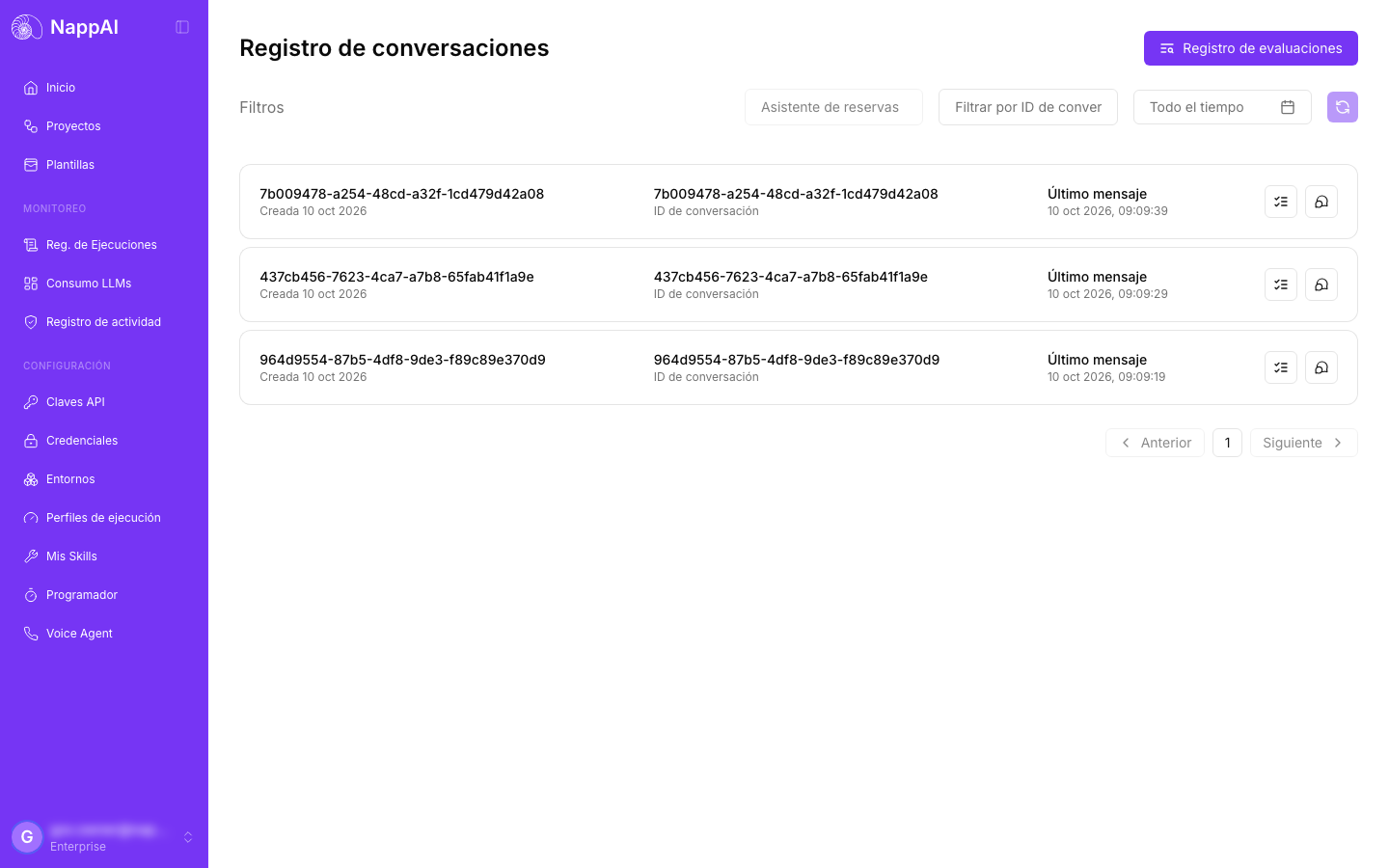
The registry shows 10 conversations per page. Use Previous and Next to move around.
Conversations that come in through the API are grouped by the session identifier the caller sends: all requests with the same identifier make up one conversation.
Filter the conversations
Under Filters you have:
- The flow’s name, for reference. It can’t be changed here.
- Filter by Conversation ID, to find a particular conversation.
- The date picker, which starts at All Time, with shortcuts such as Last 24 Hours or Last 7 Days.
- The button on the right clears the filters.
Read a conversation
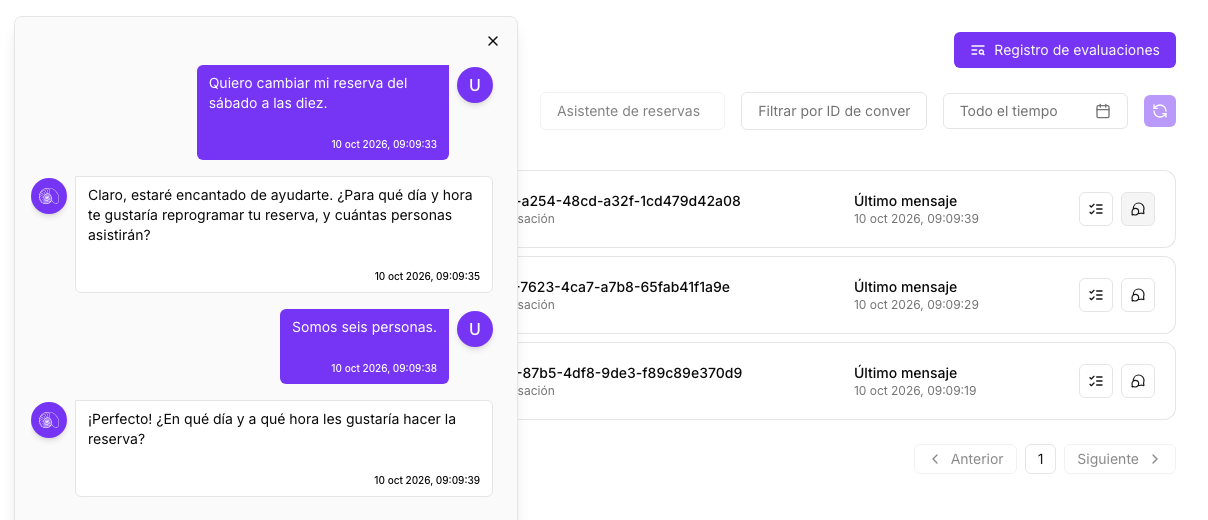
Click a conversation’s speech bubble button. A panel opens with all its messages in order, the person’s and the flow’s, each with its date and time. Close it with the X.
To see what the flow did inside for each answer, look up the matching run in the Executions log.
Set up evaluations
The video goes through turning evaluations on for a voice agent, adding a criterion, trying it on a real call and reading the results.
An evaluation reviews a flow’s conversations against one or more criteria. Each criterion is a question a language model answers by reading the whole conversation: whether it meets it, fails it, or does not give enough information to decide.
The flow’s chats are evaluated and, if the flow is a voice agent, its inbound and outbound calls too.
To set it up:
- Open the flow’s Conversation Registry and click Evaluation Registry.
- Click Evaluation Settings.
- If the flow has none yet, click Add a new Configuration.
When a conversation is evaluated
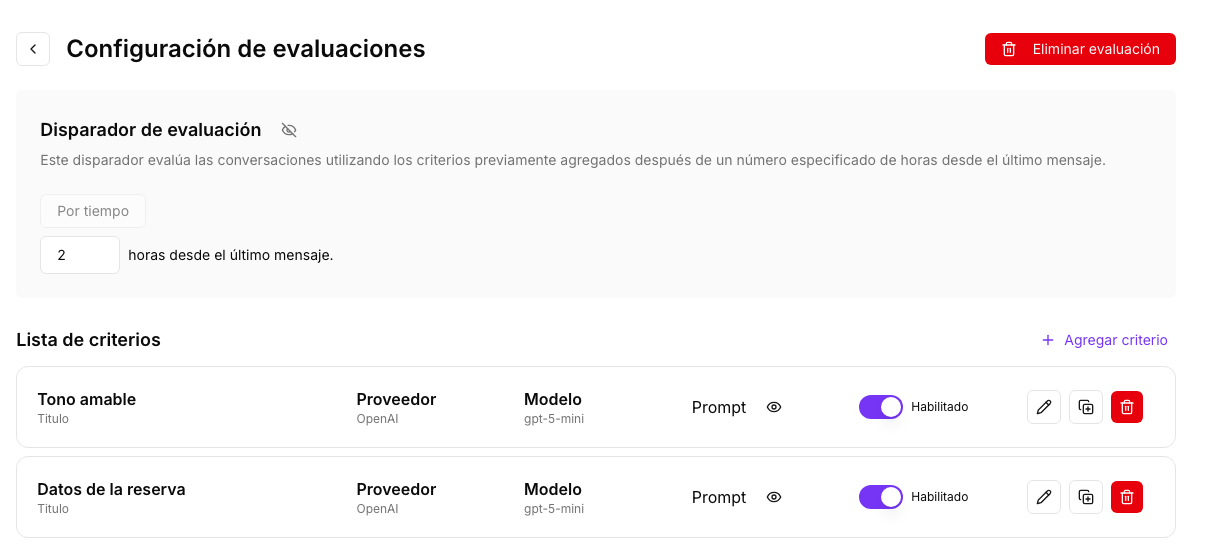
- Chats: in Evaluation Trigger, enter how many hours since the last message must pass before a conversation is evaluated. That way finished conversations are evaluated, not half-way ones. The change saves itself.
- Calls: they are evaluated a few minutes after they end, without waiting for those hours. Calls in which nothing was said are not evaluated.
Below it you choose which conversations are evaluated:
- Evaluate conversations from: a date. Earlier conversations are not evaluated. When the evaluation is created it is today, so everything before is not evaluated in one go. Tick All, including earlier ones to evaluate the ones you already had too.
- Also evaluate test calls made from the playground: turn it off and only calls by phone and from the web are evaluated.
NappAI looks for pending conversations every 10 minutes.
The whole conversation is always evaluated. If a chat goes on after being evaluated, it is evaluated again in full once that time passes again, and the new result replaces the previous one.
Add a criterion
Click Add Criteria and fill in the form:
| Field | What to enter |
|---|---|
| Select LLM Provider | The model that will evaluate. Every model of the platform is there, the same ones you can put in a flow. |
| Select Credential | The credential of that provider to use. If none appears, create it first in Credentials. |
| Base URL | Only for models you host yourself: the address where the model answers. |
| Select LLM Model | The model that will read the conversation. Pick one from the list your credential offers or type its name. |
| Title | A short name to recognise the criterion in the results, for example Friendly tone. |
| Prompt | What the conversation must meet, explained clearly. |
| Evaluate on | Which conversations it applies to: all, chats only, calls only, inbound calls only or outbound calls only. |
| Add evaluation details | Tick it so the result includes a short explanation of the verdict. |
Click Save.
Try a criterion before saving it
In Try it on a real conversation, pick a recent chat or call of the flow and click Evaluate this conversation. You see the result and its explanation straight away, and nothing is saved. That way you check the criterion says what you mean before it starts evaluating every conversation.
Each criterion in the list has buttons to edit, duplicate and delete it. The eye icon next to Prompt shows or hides its text.
Each criterion is evaluated with one request to its model per conversation, and those requests use tokens of the chosen credential.
Delete the evaluation
Delete Eval., at the top right, deletes the configuration and all its criteria. It asks for confirmation and cannot be undone.
Read the evaluation results
The Evaluation Registry shows one row per evaluated conversation:
| Column | What it shows |
|---|---|
| Channel | Chat, Inbound call or Outbound call. |
| Conversation ID | The conversation or call evaluated. |
| Date | When the evaluation was made. |
| Criteria | How many criteria were evaluated. |
| Status | The overall result. |
| Details | View opens the result of each criterion. |
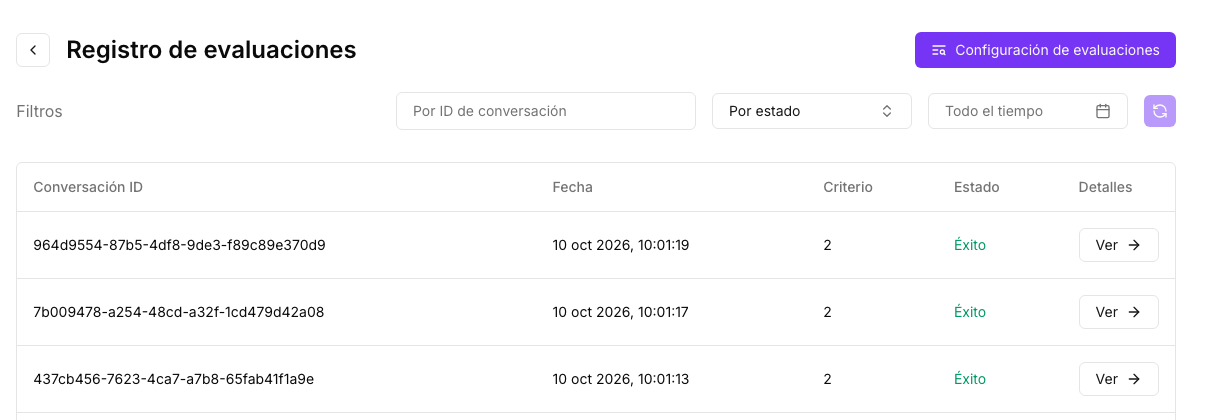
Each criterion has one of these results, and the evaluation’s Status is worked out from them:
| Status | For a criterion | For the evaluation |
|---|---|---|
| Success | The conversation meets it. | It meets every criterion. |
| Fail | It does not meet it. | It fails at least one. |
| Not evaluated | It could not be evaluated: for example, the credential no longer exists or the model did not answer. It does not count as a failure. | None fails, but some could not be evaluated. |
| Unknown | The conversation does not give enough information, or the criterion has nothing to do with it. | None fails, but some could not be decided. |
You can filter by channel, Filter by Conversation ID, Filter by Status and by date, and choose how many rows to show with Rows per page. If you come from a conversation’s evaluations button, the list is already filtered by that conversation.
The details of an evaluation
Click View to open Evaluation Details. You see the channel, the result of each criterion and, next to it, the conversation’s messages, or what was said in the call.
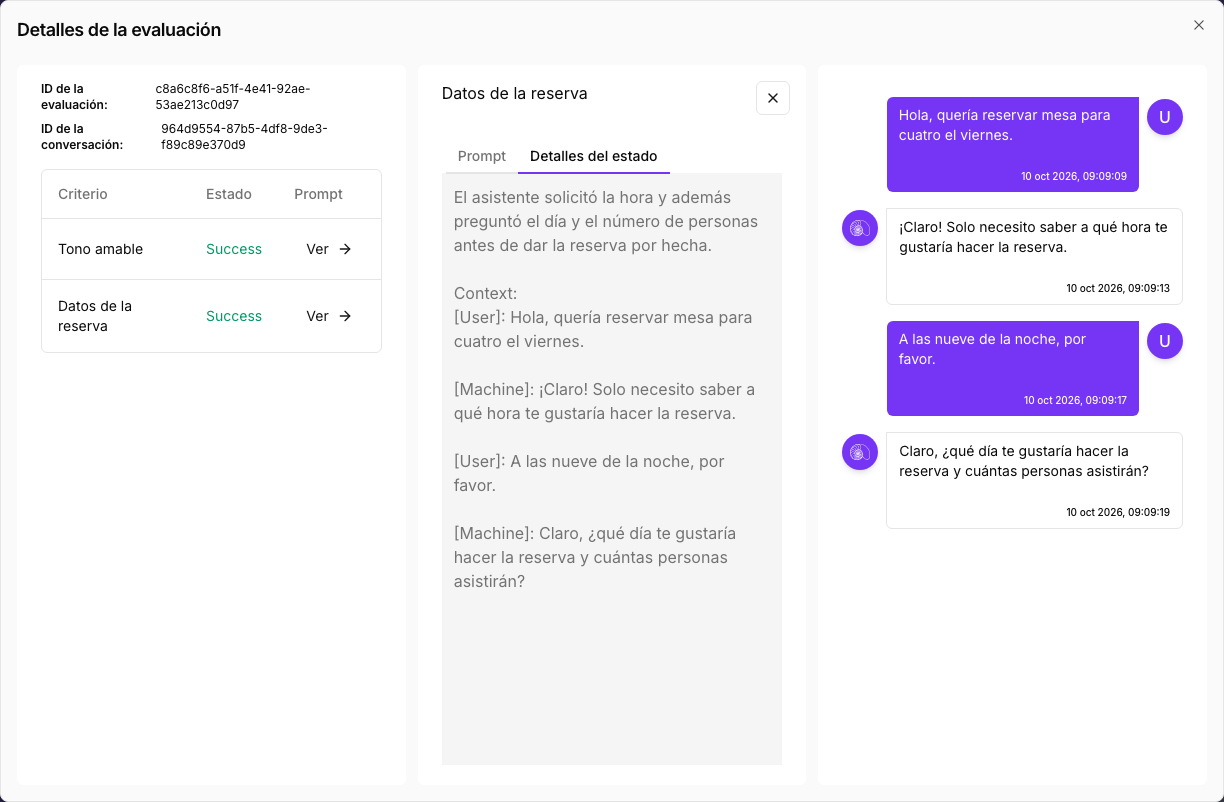
Click View on a criterion to open two tabs:
- Prompt: the text of the criterion that was used.
- Status Details: the explanation of the verdict, if the criterion has Add evaluation details ticked. If the criterion was Not evaluated, the reason is shown here.
To evaluate a call, the model also reads what the agent did during it (for example, whether it looked up or changed an appointment and whether that worked) and how it ended: who hung up or whether it was transferred.
Evaluate again
If you change a criterion or fix a credential, you can redo evaluations already made:
- Evaluate again at the top of the Evaluation Registry discards the flow’s stored results and evaluates its conversations again with the current criteria and settings: from which date and whether playground calls count. The new results appear over the following minutes.
- Evaluate again in Evaluation Details redoes only that conversation, straight away.
Evaluating again uses each criterion’s model again and uses tokens of its credential.