

Prompt
The Prompt component lets you write a text, usually the instructions you give an AI model or an agent, and leave gaps in it that are filled in on every run: the customer’s name, the question that arrived through the chat, the content of a document. You write the text once and the flow completes it with the data of each case.
Use it whenever a text has a fixed part and a part that changes. Your instructions stay in one place, easy to read and adjust without touching the rest of the flow.
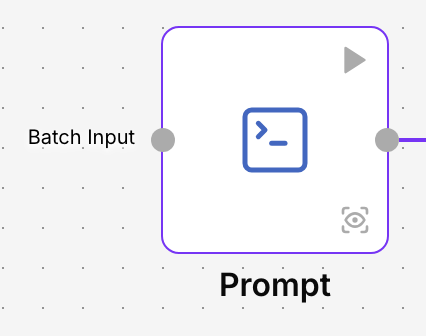
When to use it
- To write the instructions of a customer service agent: its role, its tone and what it must not do.
- To prepare a request to an AI model that combines a fixed text with data from the flow, for example “Summarise this complaint from {customer}: {complaint}”.
- To draft an email or a message with gaps filled in with the details of each order.
- To give an AI model the context found in a knowledge base together with the user’s question.
Configuration
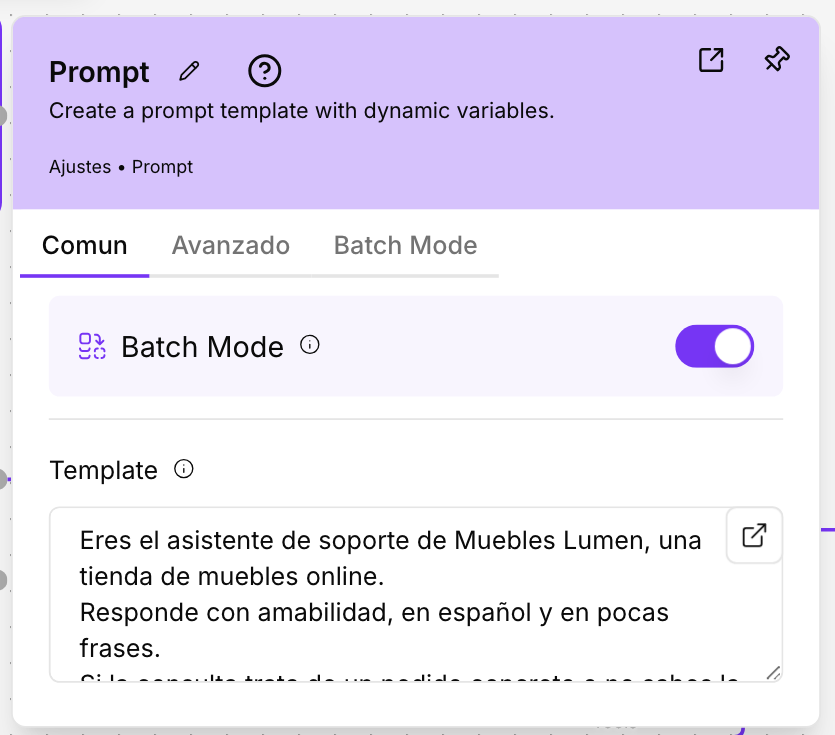
Double-click the component to open its panel, with the Common, Advanced and Batch Mode tabs.
| Field | What it does |
|---|---|
| Template | The text of the prompt. Write the fixed parts as they are and mark each gap with a name in curly braces, for example {customer_name}. |
Variables in curly braces
Every name you write in curly braces in Template creates a new field on the component with that same name. If you write:
You are the support assistant of Muebles Ribera. Answer {customer} in a friendly tone.Customer question: {question}the component shows two new fields, customer and question. You can fill each one in two ways:
- Type the value in the panel, if it is always the same.
- Connect it to the text output of another component, for example the question that arrives through a Chat Input. Each field has its own connection point on the component; if you don’t see it, show it with the eye button (Toggle Visibility) next to the field in the panel.
When the flow runs, the component replaces each {name} with its value and delivers the complete text.
Keep in mind:
- Use names without spaces or punctuation, for example
{customer_name}instead of{customer name}. - If you delete a gap from the text, its field disappears from the component.
- If you repeat the same name in several places, a single field is created and its value appears in all of them.
- Curly braces you write inside a code block (between three backticks, ```) stay as they are and do not create fields. This is useful for including format examples in the instructions.
Batch processing
With the Batch Mode switch on, the component runs once for each item of the list you connect to Batch Input and returns all the results together as a list. Parallel Executions sets how many items are processed at the same time (1 to 5). Skip if Empty Batch Input skips the component when the list arrives empty, and Skip Branch if Empty Output stops the following components when the result is empty. More in Key concepts.
Output
Prompt Message is the final text, with all the gaps filled in. Connect it to any text input: the System Prompt or the Input of an agent, the input of an AI model, or a Chat Output if you want to see the text in the chat.
If any of the connected values carries attached files, for example an image the user sent through the chat, the final text keeps them.
Example
An online shop, Muebles Ribera, wants an assistant that answers its customers:
- Add a Prompt and turn Batch Mode off.
- In Template write: “You are the assistant of Muebles Ribera. You answer questions about orders, shipping and returns. If you don’t know something, offer the customer service phone number. Today you serve customers of the {city} store.”
- In the city field that appears, type “Valencia”.
- Connect Prompt Message to the agent’s System Prompt, and the Chat Input to its Input.
Every conversation starts with those instructions. To open the Seville store, you only change the value of city.
Good practices
- Write the instructions as you would for a new person on the team: what their role is, what they should do and what they shouldn’t.
- Give the gaps clear names (
{order},{customer_name}): it is easier to know later what to connect to each field. - If a value is always the same, write it directly in the text instead of creating a gap.