

Your subscription
Your subscription decides how much you can use NappAI: how many runs, how many projects and how many members your account can have. Everything about it is in your profile.
Open it from your profile, in Subscription. See Open your profile.
Your plan and its usage
The name of your plan is at the top and, below it, three cards show what you have used against your plan’s limit.
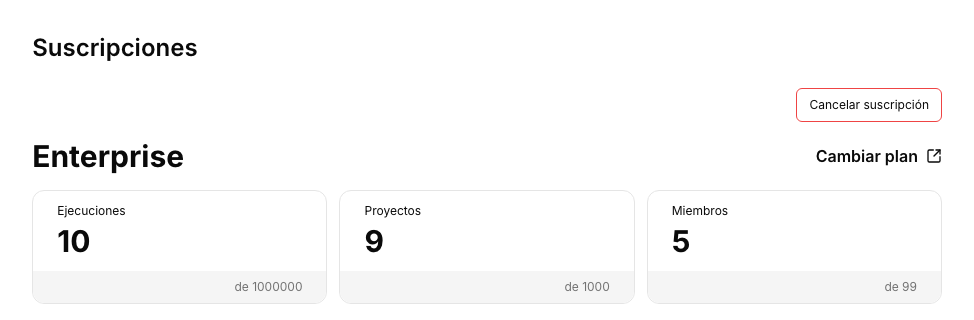
| Card | What it counts |
|---|---|
| Runs | The runs of your flows that come in through their API (their endpoint or a webhook) in the current period. The counter goes back to zero every month, on the same day your subscription started. |
| Projects | The projects you have in your account. |
| Members | The people in your team. |
The large figure is what you have used and the small one, after of, is your plan’s maximum. When you reach the maximum, the card turns red.
Below the cards is the Users box, with your team. How to invite people and choose their role is explained in Share your account.
Change plan
Click Change plan, next to your plan’s name. You can also reach the same page from your user menu, with Upgrade Plan.
The plans page shows one card per plan, with its description and what it includes. The Annually switch toggles between monthly and annual billing.
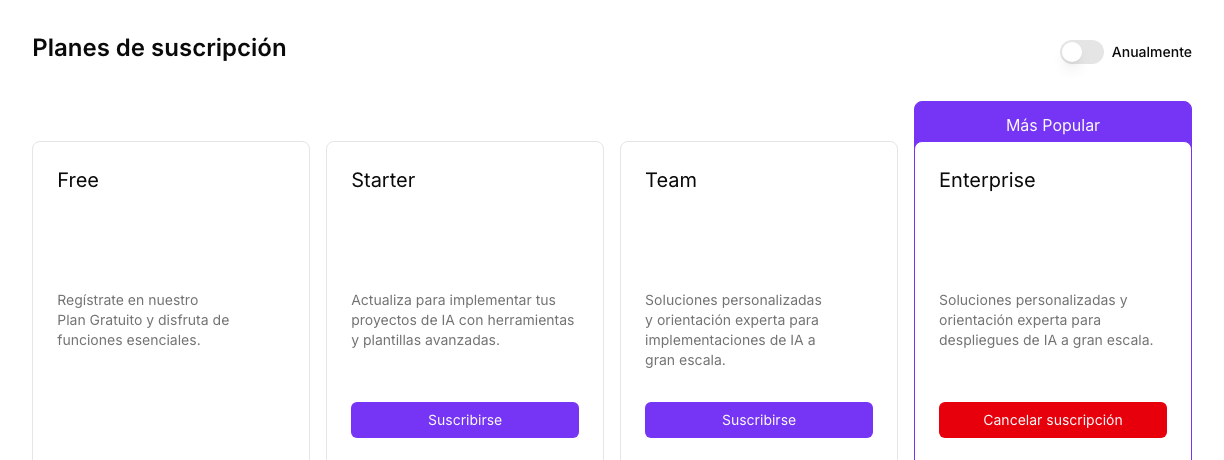
The button on each card depends on the plan:
- Subscribe takes you to the payment page. When you finish you return to NappAI and see Payment Successful, with your subscription already active, or Payment Failed if the payment was not completed. In that case you can try again.
- Contact us opens a form with your name, your email and a message, to ask about that plan.
- The card of your current plan shows Cancel subscription. See Cancel your subscription.
Cancel your subscription
- In Subscription, click Cancel subscription at the top right. It is also on your plan’s card, on the plans page.
- In the confirmation window, type
cancel subscription. - Click Cancel subscription. If you change your mind, click Back.
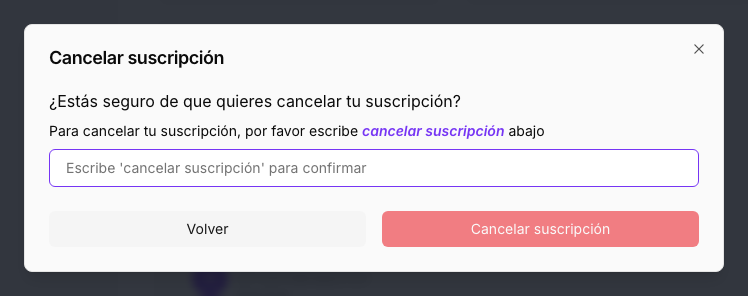
Cancelling doesn’t remove your plan straight away: it stays active until the end of the period you have already paid for, and it is not renewed. Meanwhile, your plan’s card on the plans page shows Cancelled and the date until which it remains current.
Cancel subscription is disabled if you are on the free plan.
Transactions
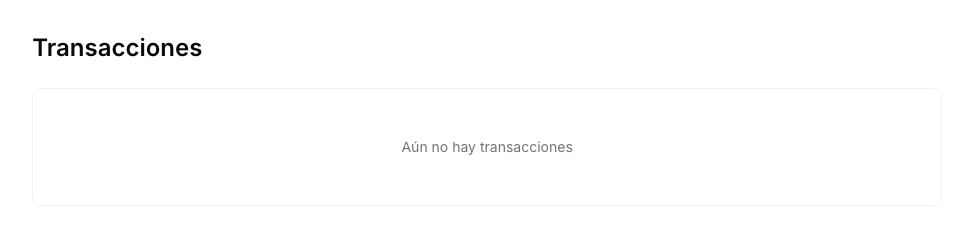
In Transactions you see every payment of your subscription, from newest to oldest:
| Column | What it shows |
|---|---|
| Date | The day of the payment. |
| Amount | The amount paid. |
| Invoice | Download opens the invoice in a new tab, where you can save or print it. |
If you haven’t made any payment yet, you will see No transactions yet.
Payment methods
In Payment methods you see the card you pay your subscription with: its Brand, its Card (only the last four digits) and its Expiration.
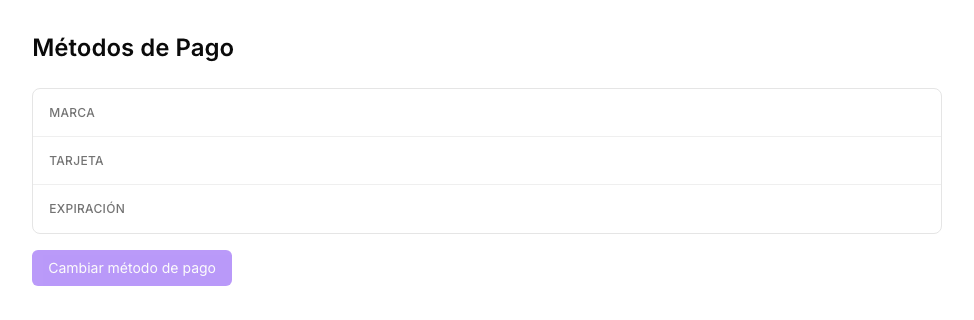
To use another card:
- Click Change payment method. The payment page opens.
- Enter the new card’s details and confirm.
- Back in NappAI you will see Payment method changed successfully!. Future charges will use the new card.
Change payment method is only available once you have a saved card, that is, after your first payment.