

Create a voice agent
A voice agent is a regular NappAI flow with a Voice Agent component. You can build it from scratch or add the component to a flow you already have.
Would you rather have a single model that hears and speaks? Use Voice Agent Realtime instead of Voice Agent. The steps are the same except step 2: you connect a single realtime model (OpenAI Realtime, Gemini Live or Grok Voice) to its Realtime model connector, with no separate ear or voice. Which one to choose: Two kinds of agent.
1. Create the flow
- Go to Projects and click New project, or open an existing flow. The Create from a flow button in the Voice Agent menu takes you to the same place.
- Click + on the canvas’s right-hand bar, search for Voice Agent and drag it onto the canvas.
A flow can only have one Voice Agent component. It is a trigger: the flow does not run once from start to finish, but once for every call.
2. Connect the model, the ear and the voice
Below the component there are four connectors: Tools, Model, STT and TTS. The last three are required.
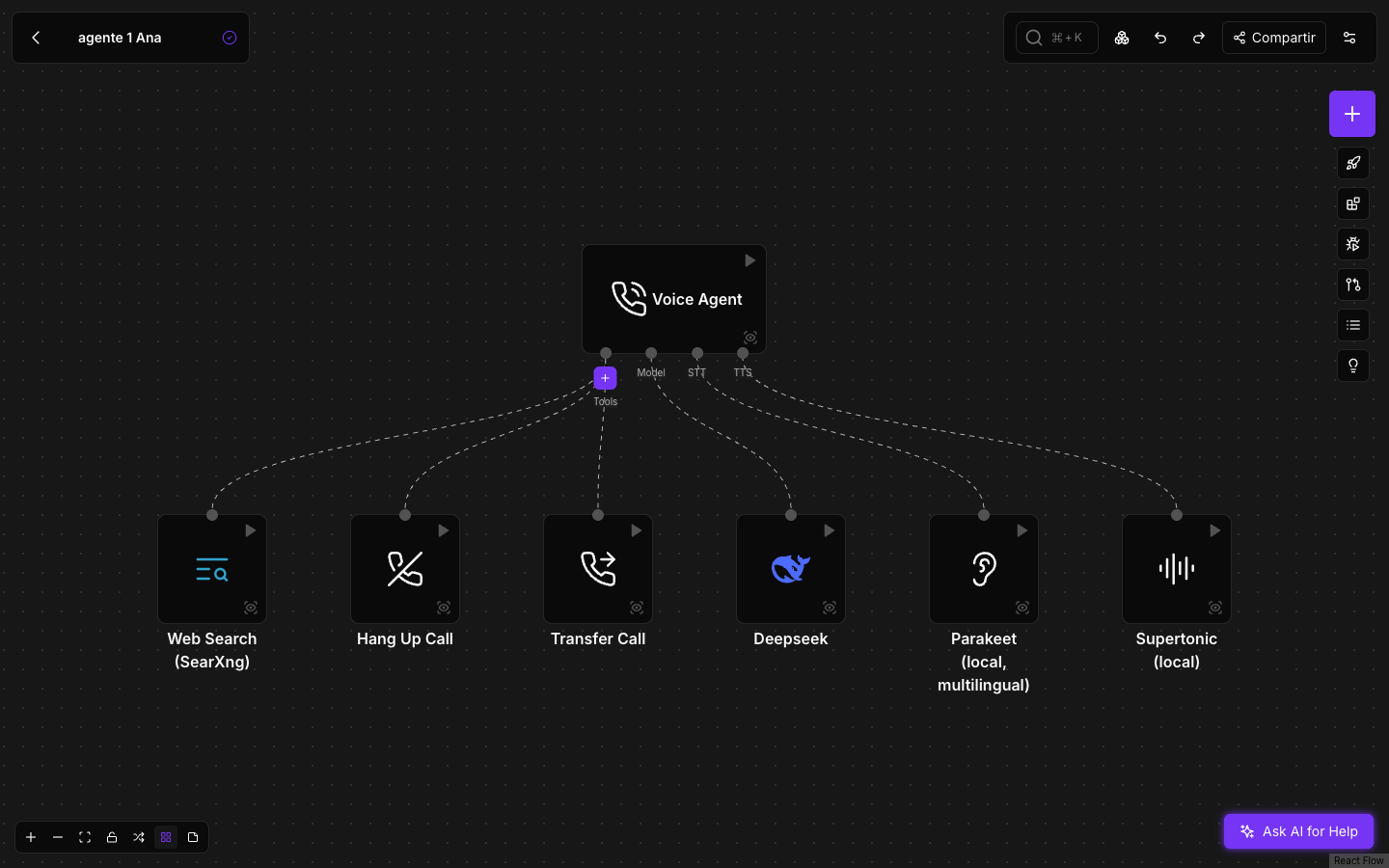
- Model: drag a model component (DeepSeek, Groq, OpenAI, Gemini, Inworld or Ollama) and connect it. Its settings (model, credential, reasoning) are set on that component.
- STT: drag a component of the Voice Agent family whose name ends in STT. To start, Parakeet (local, multilingual): it works inside NappAI, needs no credential and understands the main European languages.
- TTS: drag a TTS component. To start, Supertonic (local): several voices, many languages and no credential.
With Parakeet and Supertonic you have an agent that hears and speaks without sending the audio to any outside provider. The alternatives from other providers, and when they are worth it, are explained in Quality, noise and latency.
3. Give it tools
Everything you connect to Tools is something the agent can do during the call. It decides when to use each one based on the tool’s description.
A voice agent can use any NappAI tool, just like a text agent:
- Any component in tool mode: a web search, your CRM or ERP, a database, email or calendar, a call to another service, an MCP, another flow…
- A sub-agent, with its own tools.
On top of that, the Voice Agent family brings three tools of its own, which only make sense in a call because they act on the call itself:
- Transfer Call hands the call to another NappAI voice agent (same call, with the conversation so far) or to a phone number, either straight away (
cold) or after presenting the case to the person who takes it (warm). - Hang Up Call says goodbye and hangs up.
- Say to Caller reads a text word for word.
In each tool’s fields, tool mode decides who writes the value. On, the AI writes it in every call. Off, the fixed text you enter is used.
4. Configure the agent
Double-click the Voice Agent component to open its panel.
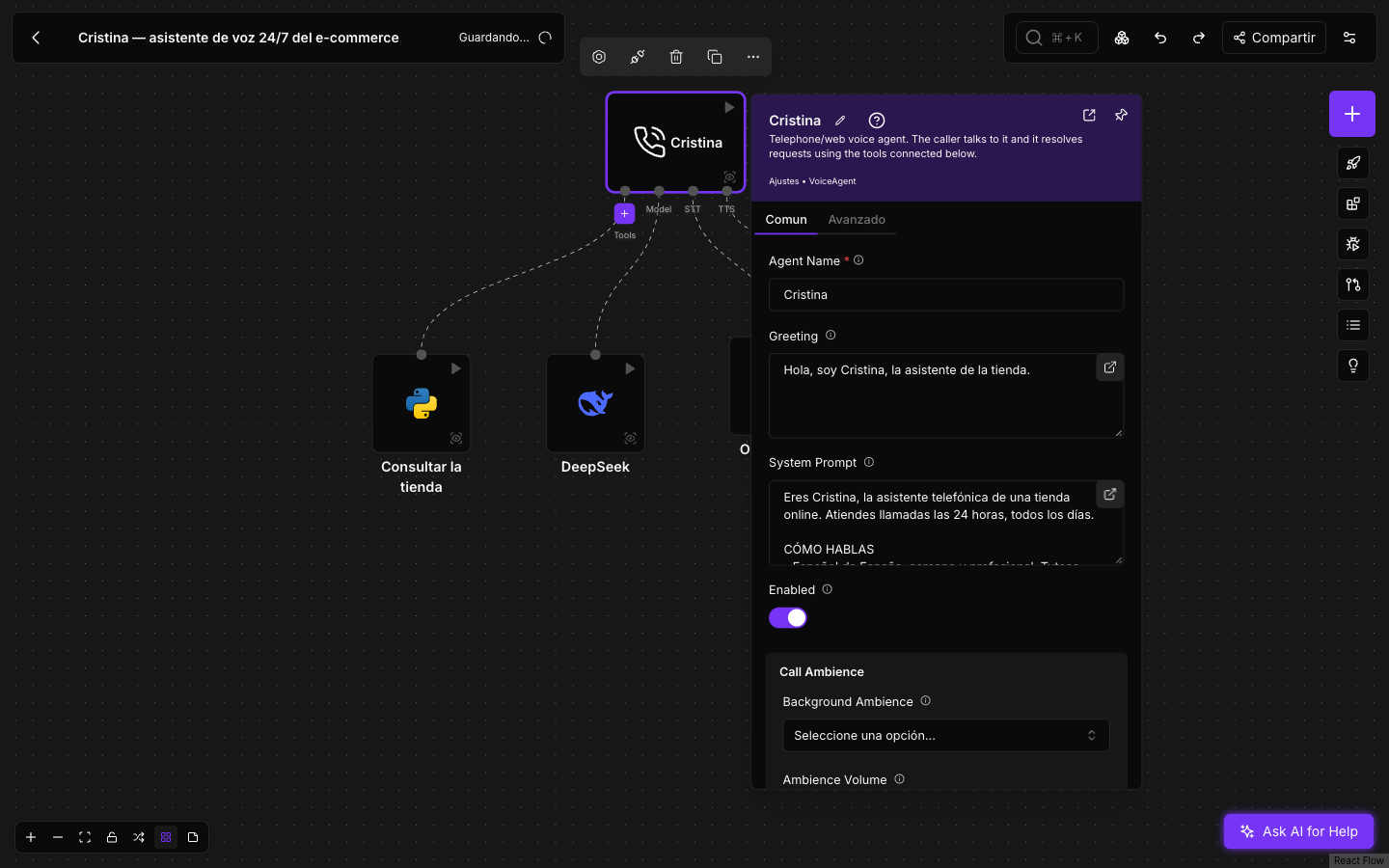
On the Common tab:
- Agent Name (required): the agent’s name in the Voice Agent menu, in the widget and in the history.
- Greeting: the first sentence when the call connects.
- System Prompt: who the agent is, what it knows and how it should behave. NappAI already adds the general rules of a phone call (speaking to be heard, language, tool use), so this is only for what is specific to your business. Include when to transfer and when to hang up.
- Enabled: switches the agent off without unpublishing it.
- Fallback Engines: adds connectors for a second model, STT and TTS that take over if the main one fails in the middle of a call.
- Call Ambience, Timeouts and Call Recording: the background ambience, the call timings and the recording. They are explained in Quality, noise and latency and in History.
The Advanced tab holds the rules the agent never breaks (Guardrails), the call context, the waiting phrases, the conversation memory and the listening settings. The defaults are designed for noisy phone calls: you do not need to change them to get started. Each field is described on the Voice Agent component page.
5. Test it and publish it
- Open the playground and talk to the agent. See Test in the playground.
- When you are happy with it, deploy a version of the flow from the editor’s right-hand bar. The deployed version is the one that answers real calls. See Versions and publishing.
- Publish the agent in the Voice Agent menu and choose how people reach it.
Prompt tips
- Write for the ear. Short sentences, one idea at a time, no lists or tables. Ask it to read figures and phone numbers slowly and in groups.
- Say when to use each tool. For example: “If they ask about invoices, transfer to finance”. “When the caller says goodbye, hang up with Hang Up Call”.
- Give it a plan B. Say what to answer when a tool finds nothing, so the agent does not make up data.
- If the agent places outbound calls, say so in the prompt: sometimes it will be the one calling, and it receives who it is calling and why in the call context.