

Credentials
A credential stores the details NappAI needs to access an external service on your behalf: the key of an AI provider, access to your spreadsheets, a bot token or the connection details of a database. You create it once and choose it in every component that needs it.
Credentials are managed in Credentials, under Configuration in the sidebar.
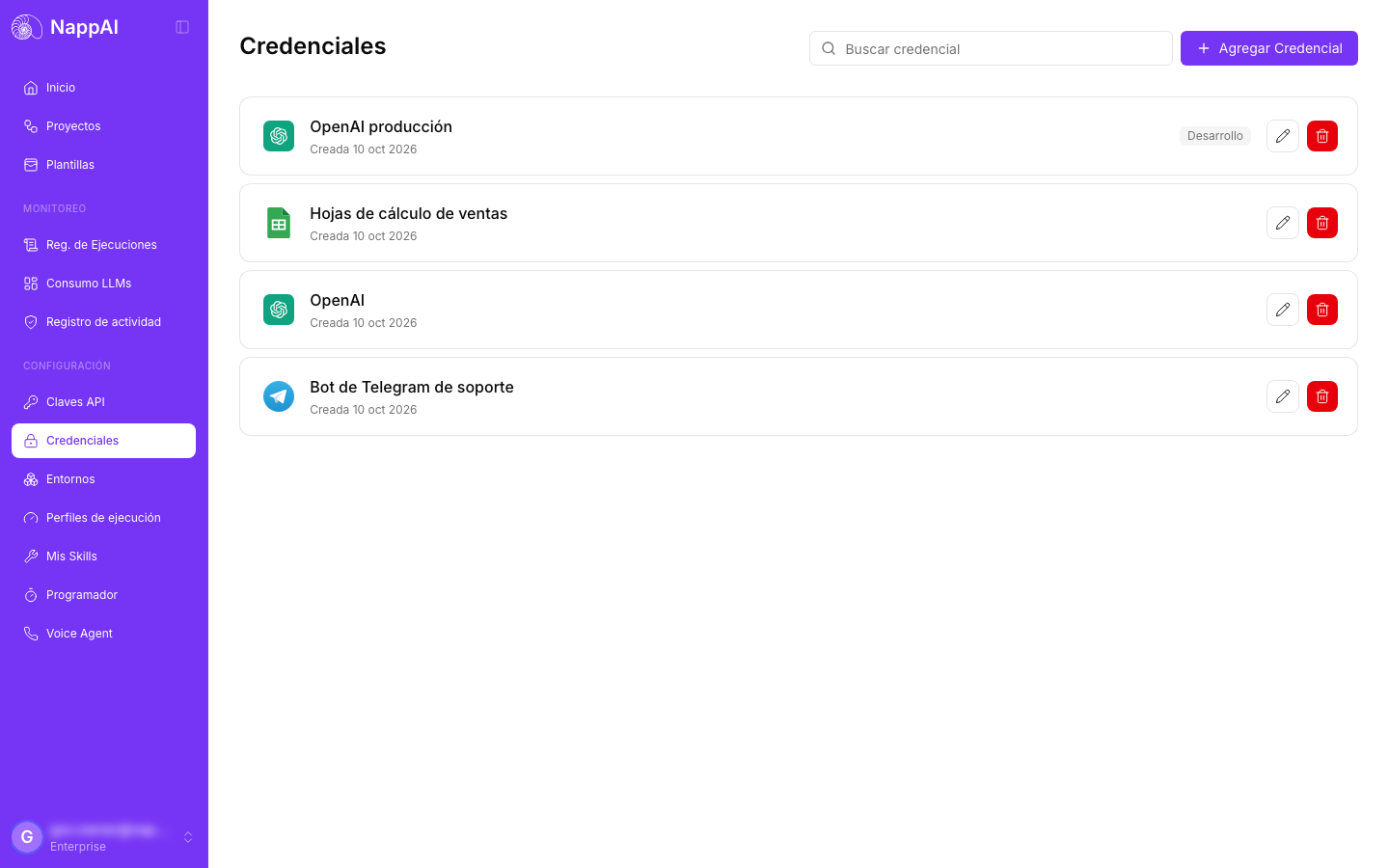
Each row shows the service icon, the credential name and when it was created and last updated. If the credential has its own values for an environment, a label with each environment’s name appears on the right.
Add a credential
- Click Add Credential. If you don’t have any yet, the button is called Create Credential.
- Search for the service by name and click Add Credential on its row.
- Type the Credential Name. It comes filled in with the service name; change it to one that says what it is for, for example
OpenAI marketing. - Fill in the details the service asks for. Those marked with an asterisk are required. Below the title, many services explain where to get those details.
- Click Add.
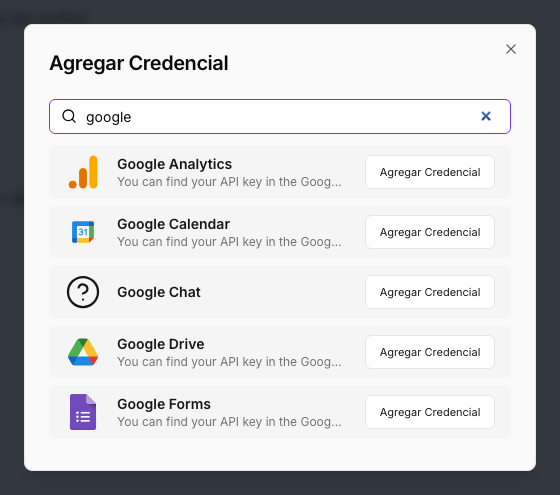
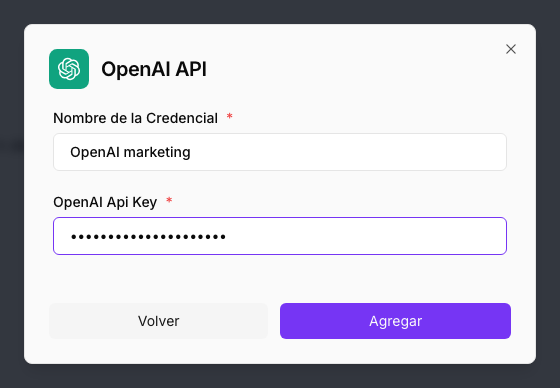
The name accepts letters, numbers, spaces and the characters & . / _ -, up to 50 characters. Two credentials for the same service can’t have the same name. If you repeat one, you’ll see Error: Name must be unique.
You can have several credentials for the same service, for example one account per department, or a test one and a real one.
Some services show the Mcp label: they are remote MCP servers with an integration in NappAI. Depending on the server, the credential only needs a name, a key, or for you to sign in to your account with the service. For any other MCP server use the MCP Remote server credential, with its address and how to access it. See Use MCP servers.
Connect a service that uses sign-in
Some services, such as Google’s, don’t ask for a key: you connect them by signing in to the service itself.
- Choose the service and type the credential name.
- Complete the options it asks for, for example the type of access.
- Click the sign-in button, for example Sign in with Google.
- The service’s page opens. Sign in with your account and accept the permissions.
- When you finish, you return to NappAI with the credential created.
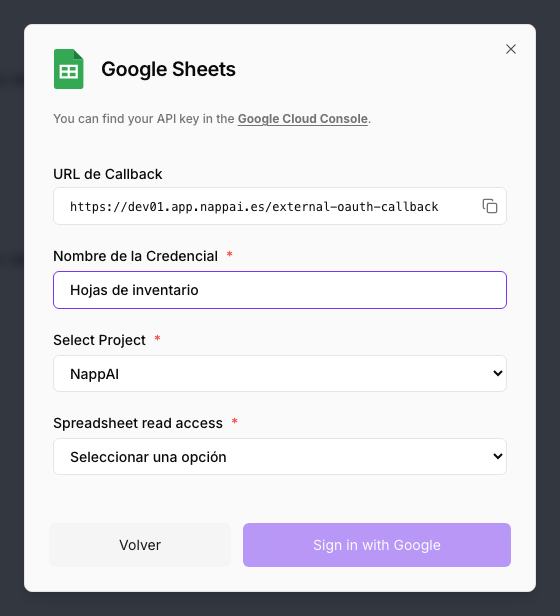
If the service lets you use your own application, the form shows the Callback URL. Copy it with the button on the right and paste it into your application’s settings in that service.
If access expires or you change your password in the service, edit the credential and click Revalidate to sign in again.
Edit a credential
Click the credential’s pencil. You can change the name and the details, then click Update.
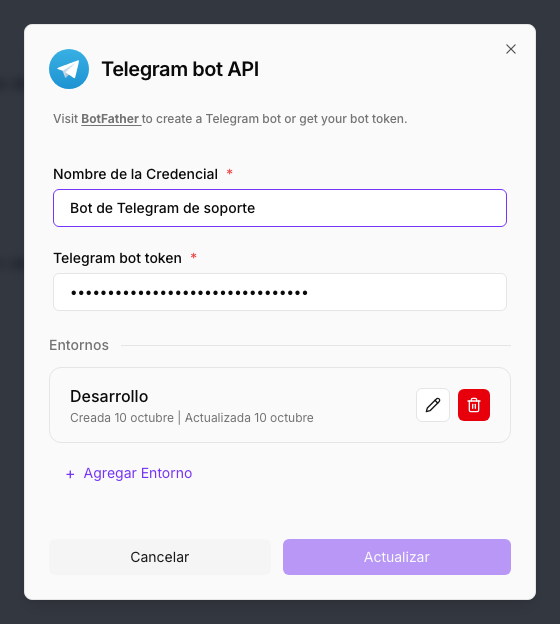
Secret values are never shown again: they appear hidden. To save any change you have to type them again; while they are still hidden, Update stays disabled.
For services that ask you to choose an authentication type, that type can’t be changed after the credential is created. If you need a different one, create a new credential.
Different values in each environment
The same credential can have different values depending on the environment the flow runs with. For example, a test account in Desarrollo and the real account in Producción, without changing anything in the components.
- Edit the credential. The Environments section appears at the bottom.
- Click Add Environment.
- In Select environment, choose the environment.
- Type the values to use in that environment and click Save. For services that use sign-in, sign in with that environment’s account.
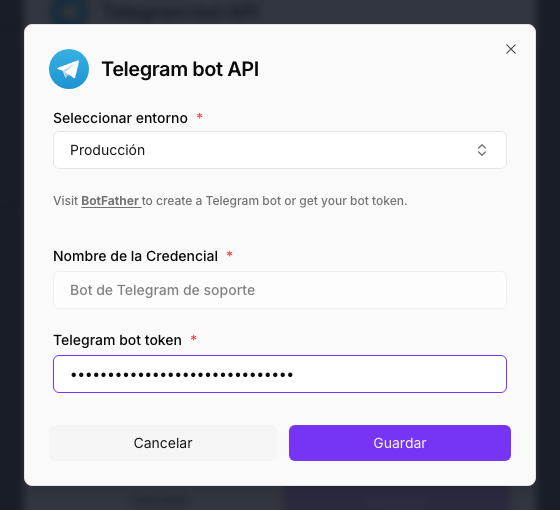
When a flow runs with an environment that has its own values for the credential, it uses those values. If it doesn’t, or the flow has no environment, it uses the credential’s general values.
Each environment in the section has a pencil to change its values and a bin to remove them. Once removed, that environment goes back to using the general values.
Use a credential in a flow
Components that connect to a service have a credential field. When you open it, you only see the credentials for that service: pick one under Choose an option or create a new one from there with Add new credential.
The same credential works for as many flows as you want. If you change its details, every component that uses it switches to the new ones.
Delete a credential
Click the credential’s bin and confirm with Delete. This can’t be undone. Components that used it are left without a credential until you choose another one, so check first which flows use it.
Who can manage credentials
| Owner | Admin | Builder | Operator | Viewer | |
|---|---|---|---|---|---|
| See credentials | Yes | Yes | Yes | Yes | Yes |
| Create, edit and delete credentials and their per-environment values | Yes | Yes | Yes | No | No |
Credentials belong to the account: the whole team works with the same ones. Anyone who can’t manage them sees the buttons disabled. See Roles and permissions.
Security
- Credential details are stored encrypted. Secret values are not shown again in the dashboard once saved.
- Create a key in each service just for NappAI, with the minimum permissions your flows need.
- Change keys from time to time and, if one leaks, revoke it in the service and update the credential.