

Your storage
Your flows save files while they work: the documents you upload to a flow, the databases of the SQLite component, the knowledge bases of the FAISS and Chroma DB components, the models you train or the data a Python Code component uses. All of that lives in your storage, and from the dashboard you can view it, download it and upload your own files.
Open it from your profile, under Storage.
In this video you see the whole journey: uploading a list for a Python Code component, a flow that reads it and saves its result, and downloading that result.
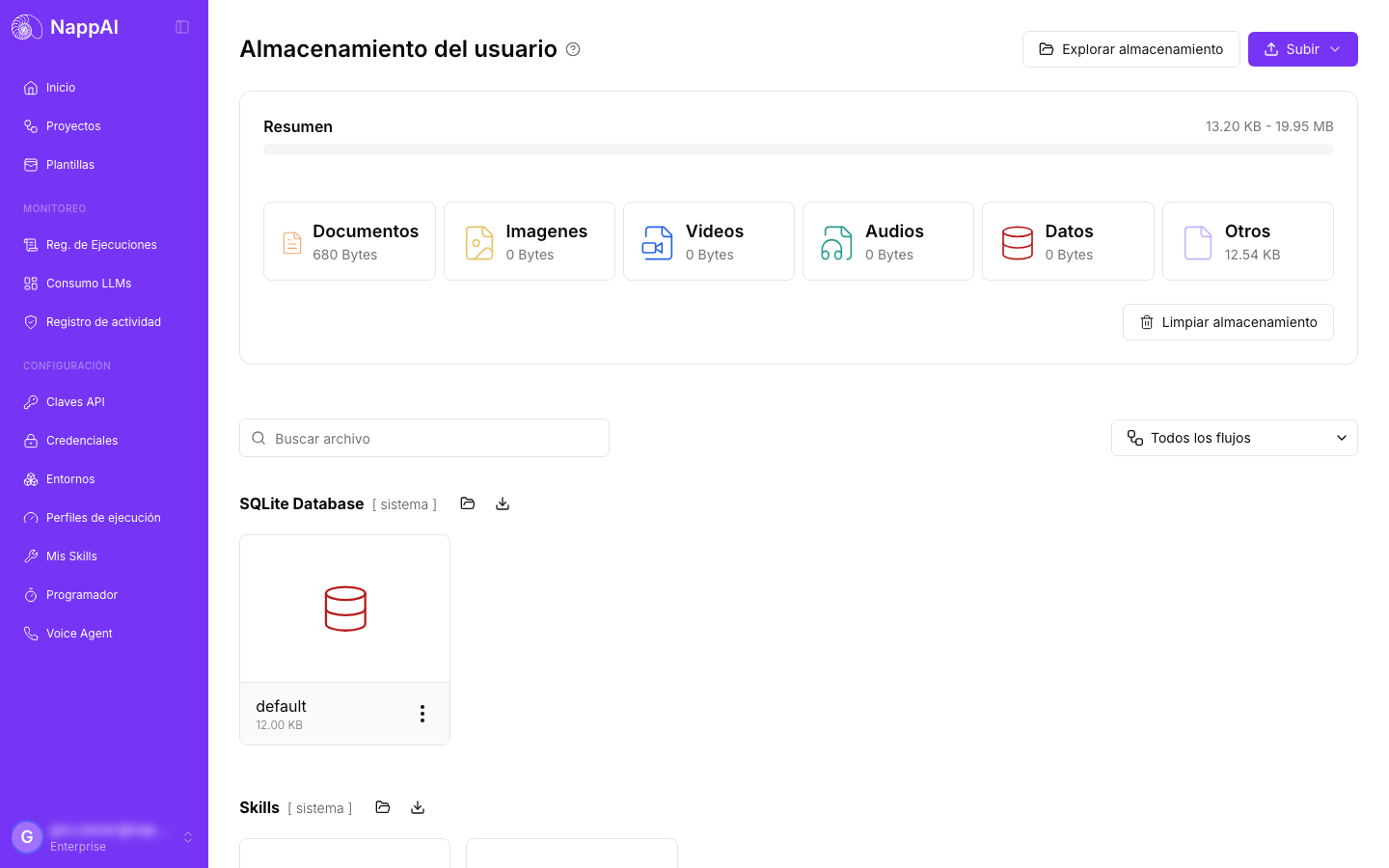
The header has the two main buttons:
- Explore storage opens the file explorer. See Explore and download.
- Upload opens a wizard for each type of resource. See Upload resources.
The ? icon next to each title opens the part of this guide that explains that screen.
The sections
Each folder in your storage belongs to a flow or to a type of component, except Files, which is your own space. A component looks for its files in its own section, so whatever you upload must go to the right section, and the Upload wizards take care of that.
| Section | What it contains | Component that uses it | What you can upload |
|---|---|---|---|
| Files | Your own files and folders, not tied to any flow. See Files | Storage Files, Storage Folders, Storage Search | Any file |
| Files for a flow (with the flow’s name) | Documents, images, CSV, audio… | File, Image File, CSV to Data List, Directory, Video and Audio Loader | Any file |
| SQLite databases | .db files grouped in folders | SQLite, SQL Agent (through Database Info), Amazon S3 (control database) | .db, .sqlite, .sqlite3 |
| Chroma DB | One folder per vector database | Chroma DB (with the local folder) | The whole database, as a .zip |
| FAISS indexes | One folder per index, with its .faiss and its .pkl | FAISS | A .zip of the folder, or the .faiss + .pkl pair |
| Python Code volumes | One folder per volume, with whatever your code saves or reads | Python Code (Volume Directory field) | Any file, whole folders or a .zip of the volume |
| Predictive models, Recommendation models and Text classifiers | Trained .joblib models | Predictive Model, Recommender, Text Classifier | .joblib |
| Skills | One folder per skill, with its SKILL.md | Stored Skill | .zip or .skill |
The summary and your plan’s limit
At the top of the page, the bar shows how much space you use compared with your plan’s limit, and the cards split that space by type: Documents, Images, Videos, Audio, Data (databases, vector indexes and models) and Others.
The trash
Folders of flows that no longer exist appear at the end as Trash [unused]. Clean storage deletes the trash and any loose files no flow uses. Component sections (SQLite, Chroma, FAISS, volumes, models and skills) are never treated as trash.