

Explore and download
Open the explorer
Click Explore storage in the header, or the folder icon next to the name of any section on the page. The explorer opens in that folder.
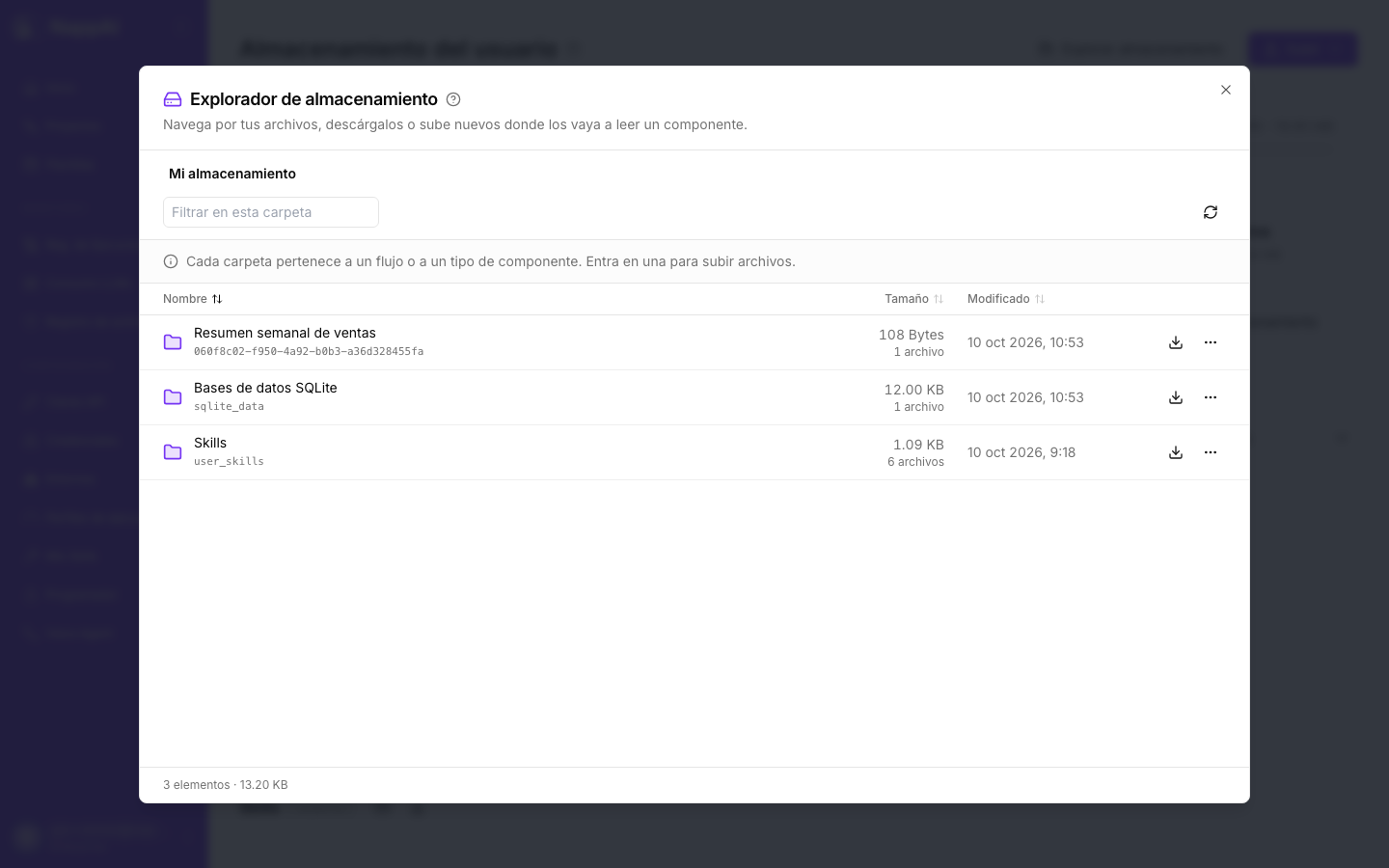
- The path at the top shows where you are. Click any part of it to go back there. At the root, flow folders appear with the flow’s name and sections with their name (SQLite databases, FAISS indexes…), and below, in grey, the actual folder name.
- Filter this folder searches by name inside the open folder.
- Click the Name, Size and Modified headers to sort.
- Click a folder to go into it. If you click a file, it opens when it can be viewed in the browser and, if not, it downloads.
The buttons in the toolbar change depending on the folder: New folder, Download folder, Upload or the section’s own wizard, for example Upload database in SQLite. They only appear where the action makes sense for the component that uses the folder.
Download a file or a folder
There are three ways to do it:
- In the explorer, with the download icon on each row.
- On the page, with the ⋮ menu on each card and the Download option.
- With the download icon next to the name of each section, which downloads the whole section.
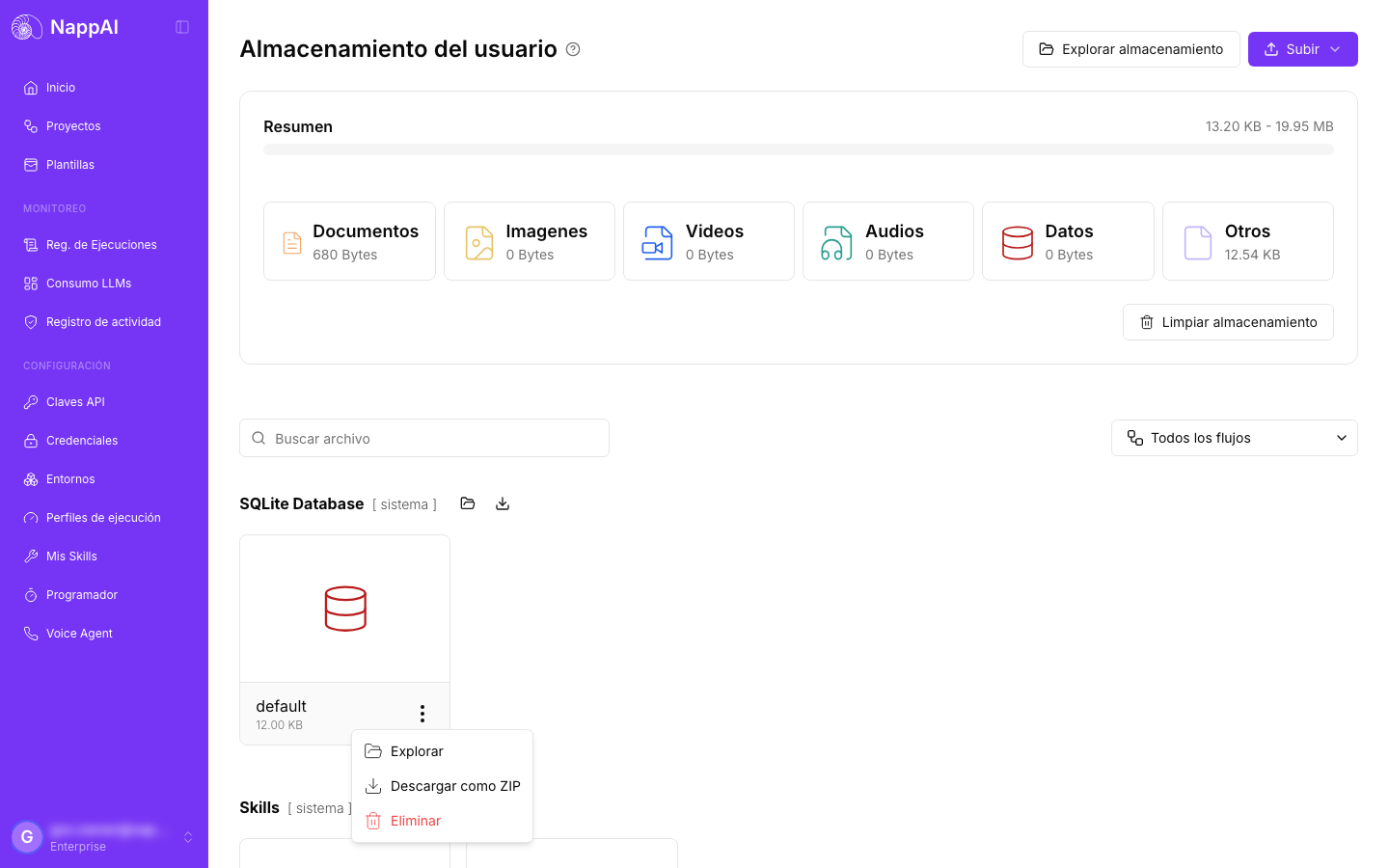
A file is downloaded as is. A folder is downloaded as a .zip with all its content, including subfolders. Even a large folder starts downloading right away.
Your browser handles the download, with its own progress bar. Each download link is personal and only works for a few minutes.
Open a file without downloading it
Images, PDFs and text files (.txt, .csv, .json, .md, .py, .sql…) can be opened in a new tab with Open. Very large text files are downloaded instead of opened, so they do not freeze the browser.
How to use it in a component
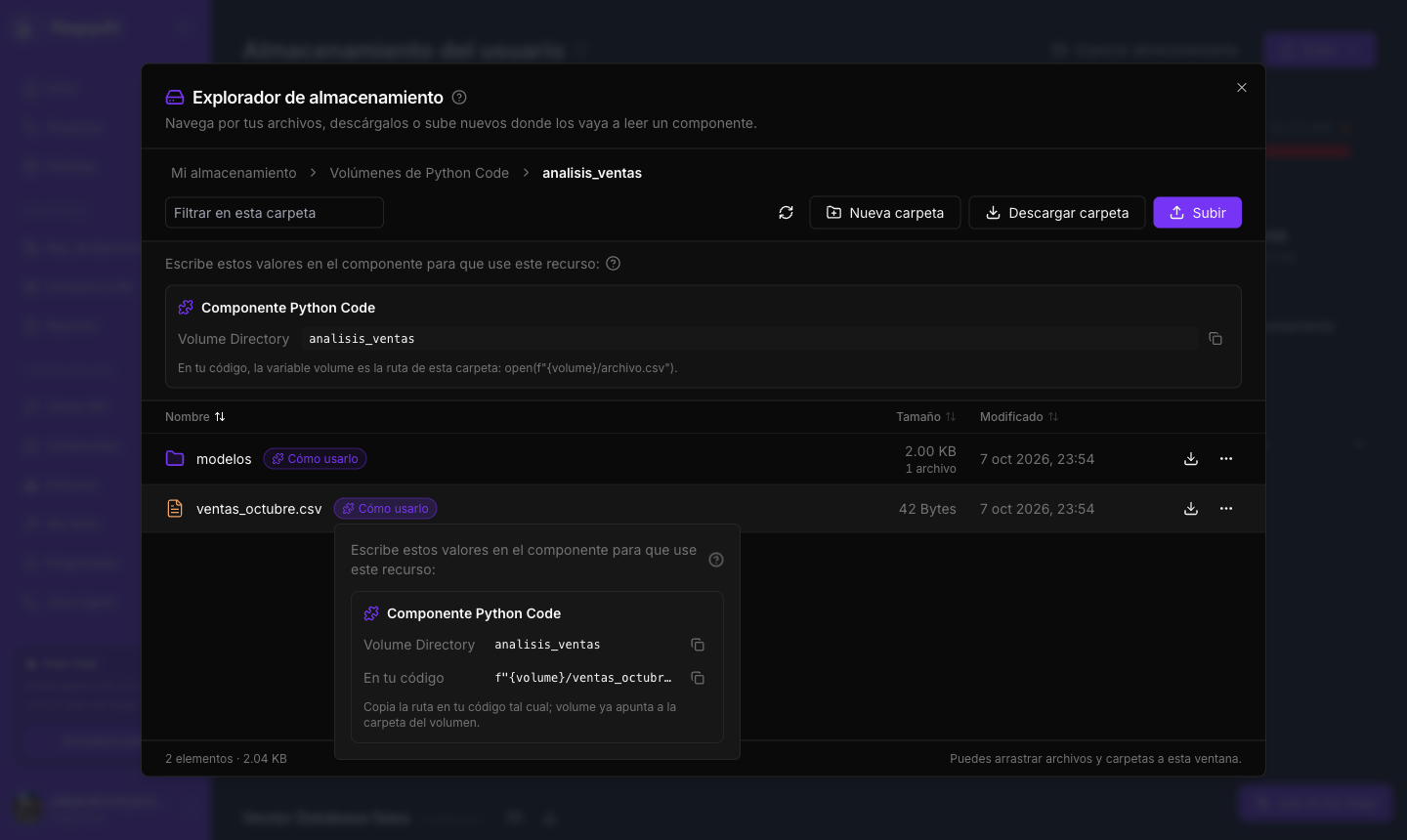
Next to each file or folder a component reads, you will see the How to use label. Click it to see which component uses it and what to type in each of its fields, with a button to copy each value.
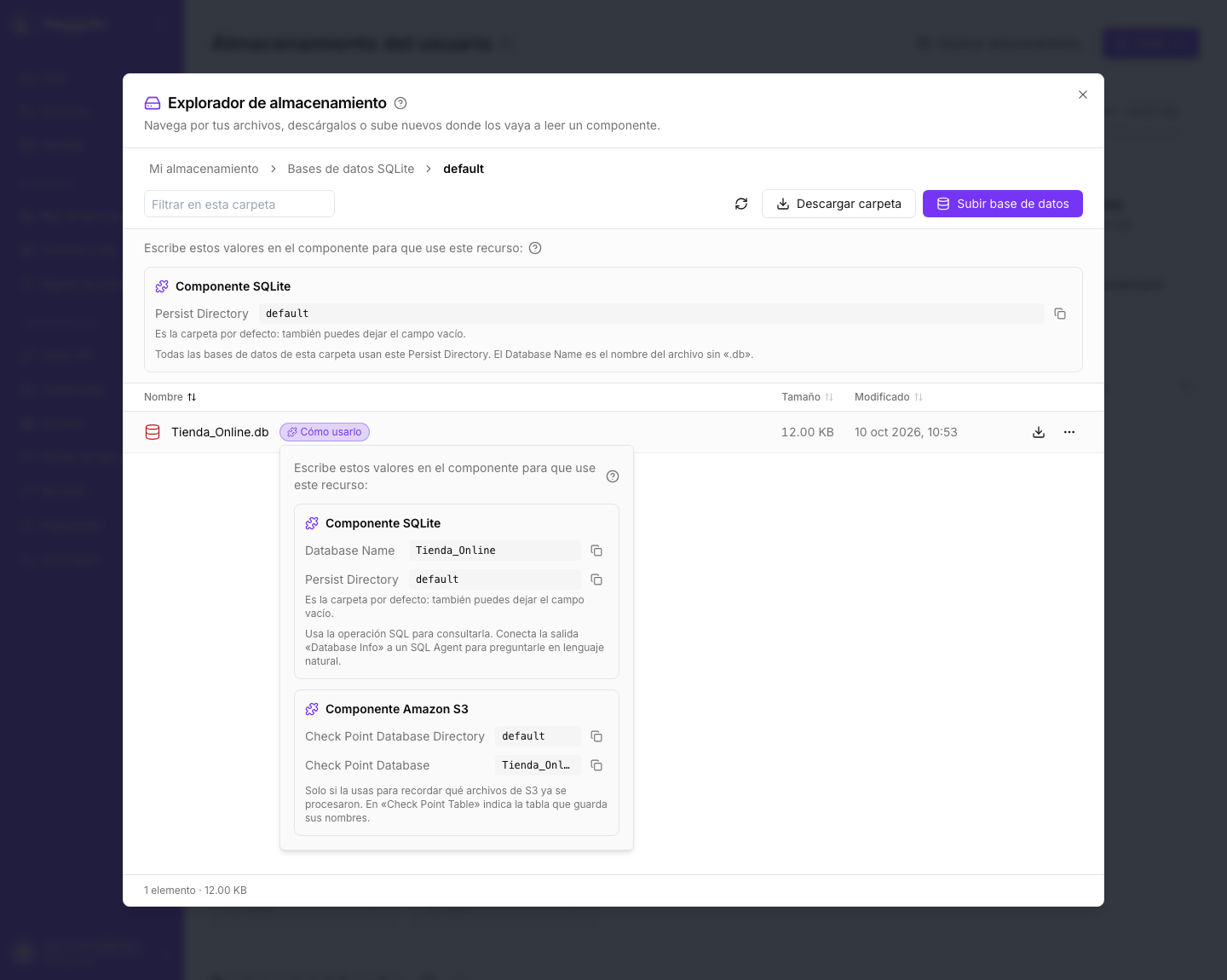
When you open a folder that is a resource, for example a Python Code volume or a folder of SQLite databases, the explorer shows its values at the top:
| Resource | What it tells you |
|---|---|
| SQLite database | Database Name and Persist Directory for the SQLite component, and the two control fields of the Amazon S3 component |
| Chroma database | Collection Name, one for each collection in the database, and Persist Directory |
| FAISS index | Index Name and Persist Directory |
| Python Code volume | Volume Directory and, for each file, the path to type in the code, for example f"{volume}/data/sales.csv" |
| Trained model | The Model Name to choose in the component |
| Skill | The value of the Skill field in Stored Skill |
| File of a flow | The value of the component’s file field (File, Image File, CSV to Data List or Video and Audio Loader), in the format <flow-id>/<file>, which works from any of your flows |
When a value is the one the component uses by default, such as the default folder in SQLite, a note below says so: in that case you can leave the field empty.
Create folders, rename and delete
- New folder creates a Python Code volume, a folder of SQLite databases or a folder of FAISS indexes, depending on where you are. The folder name is the value you will later type in the component.
- Rename is in the ⋯ menu on each row. A SQLite database always keeps the
.dbextension, which is what the component opens. The files of a FAISS index cannot be renamed separately (that would break the pair), but their folder can. - Delete asks for confirmation and cannot be undone.
Folders managed by a component that does not allow manual changes show a notice with the reason. A Chroma database, for example, is always replaced as a whole: upload its full ZIP.