

Upload resources
Each component looks for its files in a specific place and with a specific name. That is why, instead of a single upload button, there is a wizard for each type of resource: it asks for what the component needs, checks the file before saving it and, when it finishes, tells you what to type in each field.
The Upload menu
Click Upload in the header of the storage page and choose what you are going to upload.
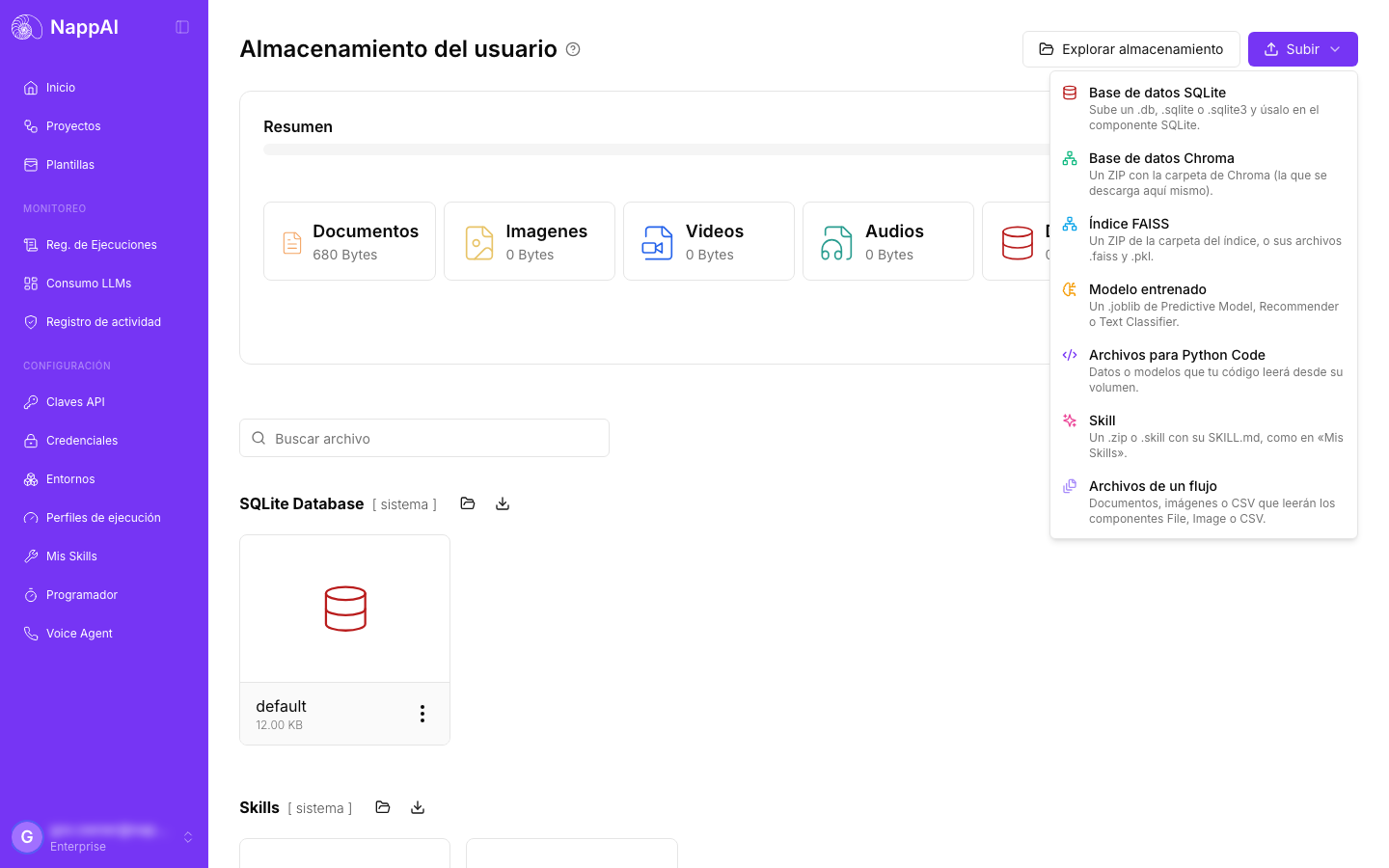
All the wizards work the same way:
- Drag the file onto the dotted area or click to choose it. If the type is not the one the component expects, you will see it before anything is uploaded.
- Say where it goes: the folder, the name or the flow. The wizard suggests a valid name based on the file. For example,
Tienda Online.sqlite3becomesTienda_Online, because component fields do not accept spaces. - If something with that name already exists, you will see a notice and will have to tick that you want to replace it. Nothing is ever overwritten without asking.
- Click Upload. When it finishes you will see what was saved and the values for the component, with buttons to copy them.
Large files are sent in parts and retried automatically if the connection drops for a moment. The limit is 5 GB per file.
SQLite database
To use a database you already have on your computer in the SQLite component.
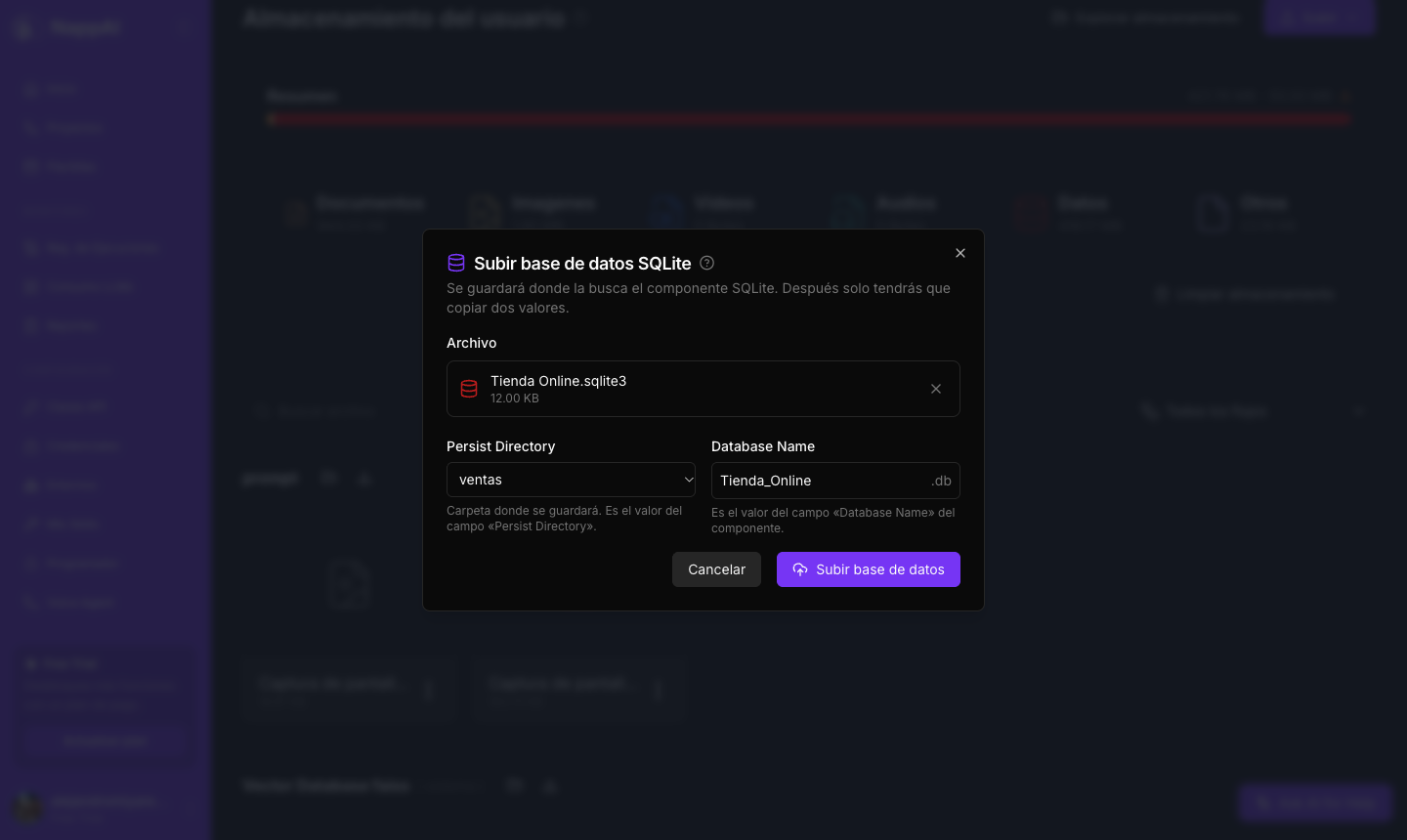
- File:
.db,.sqliteor.sqlite3. Before uploading it, it is checked that it really is a SQLite database. - Persist Directory: the folder where it is stored. Choose an existing one or create a new one with + New folder….
defaultis the one the component uses when the field is empty. - Database Name: the name the component will open it with. It is always saved as
<name>.db, even if the original file was.sqlite.
When it finishes, NappAI opens the database to check it is not damaged and shows you its tables with their number of rows:
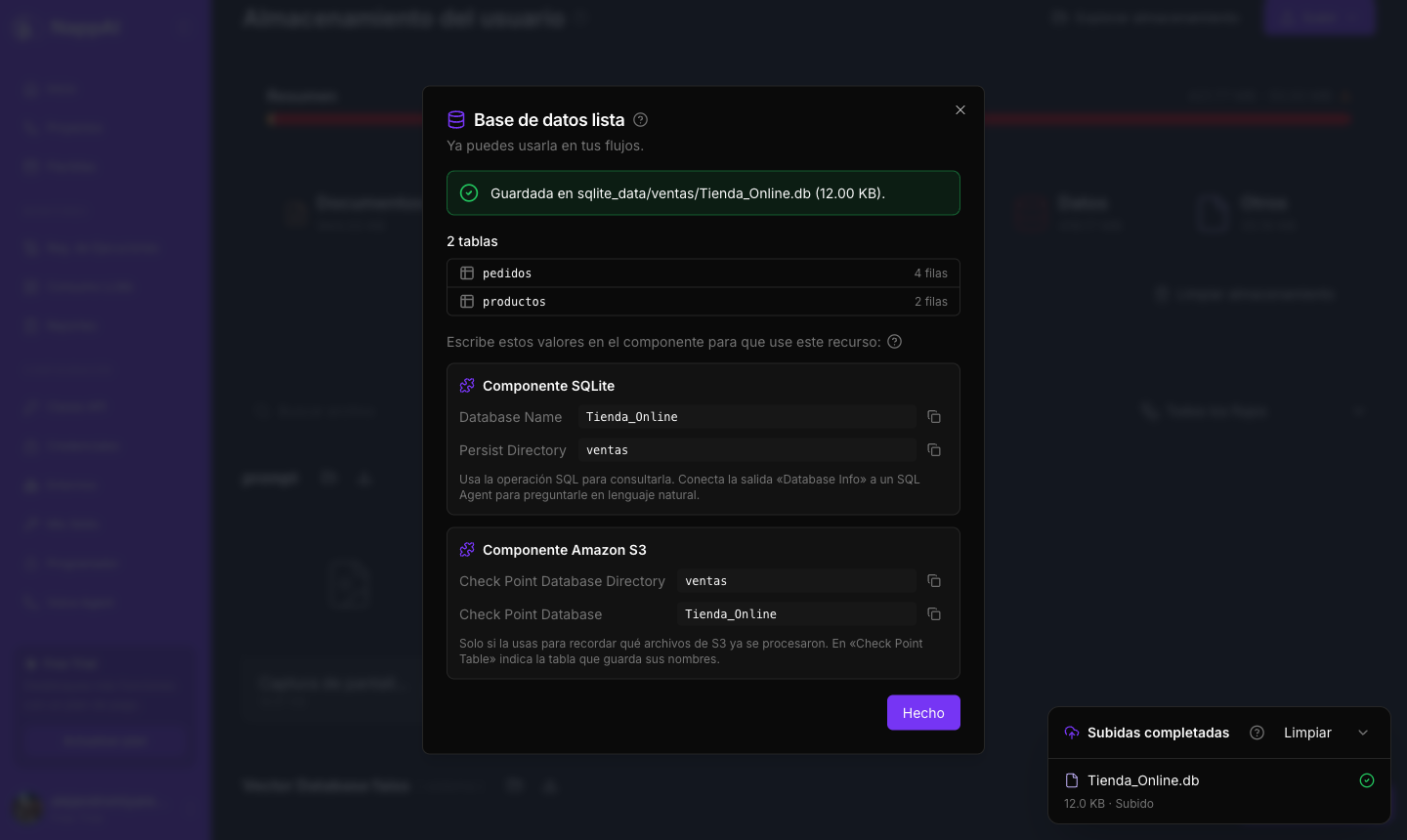
In the SQLite component, type those two values and use the SQL operation to query it. If you connect its Database Info output to a SQL Agent, you can ask it questions in plain language.
Chroma database
To use an existing vector database in Chroma DB: one you downloaded from another NappAI installation or one you created on your computer.
- File: a
.zipwith the whole database folder. The ZIP you get when downloading a Chroma DB folder works as is. - Persist Directory: the folder name. If you choose an existing one, its content is replaced by the ZIP’s.
Before saving it, NappAI checks that the database can be opened and reads its collections. If it is not a valid database, nothing is touched. When it finishes you will see a Collection Name for each collection.
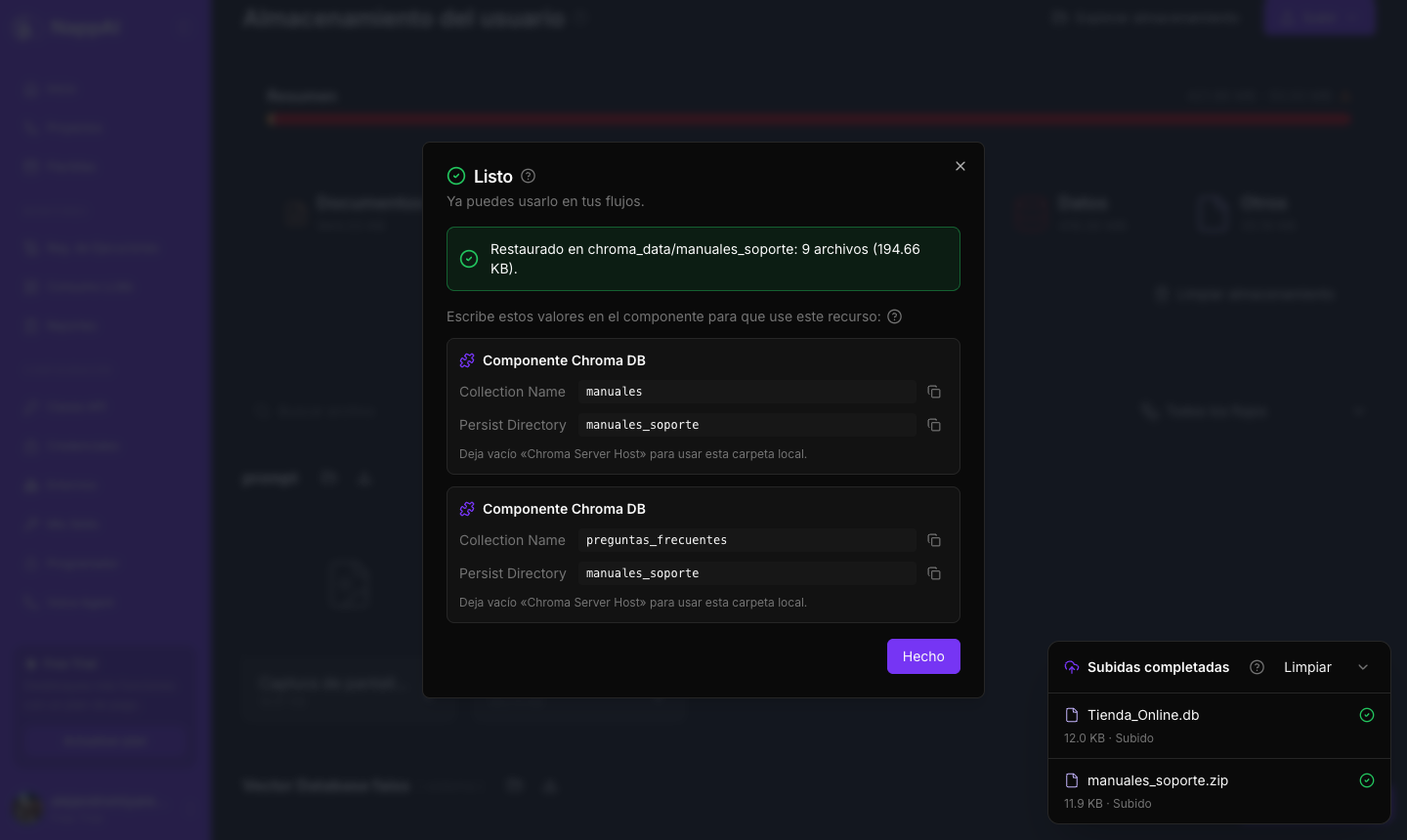
In the component, leave Chroma Server Host empty so it uses the local folder.
FAISS index
To use an existing index in the FAISS component.
- File: the
.zipof the index folder (the one from the download), or its two files, the.faissand the.pklwith the same name. - Persist Directory: the index folder.
When it finishes you will see the Index Name: it is the name of those files without the extension.
Connect to the component the same embedding model the index was built with: that way searches find what you are looking for.
Trained model
To use a .joblib model trained in NappAI with Predictive Model, Recommender or Text Classifier, for example one downloaded from another NappAI installation.
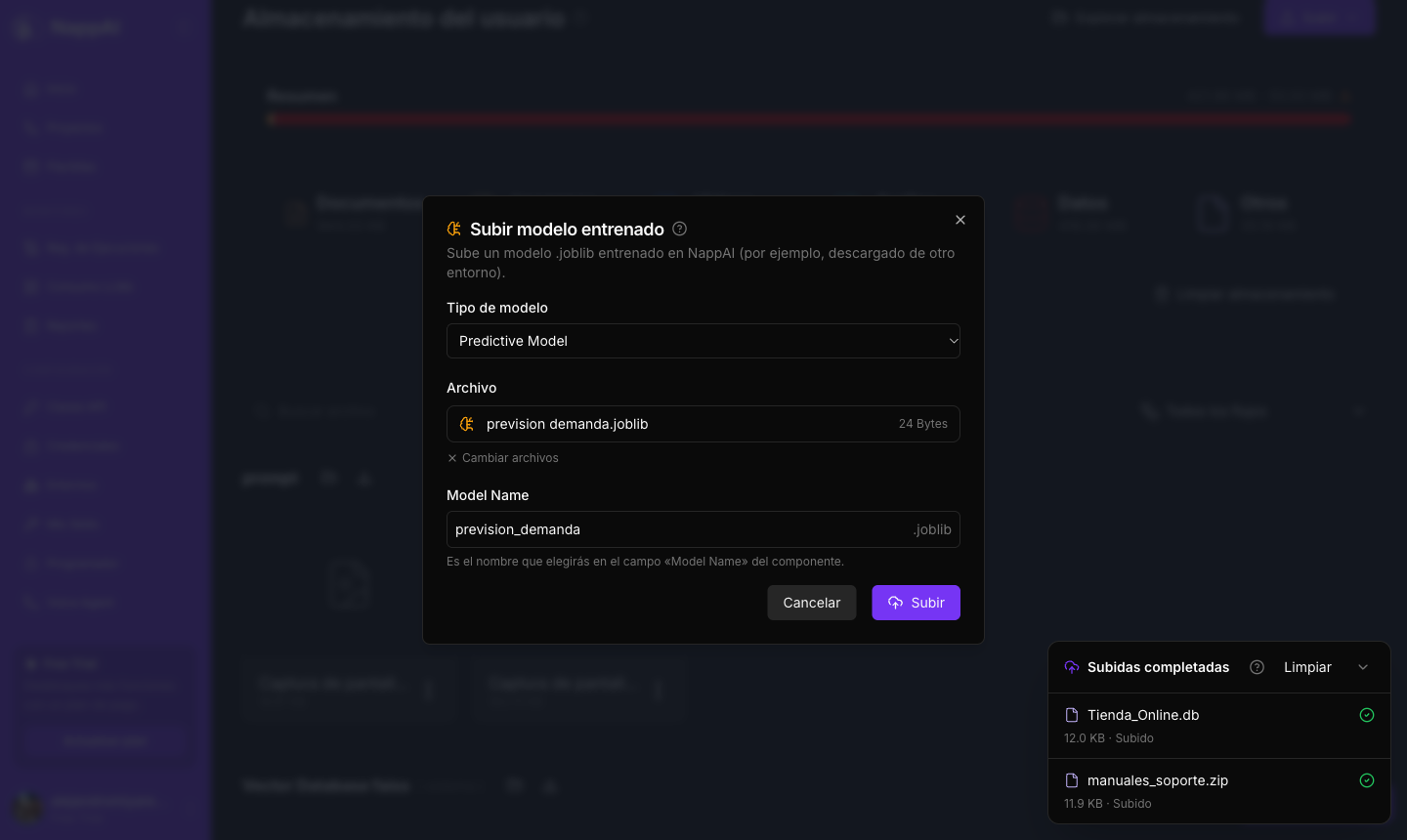
- Model type: the component that will use it.
- Model Name: the name you will choose in the component’s Model Name field, with the predict or evaluate operations. It only accepts letters, digits,
.,-and_.
Models saved by these same components work.
Files for Python Code
So that your code in the Python Code component can read data, models or any other file.
- Volume Directory: the volume. Choose an existing one or create a new one.
- File: any file, or several at once.
- If you upload a
.zip, you can tick Unpack as a whole volume to restore an entire volume, for example one you downloaded. If you do not tick it, the ZIP is stored as is inside the volume.
In the component, type the Volume Directory. Inside the code, the volume variable is the path to that folder:
with open(f"{volume}/sales_october.csv") as file: sales = file.read()How to use gives you the exact path of each file to copy into the code. Whatever your code writes to volume is also saved and will be there in the next run.
Skill
To import a skill and use it in Stored Skill.
- File: a
.zipor.skillwith itsSKILL.md.
It is imported exactly as from My Skills, with the same checks, and the skill’s name comes from its SKILL.md. It then appears in the Skill field of Stored Skill. To edit it, go to My Skills.
Files for a flow
For the documents, images, CSV or audio files read by components such as File, Image File, CSV to Data List or Video and Audio Loader.
- Flow: the flow whose folder they are stored in.
- File: one or more, of any type.
How to use gives you the value for the component’s file field in the format <flow-id>/<file>, which works from any of your flows, not just that one.
Files
The Files section (the files folder) is your own file space: you keep whatever you want in it, in the folders you want, and your flows use it with the NappAI Storage components. It does not belong to any particular flow or component.
- From the explorer: open it and upload files or folders with the Upload button or by dragging them. You can also create folders, rename and delete.
- From a flow: Storage Files lists, reads, saves, moves, copies, deletes and creates download links for files; Storage Folders does the same with folders, and Storage Search finds files by name, type, date or size.
In those components, a path that names no section, such as reports/q3.pdf, is inside Files (files/reports/q3.pdf). Full paths into other sections, such as pycode_data/sales/data.csv or <flow-id>/notes.txt, also work.
A flow can read your whole storage, but it can only change Files, each flow’s file folders and the Python Code volumes. Vector databases, SQLite databases, trained models and skills are read-only to a flow: it can copy them, but not change or delete them.
Upload from the explorer
In the explorer you can also upload straight to the open folder, with the Upload button or by dragging files and whole folders onto the window. Each section only accepts what its component can read, and the explorer warns you if you drag something that does not belong there. In the Chroma, FAISS and Python Code sections there is also a button to upload a full ZIP.
The uploads panel
Uploads are shown in a panel in the bottom right corner, which stays available even if you close the explorer or the wizard.
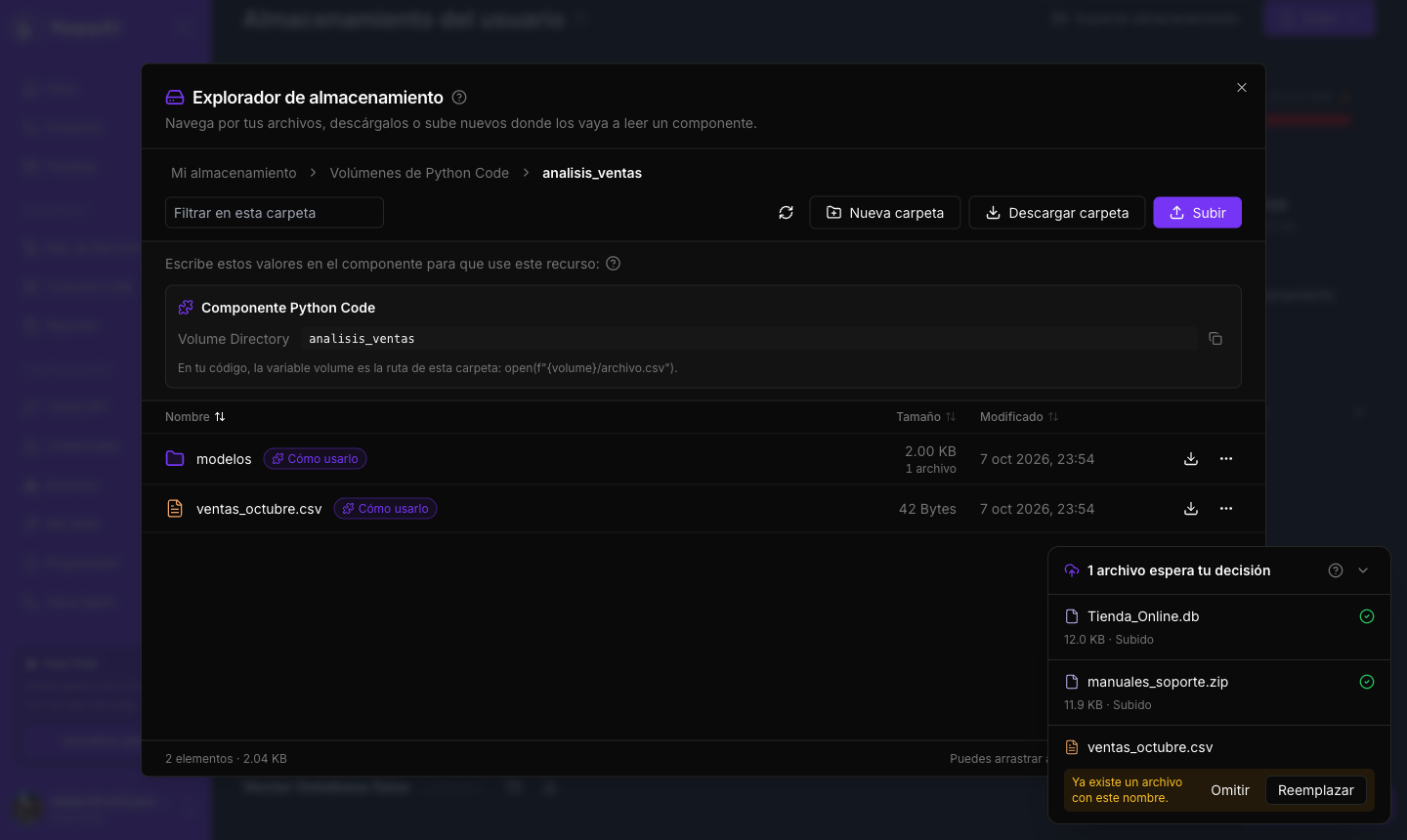
- Each file shows its progress, speed and status: queued, uploading, verifying or uploaded.
- The X cancels an upload in progress.
- If a file with the same name already exists, the upload waits for you to choose Replace or Skip.
- If an upload fails, the reason appears below it and you can retry it with the circular arrow.
- Clear removes finished uploads from the list.
If something fails
| Message | What to do |
|---|---|
| The file is not a SQLite database. | It has the extension, but its content is not SQLite. Check that it is the right file. |
| The database is damaged and cannot be opened. | Export it again from its source. |
| The ZIP does not hold a valid Chroma database | Compress the whole database folder, or use the ZIP you get from the download. |
| No complete FAISS index | The .faiss or the .pkl is missing, they do not have the same name, or there are other files in the ZIP. |
| The ZIP tries to write outside its folder | The ZIP contains dangerous paths and is rejected as a whole. Create it again. |
| It already exists with that name. | Tick the replace option or choose another name. |
| This file type cannot be uploaded to this folder. | Each section only accepts what its component reads. Use the matching Upload wizard. |
| The server does not have enough free space. | Contact NappAI support. |