

Spending limits
A spending limit is a cap on what is spent in a day or in a month: with a credential, with the whole account or with one flow (its spending budget). NappAI warns you as you get close and, if you choose so, stops the runs when the cap is reached.
It helps, for example, so that:
- A flow that keeps repeating out of control, or a schedule that runs every minute, doesn’t spend without end with a customer’s key.
- An agent caught in a loop of model calls is cut off halfway through the run.
- Each flow that works for a customer has its own budget, whichever credential it uses.
You set a credential’s limit and the account-wide limit in Usage, By credential view, or from Credentials. A flow’s budget, from the menu of its card in the project list. See A flow’s budget.
In the video we set a daily token limit on a credential, with the option to stop. Then we launch runs until the 50, 80 and 100 % notifications arrive and the next test shows the limit message, raise the limit so it works again, set the account-wide limit and a flow’s budget (which stops the runs through the API, but not the tests) and look at the Credentials button and the Channels tab of Alerts.
What you decide in a limit
Every limit comes down to four choices. These tables help you make them.
What it applies to: a credential, the whole account or a flow
| A credential’s limit | Account-wide limit | A flow’s budget | |
|---|---|---|---|
| What counts | Only what is spent with that credential, in any flow, test or call. | What is spent with all your saved credentials, added up. | What that flow’s production runs spend, whichever credential pays. Tests don’t count. |
| How many | One per credential. | One per account. | One per flow. |
| Measured in | Money or the credential’s unit. | Always money. | Money or a unit: tokens, characters, minutes or requests. |
| When it stops | The components that use that credential stop, in tests too. | The components that use any saved credential of the account stop. | That flow’s production runs stop. Tests keep working. |
| Where you set it | Usage → By credential, or Credentials. | Usage → By credential. | The menu of the flow’s card. |
You can combine them: each applies on top of the others, and whichever is reached first takes effect.
Only credentials that spend accept a limit: language models, embeddings and voice, plus any credential that has spent in the last 90 days or already has a limit. Credentials such as Gmail, Calendar or a database measure no usage, so the Spending limit button doesn’t appear on them.
Choose by what you want to protect:
- A provider’s or a customer’s key: a credential’s limit. It cuts everything that uses it.
- Your total spending: the account-wide limit.
- One flow, for example one that works for a customer or that runs on its own from a schedule or a webhook: its budget. It cuts only that flow, and only in production, so you can keep testing it in the editor.
What it is measured in: money or units
| Measured in | Compared with | When it suits you |
|---|---|---|
| Money | The estimated cost, in the currency you choose (USD or EUR). | When you think in budgets: “this customer can’t spend more than 20 € a month”. |
| tokens, characters, minutes or requests | What was used, in the service’s unit. | When you want a cap that doesn’t depend on prices, or when the service has no price in NappAI. |
Keep in mind:
- In money, only usage that has a price counts. Usage shown without a price adds nothing, so it doesn’t bring you closer to the limit. See Usage without a price.
- The cost is an estimate based on the prices in Usage. What counts is always the provider’s invoice.
- If the credential already has usage, the window only offers Money and the units it measures in. A language model credential, for example, offers Money and tokens.
For how long: daily or monthly
- Daily: counts what was spent today. It goes back to zero when the next day starts.
- Monthly: counts what was spent since the 1st of the month. It goes back to zero when the next month starts.
Days and months are counted in UTC. What has already been spent in the period counts from the moment you set the limit.
What happens when it is reached: notify or stop
| When the limit is reached | What happens |
|---|---|
| Just notify | You get the 100 % notification and runs keep working. |
| Stop the runs that use it | You get the notification and the components that use the credential stop calling the provider until you raise or remove the limit, or the next period starts. |
Set a limit
- In the sidebar, under Activity, click Usage. The By credential view opens.
- Open the limit window:
- For a credential, click its row in the table and, in the details, click Set limit.
- For the whole account, click Set limit next to Account-wide limit, above the filters.
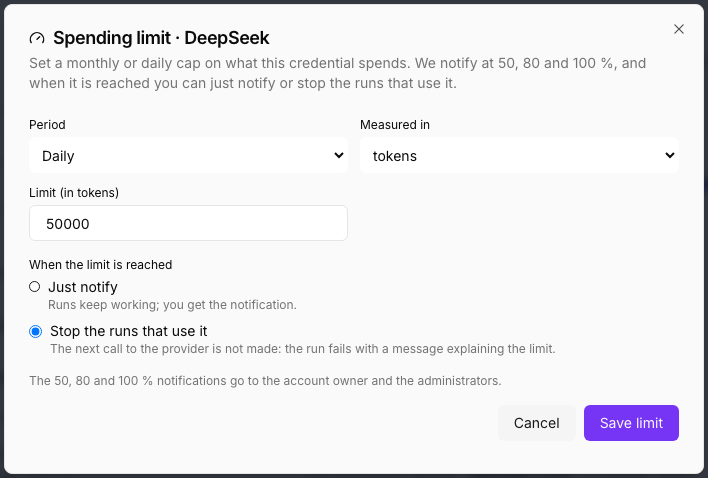
- Choose the Period: Monthly or Daily.
- Choose what it is Measured in. With Money, also choose the Currency.
- Type the Limit.
- Under When the limit is reached, choose Just notify or Stop the runs that use it.
- Click Save limit.
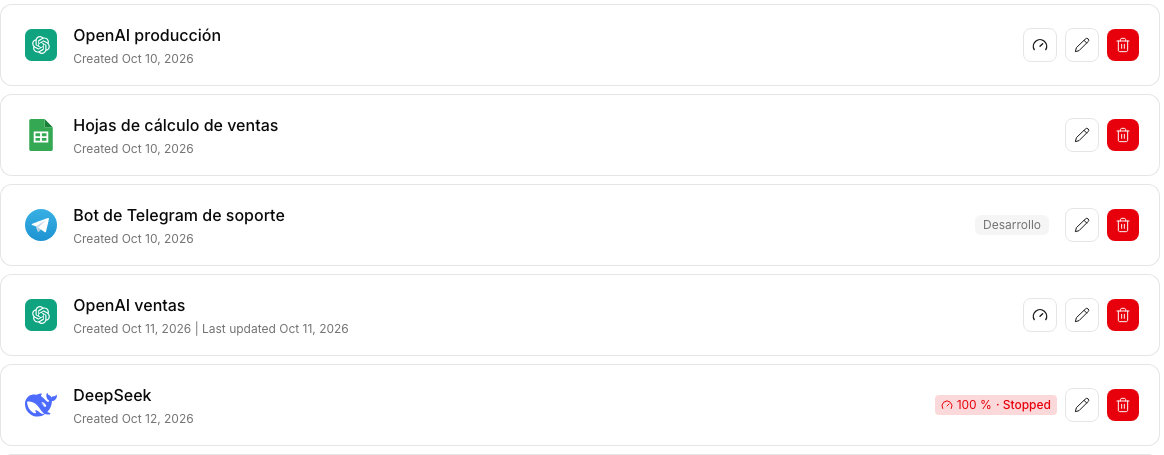
You can also open the window from Credentials: credentials for services charged by usage, such as a language model or a voice, have a Spending limit button on their row, with a gauge icon. If it already has a limit, the percentage spent shows in its place.
See how spending is going
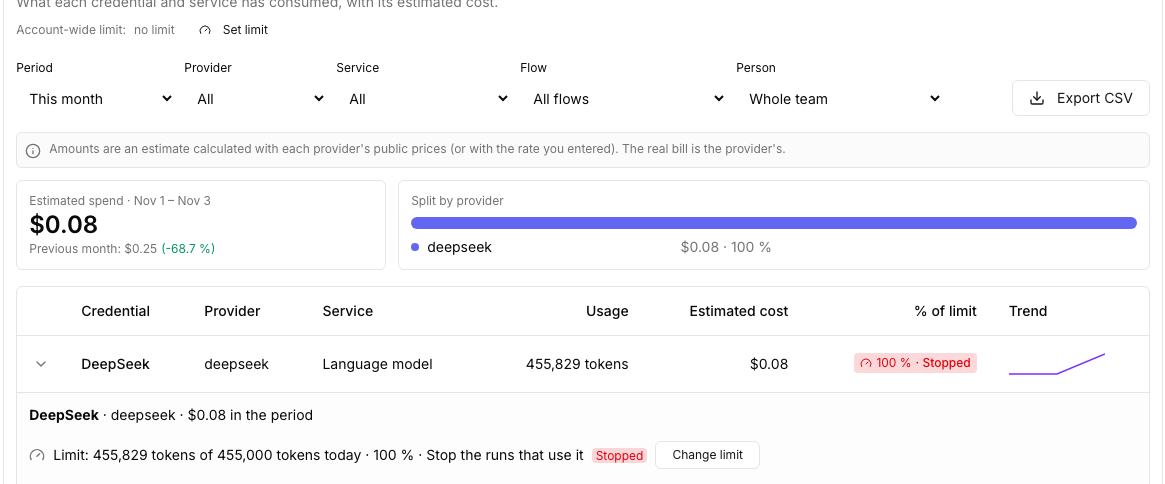
In the By credential table, the % of limit column shows a tag with what has been spent in the period:
- Grey: below 80 %.
- Orange: from 80 %.
- Red, with the word Stopped: the limit has reached 100 % and is stopping runs.
Hover over the tag to see the figures. In the credential’s details you see the same information next to the Change limit button. The account-wide limit shows above the filters, next to Account-wide limit, and the flows’ budgets below it, on the Flow budgets line.
Amounts and figures are written in your language, and those under a cent keep their decimals: €0.0009, not €0.00.
The notifications
When spending reaches 50 %, 80 % and 100 % of the limit or the budget, NappAI sends a notification to the bell of the account owner and the administrators. It arrives as soon as the usage that crosses the threshold is recorded.
| Threshold | What the notification says |
|---|---|
| 50 % | What was spent, the limit and the percentage. There is still room. |
| 80 % | The same, and that at this pace the limit will be reached soon. |
| 100 % with Just notify | That the limit has been reached and runs keep working. |
| 100 % with Stop | That the limit has been reached and the runs using the credential are paused until you raise or remove the limit. For a budget, that the flow’s runs are paused. |
The notification’s title says which limit it is about: Spending limit: DeepSeek, Account-wide spending limit or Flow budget: Reply to reviews. Notifications are written in the reader’s language.
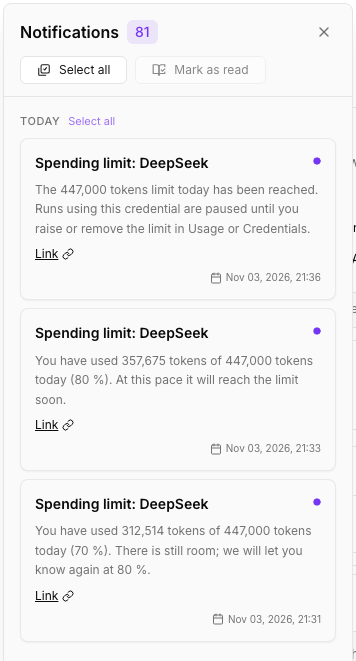
Each notification arrives only once per period. If a single usage crosses several thresholds at once, only the highest one is notified. When you change the limit, the notifications can arrive again; if the new limit is already below what has been spent, the notification arrives right then.
Get the notifications by email or in another application
Notifications always reach the bell. To also get them by email or in another application by webhook, turn it on in Alerts, Channels tab. It applies to every limit of the account, flow budgets included. In the webhook, a budget’s notification carries the flow in flowId and flowName. Through those channels, the notification goes out in the next Alerts check, which runs every 5 minutes.
What you see when a limit stops a run
With Stop the runs that use it, at 100 %:
- The next run stops before calling the provider. The component that uses the credential fails as it starts. The call is never made, so nothing more is spent.
- A long run stops halfway. If an agent is making several model calls in a row, it stops before the next one. The call already in progress finishes, so what was spent can go slightly over the limit.
- With the account-wide limit, any component that uses a saved credential of the account stops.
Where you see it:
- In the Playground, the limit message arrives instead of the reply, also when the stopped component is in the middle of the flow.
- In the editor, the component is marked in red. Hover over its warning to read the message.
- In the Execution log, the run shows as failed, with the message on the component.
- If the run comes through the API, the response is an error with the message.
In every case you see only the limit message, with no technical trace.
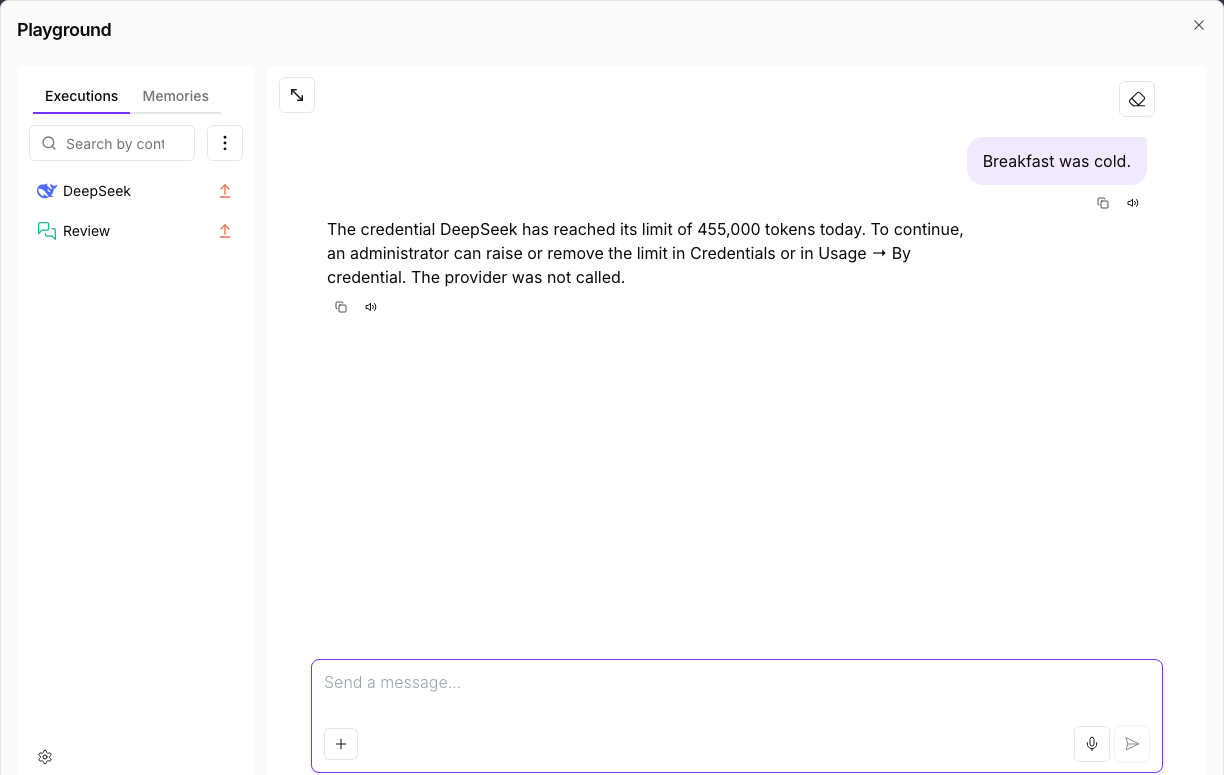
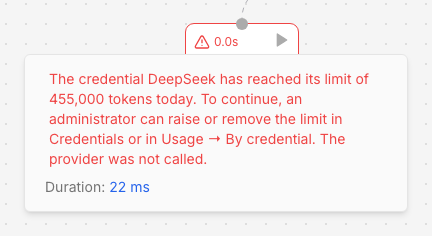
The message says which credential reached its limit and how to go on. It is written in the account’s language: the one its owner chose in their profile. For example:
The credential DeepSeek has reached its limit of 8,900 tokens today. To continue, an administrator can raise or remove the limit in Credentials or in Usage → By credential. No further calls were made to the provider.
With the account-wide limit:
The account has reached its general limit of US$50 this month, so the credential DeepSeek is not used until an administrator raises or removes the limit (Usage → By credential). No further calls were made to the provider.
What the person running the flow sees when a budget stops it is in A flow’s budget.
Unblock the runs
There are three ways:
- Raise the limit: open the window with Change limit, type a higher figure and click Save limit.
- Switch the action to Just notify: runs work again and you keep getting the notifications.
- Remove the limit: open the window, click Remove limit and confirm.
The change applies at once: the next run already works, without restarting anything. If you do nothing, the limit resets on its own when the next day or month starts.
A flow’s budget
A flow’s spending budget is a cap on what its production runs spend in a day or in a month, whichever credential pays. It helps when what you want to control is a flow, not a key: a flow that works for a customer, one that runs on its own from a schedule or one that other applications launch by webhook.
What counts and what it stops
- It counts and stops only production runs: those that come through the API, a schedule, a webhook or any other way of running the published flow.
- Tests neither count nor get stopped: what you run in the Playground or in the draft, and what the assistant runs while it builds the flow. You can keep testing a flow whose budget is used up.
- It counts what the flow spends with any credential. If it uses two models, it adds up both.
Set the budget
- In Projects, find the flow’s card and open its menu with the three dots.
- Click Spending budget.
- Choose the Period, Monthly or Daily, and what it is Measured in: Money (with its Currency) or a unit, such as tokens.
- Type the Limit.
- Under When the limit is reached, choose Just notify or Stop this flow’s runs.
- Click Save limit.
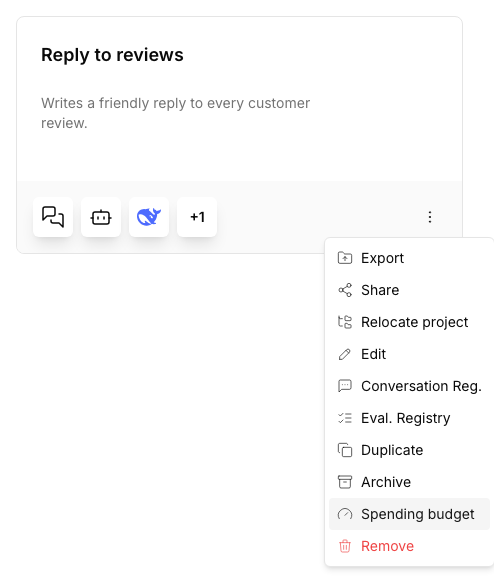
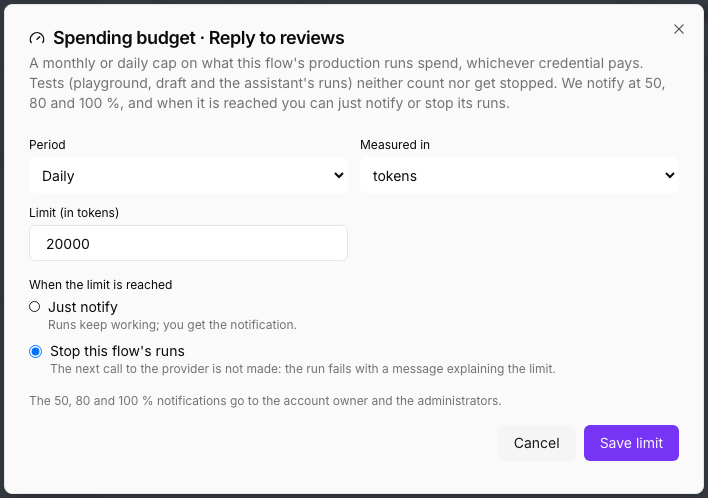
Only the account owner and the Admin role see the option in the menu.
See and change it in Usage
In Usage, By credential view, the Flow budgets line, below the account-wide limit, shows each budget with what was spent, the limit and the percentage. If it is stopping runs, it carries the red Stopped tag. Click a budget to open its window and change or remove it.
The line only appears when some flow has a budget: a new budget is set from the flow’s card.

When the budget stops a run
With Stop this flow’s runs, when what was spent in production reaches 100 %:
- The next production run stops as it starts, before calling any provider. If it is reached in the middle of a run, the run stops before the next call.
- The API response is an error with the budget message.
- In the Execution log, the run shows as failed, with only that message.
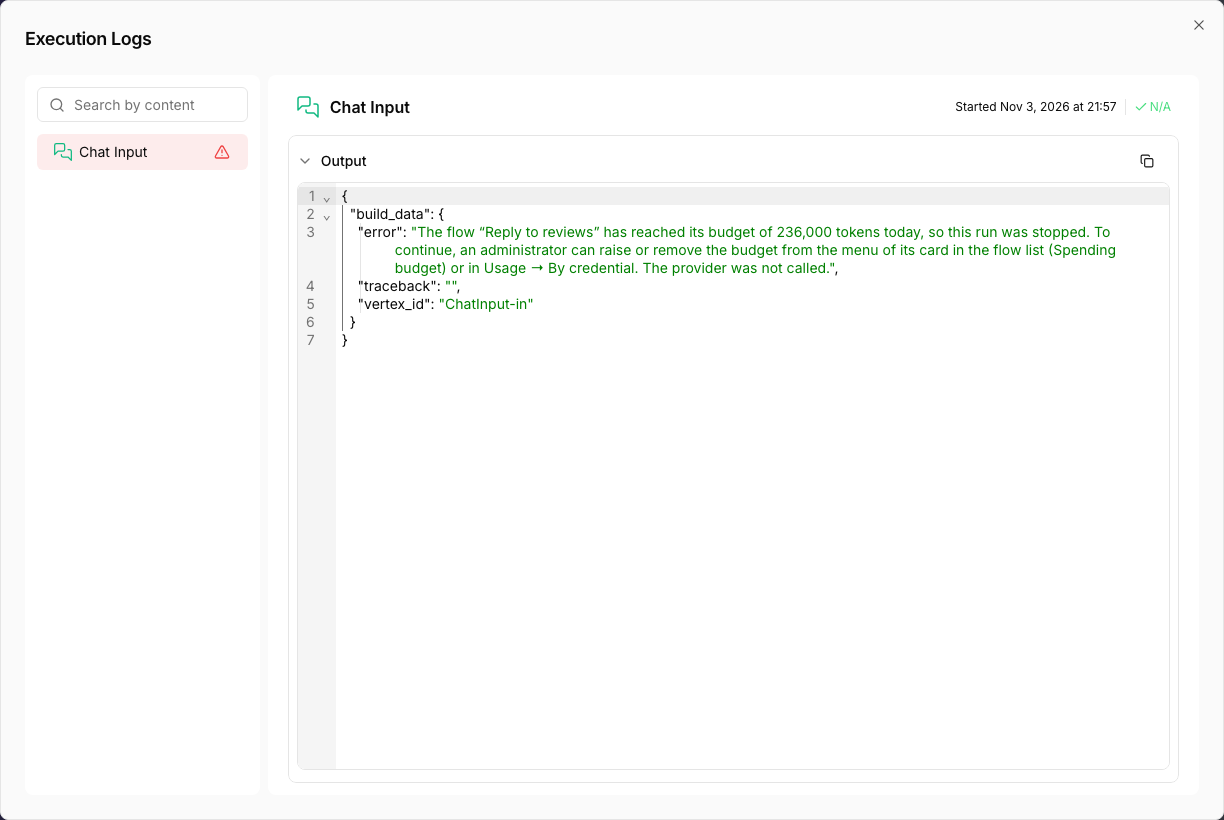
The message, in the account’s language:
The flow “Reply to reviews” has reached its budget of 236,000 tokens today, so this run was stopped. To continue, an administrator can raise or remove the budget from the menu of its card in the flow list (Spending budget) or in Usage → By credential. No further calls were made to the provider.
Meanwhile, a test of the same flow in the Playground replies as usual:
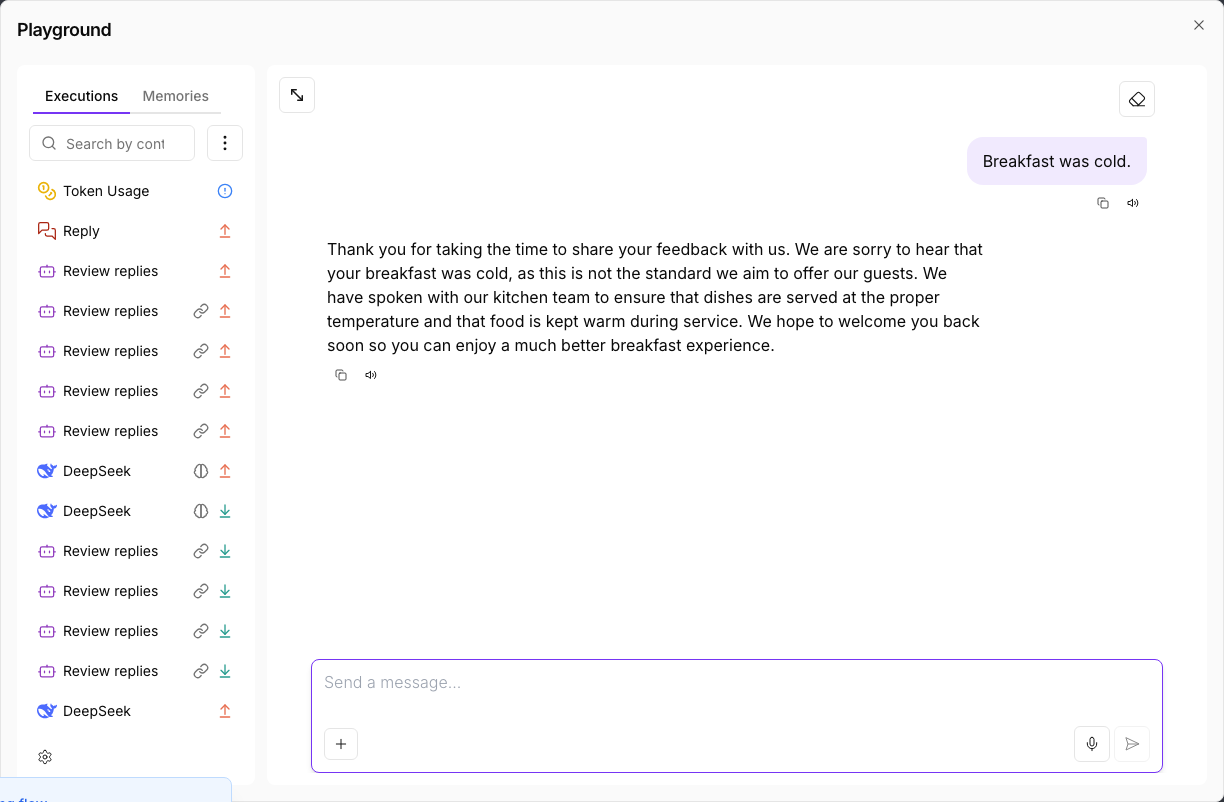
To let the runs go again, raise or remove the budget, or switch the action to Just notify, from the flow’s card or from Usage. The change applies at once.
Spending limits and Alerts rules
In Alerts you can also create Estimated spend or Token usage rules. They look alike, but don’t do the same thing:
| Spending limit | Alerts rule | |
|---|---|---|
| What it watches | A credential, the whole account or a flow. | The whole account or a project. |
| Notifies | At 50 %, 80 % and 100 %. | At 80 % and 100 %. |
| Can stop runs | Yes, if you choose so. | No, it only warns. |
| How many | One per credential, one account-wide and one per flow. | As many as you want. |
Use a limit when spending must not go over a figure. Use a rule when you only want to know, for example about the spending of a particular project.
What a limit doesn’t cover
- Keys typed by hand in a component and the platform key. They aren’t a saved credential, so they can’t have a limit and don’t add up to the account-wide limit. To control that spending, save the key as a credential and choose it in the component.
- A voice call already in progress. Its spending counts and the notification arrives, but the limit doesn’t hang up on the caller. The next call doesn’t start: it closes as it connects and shows as an error in the Execution log, with the limit’s message. A flow’s budget doesn’t stop test calls in the Playground.
- What has already been spent. A limit doesn’t undo earlier spending: it only prevents the next.
Who can see and change limits
| What | Who |
|---|---|
| See the limits and what has been spent | The account owner and the Admin and Builder roles. |
| Set, change or remove a limit or a budget | The owner and the Admin role. |
| Get the notifications | The owner and the administrators. |
A Builder sees the limit with See limit, but can’t change it. See Roles and permissions.
Frequently asked questions
My runs fail with a message about a limit. What do I do?
A credential the flow uses, or the whole account, has reached a limit set to Stop the runs that use it. An owner or an administrator can raise or remove it in Usage, By credential view, or in Credentials. Runs work again at once. See Unblock the runs.
If the message talks about the flow’s budget, raise or remove it from the menu of the flow’s card, Spending budget option, or on the Flow budgets line in Usage.
The flow stops through the API but works in the Playground. Why?
Because it has a used-up spending budget. The budget only counts and stops production runs; tests neither count nor get stopped.
I set a limit in money and it doesn’t move. Why?
Most likely that credential’s usage has no price. Check whether Usage shows a notice about usage without a price and give it one, or measure the limit in the service’s unit, for example in tokens. See Usage without a price.
Why did spending go slightly over the limit?
Because the limit is checked before each call to the provider. The call already in progress when the limit was reached finishes and is counted. From then on, no more go out.
Can I set a limit on one flow?
Yes: it is its spending budget. You set it from the menu of the flow’s card, and it counts what its production runs spend, whichever credential pays. To only keep an eye on a project’s spending without stopping it, you can also create an Estimated spend rule in Alerts.