

Main Navigation Panel
The main navigation bar on the left is your command center for managing all aspects of your NappAI account that go beyond building individual flows. Here, you can monitor, manage, and automate at a higher level.
Below is a detailed breakdown of each key section:
Folder Actions
Organizing your projects into folders is essential for keeping your workspace tidy. To manage a folder, click on the three-dot icon appearing to its right to display the options menu.
- Edit Folder: Allows you to change the folder’s name.
- Delete Folder: Removes the folder and all its content. This action is irreversible, so use it with caution. You cannot delete a folder if it contains projects.
Project Actions
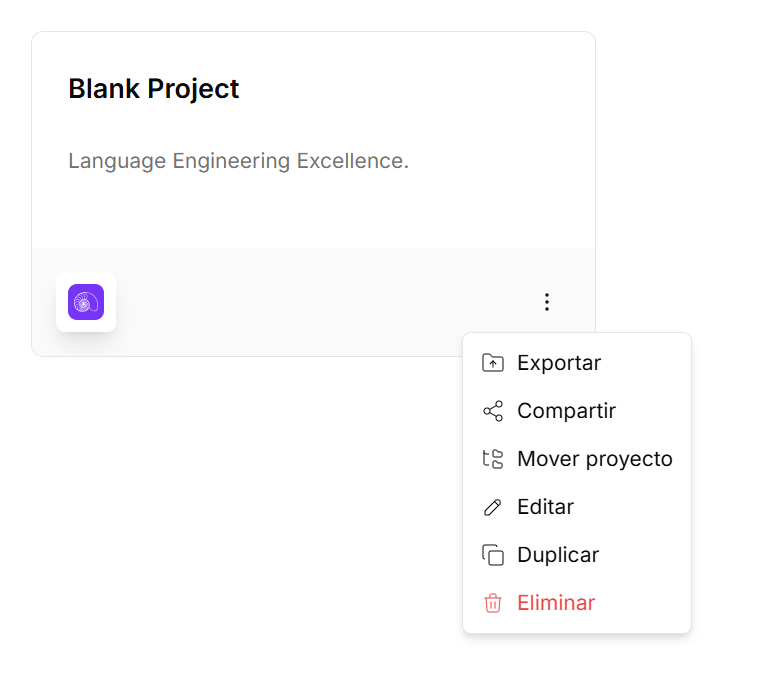
Each project on your dashboard has a quick options menu, accessible via the three-dot icon in the bottom right corner of its card.
-
Export: Saves your project’s complete structure into a
.jsonfile on your computer. It is ideal for creating backups or sharing your work. -
Share: Allows you to generate a link to share your project with other NappAI users, facilitating team collaboration.
-
Move Project: Opens a window that lets you select an existing folder to move the project into, helping you keep your flows organized.
-
Edit: Opens a form where you can change the name and description of your project.
-
Duplicate: Creates an exact copy of your project in the same location, with the suffix “-copy” in the name. It is perfect for experimenting with changes without altering the original.
-
Delete: Permanently deletes the project. This action cannot be undone.
Consumption LLM
This section is your control panel for monitoring the token usage of Large Language Models (LLMs) across your entire account.
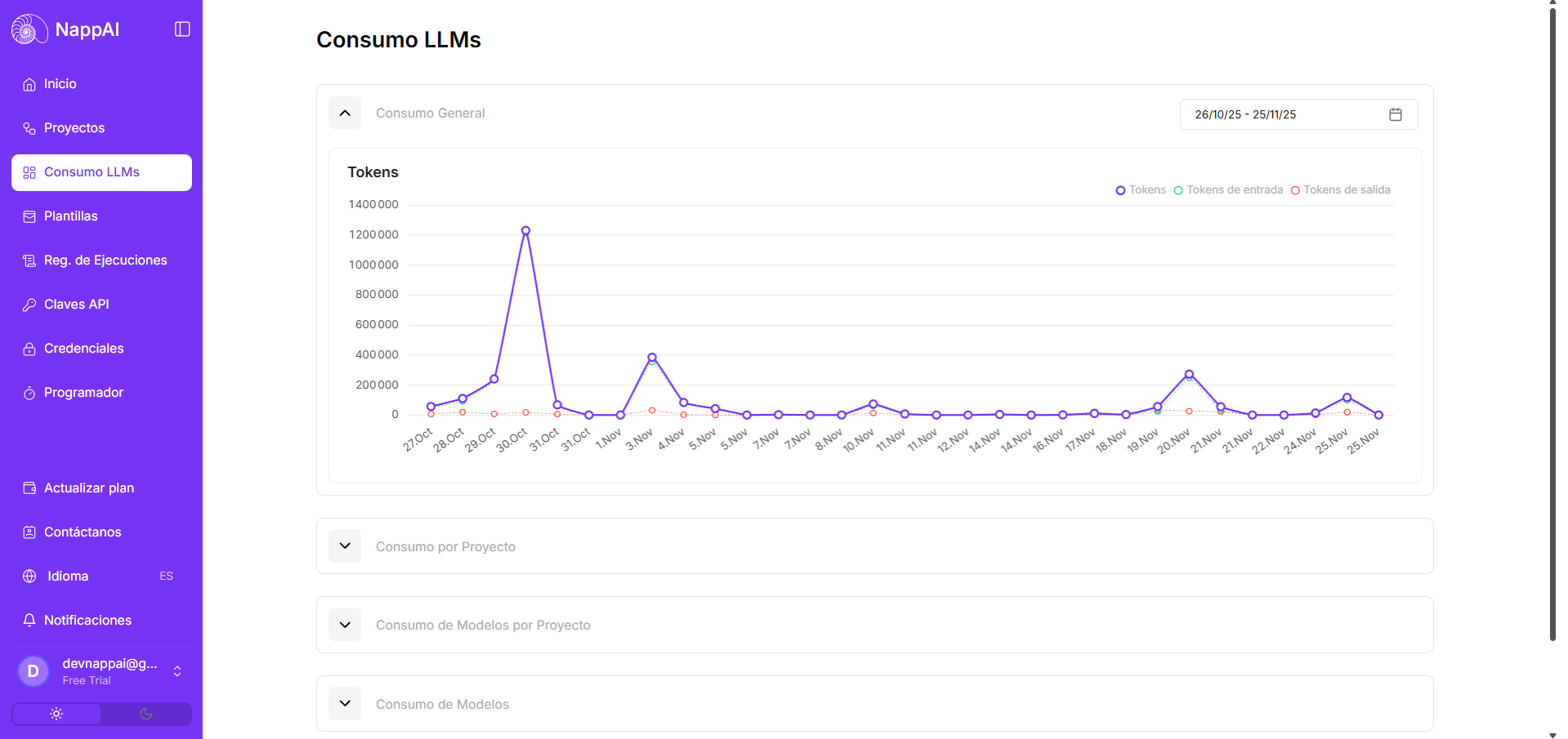
- General Consumption: Offers a graphical view of the total token consumption (input and output) over time, allowing you to identify usage peaks.
- Consumption by Project: Allows you to break down token usage for each individual project, helping you understand which flows consume the most resources.
Execution Logs
This is the centralized history of all flow executions in your account. It is a vital tool for high-level auditing and debugging.
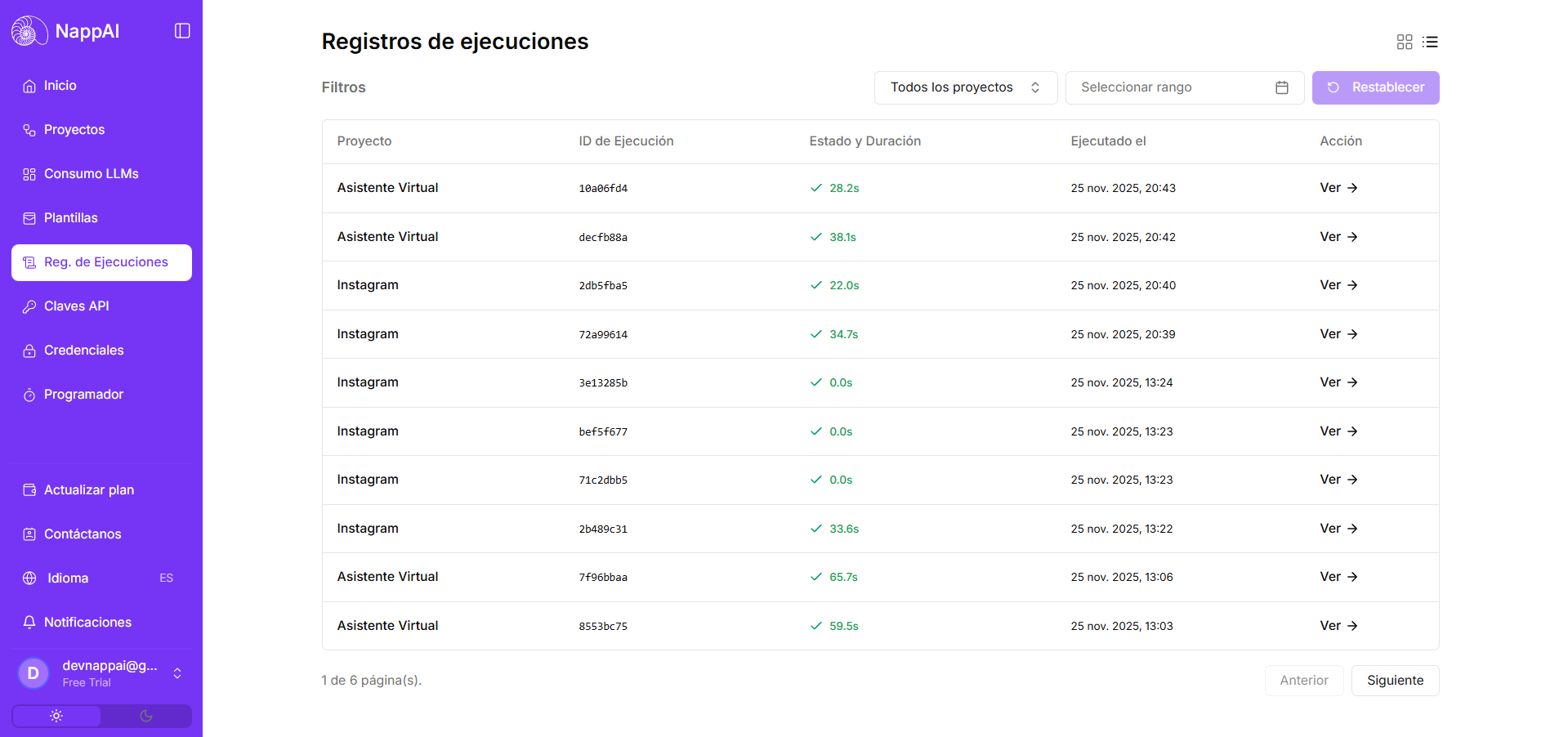
- Historical View: Displays a chronological list of every time a flow has run, indicating its status, duration, and which project it belongs to.
- Filtering and Search: You can filter executions by date ranges (last 7 days, 30 days, etc.) and search by project to quickly find the information you need.
API Keys
This section allows you to generate and manage API keys for NappAI. These keys are not for connecting to external services (that’s what Credentials are for), but to allow external applications to connect to NappAI.
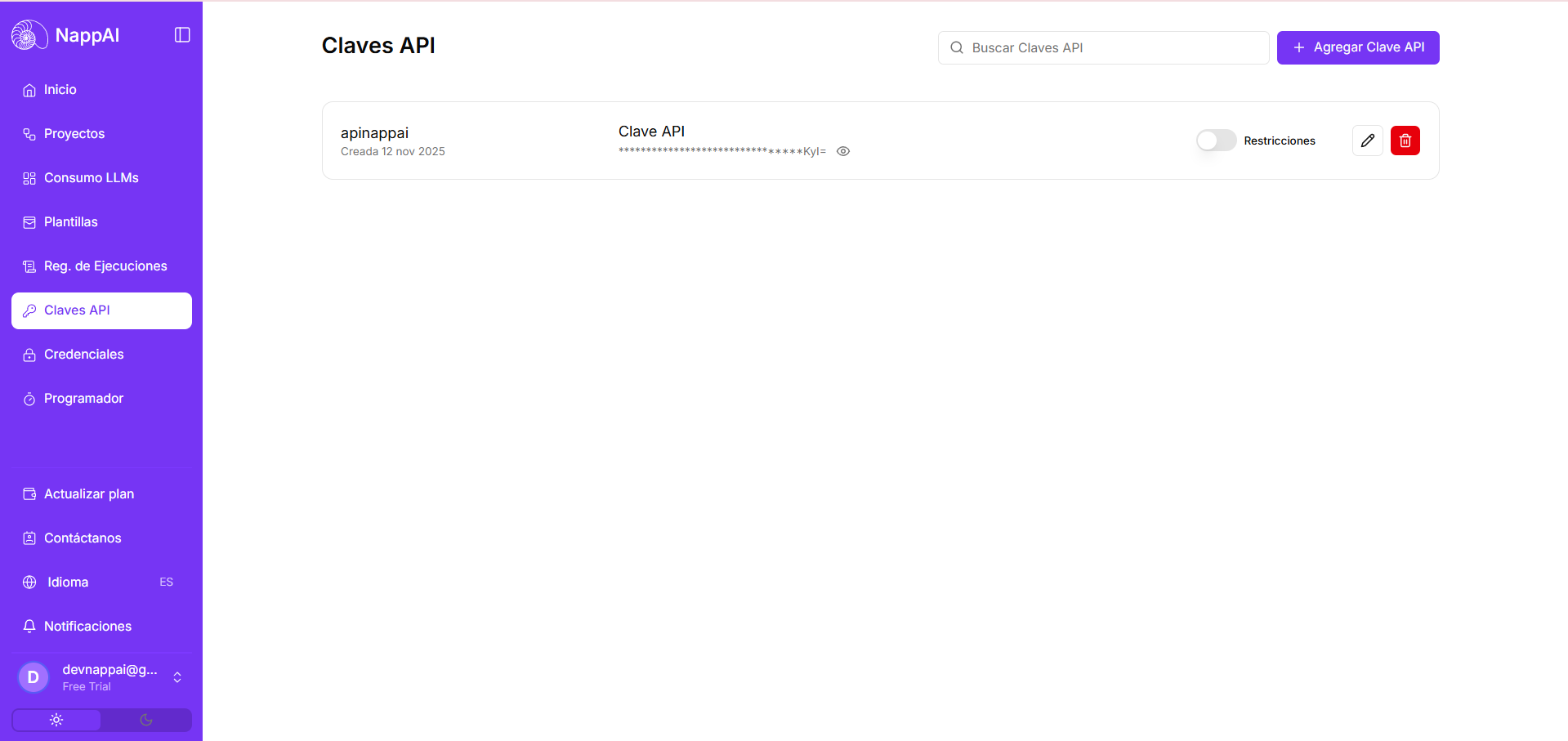
With an API Key, you can, for example, trigger the execution of a NappAI flow from your own website or application, integrating the power of your automations anywhere. An API Key allows any system possessing it to execute your flows. To prevent unauthorized use, even if the key is accidentally exposed, NappAI allows you to add security restrictions.
When creating or editing an API Key, you can configure:
-
Allowed Domains: Specify a list of domains from which calls can be made. If you try to call the API from a browser on a domain not listed, the request will be blocked. This is ideal for flows consumed from a web application or a specific site.
-
Allowed IPs: Define a list of IP addresses from which calls will be accepted. Any request originating from an IP not on the list will be rejected. This is the best option for server-to-server integrations, where the source IP is known and fixed.
Scheduler
The Scheduler is the tool that allows you to run workflows automatically at specific times, without the need for a manual trigger.
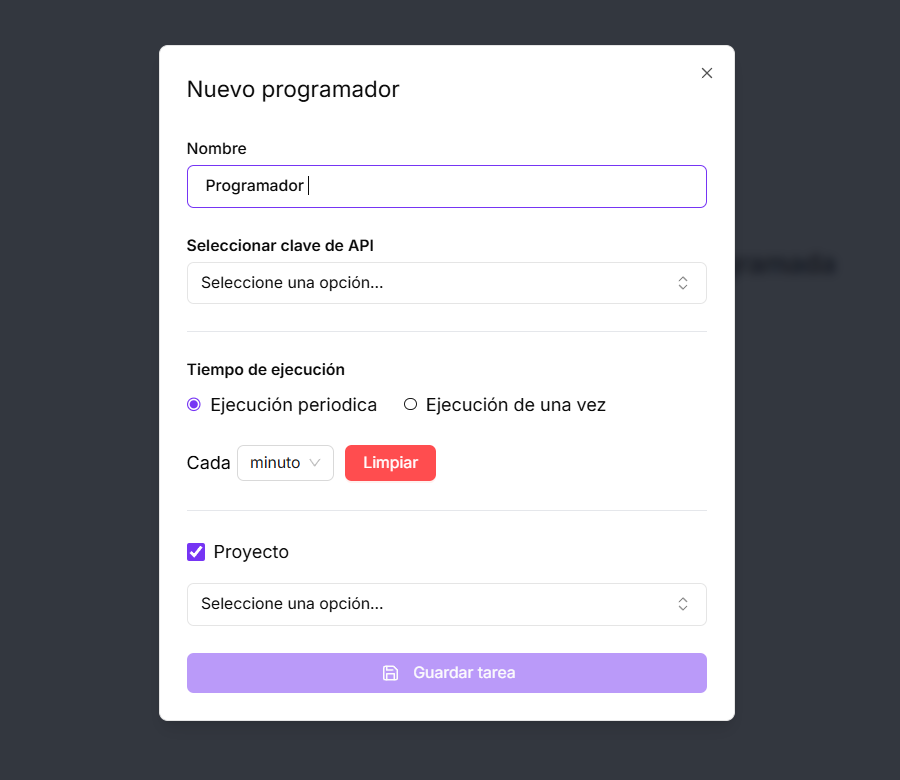
- Periodic Execution: You can configure a flow to run every X minutes, hours, days, etc. (for example, “check for new emails every 15 minutes”).
- One-Time Execution: You can schedule a flow to run once at a specific future date and time (for example, “send a report next Monday at 9:00 AM”).