

Import and Export Projects
The import and export system allows you to save the complete structure of a project into a .json file. This is incredibly useful for creating backups, sharing your work with other users, or migrating projects between different environments.
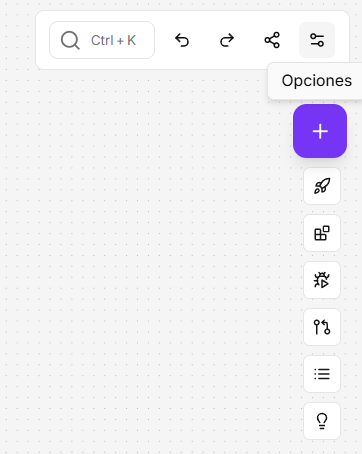
All these actions are now centralized in the Options menu in the upper right corner of the canvas.
Export a Project
Exporting a project converts it into a .json file that you can save on your computer.
- Open the project you wish to export.
- Click on the Options menu (the three dots or gear icon) in the upper right corner.
- In the dropdown menu, select the Export option.
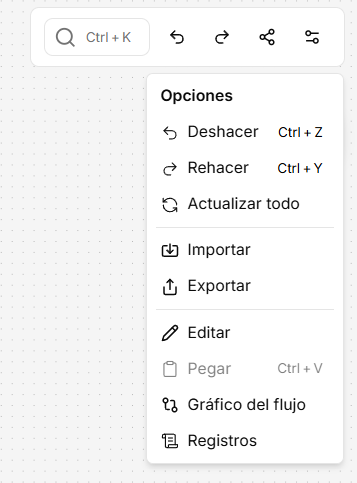
- Your browser will automatically download the
.jsonfile representing your project.
Import a Project
Importing a project allows you to create a flow from a .json file. There are two ways to do this, depending on where you are.
Method 1: From the Canvas of an Existing Project
Use this method to add the components of a .json file to a project you are already working on.
- Open the project to which you want to add the components.
- Click on the Options menu in the upper right corner.
- Select the Import option.
- A window will open for you to select the
.jsonfile from your computer. - The components and connections from the file will be added to your current canvas, allowing you to integrate them with your existing work.
Method 2: From the Main Projects Screen
Use this method when you want to create an entirely new project from a .json file.
- From your main dashboard, navigate to the “My Projects” section.
- In the upper right corner of the screen, click the Import button.
- Select the
.jsonfile from your computer. - NappAI will create a new project with the entire flow from the imported file, ready for you to start working on it.